Configuring Power BI in User Owns Data mode
In User Owns Data mode, each user signs in with their Microsoft account. They therefore get the same rights and access in Orkestra as in the Power BI application. For how it works on the user side, see the Dashboards page.
This procedure describes how to:
- register the Orkestra application with Azure to grant it Power BI permissions;
- configure Orkestra with the configuration created in Azure.
In User Owns Data mode, each user must have a Power BI Pro or Premium Per User (PPU) license. A free license is enough if the reports are hosted on a Fabric F64 or higher capacity (or a Premium P capacity).
This procedure is intended for an administrator with rights on Microsoft Entra ID, access to the server on which Orkestra is installed and, to grant consent, organization administrator rights.
1. Register the application in Azure
-
Sign in to the Azure portal (
portal.azure.com) and go to Microsoft Entra ID management.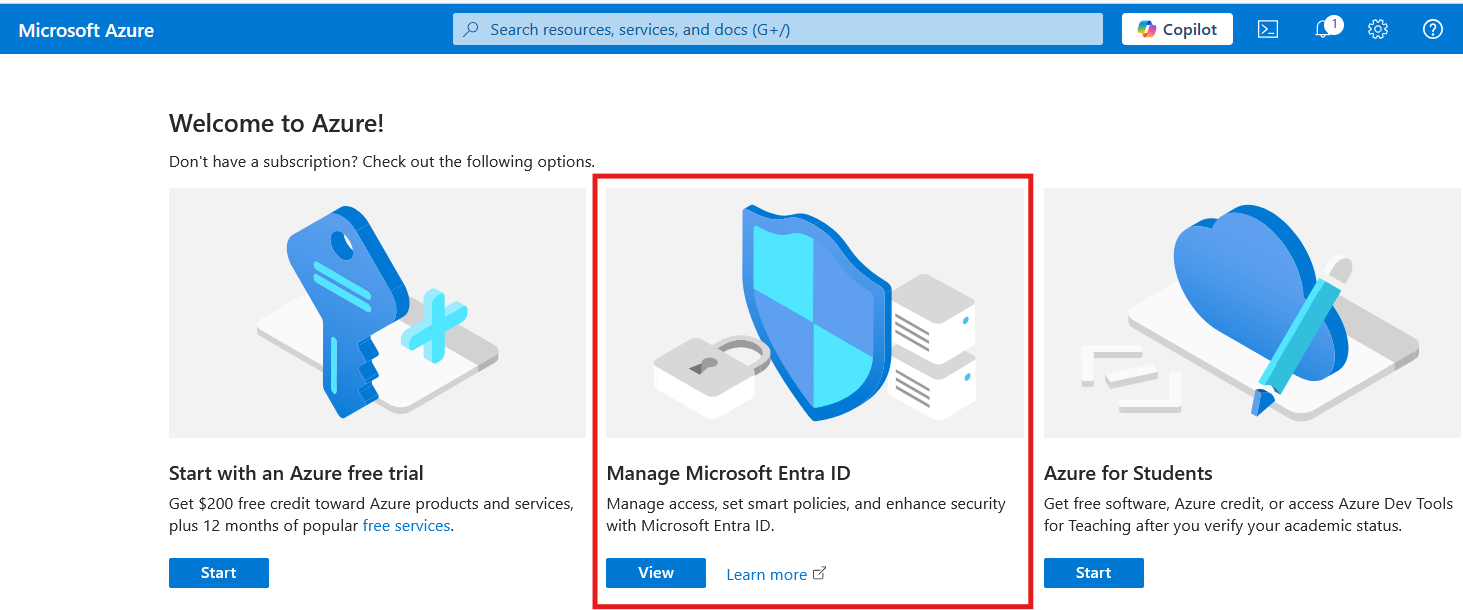
-
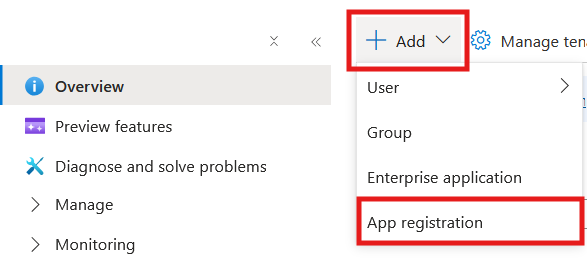
On the Overview page, click Add, then App registration.
 Application already registered
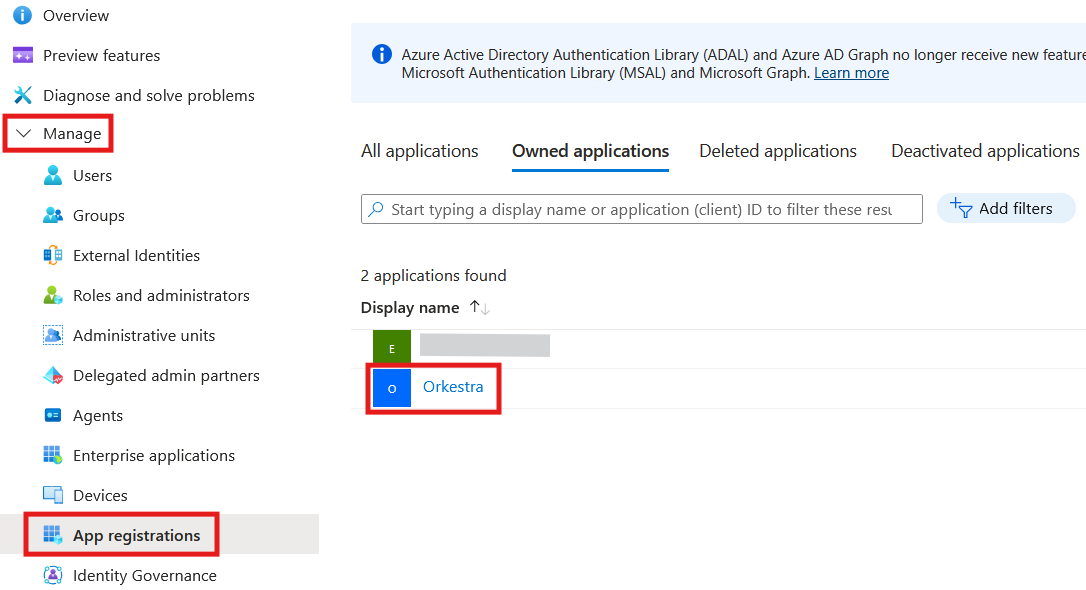
Orkestra may already have been registered, for example for user authentication through SSO. In that case, edit the configuration of the existing application: in the Manage menu, on the App registrations page, click the application's name.
-
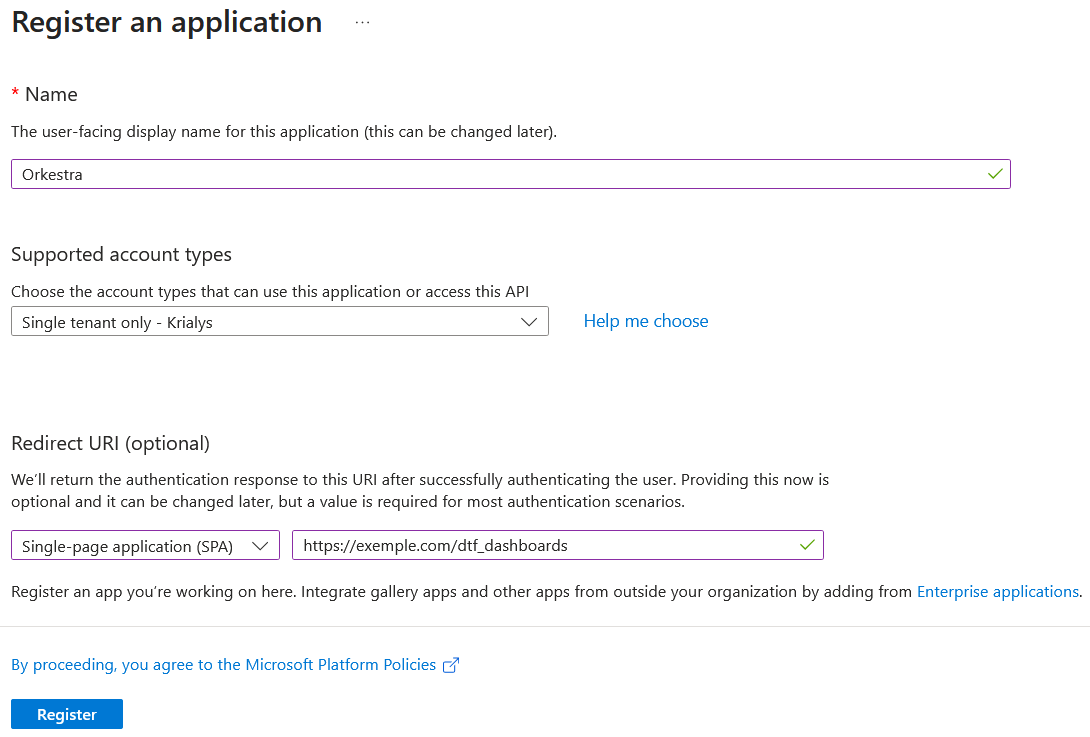
Configure the application:
- Give it a name, for example Orkestra.
- Select the account types allowed to sign in, for example Single tenant only, which restricts sign-in to the users of your organization. The Help me choose link details the options.
- Enter the redirect URI, which is the address the user is sent back to after signing in: select the Single-page application (SPA) platform and enter the URL of the Orkestra application followed by
/dtf_dashboards. - Click Register to confirm.
2. Configure Orkestra
-
On the Overview page of the registered application, note the Application (client) ID and Directory (tenant) ID fields.

-
On the server where Orkestra is installed, open the
appsettings.jsonfile of the Web application, located in itswwwrootfolder, and fill in theAzureAdsection with the values you noted:"AzureAd": {"TenantId": "????????-????-????-????-????????????","ClientId": "????????-????-????-????-????????????"} -
In the same file, check that App Owns Data mode is disabled:
"PowerBi": {"UseAppOwnsData": false} -
Restart the Orkestra Web server for the changes to take effect.
3. Add the permissions to access the Power BI API
-
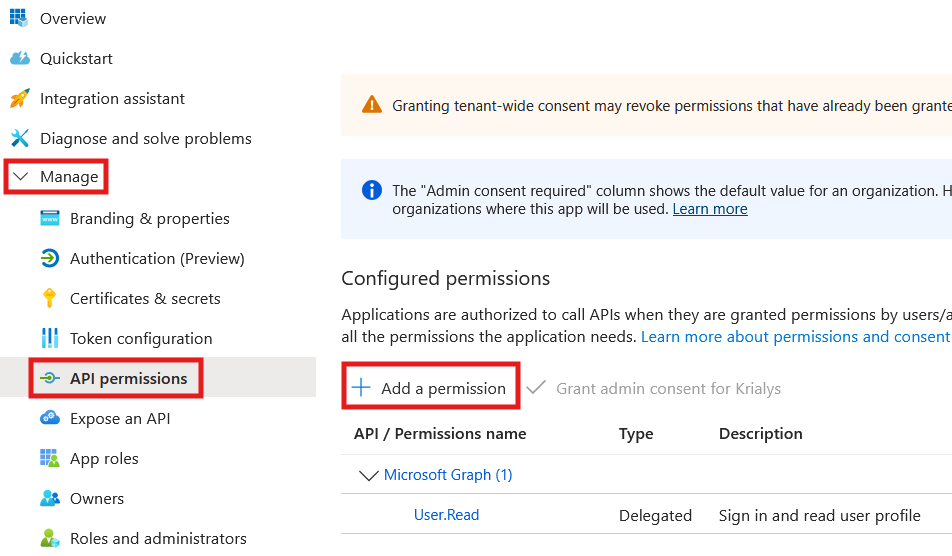
In Azure, open the API permissions page of the Manage menu, then click Add a permission.
-
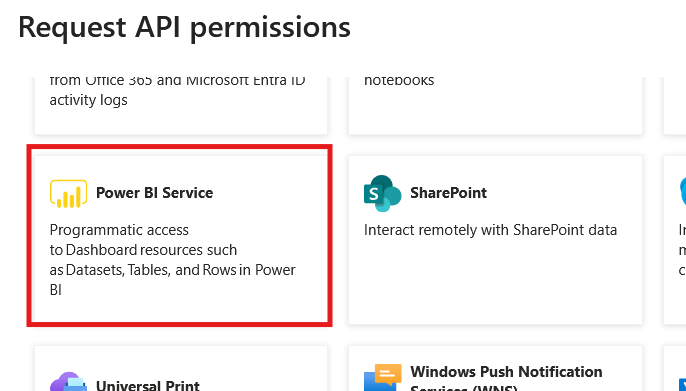
In the list of Microsoft APIs, select Power BI Service.
-
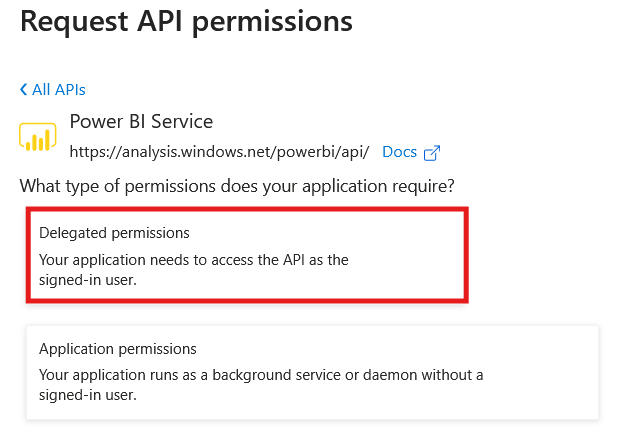
Select Delegated permissions.
-
Check the following permissions:
Workspace.Read.AllReport.Read.AllDataset.Read.All
-
Click Add permissions, at the bottom of the page, to confirm.

-
Click Grant admin consent for [tenant] to grant administrator consent to the permissions you just selected.
This step is required because Orkestra is not configured to ask each user for consent individually.
Button greyed outIf the button is greyed out, your administration rights are insufficient. The action must then be carried out by a higher-level administrator.

Here is the expected result: the three Power BI Service permissions appear in the list with the "Granted" status.

4. Check the configuration
The configuration is complete. Open Operations > Dashboards in Orkestra: click Sign in with Microsoft, then check that your Power BI reports are displayed.