Repositories (formerly REF Manager)
The module is located in the Operations section, Repositories group (formerly REF Manager, previously in the Management section): List (formerly Repository list), History and Configuration (previously Settings > Configuration > REF Manager) entries. When you hover over a renamed entry, a "Formerly: …" tooltip shows its previous label.
Most screenshots on this page reflect the version 2.0.0 interface. A few screenshots (Excel import validation report, column selector, scope value selection on validation, uniqueness check notification) still show the previous interface and may visually differ from the current screen.
Introduction
The Repositories module (formerly REF Manager) lets Data Steward type users (business or IT) view, update and validate, from Orkestra, reference tables stored in the client's database. Once validated, the changes are transferred to this database.
Three table typologies
| Typology | Principle |
|---|---|
| With label | Data is versioned by label. You clone an existing label, edit the clone, then validate to generate a new label. |
| Without label A/R | Rows are edited, added and deleted directly. When validating, the content of the table is deleted and then replaced by the modified dataset (cancel and replace). |
| Without label update | Only certain fields, defined in the configuration, can be edited. Rows cannot be added or deleted. |
Three screens
The module is made up of three screens, in the Operations > Repositories menu:
| Screen | What it is for | See |
|---|---|---|
| Configuration (formerly Settings > Configuration > REF Manager) | Declare the connections to the databases, configure the reference tables, either by hand or by importing the tables of an explored schema, follow the changes in the schema and expose a reference table through an API. | Configuring Reference Tables |
| List (formerly Repository list) | View a reference table, edit its rows, export or import an Excel file, then validate to transfer the data to the client's database. | Managing Reference Tables |
| History | Follow the loads and transfers carried out, and their result. | History of Operational Actions |
Configuration comes first: a table only appears in the List once its configuration has the « Active » status.
Configuring Reference Tables
In the Operations > Repositories > Configuration menu (formerly Settings > Configuration > REF Manager).
Declaring a Connection
- Establish the connection between the platform and the Client's database
- Edit, disable, and delete an existing connection
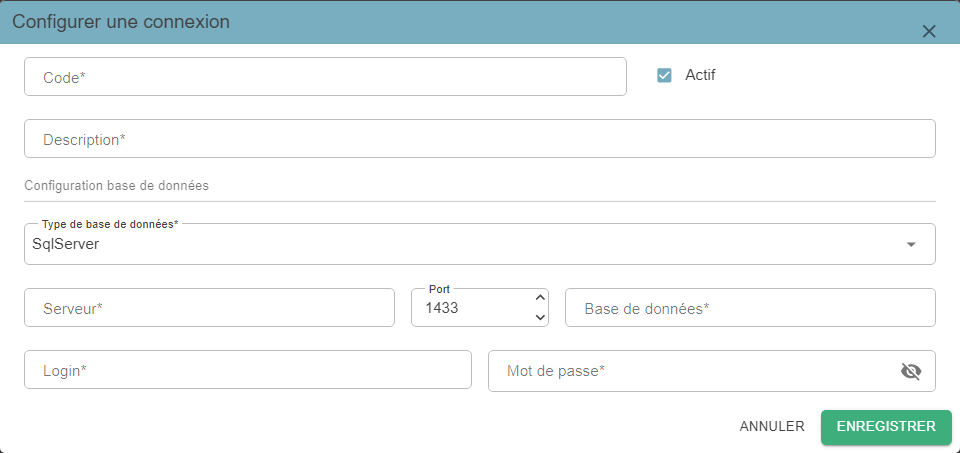
| Field | Description | Comments |
|---|---|---|
| Code | Connection code | |
| Description | Connection description | |
| Active | Connection status | Checkbox (Active/Inactive) |
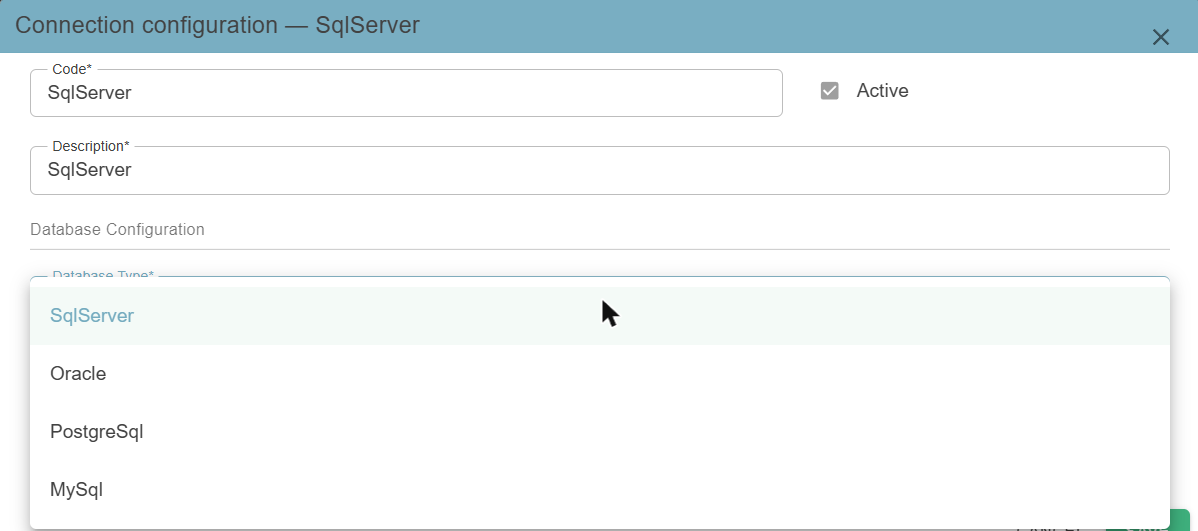
| Database type | Database type: SqlServer, Oracle, PostgreSql, MySql | Selected from the dropdown menu |
| Server | Server name | |
| Port | Port number | Filled in automatically according to the database type (1433 for SqlServer, 1521 for Oracle, 5432 for PostgreSql, 3306 for MySql), editable. Value from 1 to 65535 |
| Database | Database name | |
| Login | Connection username | |
| Password | Password | The eye-shaped icon shows or hides the entry |
A connection can only be disabled and/or deleted when it is not used in one or more configurations.
All the fields are mandatory (« The field is mandatory. »), except the port, which is filled in automatically. A connection's code must be unique, regardless of case (« Already exists »).
In the « Connections » tab, the grid lists the connections with their code, description, database type, state (Active) and the Test column. A « Search » box filters on the code, the description and the type, and the grid offers pages of 10, 25, 50 or 100 rows. A connection used in a configuration has its « Active » state locked (« Status cannot be altered. Connection used in one or more configurations. »). The delete icon is only offered for an inactive connection; if it is used, deletion is refused (« Deletion not allowed. Connection used in one or more configurations. »).
Testing a Connection
In the « Connections » tab, the Test column lets you check that Orkestra can reach the database:
- Click the « Test » button on the connection's row. A progress indicator is displayed during the test.
- If it succeeds, a green badge shows the response time (for example « 85 ms »).
- If it fails, a red « Connection failed » badge appears and a message recalls the cause. Hovering over the badge shows the details.
The test is run by a RefManager worker: if none is available, for example because it is busy with a load, simply try again a little later.

| Cause displayed | Meaning |
|---|---|
| Database connection timeout — the customer's database server did not respond, check its network reachability (firewall, host, port) | The database cannot be reached: check the server, the port and the network. |
| Connection refused by the database — check the credentials and database name | The database answered but refuses the connection: check the login, the password and the database name. |
| No RefManager worker currently available — try again shortly | No worker is free to run the test. |
| The RefManager worker did not respond in time — this is not a database issue, check that it is still connected | The problem comes from the worker, not from the database. |
| Connection not found or not accessible — it may have been deleted; retrying will not help, check its configuration | The connection no longer exists or is no longer accessible. |
Configuring a Reference Table
- Declare a reference table, previously created in the database
- Define the various settings for managing the reference table through REF Manager
- Edit, delete, and disable a configured table
| Field | Description | Required | Comments |
|---|---|---|---|
| Table name | Table name as it appears in the database | YES | Example: T_REF_TYPOLOGIE |
| Functional name | Functional table name | YES | Example: Référentiels des typologies (Typology reference table) |
| Description | Description of the content | ||
| Documentation | Description of how the table (the query) is administered | ||
| Typology | Reference table typology: With label, Without label A/R, Without label update | YES | Selected from the dropdown menu |
| Data Steward | Person responsible for administering the reference table in Orkestra | YES | Selected from a dropdown menu of active users, sorted alphabetically |
| Status | Configuration status: Inactive (not editable, not visible in the management screen), Active (not editable, visible in the management screen), Draft (editable, not visible in the management screen) | Selected from the dropdown menu. Draft by default | |
| Module (Process section) | Selected from the dropdown menu, from a module defined in Design > Flow (formerly UTD Manager) | YES | |
| Connection | List of active database connections defined in the Connections tab | YES | Selected from the dropdown menu |
| Schema | Table storage schema | YES | To be entered by the DBA |
| Select request GDB -> Orkestra | Select query to execute (scripted by the DBA): Client database to Orkestra | YES | To be entered by the DBA |
| Max rows from GDB to Orkestra | Numeric entry. Restricts the number of rows that can be administered in Orkestra | YES | Value from 1 to 32,767. Recommended maximum value: 10,000. The higher this number, the longer data retrieval and validation will take. If the number of rows returned exceeds this value, loading is abandoned |
| Min rows from Orkestra to GDB | Numeric entry. Restricts the minimum number of rows to be sent to the database | Value from 1 to 32,767. Number greater than 1: an empty dataset cannot be transmitted | |
| Max rows from Orkestra to GDB | Numeric entry. Restricts the maximum number of rows to be sent to the database | Value from 1 to 32,767. Recommended value: the same value as « Max rows from GDB to Orkestra » | |
| Editable fields (comma-separated) | Only for the « Without label update » typology, lists the editable fields. For other typologies, all columns are editable. Without this information, the reference table cannot be loaded into the GDB | Example: "DESCRIPTION", "INFO" = Only these 2 fields can be modified by the user | |
| Primary keys (comma-separated) | This field is used to grey out the IDs when the data is edited. In addition, for the « Without label update » typology, this field is required because without this information, the rows to be updated cannot be identified, so the reference table cannot be loaded into the GDB. | Example: "CODE_UNIT", "LIBELLE" = these 2 fields cannot be modified by the user | |
| Predicates (SQL) | SQL WHERE clause used to filter the rows read from the GDB | Example: "NUMV=24" = retrieve from the database only the dataset where NUMV=24. For the « Without label A/R » typology, this criterion also limits the deletion of rows before their reinsertion when validating | |
| Label object code | Selected from the dropdown menu, from an Object Code defined in Design > Traceability (formerly Labels / Etiquette Manager), used to generate the label | YES | If the reference table typology = With label |
| Scope | Selected from the dropdown menu, from an Object Code defined in Design > Traceability, used to generate the label | YES | If the reference table typology = With label. The list refreshes after the « Label object code » field is chosen |
| Label fieldname | Name of the field holding the label value in the Client database table | YES | If the reference table typology = With label |
While the configuration has the « Draft » status, its fields can be edited, except for the « Table name » which can only be entered when the configuration is created. As soon as the status is « Active » or « Inactive », all the fields are locked except the « Status »: to edit a configuration, first set it back to « Draft ».
- Typology: a new reference table is created with the « (None) » value. As long as no typology is set, the reference table cannot be activated. Changing the typology clears the fields that no longer apply to the new typology (« Labelling » section, editable fields).
- « Active » status: the option is refused as long as no typology is set (« A typology must be set to make the referential available »). For a table with a dynamic scope, it is also refused as long as no active scope value exists (« An active perimeter value is required »).
- Dates and authors: when editing, the « Created on », « Created by », « Updated on » and « Updated by » fields are displayed read-only.
-
Only GDB tables containing data can be loaded into a reference table.
-
When initializing a new reference table, creating the table in the client's database is a prerequisite before proceeding with configuration in REF Manager.
-
From the Design > Flow > Processing menu (formerly UTD Manager > Management), a UTD and a dedicated module must be created for each table so they can be selected during configuration from the dropdown menu:
- The module is not intended to be used for production purposes from Operations > Orchestration (formerly Data Fabrik)
- The module must contain only a Batch named « REF MANAGER »
- The module must not contain any resource files
Only modules and UTDs with an active status are selectable in the configuration.
-
For tables with a label, it is mandatory to configure the label naming convention. From Design > Traceability, the Data Steward (business) must define, for each table:
- Domain: with a Ref Manager (RFM) domain type
- Scope: associated with the defined domain. It can be dynamic or non-dynamic
- Object: associated with the defined domain
-
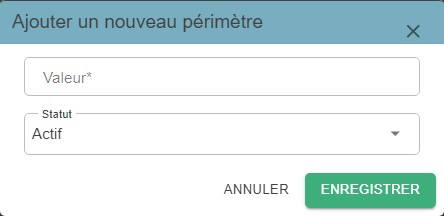
For tables with a label, if the scope is dynamic, scope values must be added. These values are defined after configuring the table, in the Configuration tab, with a status of « active » or « inactive ». At least one active scope value must be associated with the asset's configuration to allow the table to be activated.
Configuration List
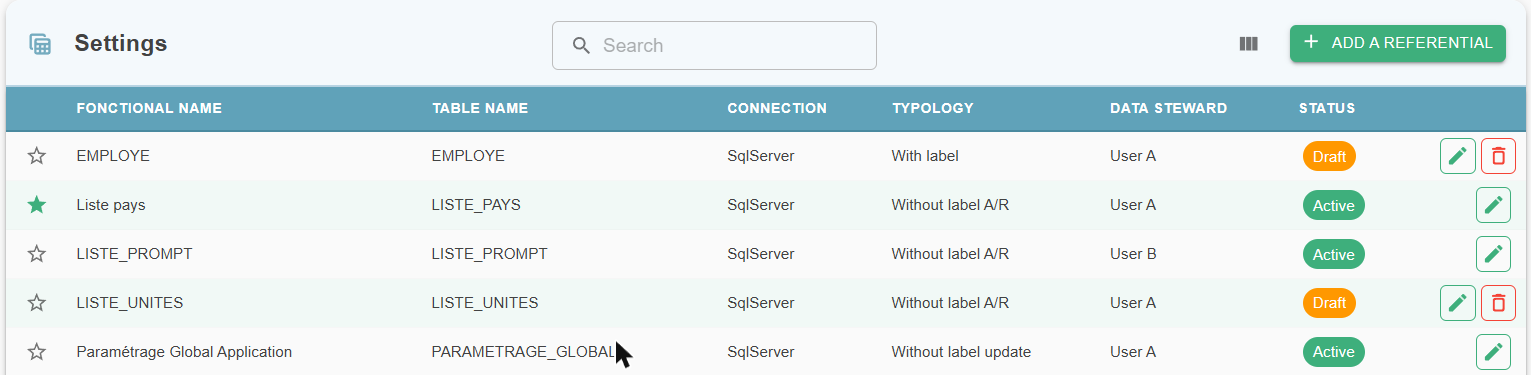
In the « Settings » tab, the grid lists the configured reference tables:
- Columns: Functional name, Table name, Connection, Typology, Data steward and Status (green badge for Active, orange for Draft, grey for Inactive). The Schema, Description and Predicates (Sql) columns are hidden by default; the column selector lets you display them.
- Search: the « Search » box filters on the table name, the functional name and the data steward's name.
- Favorites: the star at the start of the row adds the reference table to your favorites, or removes it. Favorites are personal.
- Pagination: pages of 10, 25, 50 or 100 rows.
- Adding and editing: the « Add a referential » button opens the « Configuration » window. Adding is refused as long as no active connection exists (« No active connection defined. Please, add a active connection before. »). To edit a reference table, click the pencil icon or double-click the row.
Deleting a configuration
The delete icon is only offered for a reference table in « Draft » status. A confirmation is requested (« Delete referential "table name"? »). Deletion is permanent: it also removes the scope values, the data loaded in Orkestra and the history of this reference table. An « Active » or « Inactive » reference table must first be set back to « Draft ».
Configuring a Reference Table With Label
Focus on tables with a label and a dynamic scope:
- For any With Label typology, selecting a Label object code as well as a Scope is mandatory. Selecting a dynamic scope displays the label « Dynamic perimeter » (to the right of the selection).
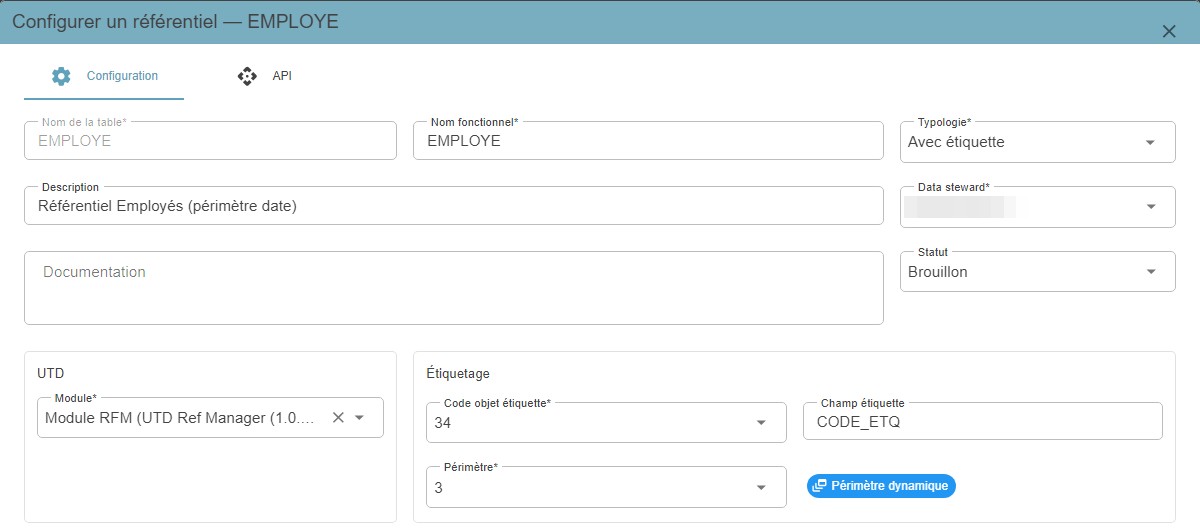
Enter the label object code (selected via autocomplete) and the table field in which the labels are stored. The Scope selection depends on the object code, based on the domain.
Once the configuration is saved with Draft status, scope values can be added via the configuration's sub-grid. NB: an active scope value is required in order to switch the configuration to Active status.

Schema Exploration and Synchronization
Exploration makes it possible to discover the tables of a database from Orkestra, to import them as reference tables without entering them one by one, and then to follow the changes in the database (new tables, columns added or modified, etc.). It relies on a connection declared in the « Connections » tab. The permissions required to import tables or apply changes are described in Permissions on Reference Tables.
Exploring a Connection's Schema
- In Operations > Repositories > Configuration, « Connections » tab, click the « Explore » icon on the connection's row.
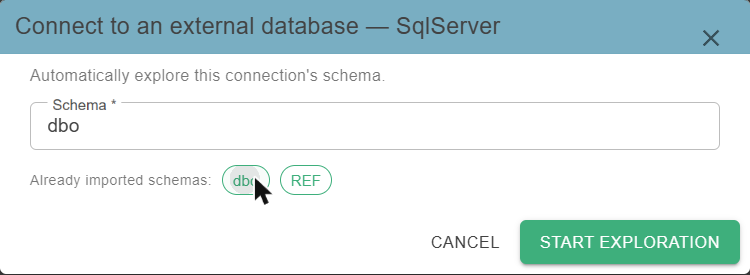
- In the « Connect to an external database » window, enter the schema to explore (mandatory field: « Schema is required. »), or click one of the schemas offered under « Already imported schemas: », then click « Start exploration ».
- The Introspection page opens. While the analysis is running, the « Exploration in progress… » message is displayed. If the exploration fails, the « Exploration failed » banner gives the cause; a RefManager worker must be available, otherwise simply try again a little later.
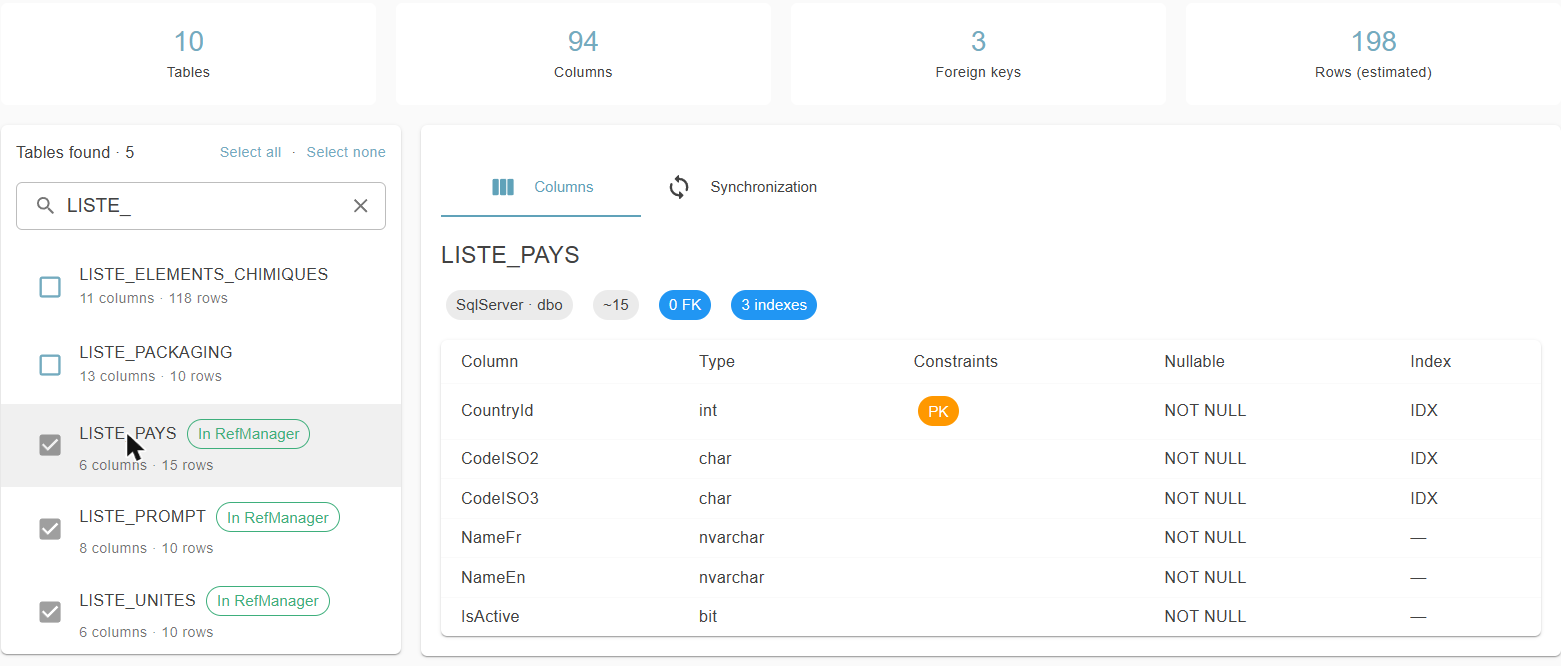
Once the exploration is complete, the page shows:
- four indicators: Tables, Columns, Foreign keys and Rows (estimated);
- the Tables found list, with a « Filter tables… » box to search for a table name. Each table shows its number of columns and a badge: « In RefManager » (the table is already a reference table), « New » or « Modified »;
- for the selected table, the Columns tab, which lists for each column its type, its constraints (primary key, foreign key), whether it accepts empty values and whether it is indexed. This tab is read-only.
If some tables could not be read, the « Some tables could not be scanned » banner lists them with the reason. The « Back to connections » button returns to the « Connections » tab.
Importing Tables as Reference Tables
Once the exploration is complete, tables can be imported in a single operation:
- Check the tables to import, or use « Select all » / « Select none » (only the tables displayed by the filter and not yet imported are affected). A table already present in RefManager appears checked and greyed out.
- Click « Import into RefManager ».
The connection must be active: otherwise the message « The connection must be active to import referentials. » is displayed. At the end of the import, Orkestra shows the number of reference tables created (« N referential(s) imported: … ») and, where applicable, the tables skipped because a reference table already exists for the same connection, schema and table name (« N table(s) already existing, skipped: … »).
Each reference table created is a simple configuration, with no data loaded:
| Field | Value at import |
|---|---|
| Table name, Functional name | Name of the table |
| Schema, Connection | The explored schema and the connection used |
| Status | Draft |
| Typology | Not set (« (None) ») |
| Data steward | The user who performs the import |
| Select request GDB -> Orkestra | Reading of all the columns of the table |
| Primary keys | The primary keys of the table |
| Max rows from GDB to Orkestra, Max rows from Orkestra to GDB | 10,000 |
| Min rows from Orkestra to GDB | 1 |
All the columns of the table are imported. The reference table stays in « Draft » status: its configuration must then be completed (typology, module, etc.) and its status changed to « Active » to make it accessible in the List screen.
Synchronizing the Schema
Synchronization detects the changes made to the database since the tables were imported, and lets you carry them over to the reference tables.
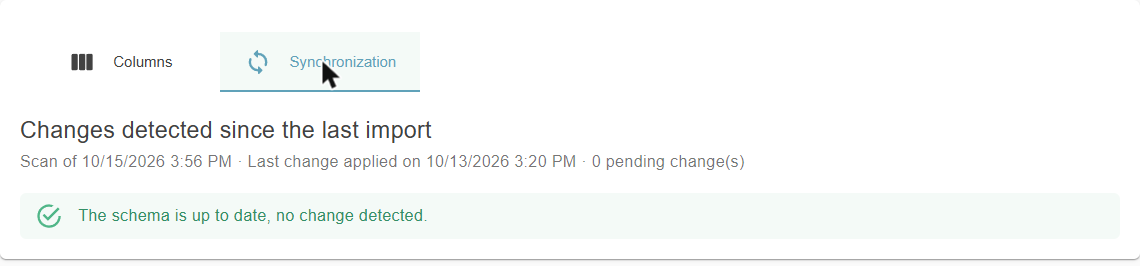
The « Synchronize schema » button, at the top of the Introspection page, starts a new exploration of the same schema and opens the Synchronization tab. The number of pending changes is shown on the tab. Under the « Changes detected since the last import » title, each change is shown on a card, with the table or column concerned and the date of the scan.
| Change detected | Action | Effect |
|---|---|---|
| New table | « Accept » or « Ignore » | « Accept » creates the reference table (« Draft » status). If an archived reference table existed for this table, it is reactivated in « Draft ». « Ignore »: the table is no longer proposed in the following synchronizations. |
| Removed table | « Archive » | The reference table moves to « Inactive » status. Its data is kept. |
| Added column | « Accept » | The column is added to the reference table's select request. |
| Removed column | « Archive » | The column is removed from the select request and from the editable fields. As long as the column is part of the primary key, the primary key change must be accepted first. |
| Modified column, Nullability changed | « Accept » | The request is not modified. The column definition is updated. |
| Primary key changed | « Accept » | The reference table's primary keys are updated. |
Accepting or archiving a change on an existing reference table empties the data loaded in Orkestra: it will be read again from the database the next time the reference table is opened, and unvalidated changes in progress are lost. The reference table's status is not modified, except for a removed table (« Inactive ») and a new table that is reactivated (« Draft »).
For an existing reference table, a change cannot be ignored: the reference table would no longer match the database. Only a new table can be ignored.
Accept all
The « Accept all » button applies all the eligible changes at once, after confirmation (« N change(s) will be applied. Removals are not included: archive them one by one. »). Removals and changes that require replacing a custom request are excluded.
Custom request
If a reference table's select request was entered by hand, the card shows « Custom query: accepting will replace it with the standard query (confirmation required). ». When accepting, the « Replace the referential query » window shows the current request and the new request, and warns that the customizations (date formats, conversions, aliases, choice of columns…) will be lost. All the pending column changes for this table are then applied at the same time, and the reference table's data is read again.
Main messages
| Message | Meaning |
|---|---|
| The schema is up to date, no change detected. | No difference with the last synchronization. |
| No table of this schema has been imported into RefManager yet. Import some to start synchronization. | No reference table exists yet for this schema. |
| A more recent scan exists for this schema. Changes can only be applied from the latest scan. | Start the synchronization again to work on the most recent scan. |
| Accept the primary key change of this table first. | The change depends on a primary key change that must be accepted first. |
| N change(s) applied | The operation ended correctly. |
| This schema synchronization was modified in the meantime (another tab or user). The list has been reloaded: check the remaining changes. | Someone else processed changes in parallel: the operation is cancelled and the list is reloaded. |
Exposing a Reference Table Through an API
A reference table can be made available to external applications, which retrieve its content without going through the List screen. Access is protected by keys, managed from the API tab of a reference table's edit window (Operations > Repositories > Configuration). This tab does not exist when creating a reference table: it appears when editing it. The permissions required are described in Permissions on Reference Tables.
Enabling the exposure
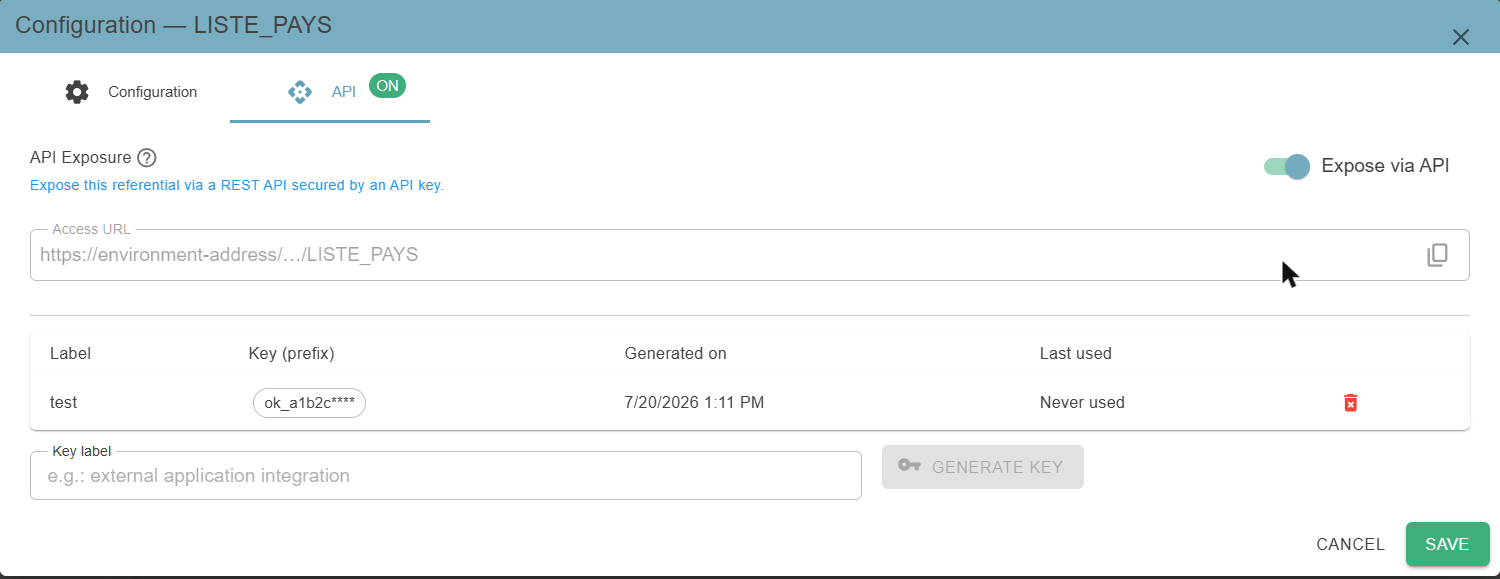
- Open the reference table for editing and select the « API » tab.
- Turn on the « Expose via API » switch.
- Click « Save »: turning the switch on is only taken into account when saving. An « ON » badge then appears on the tab.
The read-only « Access URL » field shows the address to give to the external application. An icon lets you copy it.
Managing access keys
The table of active keys shows, for each one, its label, a prefix of the key, the generation date and the last use (« Never used » as long as it has not been used). Several keys can be active at the same time, for example one per application.
- Generate a key: enter a label that identifies the application, then click « Generate key ». The complete key is displayed only once, with the message « Copy this key now — it will not be shown again. »: copy it immediately and pass it on securely to the application concerned.
- Revoke a key: click the trash icon on the row, then confirm. « The key will be permanently deleted. Integrations using this key will stop working. »
Generating and revoking a key take effect immediately, without clicking « Enregistrer ». Keys only work if the reference table is exposed and this exposure has been saved. The external application obtains the data as it is currently stored in Orkestra for this reference table.
Supported Databases and Data Types
REF Manager connects directly to the databases of the reference tables. The supported databases, for both reading and writing, are SQL Server, Oracle, PostgreSQL and MySQL. The database type is chosen in the « Connection configuration » window (see Declaring a Connection).
Exchanges with the database
- Loading: if the number of rows returned exceeds the value of « Max rows from GDB to Orkestra », loading is abandoned, with no partial load, with the message « Chargement abandonné : la requête retourne N lignes, au-delà du nombre maximum autorisé (X). Affinez le critère de sélection ou augmentez « Nb lignes max GDB vers Orkestra » dans la configuration du référentiel. » (Loading abandoned: the query returns N rows, above the maximum allowed (X). Refine the selection criterion or increase « Max rows from GDB to Orkestra » in the reference table's configuration.)
- Validation: the transfer to the database is either complete or cancelled as a whole. In the event of an error, the target table stays in its initial state.
- Columns managed by the database: auto-numbered columns, computed columns and row-version columns are never modified by Orkestra.
Supported data types
Only the data types in the list below are supported. Type names specific to each database are automatically mapped to these categories. If a column uses an unsupported type, the message « Type de données non reconnu : [TYPE] » (Data type not recognized: [TYPE]) is displayed, whatever the interface language.
| Category | Supported types |
|---|---|
| Text | Text, Char, Varchar2, Nvarchar2, Guid, Varchar, nchar, nvarchar, ntext, RowId |
| Decimal | Float, Double, Binary_Float, Binary_Double, Number, Decimal, Numeric, Real |
| Integer | Int, Integer, Tinyint, Smallint, BigInt |
| Boolean | Bool, Boolean, Bit |
| Date/Time | Date, DateTime, DateTime2 |
Configuration Summary
| Steps | Data Steward | DBA |
|---|---|---|
| Connection | None | Create the connection between Orkestra and the database |
| Create the reference table (if it doesn't already exist) | None | Create the table in the Client's database |
| Configure Table with Label | Define the label in Design > Traceability: Domain (with a Ref Manager domain type - RFM), Scope (associated with the defined domain, dynamic or non-dynamic), Object (associated with the defined domain, with a « Active » status). Create a UTD and a module (active) in Design > Flow > Processing | Select the Object code provided by the DS. Select the scope provided by the DS. If the scope is dynamic, define the scope values from the sub-grid (mandatory to validate the configuration of a table with label and dynamic scope). Select the module (UTD). Enter the technical field holding the label in the table. Change the status from « Draft » to « Active » to make the table accessible in the Management tab |
| Configure Table without Label | Create a UTD and a module (active) in Design > Flow > Processing | Select the module (UTD) provided by the DS. Change the status from « Draft » to « Active » to make the table accessible in the Management tab |
| Configure Table without Label – Update | Create a UTD and a module (active) in Design > Flow > Processing | Select the module (UTD) provided by the DS. Change the status from « Draft » to « Active » to make the table accessible in the Management tab |
Managing Reference Tables
In the Operations > Repositories > List menu (formerly Management > REF Manager > Repository list).
The actions offered on this screen (add, delete, clone, force reload, import, validate) depend on the user's permissions: see Permissions on Reference Tables.
Managing a Reference Table
Viewing a Reference Table
Accessible reference tables must have « Active » status in Operations > Repositories > Configuration.
The Référentiels (Reference tables) dropdown menu groups the reference tables by typology (« Without label A/R », « Without label update », then « With label ») and displays each one as Schema.Table. Only the typologies that include at least one accessible reference table appear.
Favorites: the star to the right of the dropdown menu adds the selected reference table to your favorites, or removes it. Favorites are personal. From the Favorites page, a reference table can be opened directly in the List: its content is then displayed immediately.

From the dropdown menu, select the desired reference table, then click « Show » to show the content of the selected table.
On first use, the table is loaded automatically from the Client's database: this operation may take a few minutes depending on the size of the content.
If the table has already been loaded from Orkestra, it will not be reloaded from the client's database when the « Show » button is clicked.

Clicking « Force reload » reloads the table from the Client's database into Orkestra. This operation may be used, for example, after the table has been updated in the database outside of REF Manager.
In the event of a forced reload, the data in use and all existing drafts will be erased from Orkestra. The reload is performed based on the configuration as defined at that point in time.
A dialog box asks for confirmation (« Yes » / « No ») before starting the reload. The load is refused, with a message, in two cases:
- no production node is available: « Production nodes are not available. »;
- a process is already running: « A process is currently underway... ».
These two messages can also be displayed when a table is loaded for the first time and when validating. In that case, simply try again a little later.
Selecting a Label (Tables With Label)
For tables with a label, a label can be selected from a dropdown menu once the table content has been displayed.
The labels listed in the dropdown menu are the ones present in the reference table data loaded into Orkestra: the labels coming from the Client's database, as well as the clones prefixed with « $ » created in Orkestra. The « (All) » entry is offered first.

To update data from the selected label, click « CLONE ». It is not possible to modify a label that already exists and has been validated in the Client's database.
Cloning and Editing Reference Tables With Label
The « CLONE » button then starts the creation of a dataset identical to the selected label. The new dataset is labeled with a temporary data label: $ + the original label code.
It is not possible to clone the clone of a label. A label can only be cloned once.
Rows in a cloned reference table can be modified, added, and deleted, according to the criteria and conditions defined in Operations > Repositories > Configuration.
Editing Reference Tables Without Label
For tables without a label, the « CLONE » feature is disabled: changes are made directly to the table's content:
- Without label A/R tables (Cancel and Replace): rows in the dataset can be modified, added, and deleted, according to the criteria and conditions defined in Operations > Repositories > Configuration.
- Without label update tables: only certain fields of the dataset can be modified, according to the criteria and conditions defined in Operations > Repositories > Configuration.
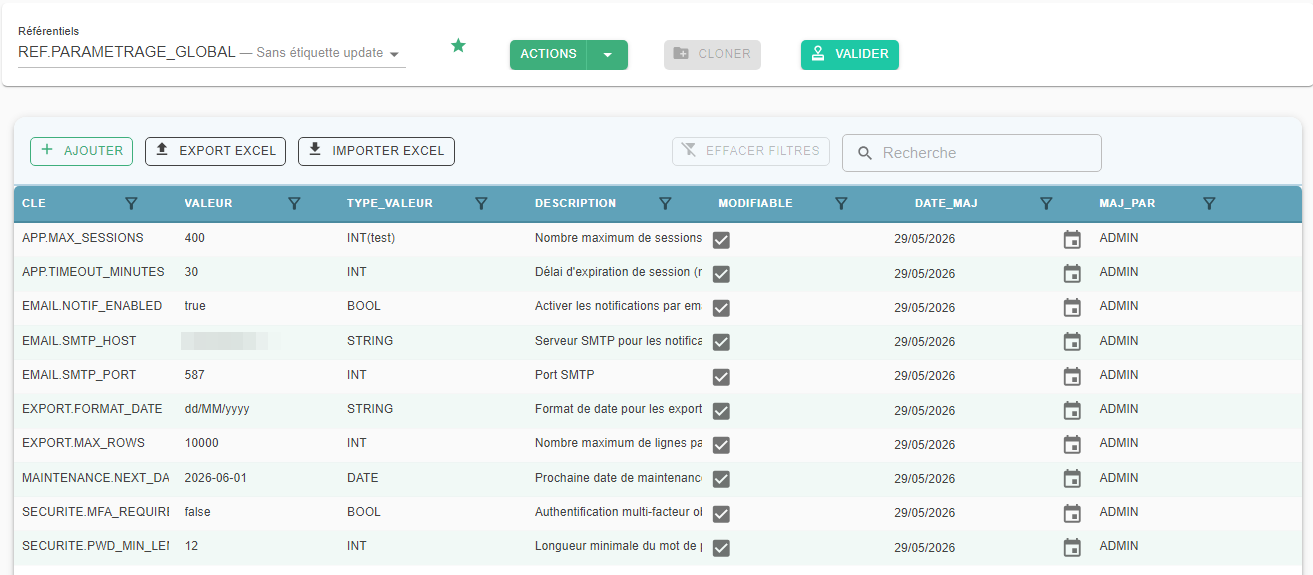
If the selected table has no data, the interface displays an empty grid with column headers, in which rows can be added.
Quick Inline Editing of Reference Tables
Editing a reference table is done directly from the grid, by changing the cells of the editable columns. The change is saved by confirming the entry with the Enter key or by leaving the cell; the Escape key cancels the change in progress. If saving fails, the original value is restored and the message « Data update has failed. » is displayed. Columns with grayed-out text are read-only.
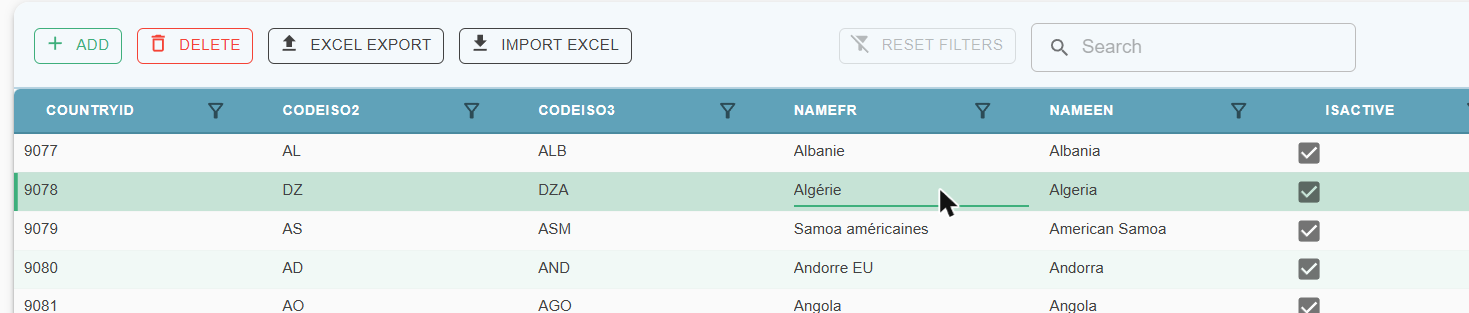
Adding a row
The « Add » button above the grid opens the « Add new record » window, which offers one field per column. The fields corresponding to a key or to a column that does not accept empty values are mandatory (« The field is mandatory. », i.e. The field is required). For a table with a label, the label of the selected clone is filled in automatically. After « Save », the row appears in the grid; if saving fails, the message « Data update has failed. » is displayed.
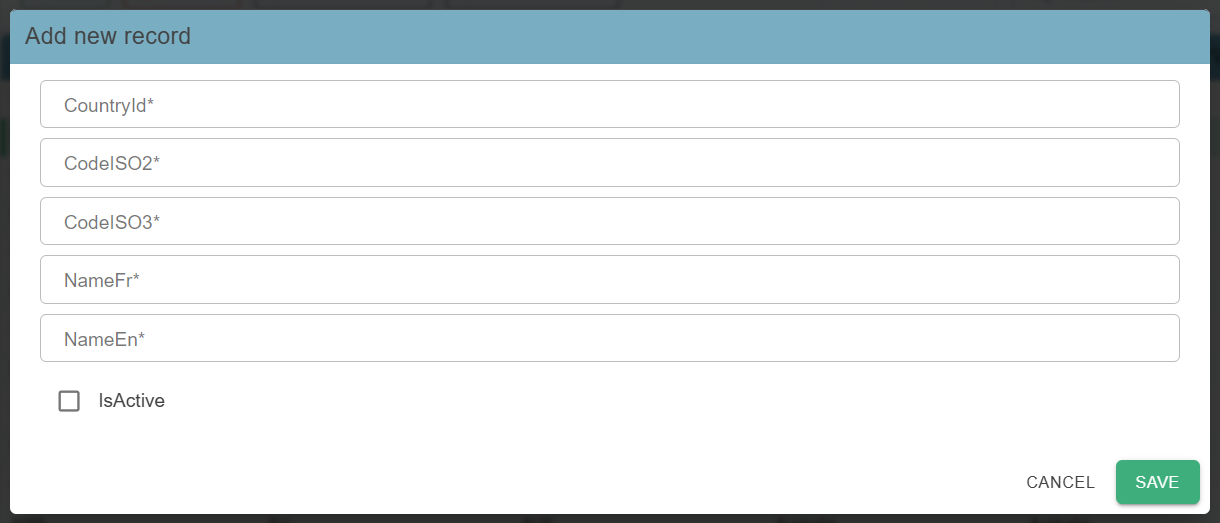
Deleting a row
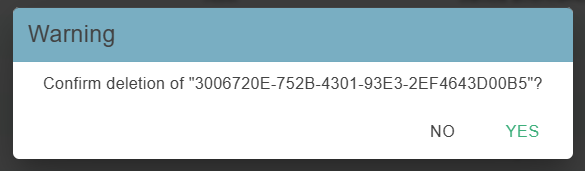
Click a row to select it (it is highlighted), then click the « Delete » button. A dialog box asks for confirmation, recalling the row's key values: « Confirm deletion of "…"? ». The « Delete » button is only active when a row is selected.
Availability of the « Add » and « Delete » buttons
- They are not offered for « Without label update » tables: only the editable fields can be modified.
- For a table with a label, they are only offered when a clone (a label prefixed with « $ ») is selected.
Bulk Updates (Excel Export and Import)
This feature makes it possible to export a reference table's content, edit it offline, and then re-import it for updating.
The goal is to let users perform bulk updates of their business reference tables from an Excel file, simply and completely autonomously.
Exporting a Reference Table to Excel
From the Operations > Repositories > List screen, users can export the content of an active reference table:
- Select the desired reference table from the dropdown list.
- Click the Export Excel button.
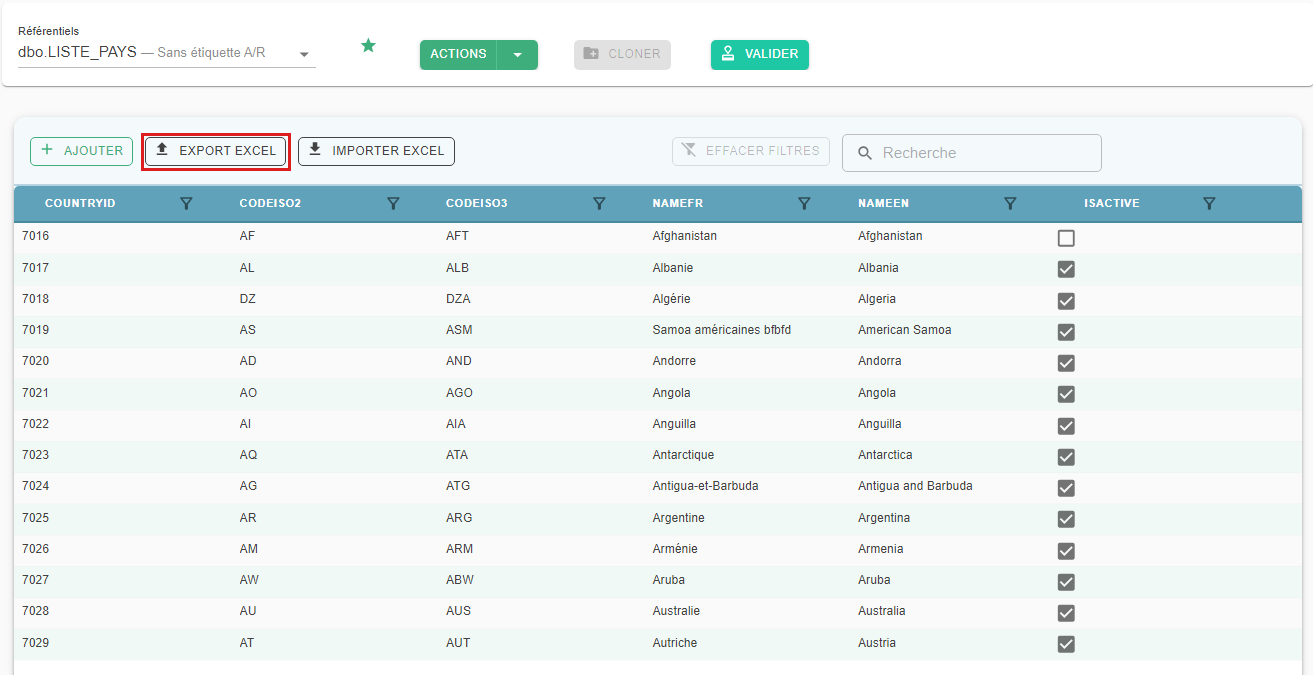
The system automatically generates an .xlsx file containing:
- The columns visible in the grid,
- The current values of the records.
The export contains the rows currently displayed in the grid, that is, after applying the search, the filters and, for a table with a label, the selected label. The file is named TableName_YYYYMMDD_HHMMSS.xlsx. If there are no rows to export, the « No results. » message is displayed.
Use the exported file as a working template for changes. Do not delete or rename the column headers.
Importing an Excel File into a Reference Table
After editing the file, it can be re-imported to update the reference table:
- Click the Import Excel button.
- Select the .xlsx file to import.
A few rules apply:
- For a table with a label, a clone (a label prefixed with « $ ») must be selected first: otherwise the message « Please select a cloned label object code before importing the file. » is displayed.
- The accepted formats are .xlsx and .xls, with a maximum size of 10 MB.
- The Import Excel button is only offered to users who are allowed to edit the reference table.
Orkestra automatically analyzes the file's content:
- Checking that the columns match,
- Checking the data types,
- Detecting anomalies or missing values.
A validation report is then displayed on screen, showing for each row:
- A « Valid » column: a green check mark if the row is valid, a red cross otherwise,
- A « Error message » column describing the anomaly detected.
If the reference table has non-editable columns, a banner points it out: for rows that already exist, the values in the file for these columns are ignored.
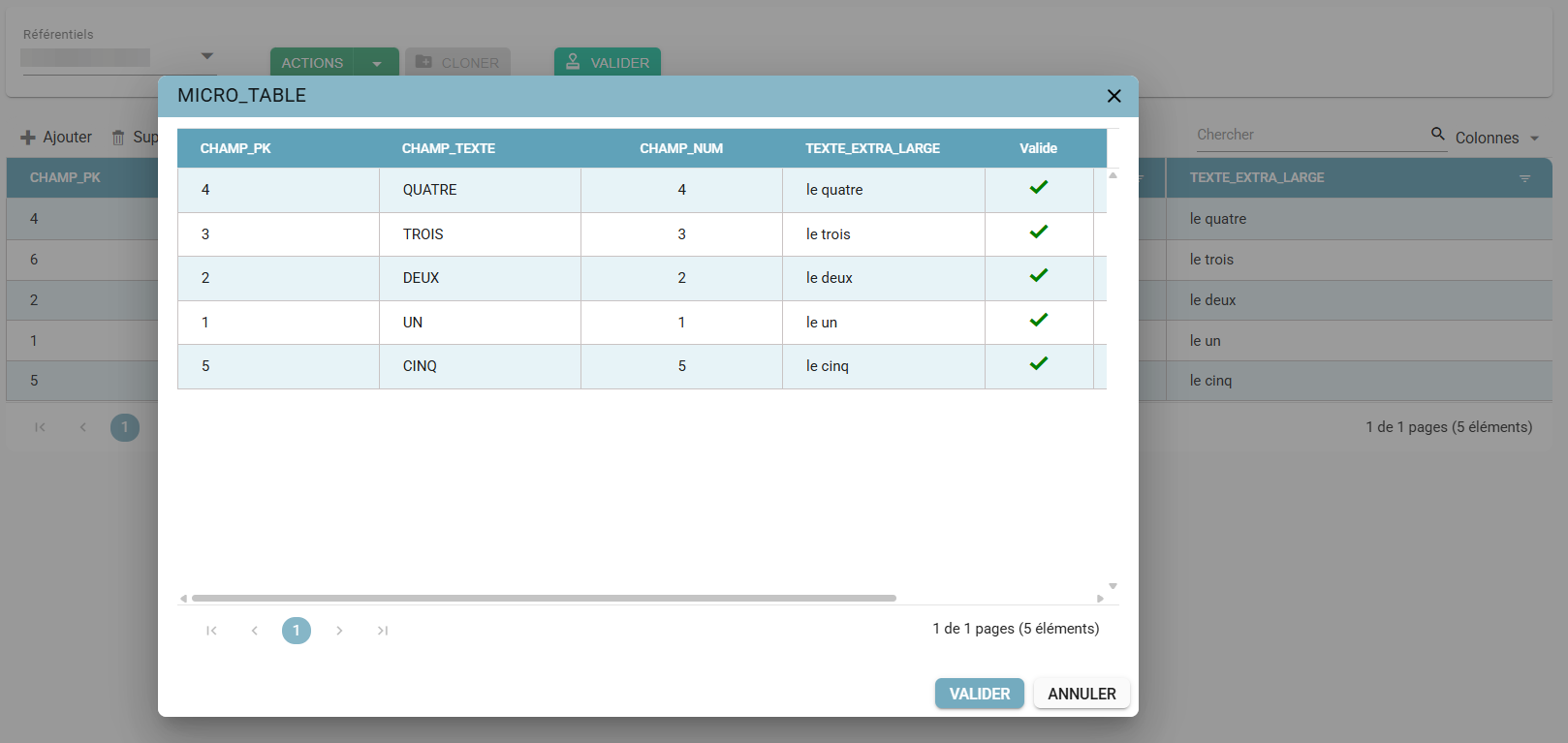
From the report, the user confirms the import with the « Validate » button or abandons it with « Cancel ». If some rows are invalid, a dialog box asks for an additional confirmation: « Warning! Only validated rows will be transferred to the database ». Once confirmed, only the valid rows are loaded into the relevant reference table, then the message « Data imported successfully: N row(s) imported. » is displayed.
Main import error messages:
| Message | Meaning |
|---|---|
| Invalid file type: only Excel files (.xlsx, .xls) are accepted. | The selected file is not an Excel file. |
| Invalid format: this file is not a valid Excel file… (not a renamed CSV) | The file content is not that of an Excel workbook, for example a CSV whose extension has been renamed. |
| Import failed: the selected file is empty. | The file contains nothing. |
| Import failed: no data found in the selected file. | Only the header row is present. |
Missing column(s) : list of columns | One or more columns of the reference table are missing from the file headers. |
The column name is required | A mandatory value is empty on a row. The message appears in the « Error message » column of the report. |
Conversion error for column name | The value does not match the type expected for this column. The message appears in the « Error message » column of the report. |
| Error while importing the Excel file. | Loading the valid rows into the reference table failed. |
When a row has several anomalies, the messages are separated by a vertical bar in the « Error message » column.
Selecting Columns in the Grids
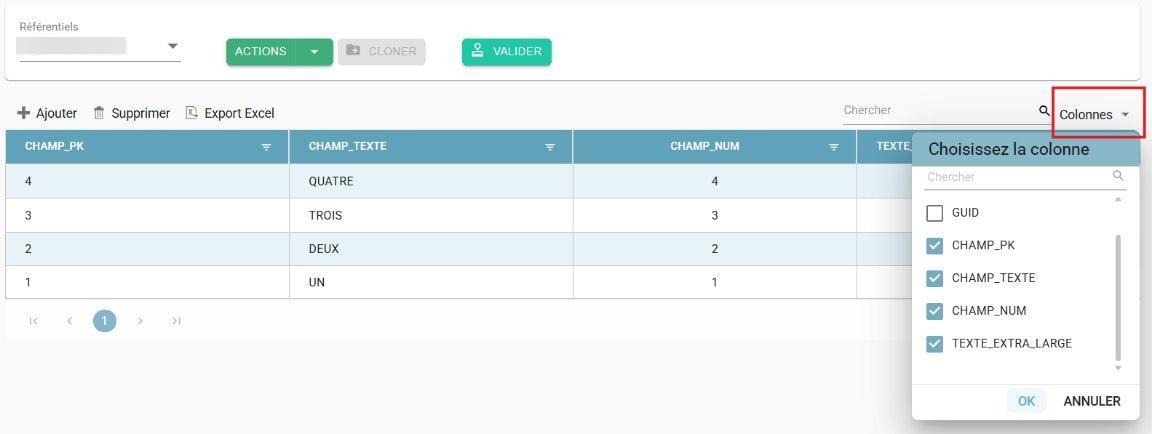
- In the Operations > Repositories > List and Operations > Repositories > Configuration screens, a column selector lets users show or hide columns based on their viewing needs.
- For technical reasons, user preferences are not yet supported on these grids. As a result, reloading the page resets the column display.
Searching, Filtering and Sorting Data
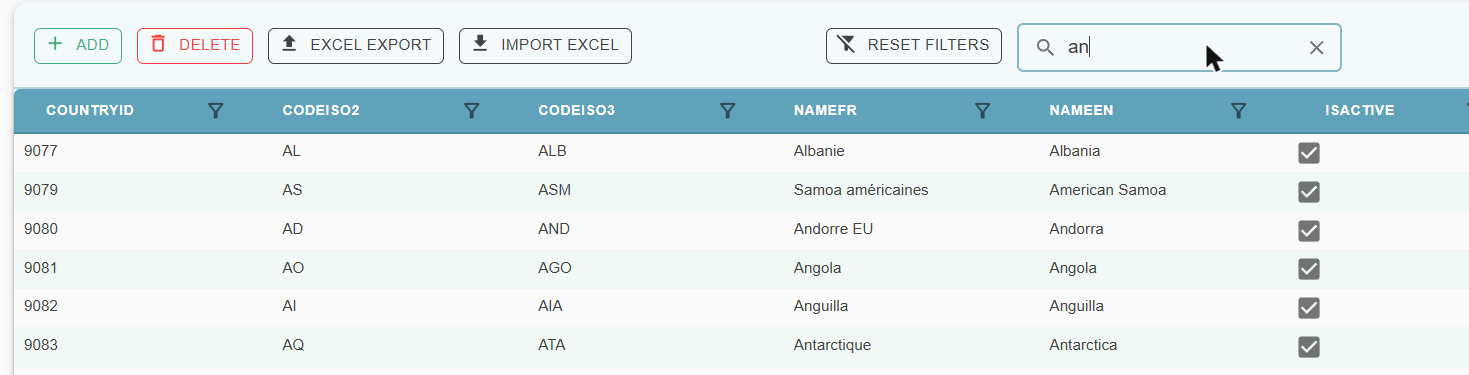
Above the grid, the Search box and the Reset filters button make it quick to find rows:
- Search: only the rows in which at least one column contains the text entered are displayed, regardless of case. The search is applied when the entry is confirmed (Enter key). The cross on the right of the box clears the entry.
- Column filter: the filter menu of a column header lets you enter some text; only the rows whose value in this column contains the text are displayed.
- Reset filters: removes the search and the column filters. The button is greyed out when no filter is applied. The label selection is not changed.
- Sorting: clicking a column header sorts the grid; several columns can be sorted one after the other. Sorting takes the column type into account (numbers, dates, check boxes).
- Pagination: the grid displays 14, 25, 50 or 100 rows per page, as chosen.
The search, the column filters and the selected label are cumulative. If no row matches, the « No results. » message is displayed. The result of these filters determines the rows included in the Excel export.
Validating and Transferring to the Client's Database
After making changes, click « VALIDATE »:
- Without label A/R table (Cancel and Replace)
- Creation of a Request ID
- Deletion of the table's content in the database
- Transfer and insertion of the modified dataset into the database
- Without label update table
- Creation of a Request ID
- Modification of the editable fields in the database
- Table with a non-dynamic scope
- Generation of the label from the defined Object code and the scope value selected in Operations > Repositories > Configuration
- Creation of a Request ID
- Transfer and insertion of the dataset carrying the generated label into the client's database
- Table with a dynamic scope
- Selection of an active label value defined in the configuration, then clicking Save
- Generation of the label from the defined Object code and the scope value selected in Operations > Repositories > Configuration
- Creation of a Request ID
- Transfer and insertion of the dataset carrying the generated label into the client's database
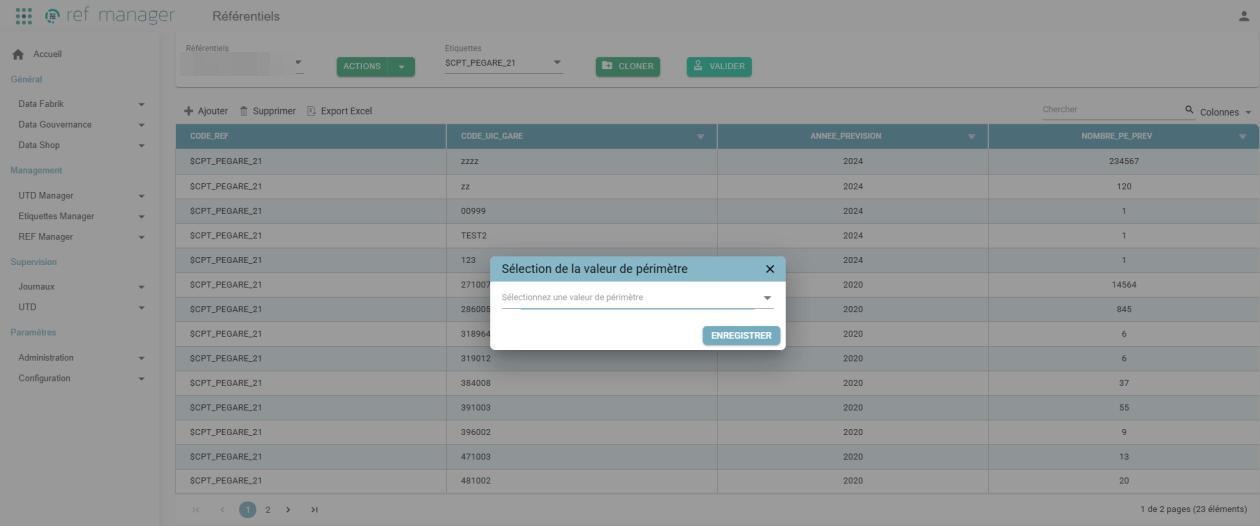
In the event of failure, the new label will not be generated. After correcting or resolving the issue, validation can be performed again to transfer the data to the client's database.
The « Validate » button is only active when the content of the reference table is displayed, and it stays locked as long as a write process is running on this reference table. For a table with a label, validation is done from a clone (a label prefixed with « $ »).
Main messages displayed during validation:
| Message | Situation |
|---|---|
| No update required: the repository has not been modified since the last validation. | « Without label update » table: no row has been modified, there is nothing to transfer. |
| The datagrid is not yet loaded, the table is empty! | The content of the reference table is not displayed: load it with « Show ». |
| Production nodes are not available. | No worker is available to run the transfer. Try again later. |
| A process is currently underway... | Another process is running. Try again later. |
Jeu de données non valide : label | The data could not be validated before the transfer (this message is displayed in French in all interface languages). |
| Operation completed successfully. | The transfer to the client's database ended correctly. |
| One or more errors have been detected | The process ended with an error: check the History of Operational Actions. |
| The save result could not be confirmed… | The connection was lost or the process took too long. Validation stays locked on this reference table until processing ends: check the History, or reload the page if processing is complete. |
Uniqueness Check When Creating or Editing Reference Tables
If an identical reference table already exists in the database, a notification (snackbar) is displayed with the following message:
- FR: Enregistrement impossible : un référentiel avec ces paramètres (nom de table, schéma et connexion) existe déjà.
- EN: Saving failed: a referential with these parameters (table name, schema, and connection) already exists.

Management Feature Summary
| Feature | Table With Label | Without label A/R Table | Without label update Table |
|---|---|---|---|
| Display | First use: loads the entire table from the client's database. Afterward: loads the table's content from its saved copy in Orkestra | First use: loads the table's content based on the « Predicates (Sql) » field. Afterward: loads the table's content from its saved copy in Orkestra | First use: loads the table's content based on the « Predicates (Sql) » field. Afterward: loads the table's content from its saved copy in Orkestra |
| Force Reload | Loads the entire table. Deletes existing data in Orkestra, including drafts (cloned labels) | Loads the table's content based on « Predicates (Sql) ». Deletes existing data in Orkestra, including changes in progress on the table | Loads the table's content based on « Predicates (Sql) ». Deletes existing data in Orkestra, including changes in progress on the table |
| Select Labels | From the dropdown menu that appears once the table's content has loaded (after clicking « Show ») | Not applicable | Not applicable |
| Clone | Clone: creates a dataset identical to the selected label. Cloning is possible from a label that has not been cloned. It is not possible to clone labels that have already been cloned. It is not possible to clone the clone of a label | Not applicable | Not applicable |
| Edit | Add, edit, and delete rows of a cloned label. It is not possible to modify a label that already exists and has been validated in the client's database | Changes are made directly on the dataset. Add, edit, and delete rows in the dataset | Changes are made directly on the dataset. Depending on the configuration, changes are possible only on the editable fields. Rows cannot be added or deleted |
| Save | Automatically saved on every save action | Automatically saved on every save action | Automatically saved on every save action |
| Validate | If the scope is dynamic, select the desired (active) scope value from the dropdown menu. Label generation. The new dataset is loaded into the database table with the newly generated label | Deletes the table's content in the database and loads the updated dataset into the table | Only the editable fields are modified in the database table |
History of Operational Actions
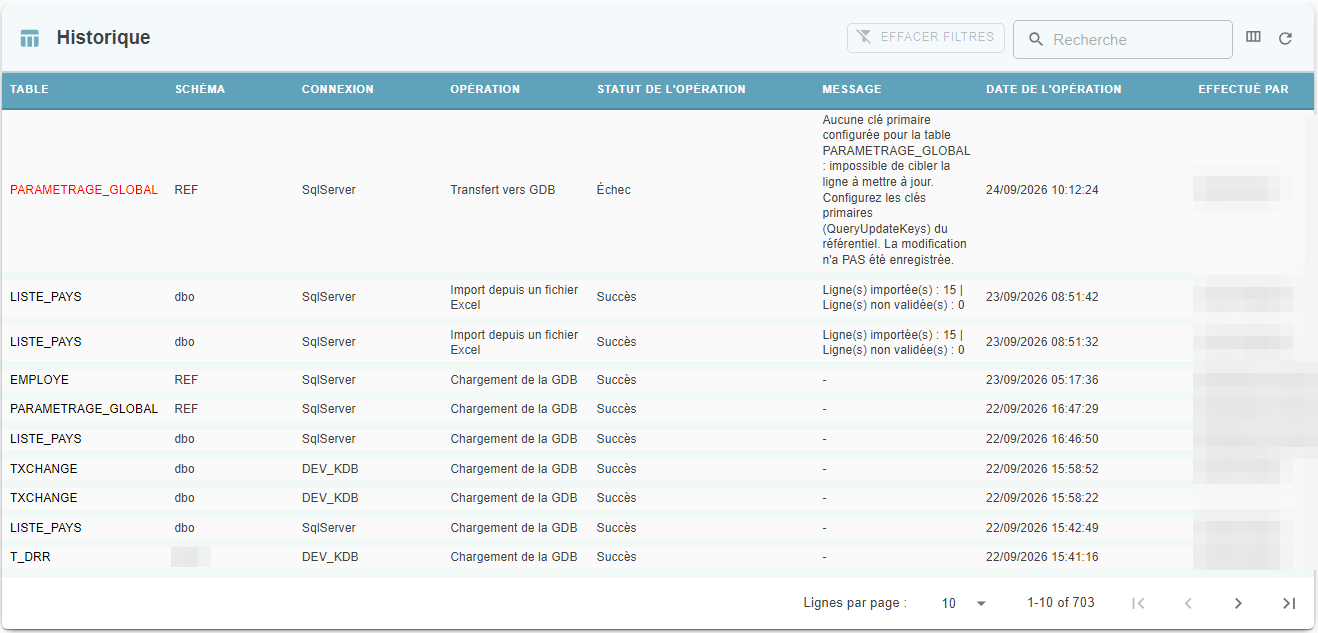
All actions performed when working with reference tables are logged on the Operations > Repositories > History page.
This page contains the log of actions performed on reference tables:
- Loading from the GDB
- Transfer to the GDB
This page also allows tracking the status of the actions performed. If an action fails, the issue can be resolved using the error messages.
Logging of Configuration Actions
All actions performed on reference table configuration (creation, modification, deletion, denied access attempts) are automatically logged in Supervision > Operations > Orkestra Logs (formerly Logs > Orkestra Logs).
Each log entry shows the ID of the user who performed the action, the reference table concerned, the type of action, and its result (success or denial).
Permissions on Reference Tables
A role must be assigned to the user to give them access to all or part of the reference tables.
In addition, depending on their permissions, certain REF Manager interface features may be disabled.
Permissions are described in the permissions manual.