Data Shop
The module is located in the Operations section (formerly General), Data Shop group: My Data Products entry (formerly Data Product). When you hover over a renamed entry, a "Formerly: …" tooltip shows its previous label.
Glossary
| Term | Definition |
|---|---|
| Module | A module is a data processing pipeline. It defines the set of executables that will be run when a production request is submitted. |
| Version | A UTD version corresponds to a given state in the UTD's evolution. |
| Data Processing Unit | A Data Processing Unit (abbreviated "UTD") is a grouping of several modules that either share common characteristics (e.g., a single business scope, or the management of all business reference data), or describe a complete business process made up of several flows (e.g., integrating the accounting data of several subsidiaries). |
Introduction
The Data Shop provides access to Data Products (products resulting from the various Orchestration production runs, formerly Data Fabrik).
Data Product
Marketplace
The Marketplace screen is the main entry point of the Data Shop.
It presents Data Products as cards grouped under explicit business labels (e.g., ECB Exchange Rates, Finance Reference Data, Annotated Data Consolidation).
Unlike the tag list, which exposes datasets individually, the Marketplace offers a consolidated view oriented toward business use.
Each card displays:
- The Data Product's business label
- The number of available datasets
- The last update date
- The associated points of contact
A search bar allows dynamic filtering of the displayed Data Products.
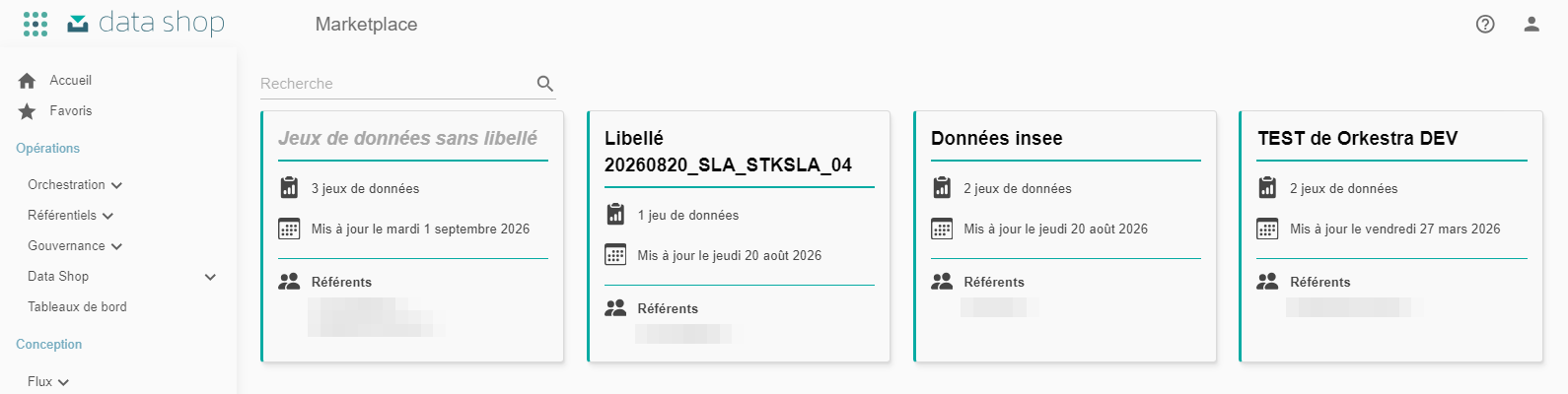
Marketplace - Dataset by Data Product
By clicking a Data Product's card, the user accesses the list of datasets associated with it:
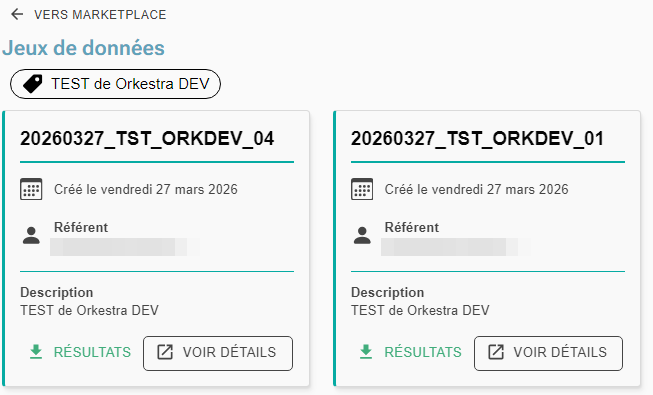
The « Vers Marketplace » (To Marketplace) button lets the user leave the selection and return to the Marketplace.
Below the « Jeu de données » (Dataset) page title, the Data Product's name is displayed.
Each card displays a dataset with:
- its name (label) as the title,
- its creation date,
- the associated point of contact,
- its description,
- a « résultat » (results) button to download the production result,
- a « voir détails » (view details) button to access the tag page (see Viewing a Tag).
Tag List
The Tag List (Operations > Data Shop > My Data Products menu, formerly Data Product) allows you to view all datasets in a detailed, individualized way.
It offers a more detailed, more technical view than the Marketplace, presenting each tag independently of its business grouping.
Tag viewing screen:
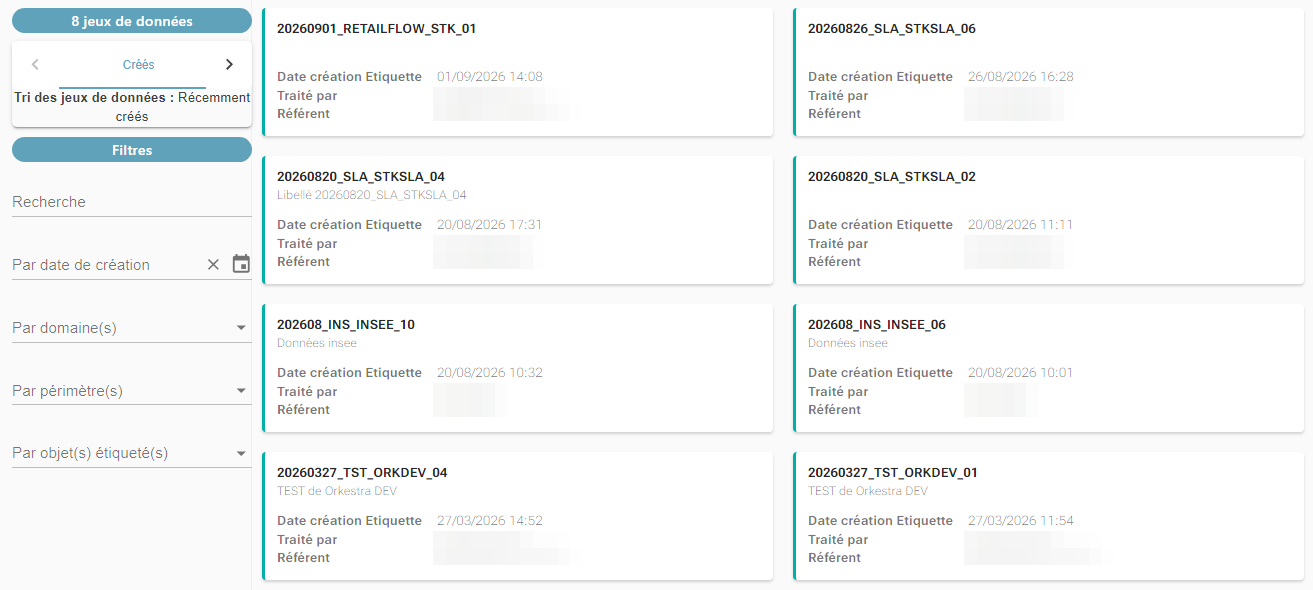
Information:
- Number of viewable datasets
Sorting datasets:
- By creation date
- Alphabetically
Filters:
- Search
- By creation date: returns datasets created within a defined range (option to select the current week or month, or to customize a specific range).
- By domain(s): displays datasets matching the selected domain(s).
- By scope(s): displays datasets matching the selected scope(s).
- By tagged object(s): displays datasets matching the selected tagged object(s).
Viewing a Tag
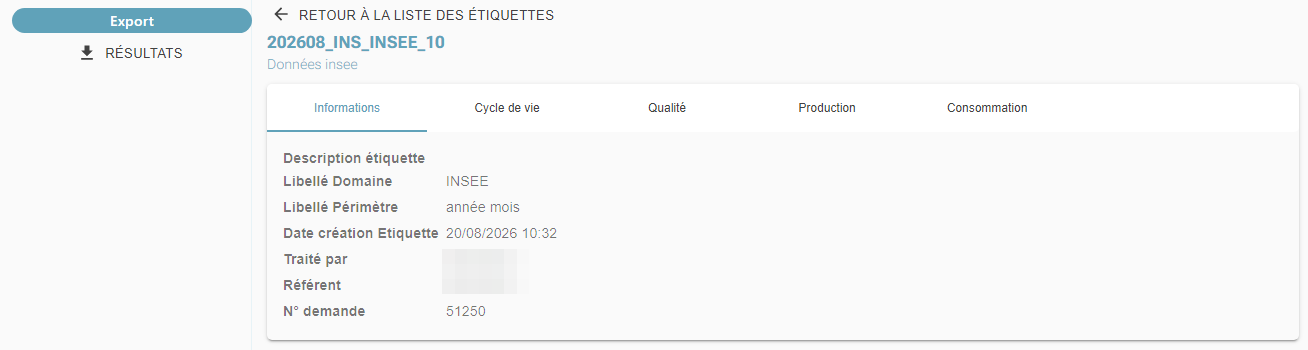
By clicking a dataset, the user displays the information related to that dataset.
The « Export » (Export) section allows the user to download the production result (the data product).
Information Tab
Provides the dataset's information:
- The tag's description
- The tag's domain and scope
- The tag's creation date
- The tag's creator
- The point of contact for the UTD that produced this tag
- The production request that created this tag
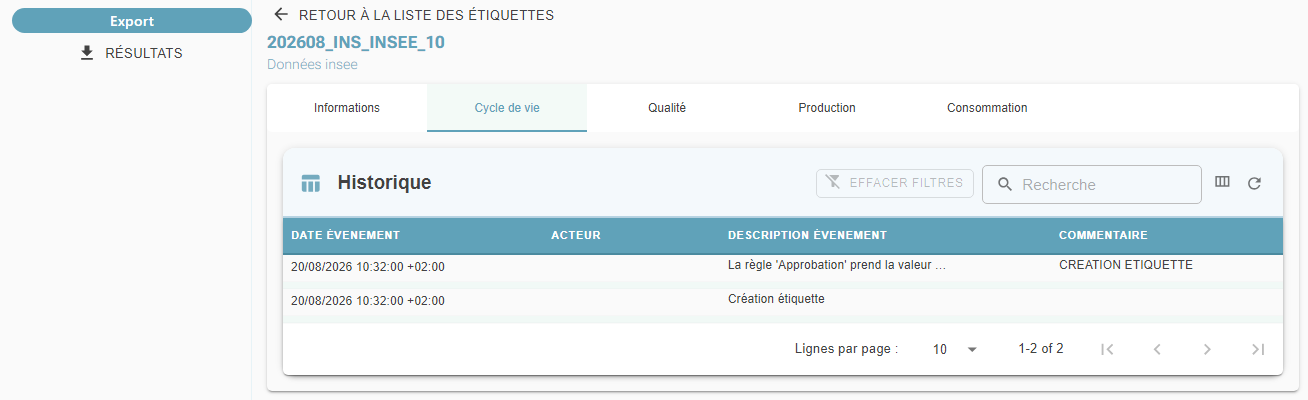
Lifecycle
The tag's lifecycle allows you to view the history of governance rules applied to this tag:
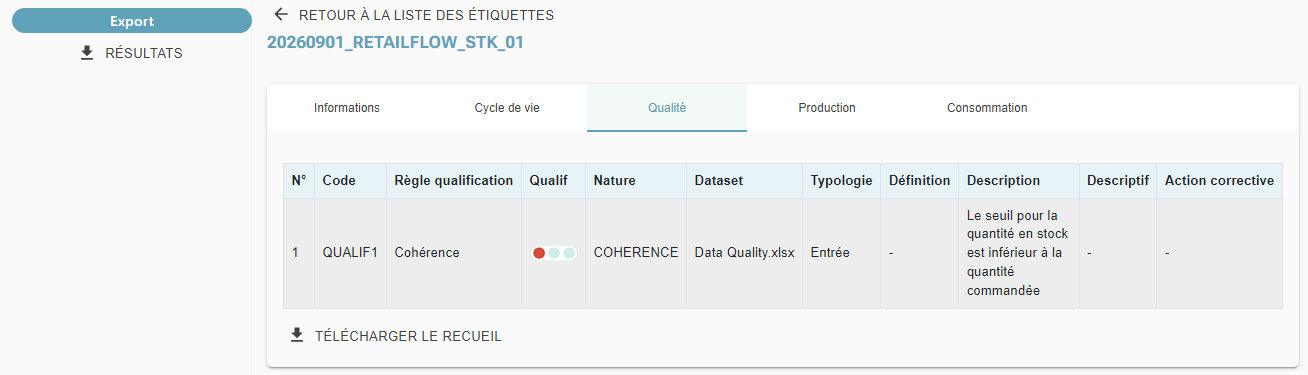
Quality
The tag's quality allows you to view the checks associated with the request that created this tag:
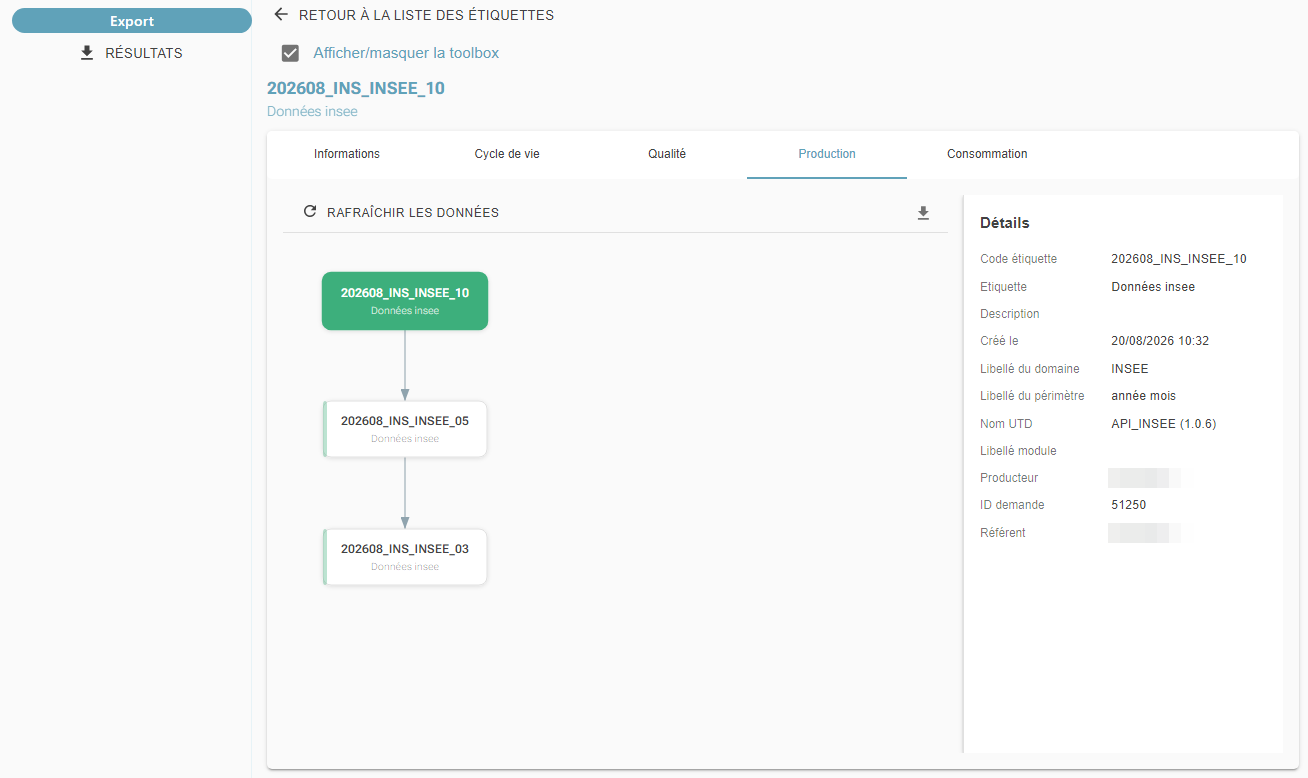
Production
The tag's production allows you to view the tags that contributed to creating this tag:
Consumption
The tag's consumption allows you to view the tags that are derived from this tag:
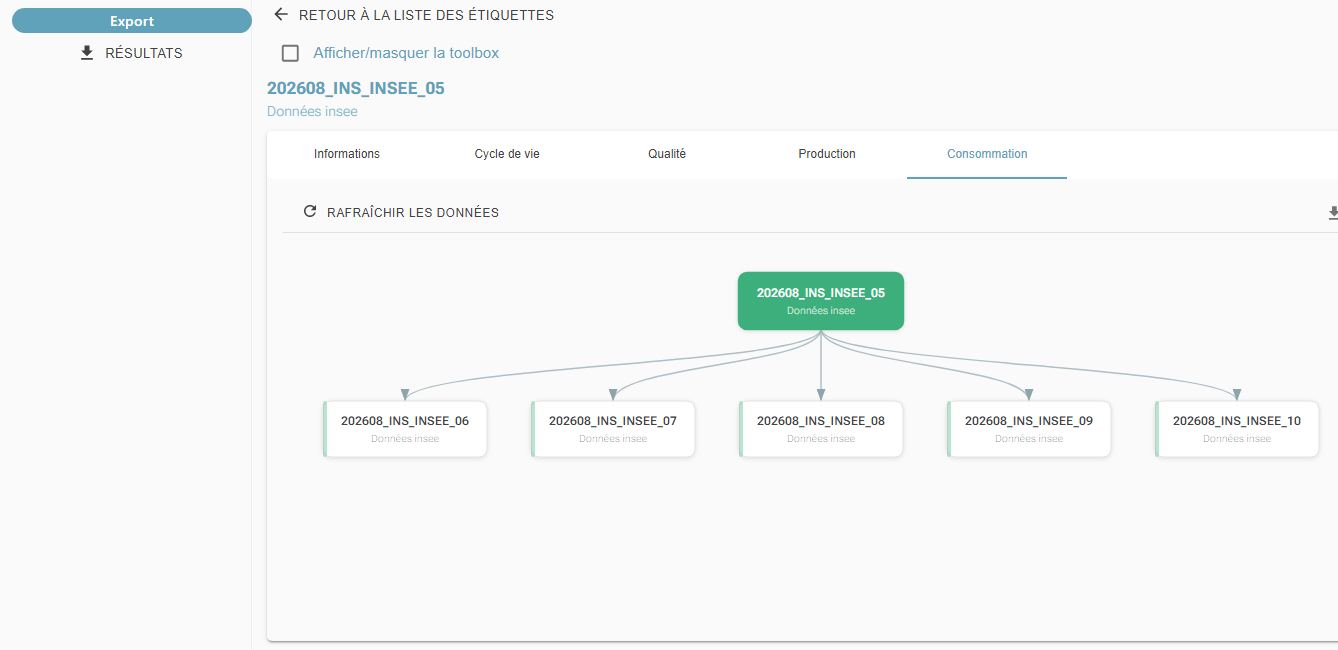
In these two screens, a toolbox displays information about the selected tag. It can be updated in real time via the « Rafraichir les données » (Refresh data) button, and it can be downloaded via the download icon.
This toolbox can be shown or hidden according to the user's preference, in order to optimize the display.
It is also possible to group / ungroup tag blocks depending on the user's reading needs.