Supervision
The module is located in the Supervision section, Operations group (formerly Logs: Workers, Orkestra Logs and Infrastructure entries) and Execution Tracking group (formerly UTD: Execution Logs (formerly Logs) and Monitoring entries). When you hover over a renamed entry, a "Formerly: …" tooltip shows its previous label.
The screenshots on this page reflect the 2.0.0 interface, except those of the Orkestra Logs Export Excel button, the production ID search, the column filters and the grouping on the Execution Logs page, which still show the previous interface.
Overview
The Orkestra Supervision module provides a set of screens for monitoring platform activity. It is divided into two parts:
- Operations (formerly Logs), for monitoring Workers, Orkestra Logs and the infrastructure
- Execution Tracking (formerly UTD), for monitoring logs reported by productions and retrieving production environments
Operations
Workers
Overview
The Workers supervision screen (Supervision > Operations > Workers, formerly Supervision > Logs > Workers) lets you check the status of production nodes. It lists the various production nodes installed on the servers along with their status.

Actions
-
Refresh
The REFRESH button updates the information displayed in the grid.

-
Service Started / Service Stopped
The SERVICE STARTED button lets you suspend or start production nodes.

-
Node Log
The Node Log column displays any errors present on the selected production node.

Orkestra Logs
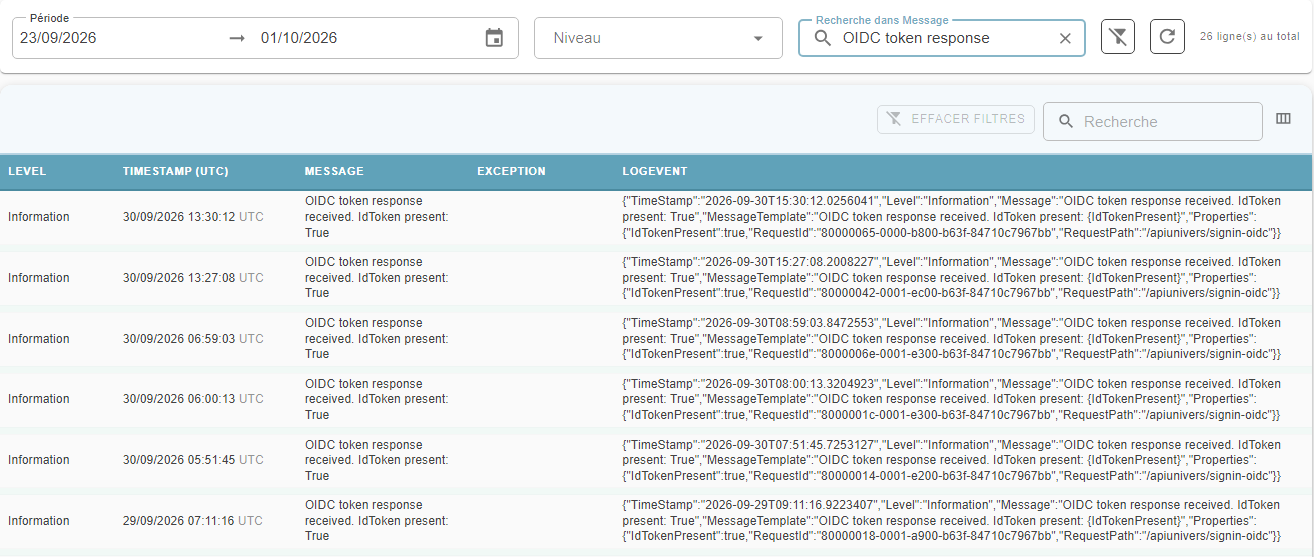
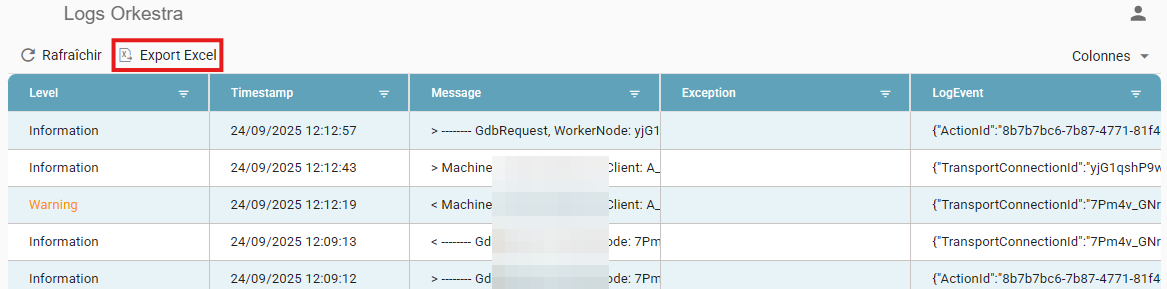
The Orkestra Logs supervision screen (Supervision > Operations > Orkestra Logs) displays a set of information related to platform activity.
This information has 3 levels:
- Informative (Information): general information about platform usage.
- Alert (Warning): information that may require intervention.
- Error (Error): information indicating that an error has occurred on the platform. These errors must be analyzed and fixed to ensure the platform operates correctly.
The data on this screen can be exported via the Export Excel button to make analysis easier.
Infrastructure
The Infrastructure screen (Supervision > Operations > Infrastructure), reserved for platform administrators, gives an overview of the server fleet: servers, health, workers, technologies and installed libraries. A search field lets you find on which servers, and in which versions, a library is installed.
Execution Tracking
Execution Logs
General overview
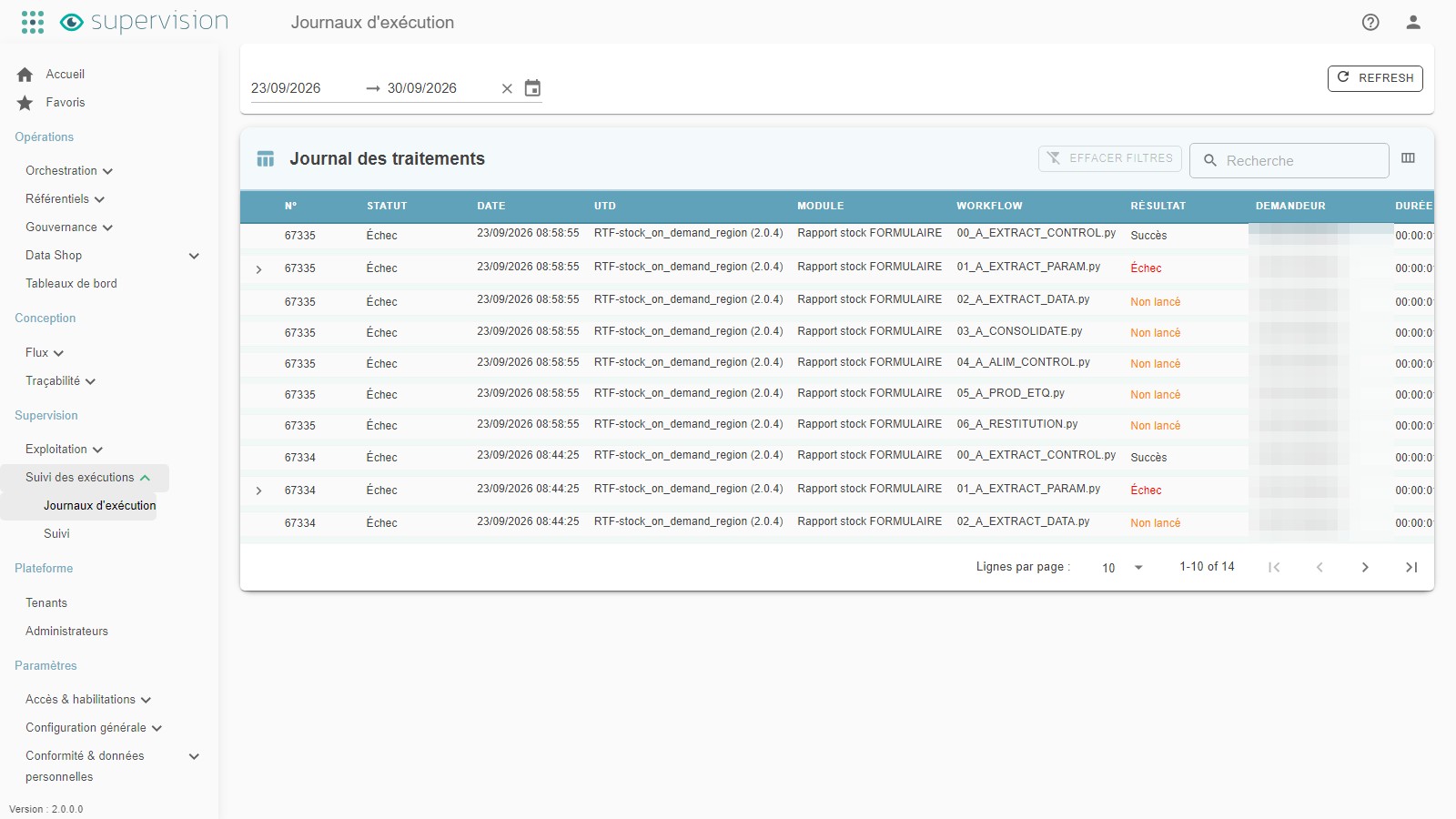
The Execution Logs supervision screen (Supervision > Execution Tracking > Execution Logs, formerly Supervision > UTD > Logs) displays a set of information related to UTD productions. This data is reported by the ETL via an API available on the Orkestra platform.
A "SUPERVISION" package developed by the Orkestra teams can be associated with each module, allowing it to publish information to the Orkestra platform. This way, production details are communicated by the ETL and are then available for review on the platform.
The information included in the production details:
- The name of the UTD and its output module
- The production ID and date/time
- The production status: Success / Error / Warnings
- Each production step of the UTD (the ETL Workflow)
- The result of each Workflow: Success / Failure / Not run, which can be expanded for further technical detail
Logs are available for UTDs built from an ETL (or other Data Processing tool) that includes the "Supervision" integration package.
General principle
After launching a UTD production run, the user can review the execution details and analyze the messages in case of error.
Instructions for using the Execution Logs page
-
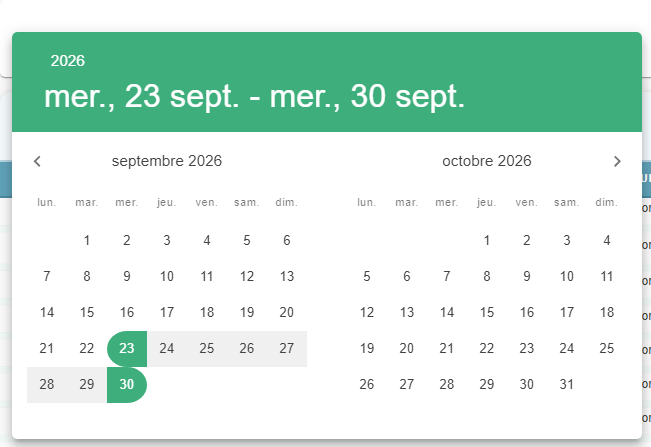
Select the current period:
If the production ID you want to analyze is not displayed on the page, run a search:
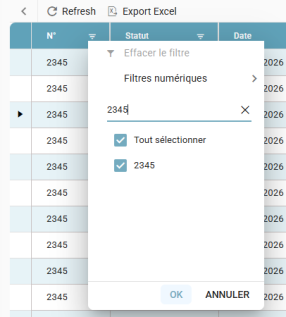
-
Review the log details:
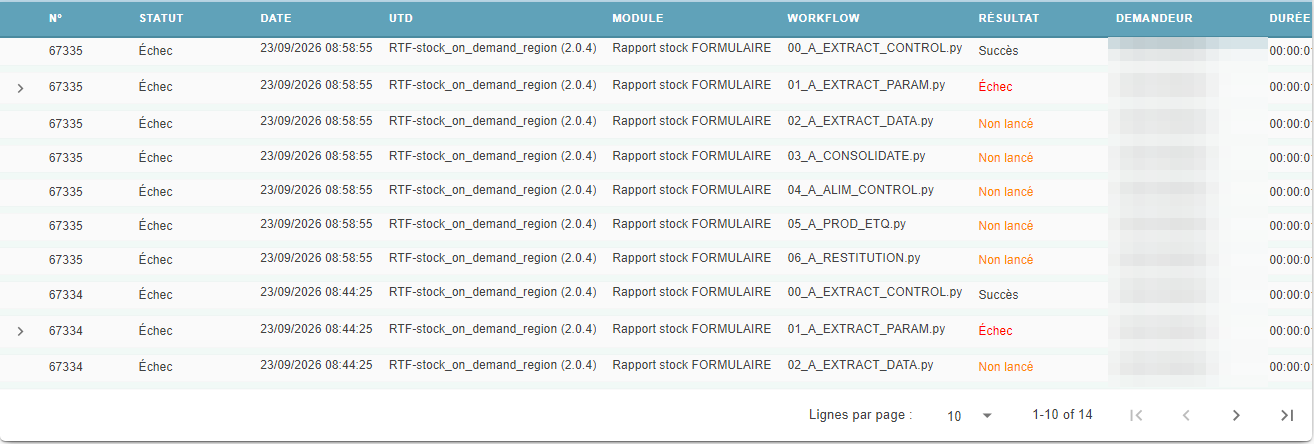
-
Expand the row of the workflow that failed using the small arrow on the left, and navigate to find the error message:
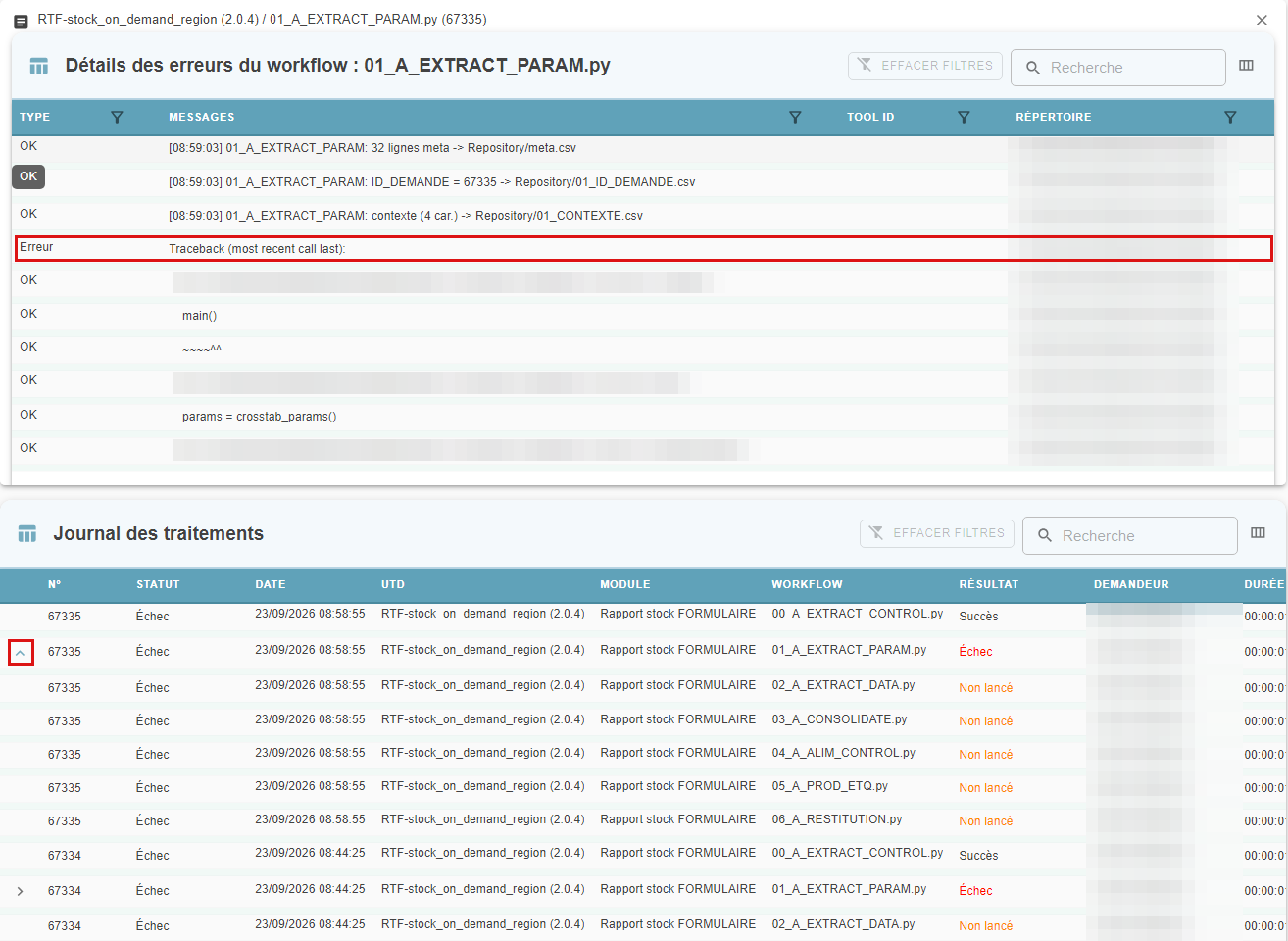 NB
NBBusiness users should mainly be interested in the error messages within the workflows, for example:
- 01_EXTRACT_DATA: invalid configuration file
- 02_EXTRACT_DATA: invalid or missing input file
- 05_PROD_ETQ: the elements used to build the label were incorrectly configured in Orkestra, or the declared input labels are incorrect. In these cases, a label log file can be downloaded from Operations > Orchestration (formerly Data Fabrik)
Errors in other workflows are technical in nature. In this situation, the user can contact their technical consultant.
-
Additional columns with more details are available in this section:
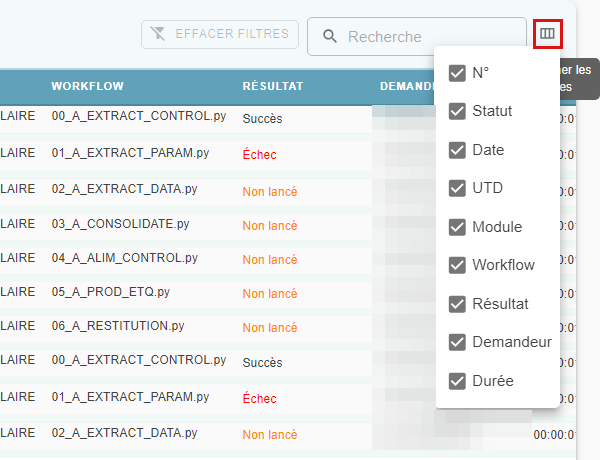
They can be selected or deselected depending on the information needed.
Using the Execution Logs page to build statistics
To get more information about, for example, recurring failures, users can group columns on the Execution Logs page.
This works similarly to a pivot table: organizing and grouping data by different categories to make it easier to compare or analyze.
Usage example
-
Select the current period:
-
Select the relevant UTD and filter the Résultat (Result) field by « échec » (failure):
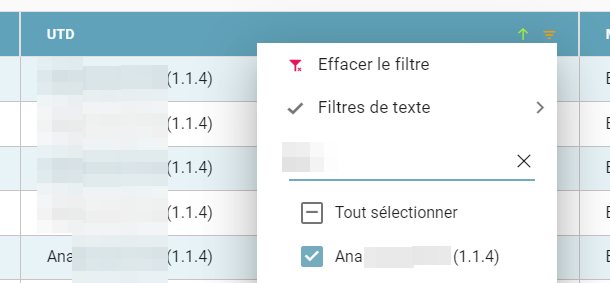
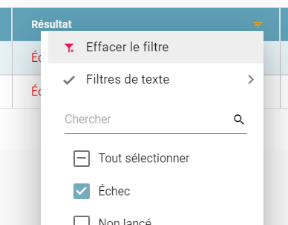
-
Drag the UTD, Résultat (Result), and Workflow columns into the purple grouping area. The data is then grouped by these three categories:
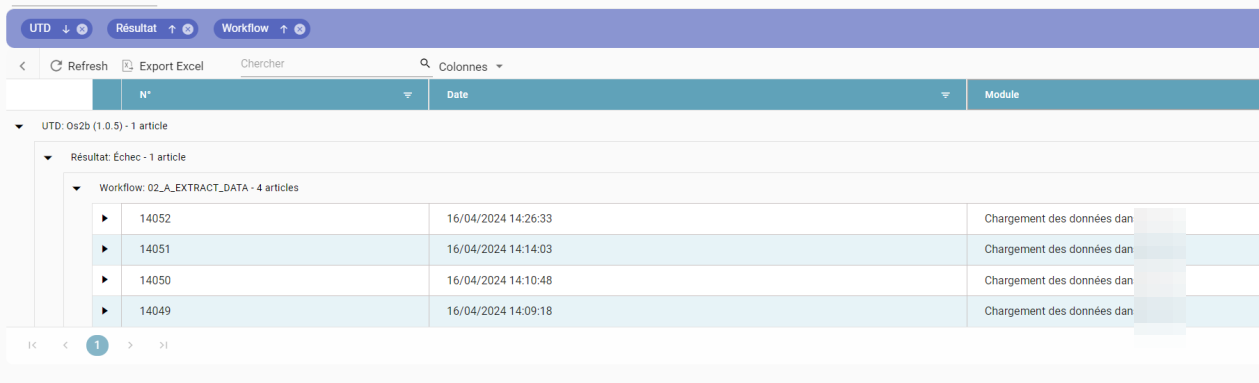
The user can then easily identify which productions failed and in which modules, all grouped by: UTD - result - workflow type.
In this case, the failures are all in the 02_EXTRACT_DATA workflow, with possible error causes related precisely to the platform user (invalid or missing input file, etc.).
Monitoring
General overview
The Monitoring screen displays modules in error following failed production runs. The environments for these modules can be downloaded directly from the platform for in-depth analysis.
General principle
From the Supervision > Execution Tracking > Monitoring menu, you can access the Monitoring screen. This screen presents the information associated with the request.
Clicking the download arrow downloads the environment of the failed production run as a ZIP file.
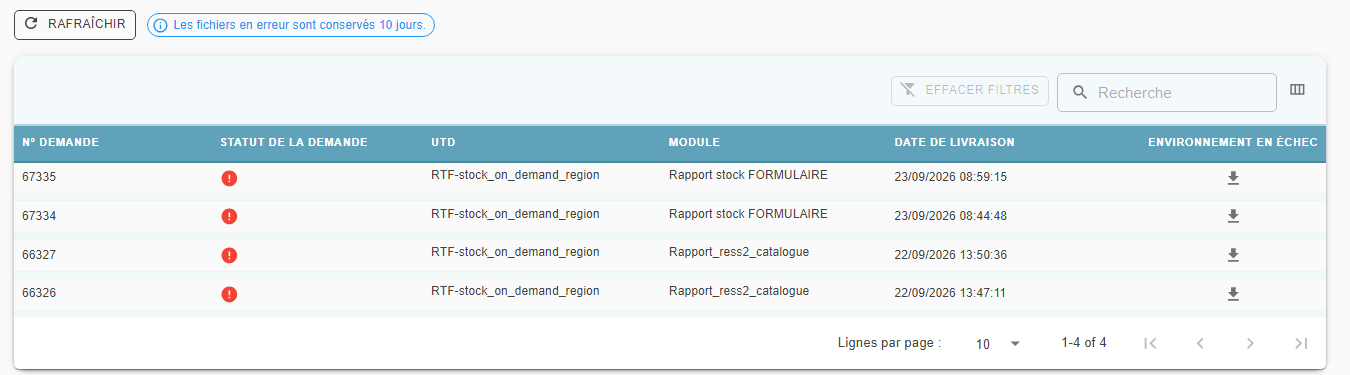
This feature requires configuration settings in the WebApi appsettings.json.
-
The
KeepClientDemandeFolderOnFailed: truesetting keeps the environment of the failed production run on the server.- The
GetEnvironmentOnFailed: truesetting zips the request environment and uploads it to Orkestra for download. - If
GetEnvironmentOnFailed: false, the environment will not be zipped or made downloadable via Orkestra.
- The
-
If the setting is
KeepClientDemandeFolderOnFailed: false, the folder for the failed request's environment is deleted.- The
GetEnvironmentOnFailedsetting (trueorfalse) is not taken into account in this case.
- The
Failed environments remain available on the platform for a limited time, 10 days by default. This duration can be configured in the appsettings.json file via the RetentionTimeForFailedFiles setting.
What's new in 2.0.0
This section describes a feature introduced in version 2.0.0, based on its functional criteria. The exact navigation details and screenshots will be completed once the version is released.
Redesigned home page
The home page has been redesigned to stay readable even with a high volume of daily production runs:
- A banner highlights production runs in error and data products awaiting validation, with direct access to the details.
- Key indicators (success rate, production farm load) are shown with context (for example "X out of Y scheduled") rather than as a raw number.
- The displayed time range can now be switched between Today, 7 days, or the current month, with a farm filter in addition to the user filter.
- The grid of in-progress production runs shows status, start time, and duration.
- A dedicated block summarizes the platform's health: active workers, average load, average production duration.