REF Manager
Introduction
REF Manager provides reference table management capabilities from the Orkestra platform for Data Steward type users: business and/or IT.
Reference tables can be viewed, updated, and transferred for storage in the Client's database after validation.
3 table types can be managed from REF Manager:
- Reference table with tag;
- Reference table without tag – Cancel and Replace (AR);
- Reference table without tag – Update;
This module includes 4 features for configuring and managing reference tables in Orkestra:
- From the Settings menu, then Configuration:
- Declaring the connection
- Configuring reference tables
- From the Management menu, then REF Manager:
- Managing reference tables
- Operation history
Configuring Reference Tables
In the Settings > Configuration > REF Manager menu.
Declaring a Connection
- Establish the connection between the platform and the Client's database
- Edit, disable, and delete an existing connection
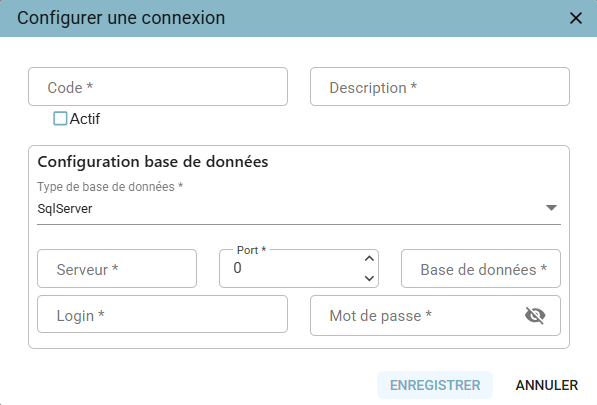
| Field | Description | Comments |
|---|---|---|
| Code | Connection code | |
| Description | Connection description | Limited to 500 characters |
| Active | Connection status | Checkbox (Active/Inactive) |
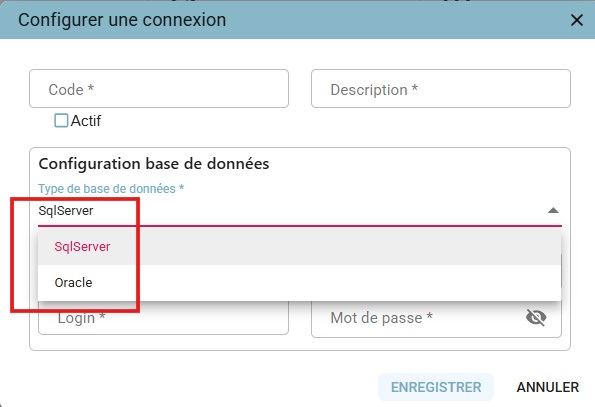
| Database type | Database type: SQL Server, Oracle | Selected from the dropdown menu |
| Server | Server name | |
| Port | Port number | |
| Database | Database name | |
| Login | Connection username | |
| Password | Password | |
| Creation date | Creation date |
A connection can only be disabled and/or deleted when it is not used in one or more configurations.
Configuring a Reference Table
- Declare a reference table, previously created in the database
- Define the various settings for managing the reference table through REF Manager
- Edit, delete, and disable a configured table
| Field | Description | Required | Comments |
|---|---|---|---|
| Table name | Table name as it appears in the database | YES | Example: T_REF_TYPOLOGIE |
| Functional name | Functional table name | YES | Example: Référentiels des typologies (Typology reference table) |
| Description | Description of the content | Limited to 500 characters | |
| Operating mode | Description of how the table (the query) is administered | 500 characters | |
| Typology | Reference table typology: With tag, Without tag – AR (Cancel and Replace), Without tag – Update | YES | Selected from the dropdown menu |
| Data Steward | Person responsible for administering the reference table in Orkestra | YES | Selected from a dropdown menu of active users, sorted alphabetically |
| Status | Configuration status: Inactive (not editable, not visible in the management screen), Active (not editable, visible in the management screen), Draft (editable, not visible in the management screen) | Selected from the dropdown menu. Draft by default | |
| Connection | List of active database connections defined in the Connection tab | YES | Selected from the dropdown menu. ORACLE by default |
| Schema | Table storage schema | YES | To be entered by the DBA |
| Select query GDB → Orkestra | Select query to execute (scripted by the DBA): Client database to Orkestra | YES | To be entered by the DBA |
| Max rows from GDB to Orkestra | Numeric entry. Restricts the number of rows that can be administered in Orkestra | YES | Number lower than XXX: if not respected, the usability of the interface is not guaranteed |
| Min rows from Orkestra to GDB | Numeric entry. Restricts the minimum number of rows to be sent to the database | Number greater than 1: an empty dataset cannot be transmitted | |
| Max rows from Orkestra to GDB | Numeric entry. Restricts the maximum number of rows to be sent to the database | Number lower than XXX (to ensure data consistency) | |
| Editable fields (comma-separated) | List of editable fields of the relevant table in the database | Example: "DESCRIPTION", "INFO" = Only these 2 fields can be modified by the user | |
| Primary keys (comma-separated) | List of fields making up the primary key | Example: "CODE_UNIT", "LIBELLE" = these 2 fields cannot be modified by the user | |
| Predicates (SQL) | Optional selection criterion | Example: "NUMV=24" = retrieve from the database only the dataset where NUMV=24 | |
| UTD – Module | Selected from the dropdown menu, from a module defined in the UTD Manager application | YES | |
| Tag Object Code | Selected from the dropdown menu, from an Object Code defined in the Etiquette Manager application, used to generate the tag | YES | If the reference table typology = With tag |
| Scope | Selected from the dropdown menu, from an Object Code defined in the Etiquette Manager application, used to generate the tag | YES | |
| Tag Field | Name of the field holding the tag value in the Client database table | YES | If the reference table typology = With tag |
-
Only tables that exist and are active in the Client's database can be managed.
-
When initializing a new reference table, creating the table in the client's database is a prerequisite before proceeding with configuration in REF Manager.
-
From the UTD Manager menu, a UTD and a dedicated module must be created for each table so they can be selected during configuration from the dropdown menu:
- The module is not intended to be used for production purposes from the Data Fabrik
- The module must contain only a Batch named « REF MANAGER »
- The module must not contain any resource files
Only modules and UTDs with an active status are selectable in the configuration.
-
For tables with a tag, it is mandatory to configure the tag naming convention. From the Etiquette Manager module, the Data Steward (business) must define, for each table:
- Domain: with a Ref Manager (RFM) domain type
- Scope: associated with the defined domain. It can be dynamic or non-dynamic
- Object: associated with the defined domain
-
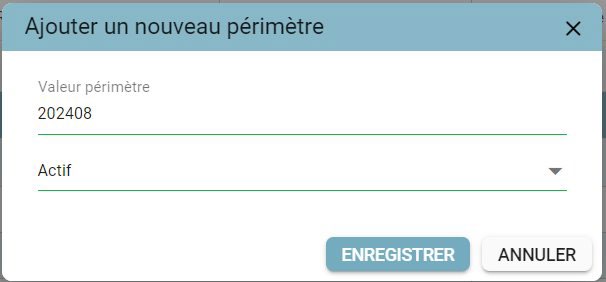
For tables with a tag, if the scope is dynamic, scope values must be added. These values are defined after configuring the table, in the Configuration tab, with a status of « actif » (active) or « inactif » (inactive). At least one active scope value must be associated with the asset's configuration to allow the table to be activated.
Configuring a Reference Table With Tag
Focus on tables with a tag and a dynamic scope:
- For any With Tag typology, selecting a Tag Object Code as well as a Scope is mandatory. Selecting a dynamic scope displays the label « Périmètre dynamique » (Dynamic scope) (to the right of the selection).
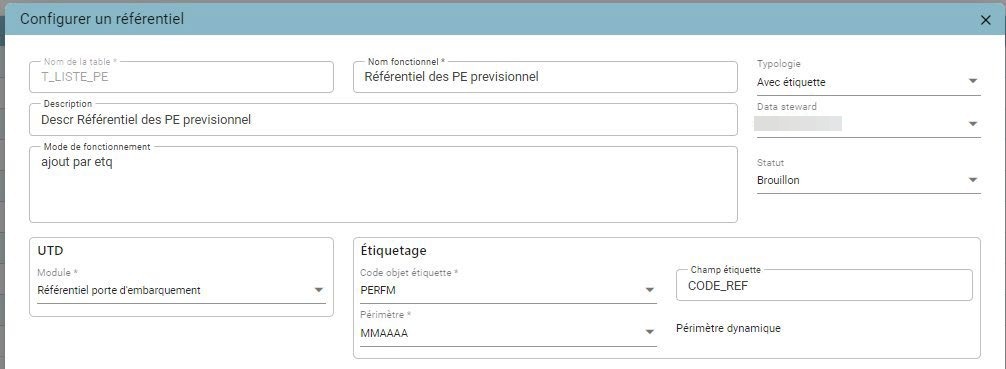
Enter the tag object code (selected via autocomplete) and the field in which the tags are stored in the table. The Scope selection depends on the object code, based on the domain.
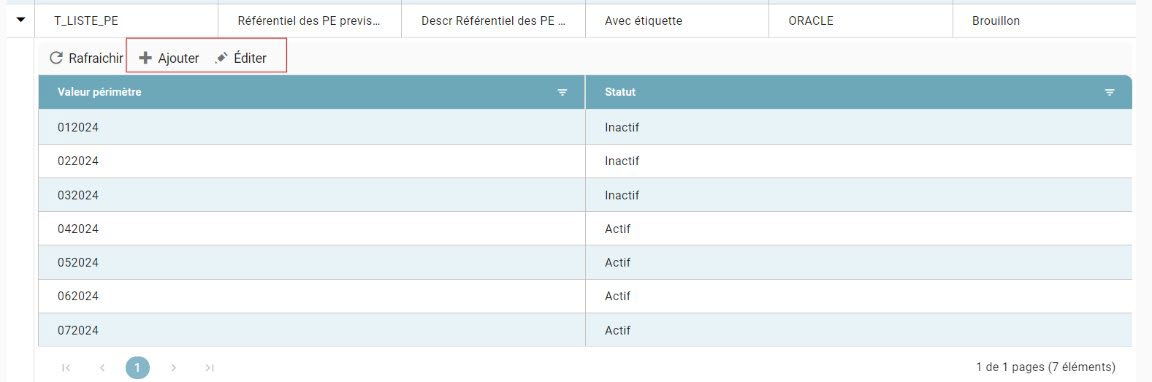
Once the configuration is saved with Draft status, scope values can be added via the configuration's sub-grid. NB: an active scope value is required in order to switch the configuration to Active status.
SQL Server Compatibility
The Talend workflow can support SQL Server in addition to Oracle, while enforcing strict management of the supported data types.
Return codes are correctly handled under SQL Server, consistent with the existing behavior under Oracle.
A restricted list of supported data types has been added for SQL Server and Oracle. If a reference table column uses an unsupported type, the workflow returns error code 1 with the following message:
LE TYPE DE DONNEES [TYPE] N'EST PAS SUPPORTE.
(Translation: "THE DATA TYPE [TYPE] IS NOT SUPPORTED.")
| Category | Supported types |
|---|---|
| Text | Text, Char, Varchar2, Nvarchar2, Guid, Varchar, nchar, nvarchar, ntext, RowId |
| Decimal | Float, Double, Number, Decimal, Numeric, Real |
| Integer | Int, Integer, Tinyint, Smallint, BigInt |
| Boolean | Bool, Boolean |
| Date/Time | Date, DateTime, DateTime2 |
Configuration Summary
| Steps | Data Steward | DBA |
|---|---|---|
| Connection | None | Create the connection between Orkestra and the database |
| Create the reference table (if it doesn't already exist) | None | Create the table in the Client's database |
| Configure Table with Tag | Define the tag in Etiquette Manager: Domain (with a Ref Manager domain type - RFM), Scope (associated with the defined domain, dynamic or non-dynamic), Object (associated with the defined domain, with a « Actif » (Active) status). Create a UTD and a module (active) in UTD Manager | Select the Object code provided by the DS. Select the scope provided by the DS. If the scope is dynamic, define the scope values from the sub-grid (mandatory to validate the configuration of a table with tag and dynamic scope). Select the module (UTD). Enter the technical field holding the tag in the table. Change the status from « Brouillon » (Draft) to « Actif » (Active) to make the table accessible in the Management tab |
| Configure Table without Tag | Create a UTD and a module (active) in UTD Manager | Select the module (UTD) provided by the DS. Change the status from « Brouillon » (Draft) to « Actif » (Active) to make the table accessible in the Management tab |
| Configure Table without Tag – Update | Create a UTD and a module (active) in UTD Manager | Select the module (UTD) provided by the DS. Change the status from « Brouillon » (Draft) to « Actif » (Active) to make the table accessible in the Management tab |
Managing Reference Tables
In the Management > REF Manager menu.
Managing a Reference Table
Viewing a Reference Table
Accessible reference tables must have « Actif » (Active) status in the REF Manager > Configuration section.
From the dropdown menu, select the desired reference table, then click « Afficher » (Display) to show the content of the selected table.
On first use, the table is loaded automatically from the Client's database: this operation may take a few minutes depending on the size of the content.
If the table has already been loaded from Orkestra, it will not be reloaded from the client's database when the « Afficher » (Display) button is clicked.
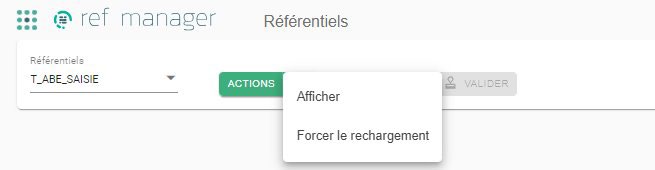
Clicking « Forcer le rechargement » (Force reload) reloads the table from the Client's database into Orkestra. This operation may be used, for example, after the table has been updated in the database outside of REF Manager.
In the event of a forced reload, the data in use and all existing drafts will be erased from Orkestra. The reload is performed based on the configuration as defined at that point in time.
Selecting a Tag (Tables With Tag)
For tables with a tag, a tag can be selected from a dropdown menu once the table content has been displayed.
The tags listed in the dropdown menu are the tags that exist and have been validated in the Client's database at the time the database was loaded into Orkestra.
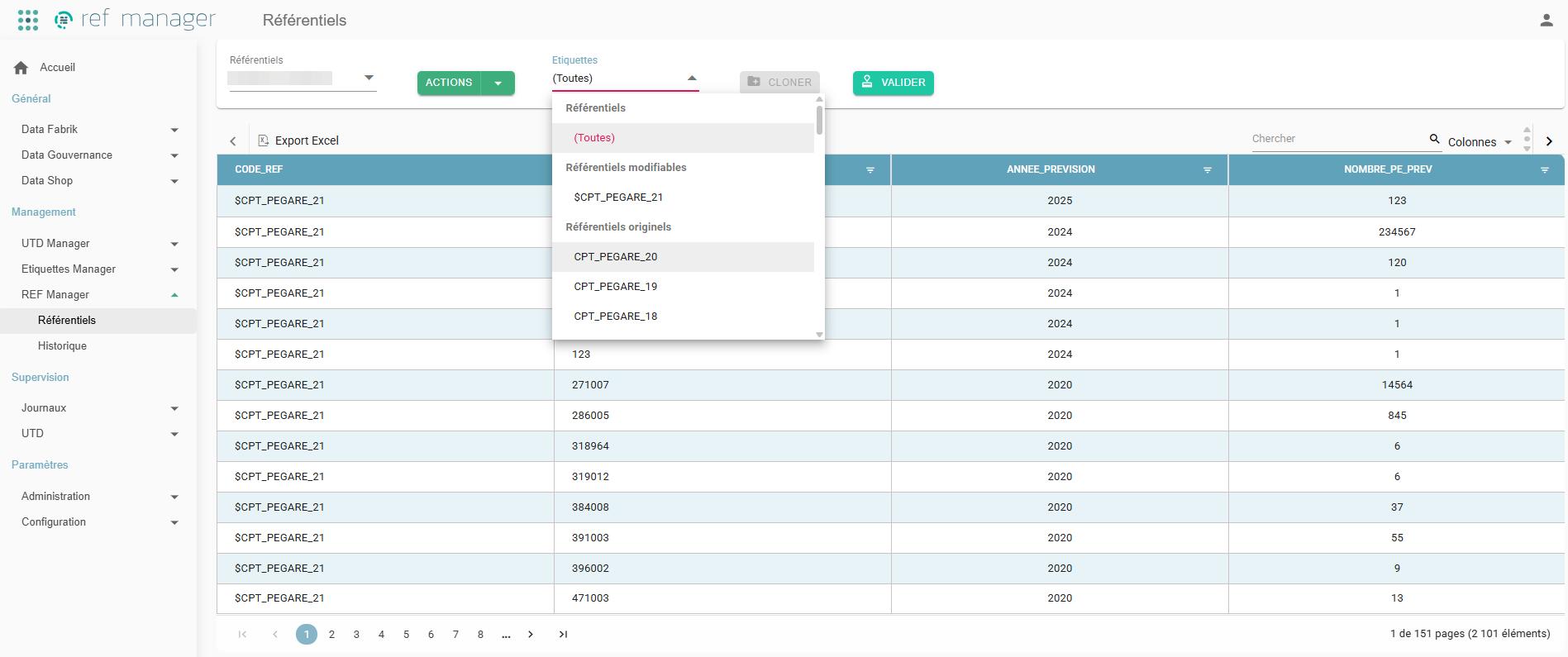
To update data from the selected tag, click « CLONER » (Clone). It is not possible to modify a tag that already exists and has been validated in the Client's database.
Cloning and Editing Reference Tables With Tag
The « CLONER » (Clone) button then starts the creation of a dataset identical to the selected tag. The new dataset is tagged with a temporary data tag: $ + the original tag code.
It is not possible to clone the clone of a tag. A tag can only be cloned once.
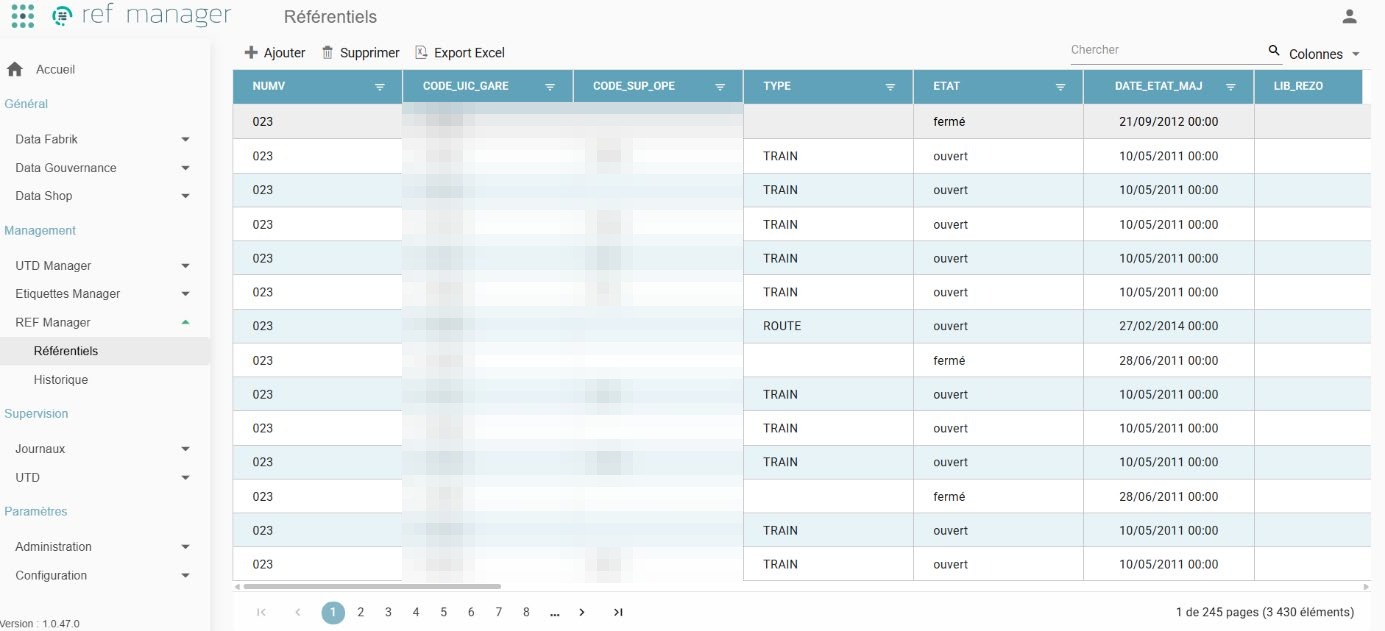
Rows in a cloned reference table can be modified, added, and deleted, according to the criteria and conditions defined in the Ref Manager > Configuration section.
Editing Reference Tables Without Tag
For tables without a tag, the « CLONER » (Clone) feature is disabled: changes are made directly to the table's content:
- Tag-less AR tables (Cancel and Replace): rows in the dataset can be modified, added, and deleted, according to the criteria and conditions defined in the Ref Manager > Configuration section.
- Tag-less Update tables: only certain fields of the dataset can be modified, according to the criteria and conditions defined in the Ref Manager > Configuration section.
If the selected table has no data, the interface displays an empty grid with column headers, in which rows can be added.
Quick Inline Editing of Reference Tables
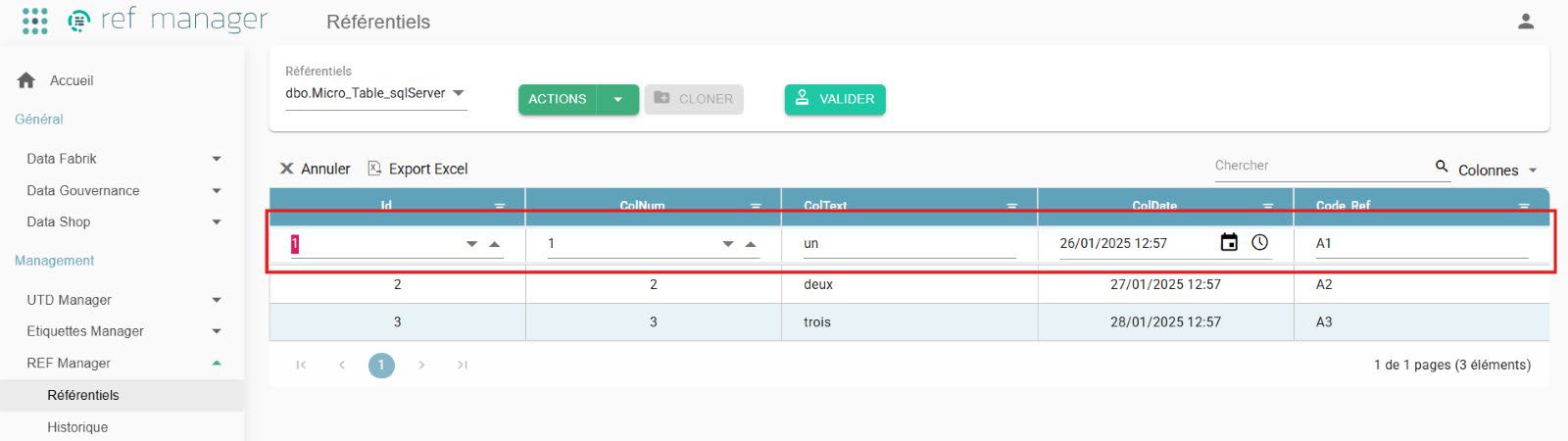
Editing a reference table is done directly from the grid, in row-edit mode. Double-clicking a row switches it to edit mode. Changes are saved automatically when the row loses focus.
Bulk Updates (Excel Export and Import)
This feature makes it possible to export a reference table's content, edit it offline, and then re-import it for updating.
The goal is to let users perform bulk updates of their business reference tables from an Excel file, simply and completely autonomously.
Exporting a Reference Table to Excel
From the REF Manager > Reference Tables screen, users can export the content of an active reference table:
- Select the desired reference table from the dropdown list.
- Click the Export Excel button.
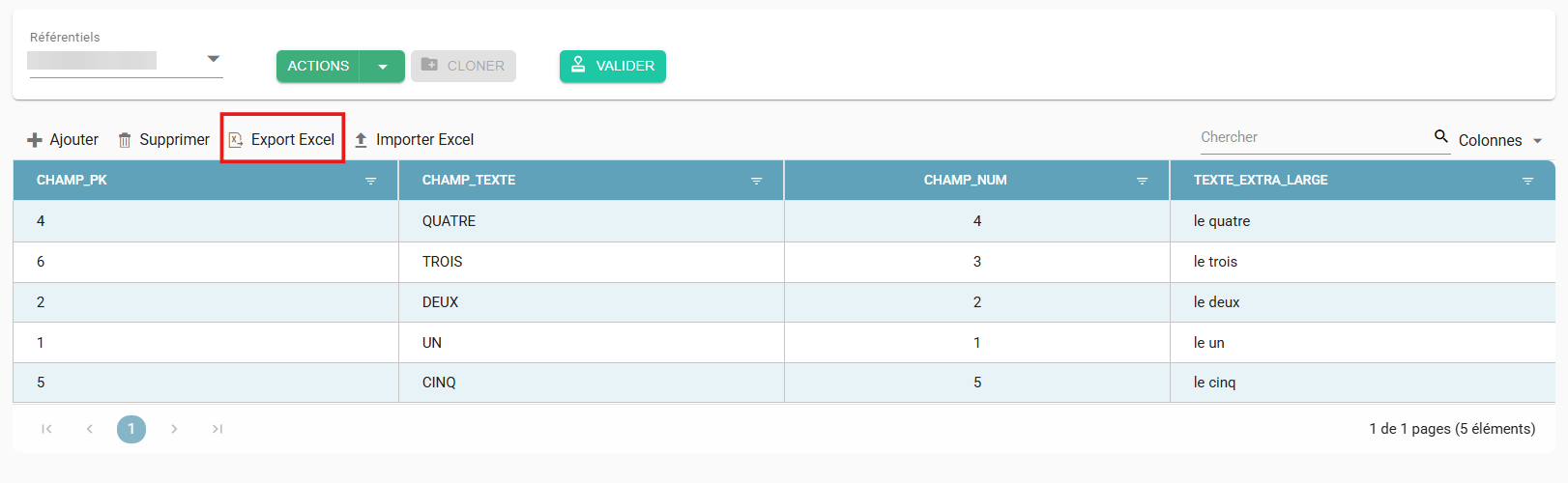
The system automatically generates an .xlsx file containing:
- The columns visible in the grid,
- The current values of the records.
Use the exported file as a working template for changes. Do not delete or rename the column headers.
Importing an Excel File into a Reference Table
After editing the file, it can be re-imported to update the reference table:
- Click the Import Excel button.
- Select the .xlsx file to import.
Orkestra automatically analyzes the file's content:
- Checking that the columns match,
- Checking the data types,
- Detecting anomalies or missing values.
A validation report is then displayed on screen, showing:
- The status of each row (Success or Error),
- The field concerned,
- The associated error or warning message.
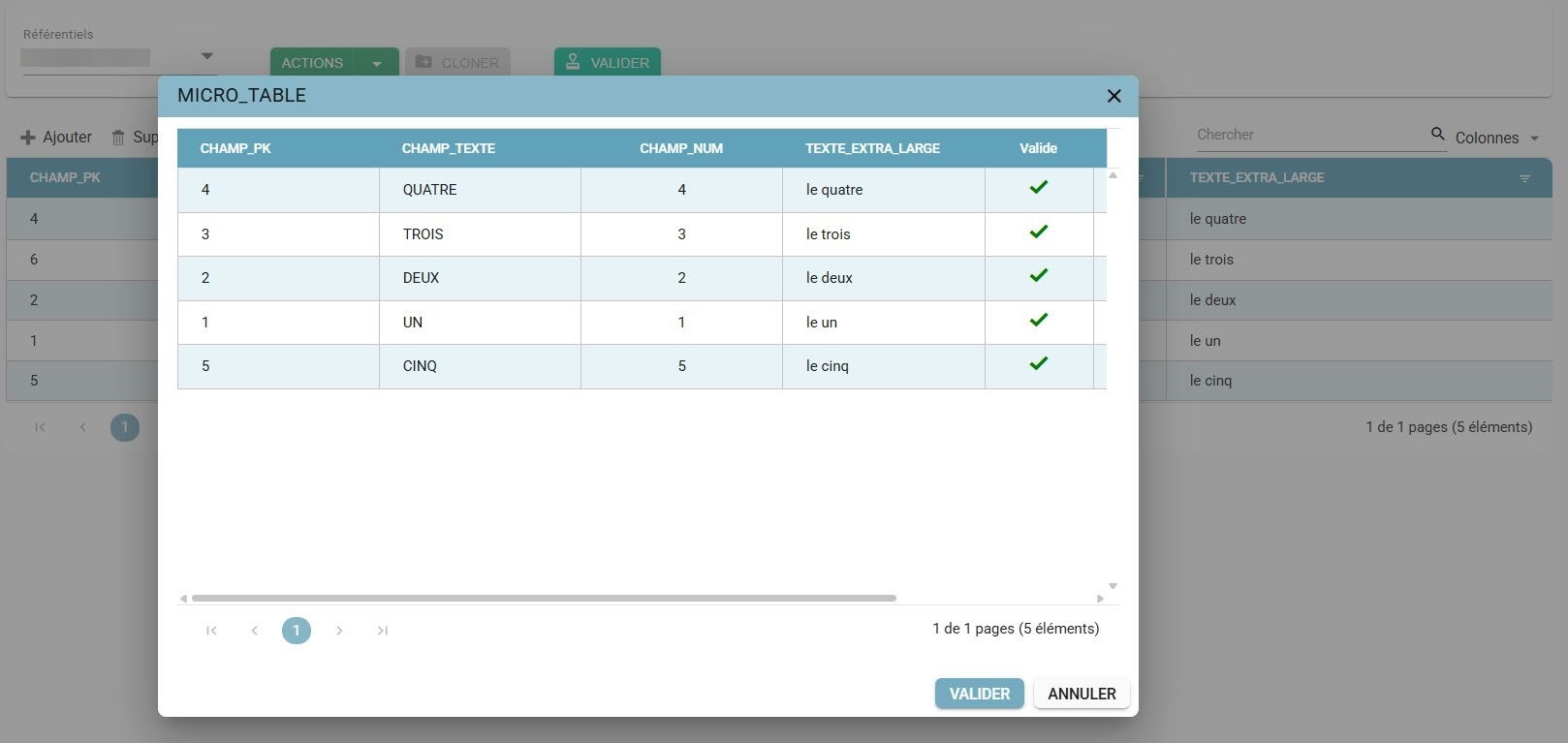
If the file is valid, the user can confirm the import. The data is then automatically loaded into the relevant reference table.
Read-Only Columns in Reference Tables
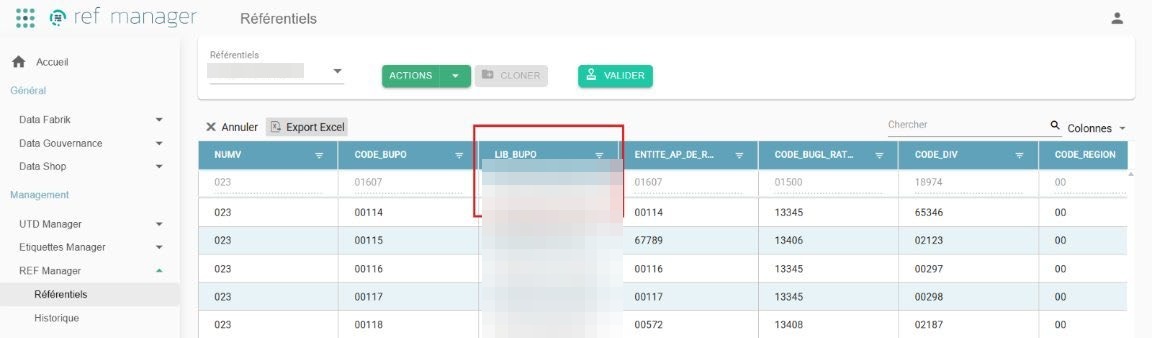
Customizable Column Order
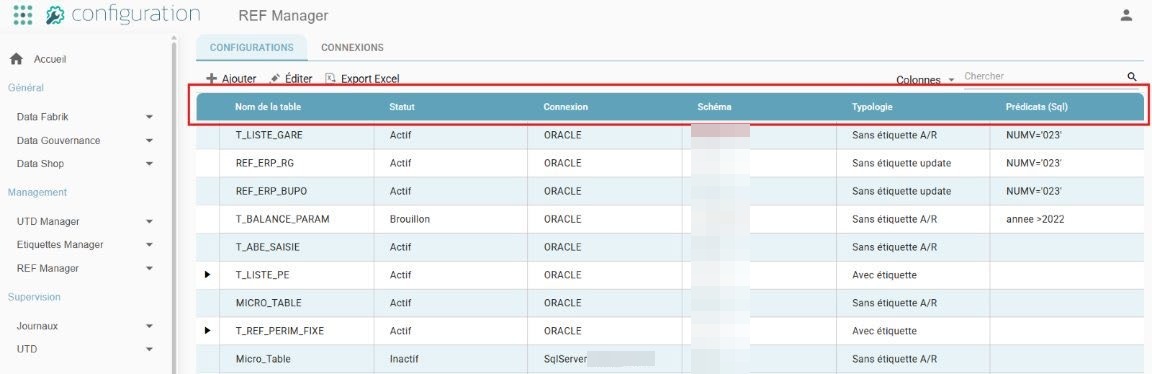
- In the Configurations screen (Configuration > REF Manager), users can reorder the grid's columns by drag-and-drop, according to their preferences.
- The change in order is instant, and display preferences are automatically saved for each user.
- The custom order is preserved even after a page refresh or on subsequent logins.
Selecting Columns in the Reference Table Grid
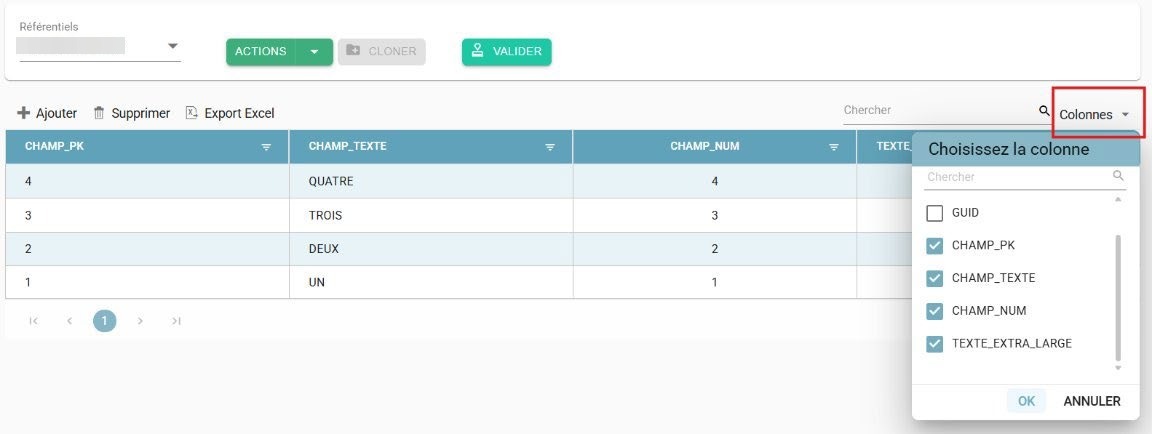
- A column selector lets users show or hide columns based on their viewing needs.
- For technical reasons, user preferences are not yet supported on this grid. As a result, reloading the page resets the column display.
Tag-less Table - Validating and Transferring to the Client's Database
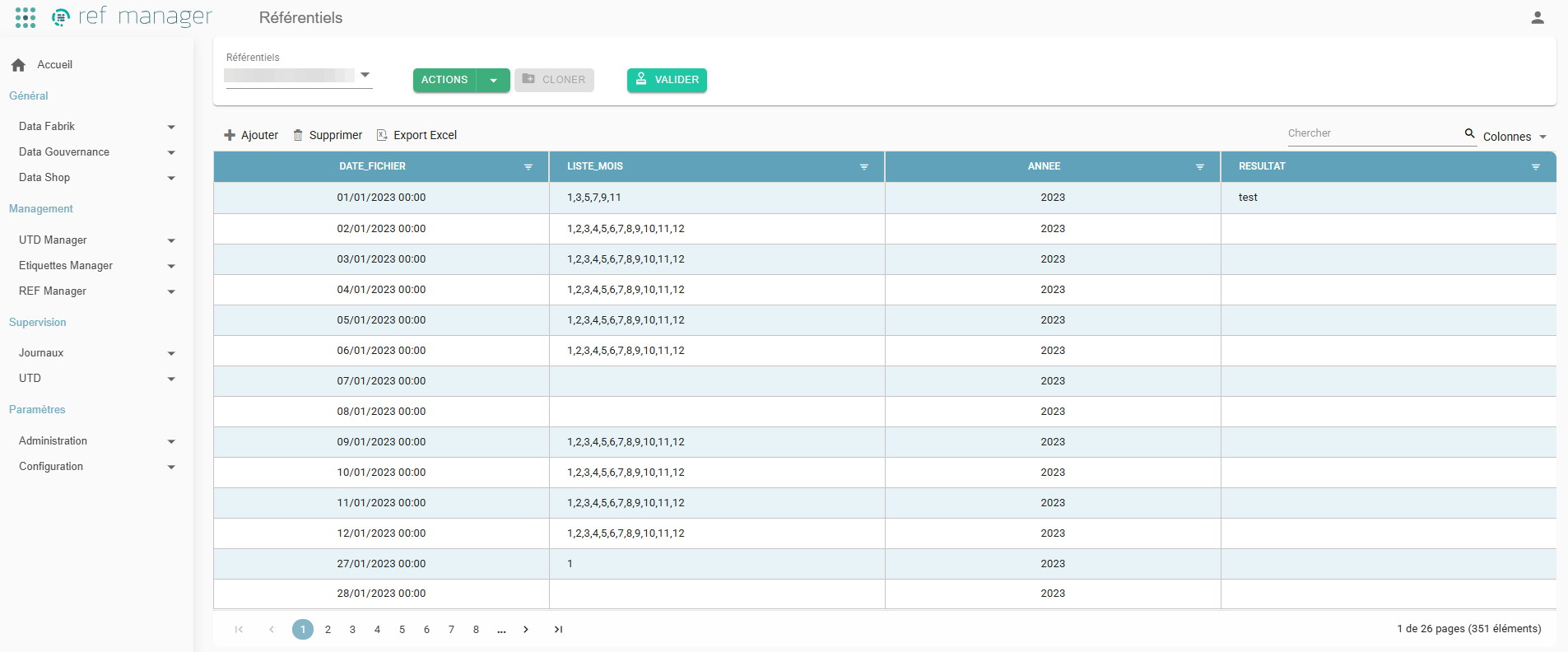
After making changes, click « VALIDER » (Validate):
- Tag-less AR table (Cancel and Replace)
- Creation of a Request ID
- Deletion of the table's content in the database
- Transfer and insertion of the modified dataset into the database
- Tag-less Update table
- Creation of a Request ID
- Modification of the editable fields in the database
- Table with a non-dynamic scope
- Generation of the tag from the defined Object code and the scope value selected in the Ref Manager > Configuration section
- Creation of a Request ID
- Transfer and insertion of the dataset carrying the generated tag into the client's database
- Table with a dynamic scope
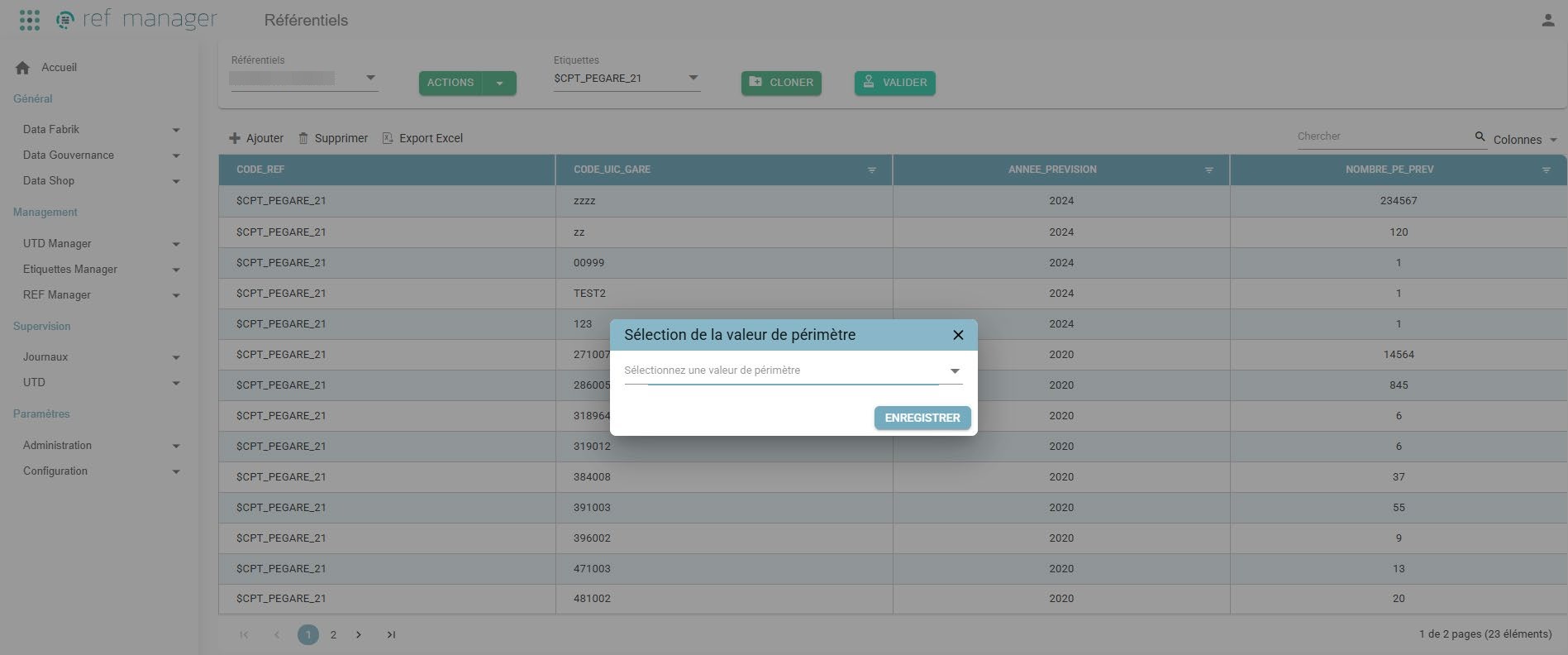
- Selection of an active tag value defined in the configuration, then clicking Save
- Generation of the tag from the defined Object code and the scope value selected in the Ref Manager > Configuration section
- Creation of a Request ID
- Transfer and insertion of the dataset carrying the generated tag into the client's database
In the event of failure, the new tag will not be generated. After correcting or resolving the issue, validation can be performed again to transfer the data to the client's database.
Uniqueness Check When Creating or Editing Reference Tables
If an identical reference table already exists in the database, a notification (snackbar) is displayed with the following message:
- FR: Enregistrement impossible : un référentiel avec ces paramètres (nom de table, schéma et connexion) existe déjà.
- EN: Saving failed: a referential with these parameters (table name, schema, and connection) already exists.

Management Feature Summary
| Feature | Table With Tag | Tag-less AR Table | Tag-less Update Table |
|---|---|---|---|
| Display | First use: loads the entire table from the client's database. Afterward: loads the table's content from its saved copy in Orkestra | First use: loads the table's content based on the Prédicats (Sql) (Predicates (SQL)). Afterward: loads the table's content from its saved copy in Orkestra | First use: loads the table's content based on the Prédicats (Sql) (Predicates (SQL)). Afterward: loads the table's content from its saved copy in Orkestra |
| Force Reload | Loads the entire table. Deletes existing data in Orkestra, including drafts (cloned tags) | Loads the table's content based on the Prédicats (Sql) (Predicates (SQL)). Deletes existing data in Orkestra, including changes in progress on the table | Loads the table's content based on the Prédicats (Sql) (Predicates (SQL)). Deletes existing data in Orkestra, including changes in progress on the table |
| Select Tags | From the dropdown menu that appears once the table's content has loaded (after clicking « Afficher » (Display)) | Not applicable | Not applicable |
| Clone | Clone: creates a dataset identical to the selected tag. Cloning is possible from a tag that has not been cloned. It is not possible to clone tags that have already been cloned. It is not possible to clone the clone of a tag | Not applicable | Not applicable |
| Edit | Add, edit, and delete rows of a cloned tag. It is not possible to modify a tag that already exists and has been validated in the client's database | Changes are made directly on the dataset. Add, edit, and delete rows in the dataset | Changes are made directly on the dataset. Depending on the configuration, changes are possible only on the editable fields. Rows cannot be added or deleted |
| Save | Automatically saved on every save action | Automatically saved on every save action | Automatically saved on every save action |
| Validate | If the scope is dynamic, select the desired (active) scope value from the dropdown menu. Tag generation. The new dataset is loaded into the database table with the newly generated tag | Deletes the table's content in the database and loads the updated dataset into the table | Only the editable fields are modified in the database table |
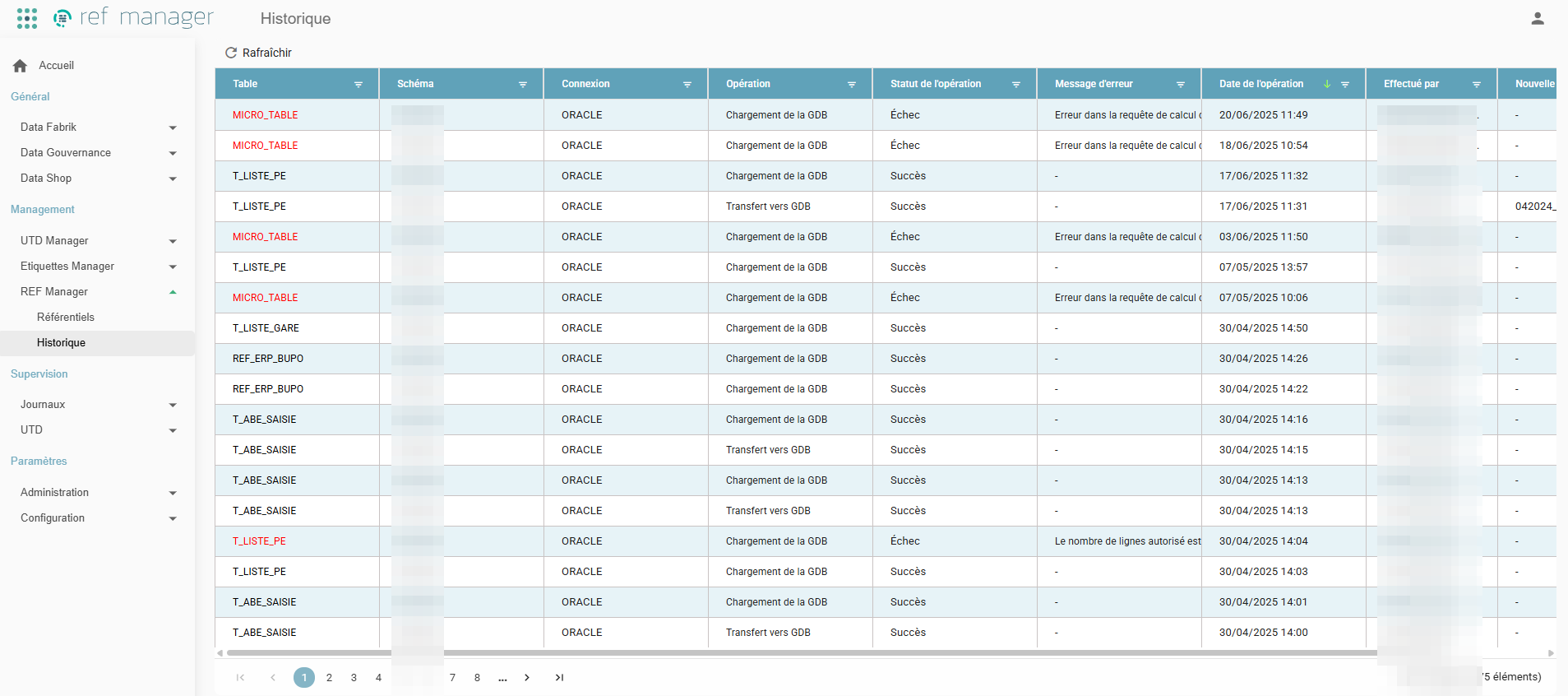
History
- Log of actions performed in REF Manager:
- Loading from the GDB
- Transfer to the GDB
- Status tracking for resolution, in the event of an action failure, using the error messages.