Dashboards
The module is located in Data Fabrik > Dashboards.
Introduction
The Dashboards entry lets you display Power BI reports directly inside the Orkestra interface, without leaving the application. The reports remain hosted and governed in your organization's Power BI space: Orkestra does not copy them.
The module has three pages:
| Page | Purpose | Who can access it |
|---|---|---|
| Report selection | Choose the report to display | All users |
| Report view | View a Power BI report | All users |
| Report management | Choose which reports are offered to users | Users with the Super Admin role on the Dashboards application |
Two Power BI integration modes
Orkestra can display Power BI reports in two ways. The mode is chosen once and for all by the technical administrator when the application is configured; it cannot be switched from the interface, and nothing indicates which mode is active.
| Mode | How it works | Consequence for the user |
|---|---|---|
| UserOwnsData | Reports are displayed using the user's Microsoft account. | A Microsoft sign-in page is shown. The user must have a Power BI account and license, and only sees the reports their account can access in Power BI. |
| AppOwnsData | Reports are displayed using a technical account (service principal) managed by the application. | No sign-in is requested. The user does not need a Power BI account or license. |
The interface is the same in both modes. The only visible difference is the Microsoft sign-in page described below, which is not always displayed.
Setting up each mode (registering the application in Azure, Power BI access, application settings) is described in two dedicated pages: User Owns Data configuration and App Owns Data configuration.
Signing in to Microsoft
This page only appears when the application is configured in UserOwnsData mode. In AppOwnsData mode, the report selection page is displayed directly.
The first time you open Dashboards, a message asks you to sign in to access the Microsoft services integrated into Orkestra. Click the Sign in with Microsoft button and sign in with your Microsoft account.
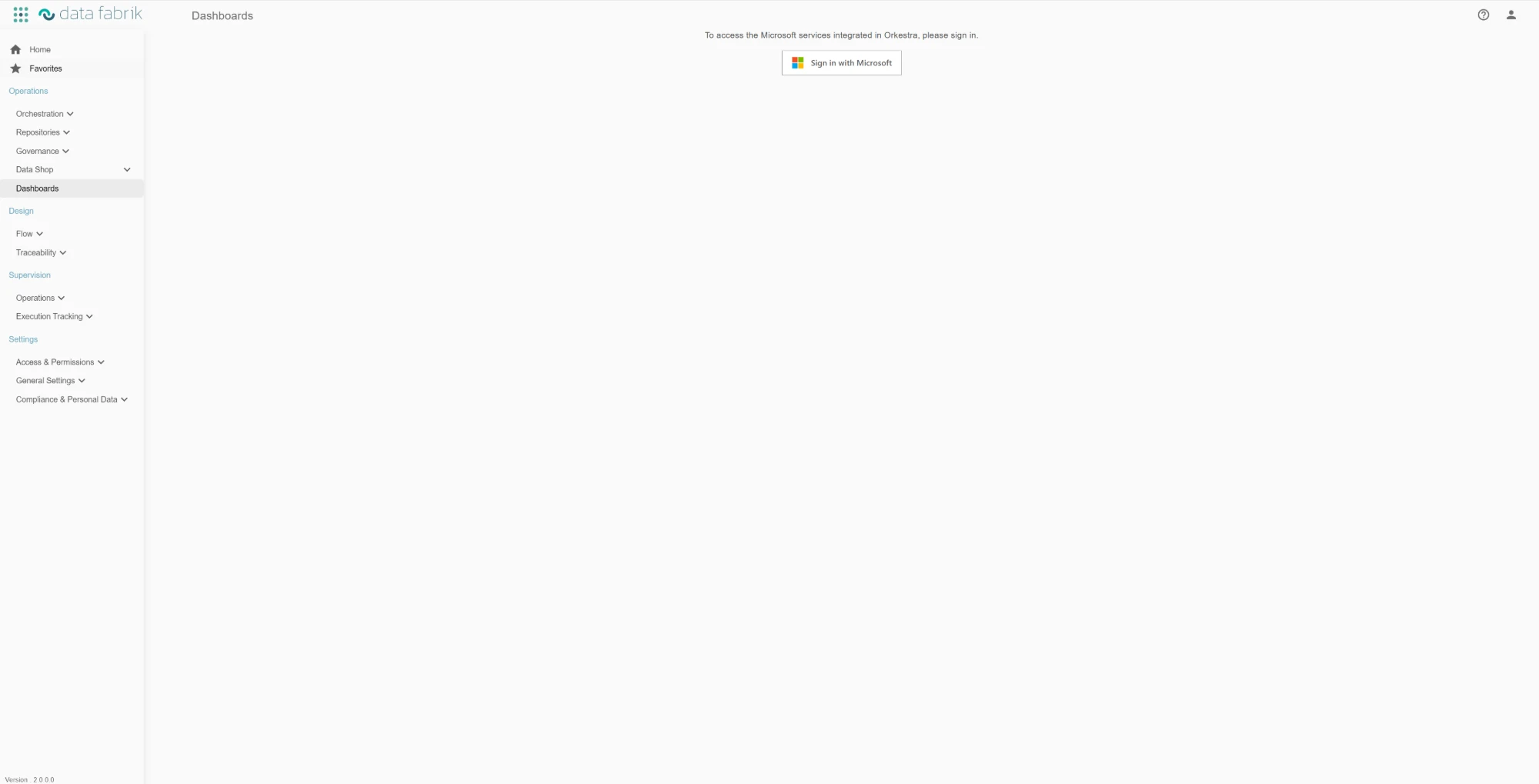
Once signed in, the report selection page is displayed. A line at the top of the page shows the connected Microsoft account and offers the Log out link.
If the connection to your Microsoft account expires, the message "The connection to your Microsoft account has expired, please sign in again." is displayed and the sign-in page is shown again: sign in again to continue. This applies to all three pages of the module.
Selecting a report
The Select a report page shows the reports made available to users.
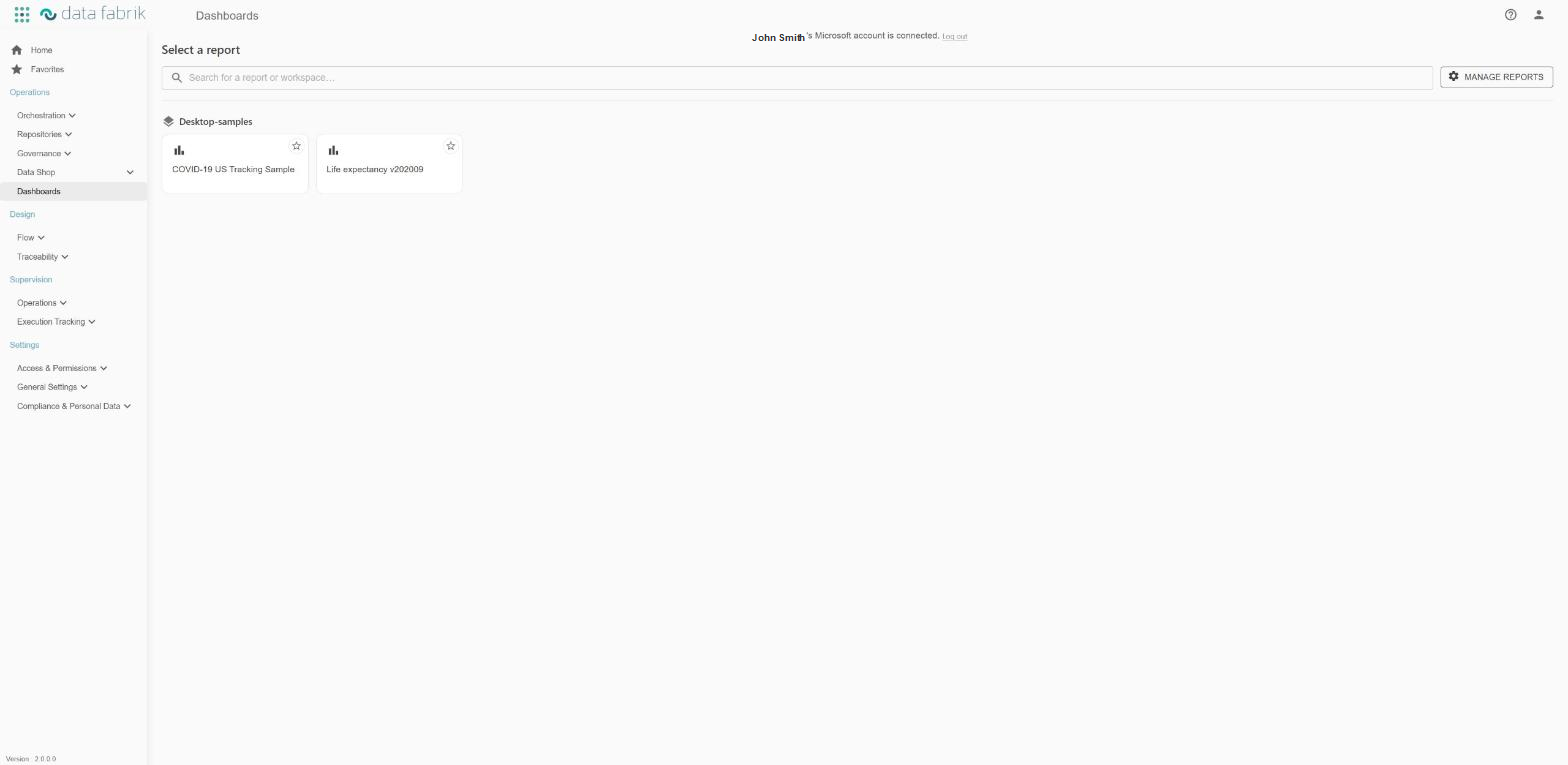
Reports are grouped by Power BI workspace, in alphabetical order. Each report is displayed as a card.
- Search: the search box filters reports and workspaces as you type, regardless of case. If what you type matches a workspace name, all of its reports are kept; otherwise, only the reports whose name matches are displayed.
- Open a report: click its card to display it.
- Favorites: the star at the top right of the card marks the report as a favorite. Your favorites are grouped in a Favorites section displayed at the top of the page, which shows the workspace of each report. This section only appears if you have at least one favorite. Favorites are personal.
- Manage reports: this button, at the top right, opens the management page. It is only offered to users with the Super Admin role on the Dashboards application (see Access conditions for management).
Only the reports selected by the administrator are displayed on this page, and workspaces with no selected report do not appear. In UserOwnsData mode, they are also limited to those your Microsoft account can access in Power BI.
If loading fails, an error message is displayed in place of the list.
Viewing a report
Clicking a report card opens the view page. The Power BI report is displayed inside the Orkestra interface and remains interactive: you can filter, select items and switch report pages using the tabs at the bottom.
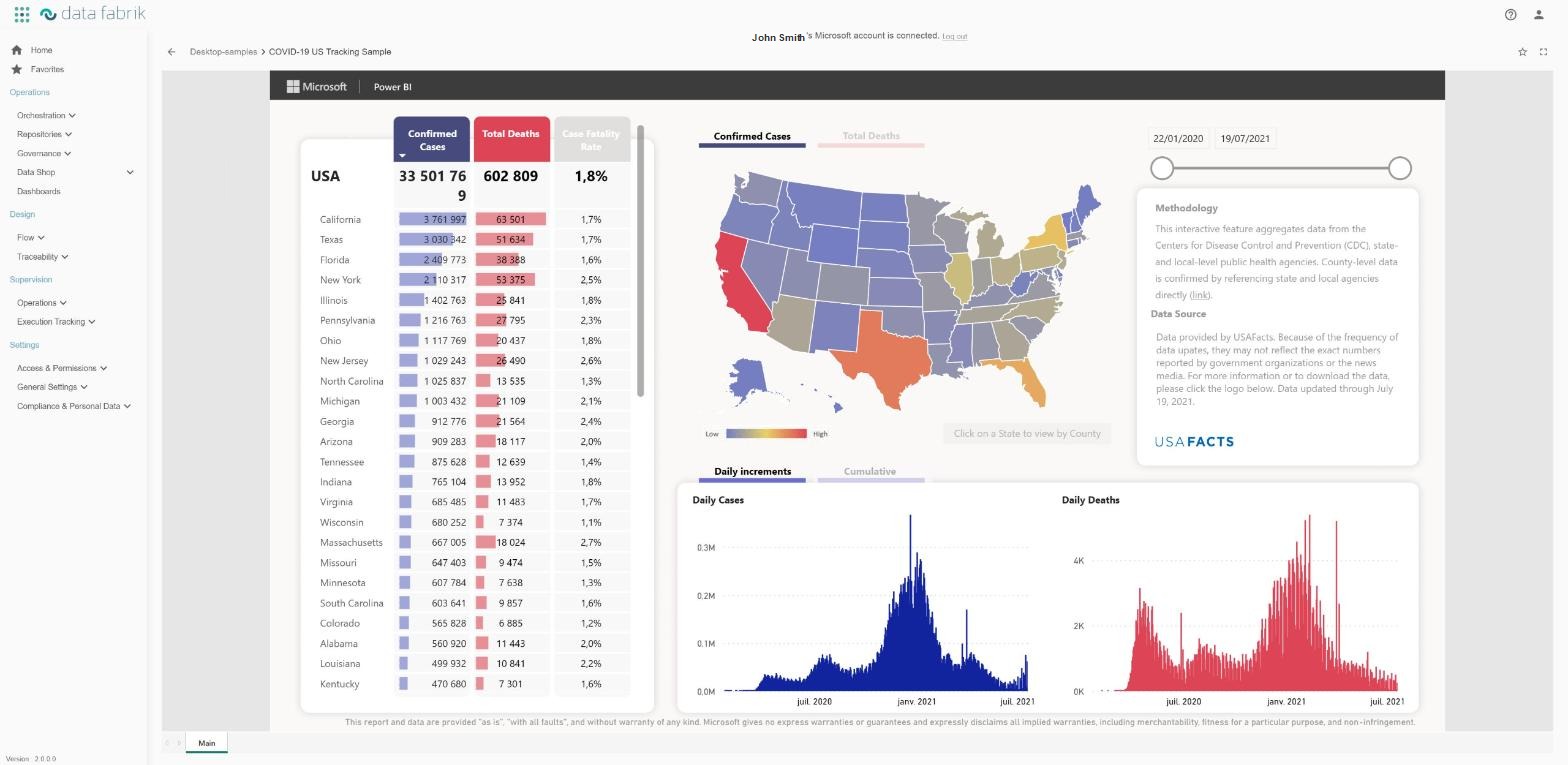
Above the report:
- the back arrow returns to the previous page (usually the selection page);
- the breadcrumb shows the workspace and the name of the displayed report;
- the star adds the report to or removes it from your favorites;
- the full screen button displays the report across the whole screen.
If the report cannot be loaded, an error message is displayed in place of the report.
In AppOwnsData mode, access to the report is valid for a limited time. Orkestra renews it automatically in the background: a report left open for a long time keeps working without any action on your part.
Managing reports
The Manage reports page lets you choose which reports are offered on the selection page.
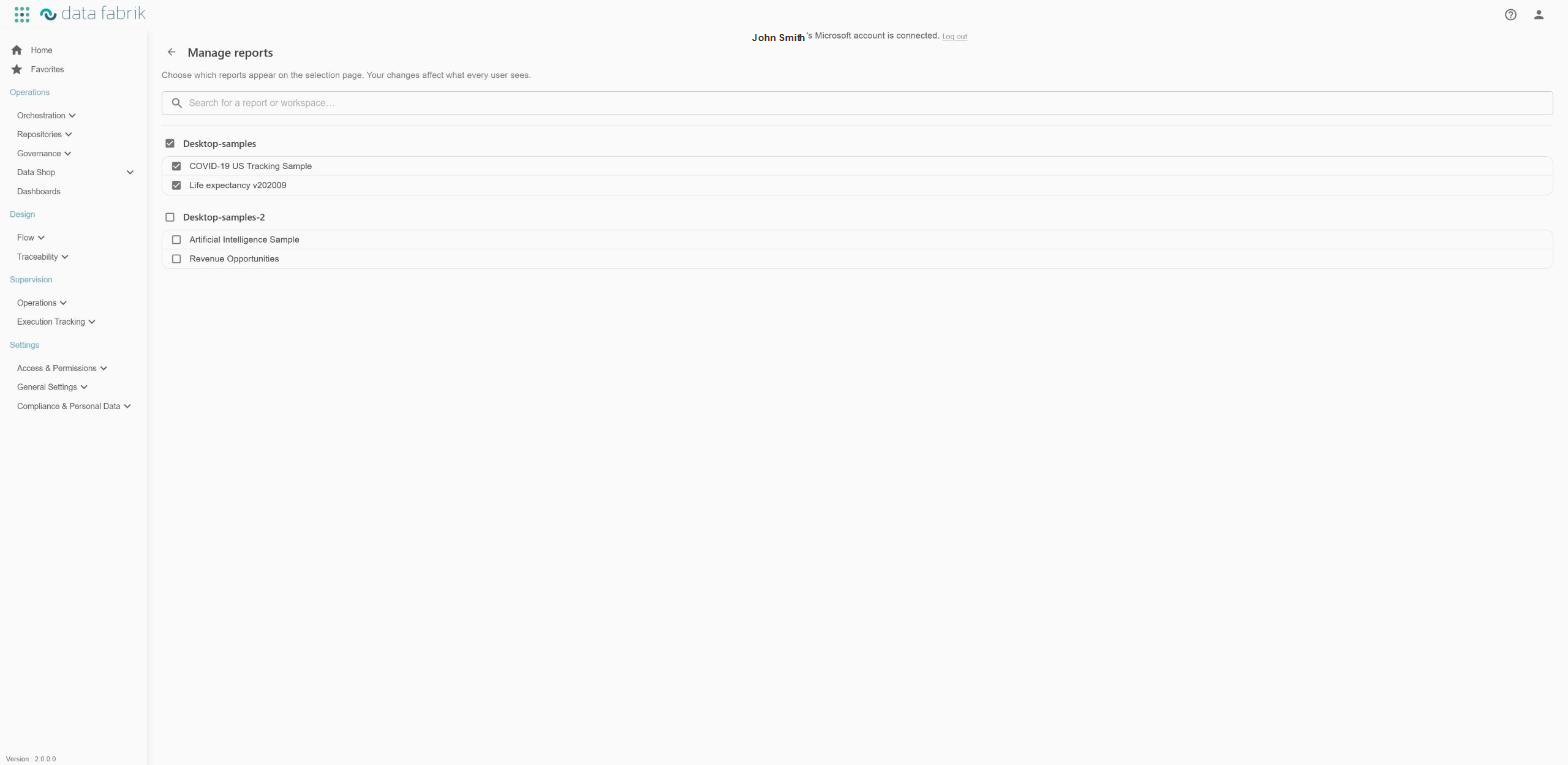
The available Power BI reports are listed by workspace, each preceded by a checkbox. In UserOwnsData mode, the list is limited to the workspaces and reports your Microsoft account can access.
- Checking a report makes it visible on the selection page; unchecking it removes it.
- A workspace's checkbox acts on all of its reports at once: if at least one report is hidden, one click makes them all visible; if all are visible, one click hides them all. It shows a dash when only some of the reports are visible.
- The search box lets you quickly find a report or workspace.
- The arrow at the top left returns to the previous page.
Each change is saved immediately: there is no confirmation button. If saving fails, the checkbox returns to its previous state and an error message is displayed.
The choices made on this page apply to all users: an unchecked report disappears from the selection page for everyone.
A hidden report remains in Power BI: only its presence in Orkestra changes.
Access conditions for management
The management page is only accessible to Orkestra users who have the Super Admin role for the Dashboards application. This role is assigned in access and permissions management, like for the other Orkestra applications (see Permissions).
For other users, the Manage reports button is not offered, and direct access to the management page is denied.