Permissions
Introduction
This manual is intended to guide the reader through the following operations:
- Description of the user creation and permission-granting process
- Creating and updating a new user
- Granting a user permissions to features
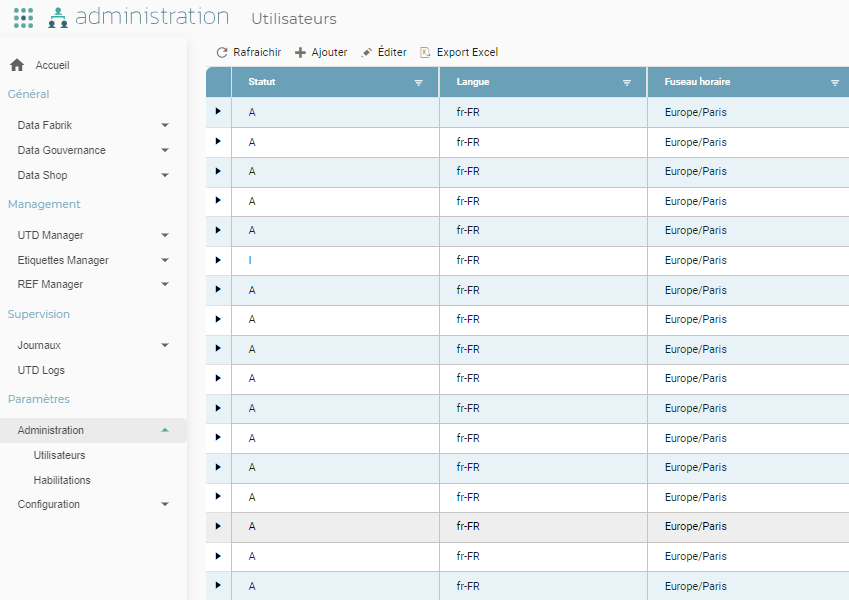
These actions are performed through the SETTINGS / ADMINISTRATION area of the platform.
Overview
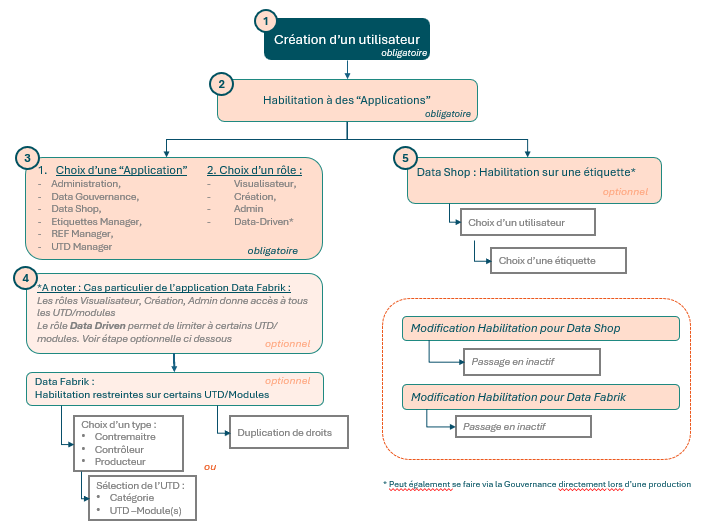
General workflow
A user's permissions grant or revoke access to Orkestra's features.
These permissions can be granted at a highly aggregated level, or acted upon at the finest level of granularity — namely, at the Module level for Data Fabrik, and at the Tag level for Data Shop.
They can be summarized as follows:
Managing a User
Creating a User
Creating a user is done in two steps:
- Creation
- Procedure for authentication using an SSO (single sign-on) protocol such as SAML2 or OIDC, or using the LDAP protocol — i.e., connected to the company's identity provider.
- Procedure for so-called "internal" authentication, i.e., not connected to the company's identity provider.
- Granting permissions
How Single Sign-On (SSO – SAML2 or OIDC) Works
Allows users to log in to the Orkestra platform using their corporate account, without having to manage a password specific to the platform.
Single sign-on (SSO) relies on either the SAML2 protocol or the OIDC protocol, and integrates with the company's existing identity system (Active Directory, Azure AD, etc.).
General Principle
When a user accesses the Orkestra platform:
- They are redirected to their company's identity provider (Identity Provider – IdP).
- The IdP authenticates the user according to internal security rules (password policy, etc.).
- The IdP returns a signed assertion to Orkestra, confirming the user's identity.
- Orkestra creates or updates the user's session according to the rights associated with their account.
The user is thus automatically logged in to Orkestra, without having to re-enter their credentials.
Technical Configuration
Enabling SAML2 requires the following elements:
| Element | Description |
|---|---|
| Valid X.509 certificate | Used to sign and validate SAML exchanges between Orkestra and the IdP. |
| IdP metadata | Provided by the identity service (e.g., an XML file containing the endpoints and public keys). |
| Entry point URL (Single Sign-On URL) | Redirect address to the identity provider. |
| Audience / Entity ID | Orkestra's unique identifier with the IdP. |
Enabling OIDC requires the following elements:
| Element | Description |
|---|---|
| Authority | Base URL of the identity provider. |
| Client ID / Client Secret | Orkestra's unique identifier with the IdP. |
| Entry point URL (Single Sign-On URL) | Redirect address to the identity provider. |
These settings are configured in the appsettings.json files.
When enabled, SSO mode replaces LDAP or internal authentication. It must be enabled by a system administrator with rights on the IIS server and certificates. See the installation manuals.
Creating a User with SSO Enabled
When Orkestra is configured with SSO:
- Creating a user does not require a password in the administration interface.
- The Login field must match the unique identifier sent by the identity provider (often the professional email address).
Managing Rights and Roles
SSO authentication does not change how Orkestra's internal permissions are managed:
- The roles (« Visualisateur » (Viewer), « Créateur » (Creator), « Super-Admin » (Super Admin)) remain defined in Administration / Users.
- Application rights are assigned in the same way as for an SSO, LDAP, or internal user.
Procedure for the LDAP and SSO Protocols
This process applies to Orkestra platforms installed with authentication linked to the company's identity provider.
Actions:
- Go to Settings/Administration/User
- Click "+ Ajouter" (+ Add) on the horizontal menu
- Enter the required information in the user creation pop-up
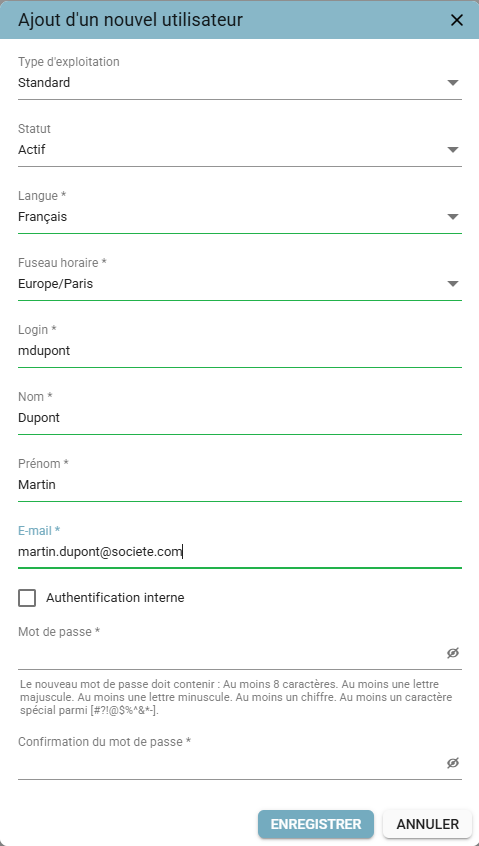
- Operation type: keep the default value "Standard" when creating a user
- Status: select Active/Inactive
- DO NOT check the "Authentification interne" (Internal Authentication) box, and leave the "Password" fields empty
- Login: enter the NETWORK login (the same one used, for example, to open a Windows session)
- Then click Save
Access to the platform is then done by entering the network login and password.
Procedure for Internal Authentication
This procedure applies to Orkestra platforms installed on a network, but where user authentication is self-contained, i.e., not connected to the company's internal account.
Actions:
- Go to Settings/Administration/User
- Click "+ Ajouter" (+ Add) on the horizontal menu
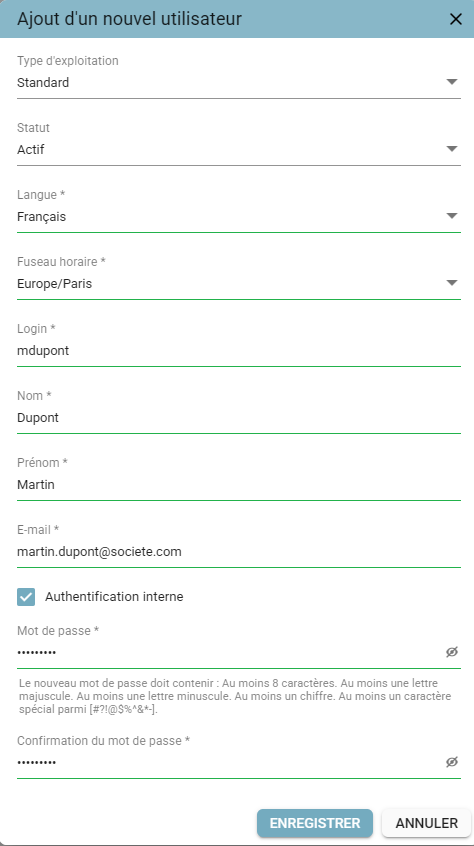
- Enter the required information in the user creation pop-up
- Operation type: keep the default value "Standard" when creating a user
- Status: select Active/Inactive
- Check the "Authentification interne" (Internal Authentication) box
- Login: enter a login of your choice
- Then click Save. The new user then appears in the list of created users.

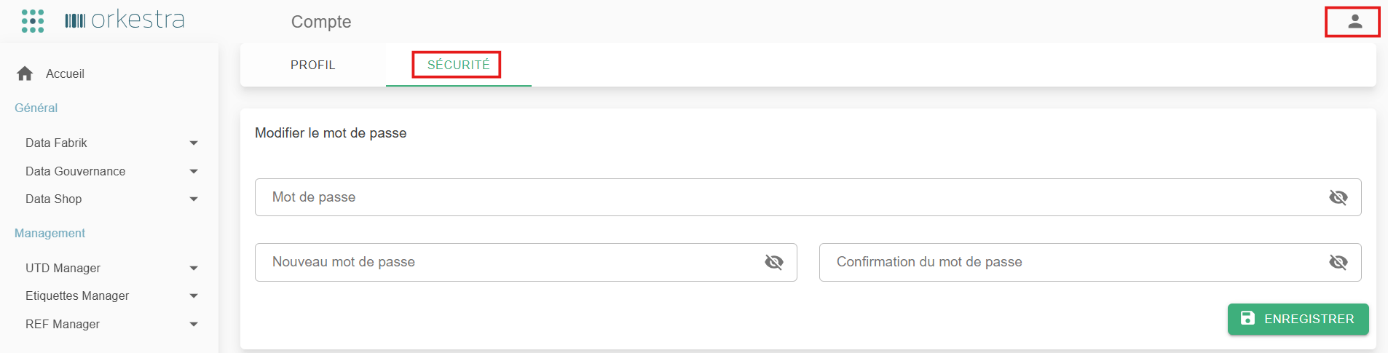
Once logged in under their profile, the user can change their password via the Profile screen, Security tab.

Assigning Roles
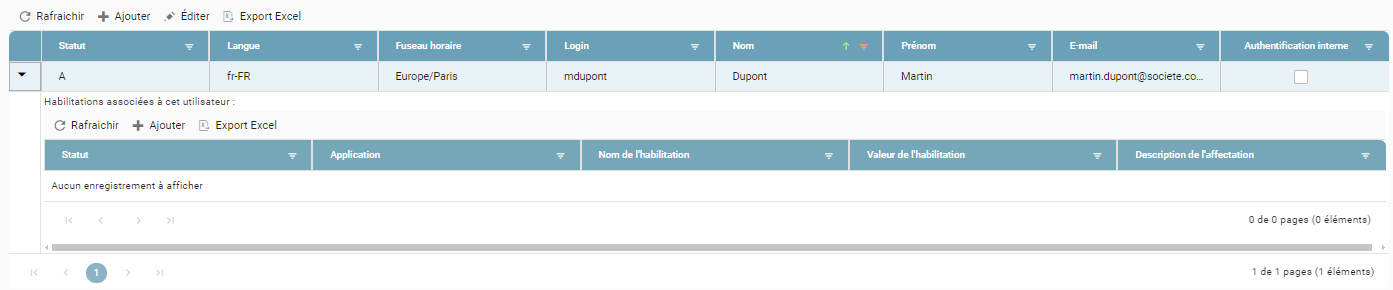
Now that the user has been created, roles must be assigned to them. To do this:
- Click the black arrow, then "+ Ajouter" (+ Add)
Information to fill in:
- Status: select Active/Inactive
- Application: select the application
ETL, MSO, and ParallelU are not applicable
- Choose a role (from most restrictive to most open):
- « Visualisateur » (Viewer)
- « Créateur » (Creator)
- « Data Driven » (only relevant for Data Fabrik)*
- « Super-Admin » (also called « Administrateur » (Administrator))
- « Personnalisé » (Custom) (only relevant for REF Manager)
- Assignment description: enter a comment of your choice
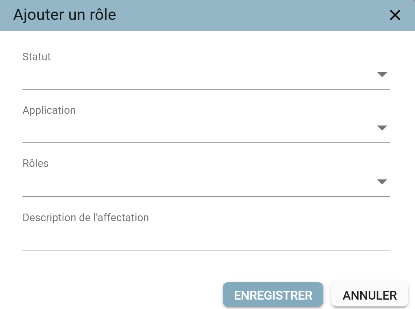
- Click Save
*This role is only needed to grant a user access to a restricted list of UTD/Modules. It must therefore not be combined with « Visualisateur » (Viewer), « Créateur » (Creator), or « Administrateur » (Administrator) (see the "DTF Permissions – Restricting UTD/Module Access" section).
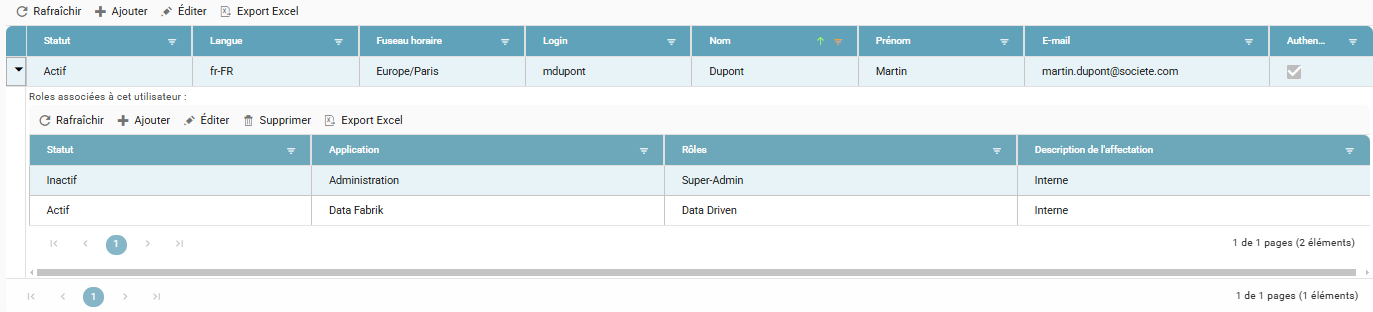
The user has been updated:
Managing a User
Editing General Information
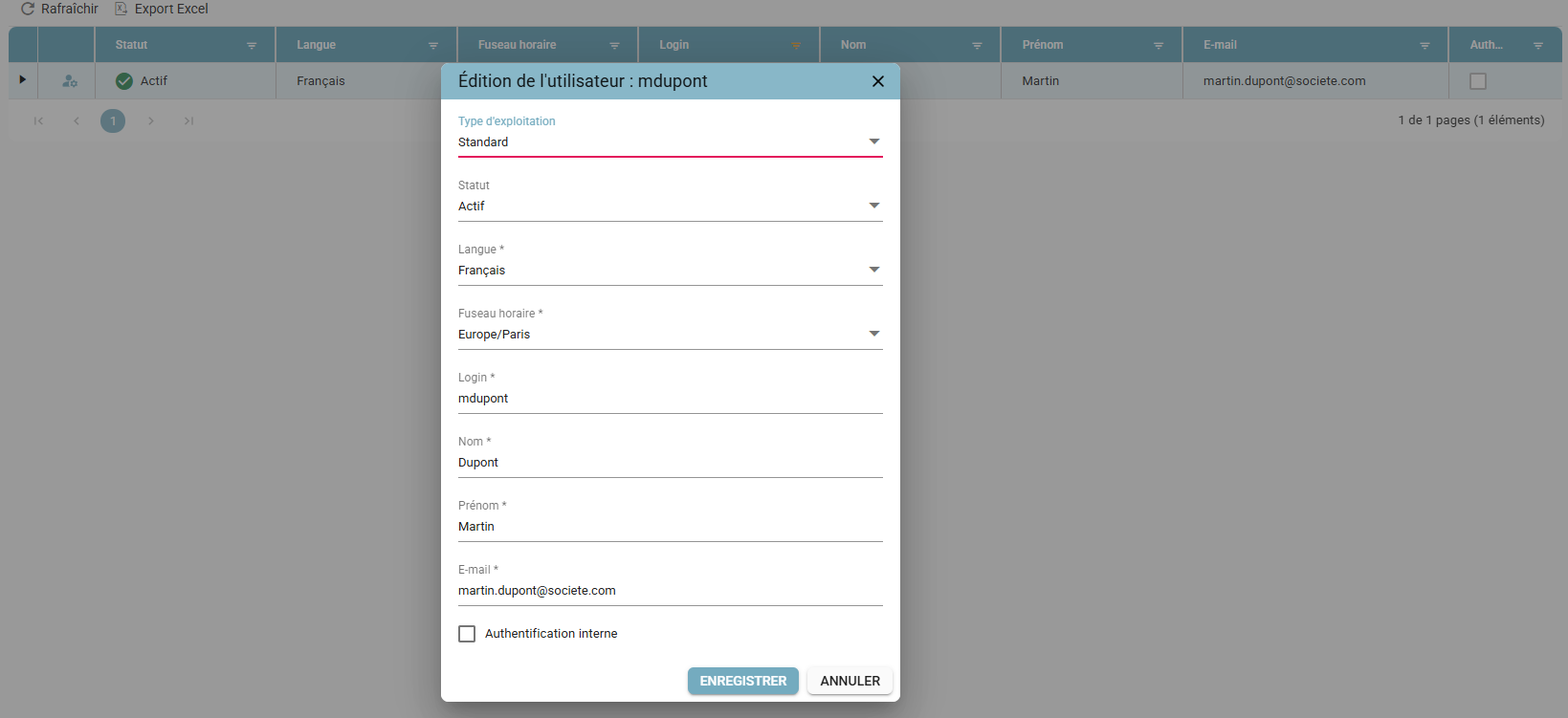
You can edit a user's general information by selecting the row and clicking "Editer" (Edit), or by double-clicking it.

Editing Permissions
Similarly:
- Select the user's row
- Click the black arrow
- Select the permission to edit
- Click "Editer" (Edit) or double-click the row
Role changes will be visible to the affected user the next time they log in to the site. If they are already logged in, they must log out and log back in.
Detailed User View
The detailed user view (also called the 360° view) is a side panel accessible from the users grid.
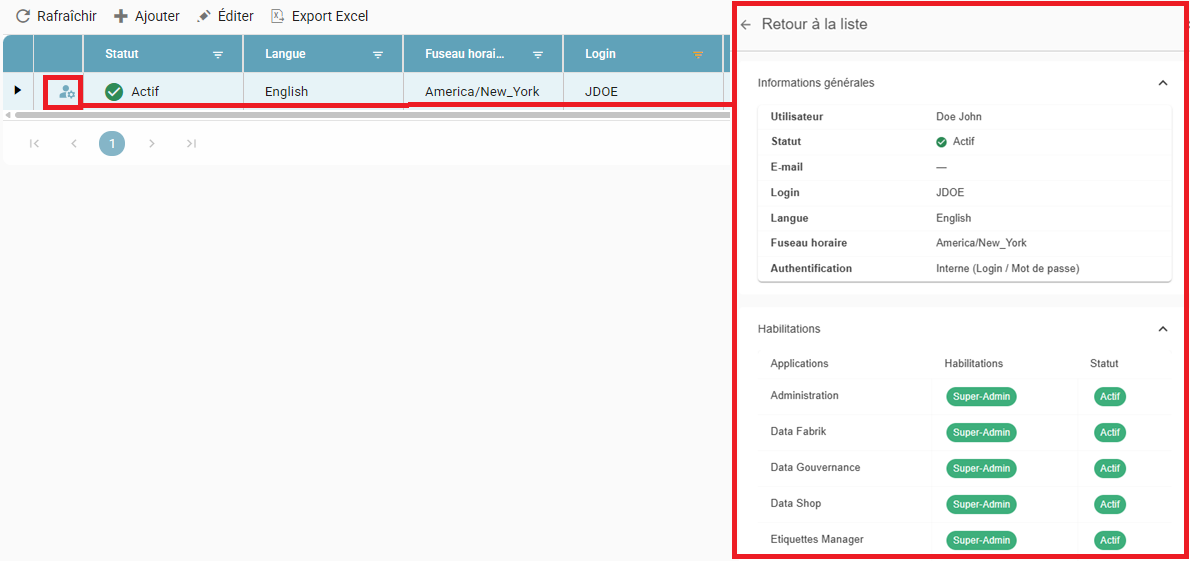
It displays a summary of all the information available for a user:
- Their detailed identity (last name, first name, status, email, login, language, time zone, and authentication type),
- The list of assigned permissions (with the name of the relevant application, the permission value, and its status),
- The rights matrix, a summary table of permissions that cross-references applications with assigned permissions.
It also allows quick actions such as:
- Applying rights to the user from a template (see the chapter on user rights templates).
List of Application / Role Actions
The table below lists the roles required to access the application's pages or to perform actions.
Only the « Visualisateur » (Viewer), « Créateur » (Creator), and « Administrateur » (Administrator) roles are referenced. These so-called "level 1" roles display all data without restriction. To grant more restrictive permissions (by module, by reference dataset, etc.), known as "level 2", more specific roles are required — refer to the corresponding sections of this manual. Level 2 permissions take priority over level 1 permissions.
If a page is not listed, it is freely accessible with no role restrictions. If an action is not listed, it can be performed by any role that has access to the page.
| Application | Screen | Tab / Level | Action | « Visualisateur » (Viewer) (read) | « Créateur » (Creator) (read/write) | « Administrateur » (Administrator) (read/write/config) |
|---|---|---|---|---|---|---|
| Data Gouvernance | UTD Production | X | X | X | ||
| Produce | X | X | ||||
| Production Calendar | Calendar | X | X | X | ||
| Scheduling | X | X | X | |||
| Edit the schedule | X | X | ||||
| Duplicate the schedule | X | X | ||||
| Disable the schedule | X | X | ||||
| Governance Actions | Actions | X | X | X | ||
| Edit / double-click a row | X | X | ||||
| Management | X | X | X | |||
| Edit / double-click a row | X | X | ||||
| Quick permission management | X | X | ||||
| History | X | X | X | |||
| Instantiated Lineage | X | X | X | |||
| Governance Context | X | X | X | |||
| Access the tree view | X | X | X | |||
| Production Quality | X | X | X | |||
| Download the compendium | X | X | ||||
| Data Shop | Marketplace | X | X | X | ||
| Data Product | X | X | X | |||
| Orders | List | X | X | X | ||
| Order | X | X | X | |||
| Download documents | X | X | ||||
| Edit the order | X | X | ||||
| Cancel the order | X | X | ||||
| Duplicate the order | X | X | ||||
| Tracking | X | X | X | |||
| Move tiles | X | X | X | |||
| UTD Manager | Management | X | X | X | ||
| Add | X | X | ||||
| Edit | X | X | ||||
| Disable | X | X | ||||
| UTD Version | X | X | X | |||
| Add | X | X | ||||
| Edit | X | X | ||||
| Download blank environment | X | X | ||||
| Manage blank environment | X | X | ||||
| Catalog | X | X | ||||
| Duplicate | X | X | ||||
| UTD Version Module | X | X | X | |||
| Add | X | X | ||||
| Edit | X | X | ||||
| Magnifying glass (view) | X | X | X | |||
| Manage associations | X | X | ||||
| Tag Manager | Configurator | Tagged Objects | X | X | X | |
| Add | X | X | ||||
| Edit | X | X | ||||
| Delete | X | X | ||||
| Edit a rule | X | X | ||||
| Scopes | X | X | X | |||
| Add | X | X | ||||
| Edit | X | X | ||||
| Delete | X | X | ||||
| Domains | X | X | X | |||
| Add | X | X | ||||
| Edit | X | X | ||||
| Delete | X | X | ||||
| Simulator | Evaluate the tag | X | X | X | ||
| Rule Customization | Governance Rules | X | X | X | ||
| Rule Values | X | X | X | |||
| Linked Rule Values | X | X | X | |||
| Configuration | Object Formats | X | X | X | ||
| Add | X | |||||
| Edit | X | |||||
| Object Types | X | X | X | |||
| Add | X | |||||
| Edit | X | |||||
| Domain Types | X | X | X | |||
| Tag Codification | X | X | X | |||
| Event Types | X | X | X | |||
| Add | X | |||||
| Edit | X | |||||
| Resource Types (inputs) | X | X | X | |||
| Add | X | |||||
| Edit | X | |||||
| Actions | X | X | X | |||
| REF Manager | Reference Datasets | Display | X | X | X | |
| Force reload | X | X | ||||
| Clone | X | X | ||||
| Validate | X | X | ||||
| Add | X | X | ||||
| Edit | X | X | ||||
| Delete | X | X | ||||
| History | X | X | X | |||
| Configuration | Configuration | X | X | X | ||
| Add | X | |||||
| Edit | X | |||||
| Delete | X | |||||
| Connections | ||||||
| Add | X | |||||
| Edit | X | |||||
| Delete | X |
Logs: applicable via the "Administration" application in a user's configuration.
| Application | Screen | Tab / Level | Action | « Visualisateur » (Viewer) (read) | « Créateur » (Creator) (read/write) | « Administrateur » (Administrator) (read/write/config) |
|---|---|---|---|---|---|---|
| Logs | Workers | X | X | |||
| Stopping a running job (Stop job) | X | X | ||||
| Service started/Service stopped | X | X | ||||
| Orkestra Logs | X | X | ||||
| UTD | Logs | X | X | X | ||
| Tracking | X | X | X | |||
| Download | X | X | ||||
| Administration | Users | X | X | X | ||
| Add | X | X | ||||
| Edit | X | X | ||||
| Add role | X | X | ||||
| Edit role | X | X | ||||
| Delete role | X | X | ||||
| User Templates | X | X | X | |||
| Add | X | X | ||||
| Edit | X | X | ||||
| Add role | X | X | ||||
| Edit role | X | X | ||||
| Delete role | X | X | ||||
| Permissions | DTF / Associations | X | X | X | ||
| Add | X | X | ||||
| Edit | X | X | ||||
| DTF / Duplicate Rights | X | X | X | |||
| Save | X | X | ||||
| DTS | X | X | X | |||
| Add | X | X | ||||
| Edit | X | X | ||||
| Users | X | X | X | |||
| Save | X | X | ||||
| REF Manager | X | X | X | |||
| Modify roles | X |
Configuration: the Tag Manager and REF Manager submenus are described above (pages 14 to 16 of the source manual). Application "Rôles" (Roles) are not configurable.
| Application | Screen | Tab / Level | Action | « Visualisateur » (Viewer) (read) | « Créateur » (Creator) (read/write) | « Administrateur » (Administrator) (read/write/config) |
|---|---|---|---|---|---|---|
| Configuration | Email Templates | X | X | X | ||
| Add | X | X | ||||
| Edit | X | X | ||||
| UTD Manager | Categories | X | X | X | ||
| Add | X | |||||
| Edit | X | |||||
| Delete | X | |||||
| Servers | X | X | X | |||
| Add | X | |||||
| Edit | X | |||||
| Delete | X | |||||
| Server Settings | X | X | X | |||
| Add | X | |||||
| Edit | X | |||||
| Workers | X | X | X | |||
| Add | X | |||||
| Edit | X | |||||
| Delete | X | |||||
| Farms | X | X | X | |||
| Add | X | |||||
| Edit | X | |||||
| Delete | X | |||||
| Parallel U Client Farms | X | X | X | |||
| Add | X | |||||
| Edit | X | |||||
| Software Vendors | X | X | X | |||
| Add | X | |||||
| Edit | X | |||||
| Software Versions | X | X | X | |||
| Add | X | |||||
| Edit | X | |||||
| Structure Control by Software | X | X | X | |||
| Add | X | |||||
| Edit | X | |||||
| Statuses | X | X | X | |||
| Add | X | |||||
| Edit | X | |||||
| Application Roles | X |
DTF Permissions – Restricting UTD/Module Access
The « CREATEUR » (Creator) and « ADMINISTRATEUR » (Administrator) roles, when assigned to a user on the Data Fabrik application, grant access to the production function on ALL UTDs and ALL MODULES.
If it is necessary to restrict this access to certain UTDs and/or MODULEs, the « DATA DRIVEN » role must be assigned to the user instead. The « CREATEUR » (Creator) or « ADMINISTRATEUR » (Administrator) roles must then be DISABLED. It will then be possible to configure the user's access through the Permissions menu described below.
To do this, go to the SETTINGS/Administration/Permissions menu, available in the left-hand vertical menu.

Creating a DTF Permission
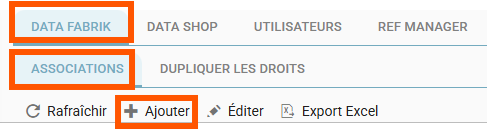
Information to enter:
- User: select the relevant user
- Profile (see the summary of rights granted per profile below):
- « Contremaitre » (Foreman)
- « Contrôleur » (Controller)
- « Producteur » (Producer)
- Category: filters the list of UTD/Modules in the next field among the existing categories
- Module: selects the UTD and/or module(s) for which the user will be granted access
- Comment: enter a free-text comment
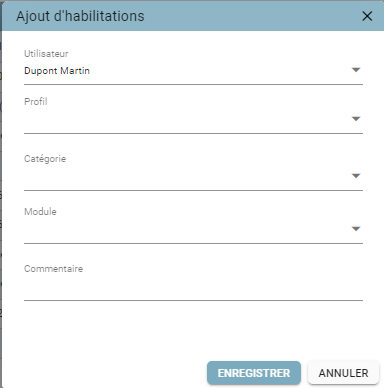
Then:
- Click Save
Summary of rights granted per profile:
| Function | Actions/Profile | « Producteur » (Producer) | « Contrôleur » (Controller) | « Contremaitre » (Foreman) |
|---|---|---|---|---|
| DATA PROCESSING UNIT (UTD) | Produce | 1 | ||
| DATA PROCESSING UNIT (UTD) | Stop a request | 1 | ||
| DATA PROCESSING UNIT (UTD) | Download resources | 1 | 1 | |
| DATA PROCESSING UNIT (UTD) | Download controls | 1 | 1 | |
| DATA PROCESSING UNIT (UTD) | Download results | 1 | 1 | 1 |
| DATA PROCESSING UNIT (UTD) | Information | 1 | 1 | 1 |
| DATA PROCESSING UNIT (UTD) | View requests | 1 | 1 | 1 |
| SCHEDULES | Duplicate a schedule | 1 | ||
| SCHEDULES | Edit a schedule | 1 | ||
| SCHEDULES | Cancel a schedule | 1 | ||
| SCHEDULES | View a schedule | 1 | 1 | |
| SCHEDULES | Download resources | 1 | 1 |
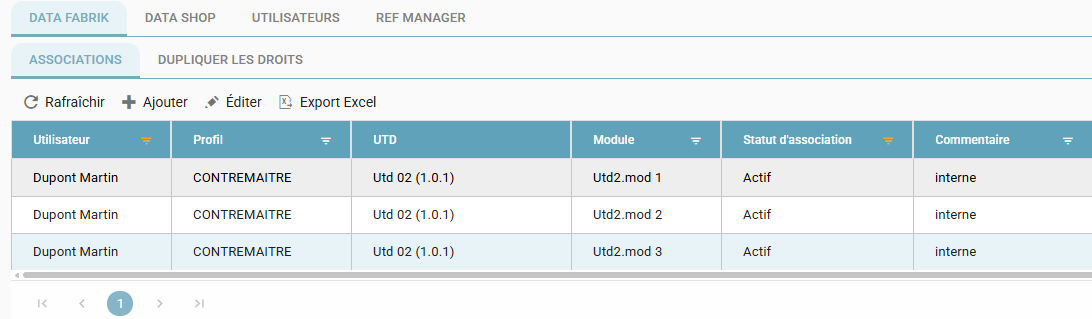
The result appears as follows:
Duplicating a DTF Permission
You can duplicate a user's rights based on another user's permissions using the "DUPLIQUER LES DROITS" (Duplicate Rights) function.
- Select the Target user
- Then the Template user
- Click Save
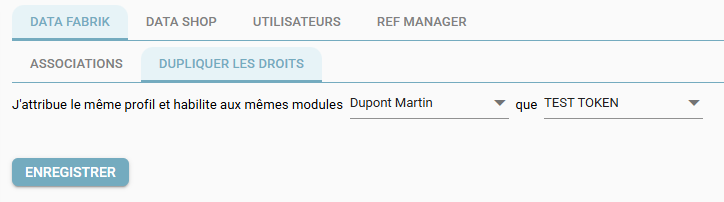
The Template user's permissions are ADDED to those already in place on the TARGET user
Editing a DTF Permission
Editing a permission consists of making it inactive.
If the user needs to have a Profile change applied (« Contremaitre » (Foreman), « Contrôleur » (Controller), or « Producteur » (Producer)), then the existing permission should be deactivated and a new one created.
Actions:
- Select a row to edit
- Click Edit
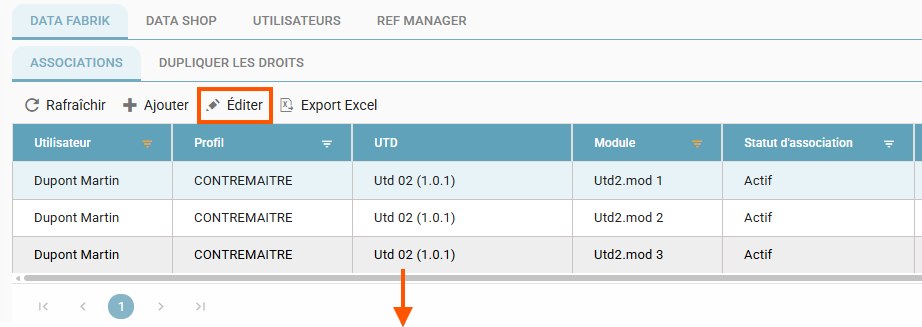
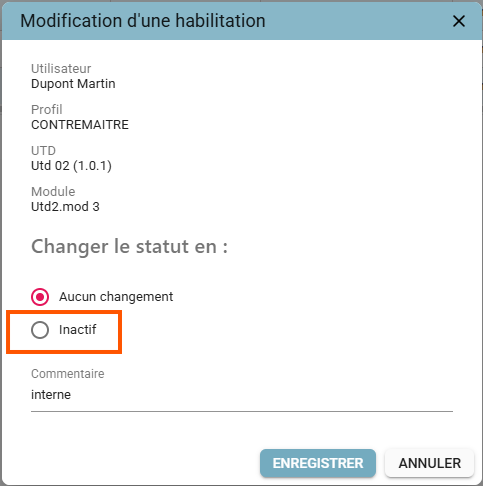
- Change the status to "Inactif" (Inactive)
- Save
DTS Permissions
Permissions can also be used to grant usage rights directly on a tag — that is, on a production result. The effects are the same as those of a distribution governance action (see the "Governance Manual" guide).
This is configured via the Settings/Administration/Permissions/DTS menu:
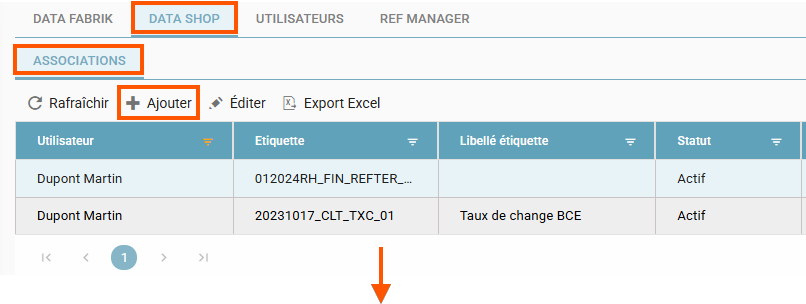
Creating a DTS Permission
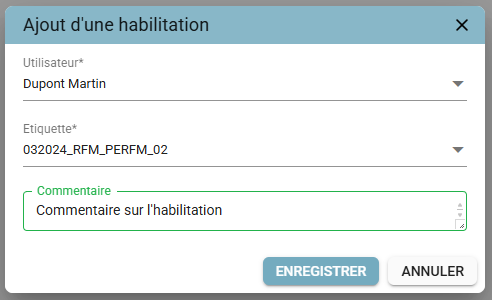
To create an access right to a tag for a user, the tag must be associated with that user. To do this:
- Click "+ Ajouter" (+ Add)
- User: select the relevant user
- Tag: select the relevant tag
- Comment: enter a free-text comment
- Save
The new row appears.
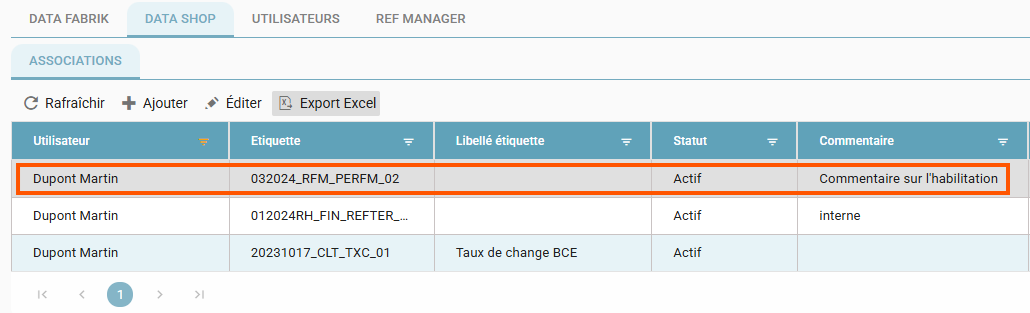
The user will then see the dataset associated with this tag in the Data Shop.
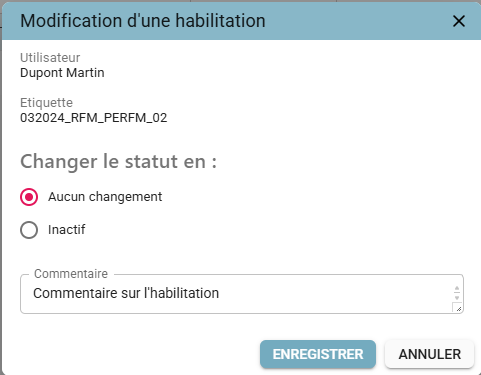
Editing a Permission
- Select the row to edit
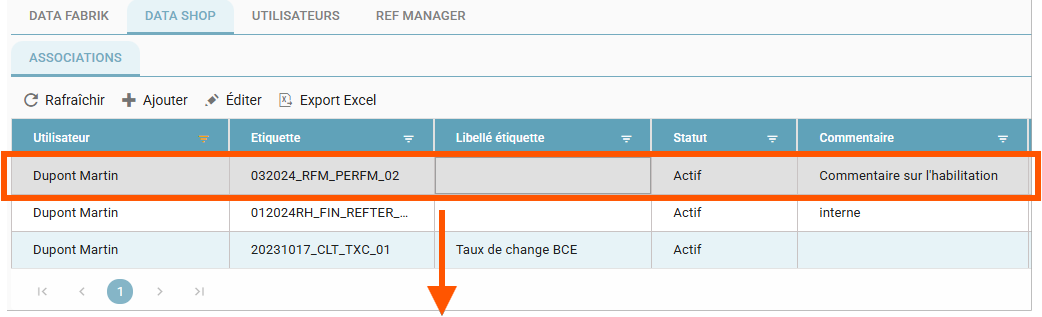
- Click "Editer" (Edit), or double-click
- Change the status to "Inactif" (Inactive)
- Comment: enter a free-text comment
- Save
REF Manager Permissions
Custom Permissions
For users with the « Personnalisé » (Custom) role for the REF Manager application, the reference datasets they can access and their rights on those datasets must be defined. This chapter describes the procedure to follow.
- In the "Paramètres" (Settings) menu, select "Administration", then go to the "Habilitations" (Permissions) page.
- On the "Habilitations" (Permissions) page, select the "Ref Manager" tab.
- Select the user whose access you want to modify. The list of reference datasets is displayed.
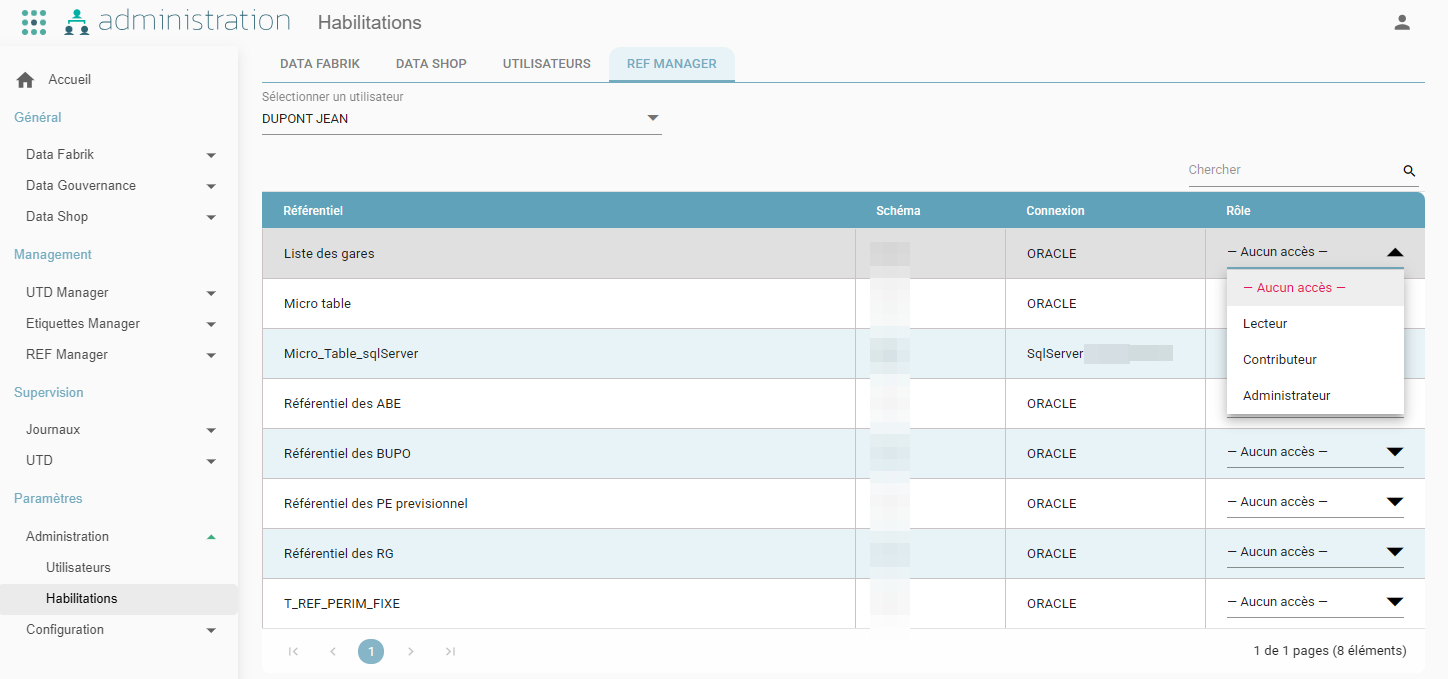
For each reference dataset, a role can be assigned to the user from the following:
- « Lecteur » (Reader), grants read-only access to the reference dataset.
- « Contributeur » (Contributor), allows viewing, editing, and adding data in the reference dataset.
- « Administrateur » (Administrator), has the same permissions as the Contributor, can modify the reference dataset's configuration, and can also delete it (if in Draft status).
Summary of rights granted per profile:
Configuration Page — RefAdministration
| Custom Role (level 2) | Visible Reference Datasets | Open Detail | Edit | Add | Delete |
|---|---|---|---|---|---|
| No permission | None | ✗ | ✗ | ✗ | ✗ |
| « Lecteur » (Reader) | Their own permissions | Read-only | ✗ | ✗ | ✗ |
| « Contributeur » (Contributor) | Their own permissions | Read-only | ✗ | ✗ | ✗ |
| « Administrateur » (Administrator) | Their own permissions | Editable | ✔ | ✗ | If Draft |
Operations Page — RefExploitation
| Custom Role (level 2) | Visible Reference Datasets | View Data | Add / Edit / Delete | Validate | Force Reload | Clone | Excel Import |
|---|---|---|---|---|---|---|---|
| No permission | None | ✗ | ✗ | ✗ | ✗ | ✗ | ✗ |
| « Lecteur » (Reader) | Their own permissions | ✔ | ✗ | ✗ | ✗ | ✗ | ✗ |
| « Contributeur » (Contributor) | Their own permissions | ✔ | ✔ | ✔ | ✔ | ✔ | ✔ |
| « Administrateur » (Administrator) | Their own permissions | ✔ | ✔ | ✔ | ✔ | ✔ | ✔ |
History Page — RefHistorical
| Custom Role (level 2) | Visible History | Available Actions |
|---|---|---|
| No permission | None | None |
| « Lecteur » (Reader) | Their own permissions only | Read-only |
| « Contributeur » (Contributor) | Their own permissions only | Read-only |
| « Administrateur » (Administrator) | Their own permissions only | Read-only |
User Templates
The Administration → User Templates page simplifies role configuration by allowing the creation of template accounts that serve as a reference for quickly assigning consistent sets of rights to other users.
A template is a special user account configured by an administrator:
- It cannot log in to the platform.
- Its operation type is Template.
- It has a complete permission configuration (applications and roles).
- Its rights can be duplicated onto one or more real users.
Examples of templates:
- MODELE_SUPERADMIN: has full rights over all modules.
- MODELE_DTF_CREATOR: configured for a "Data Fabrik Creator" profile.
- MODELE_REF_VIEWER: reserved for viewing reference datasets.
Interface and Duplicating Rights
A new feature, "Dupliquer les droits à partir d'un utilisateur modèle" (Duplicate rights from a template user), is available from the menu:
Settings / Administration / Permissions / Users
The template user's rights replace those of the target user.
The KADMIN User
By default, when the platform is installed, an initial user is created named KADMIN.
A default password is set during installation (see the installation guide).
After installation, the first login must be performed with this user, and the password must be changed.
It is then necessary to:
- Create a new USER of type Administrator
- Change KADMIN's access password or disable the account.