Configuring Power BI in App Owns Data mode
In App Owns Data mode, the application identifies itself with Azure. Users access Power BI reports without needing a Microsoft account or a Power BI license. The application's service principal must be added as a member of the workspaces Orkestra needs to access. For how it works on the user side, see the Dashboards page.
End users do not need any Power BI license, but the reports must be hosted on a dedicated capacity: Power BI Embedded (SKU A) or Microsoft Fabric (SKU F).
This procedure describes how to:
- register the Orkestra application with Azure;
- configure Orkestra with the configuration created in Azure;
- grant Orkestra access rights to a Power BI workspace.
It involves a Microsoft Entra ID administrator, a Fabric administrator (step 5) and access to the server on which Orkestra is installed.
1. Register the application in Azure
-
Sign in to the Azure portal (
portal.azure.com) and go to Microsoft Entra ID management.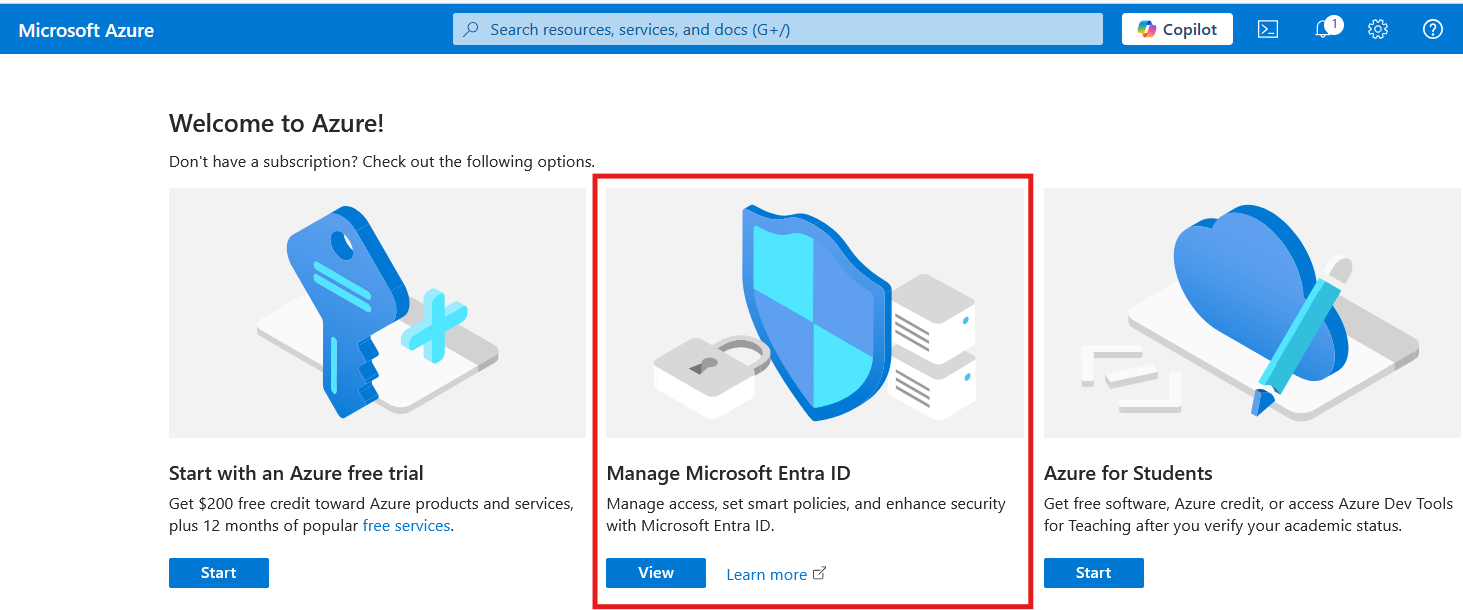
-
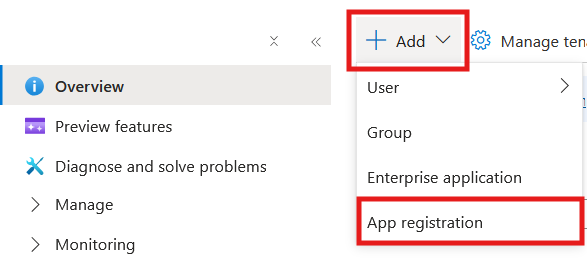
On the Overview page, click Add, then App registration.
-
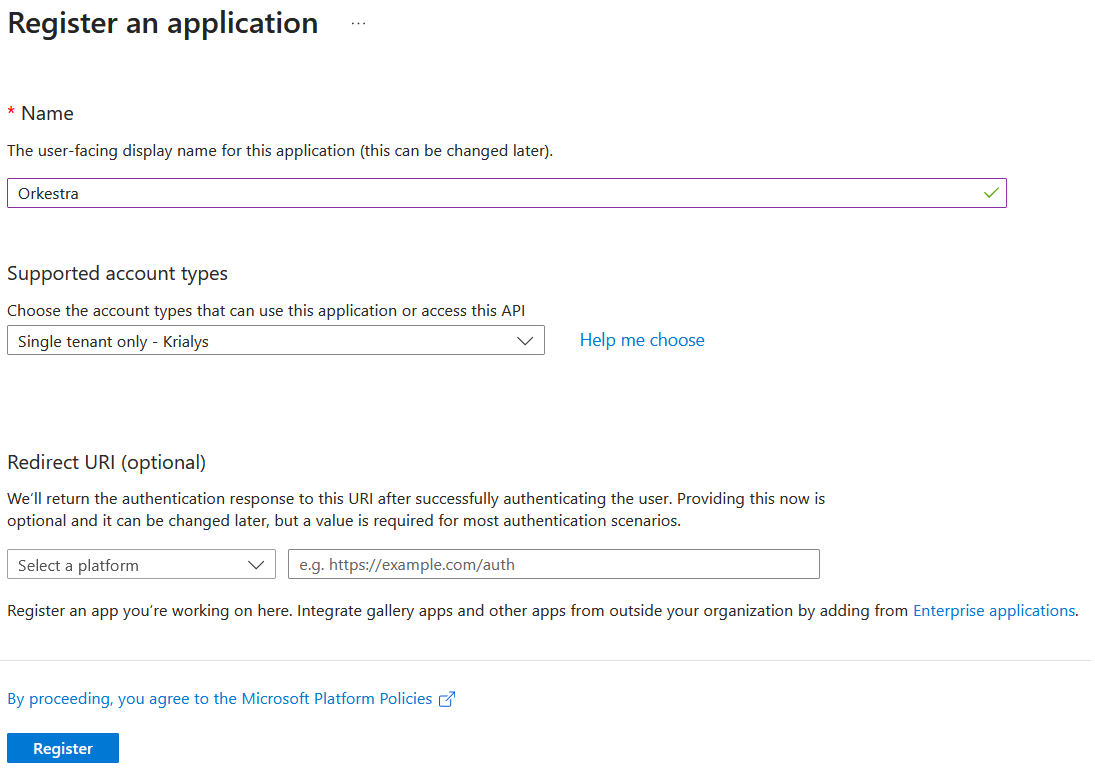
Fill in the creation form:
- Give the application a name, for example Orkestra.
- Select the account types allowed to sign in, for example Single tenant only, which restricts sign-in to the users of your organization. The Help me choose link details the options.
- Click Register to confirm.
2. Create the client secret
The client secret is a string generated by Azure that acts as the application's password. Combined with the Client ID, it lets the application authenticate with Microsoft Entra ID in its own name.
Keep the client secret confidential, like a password.
-
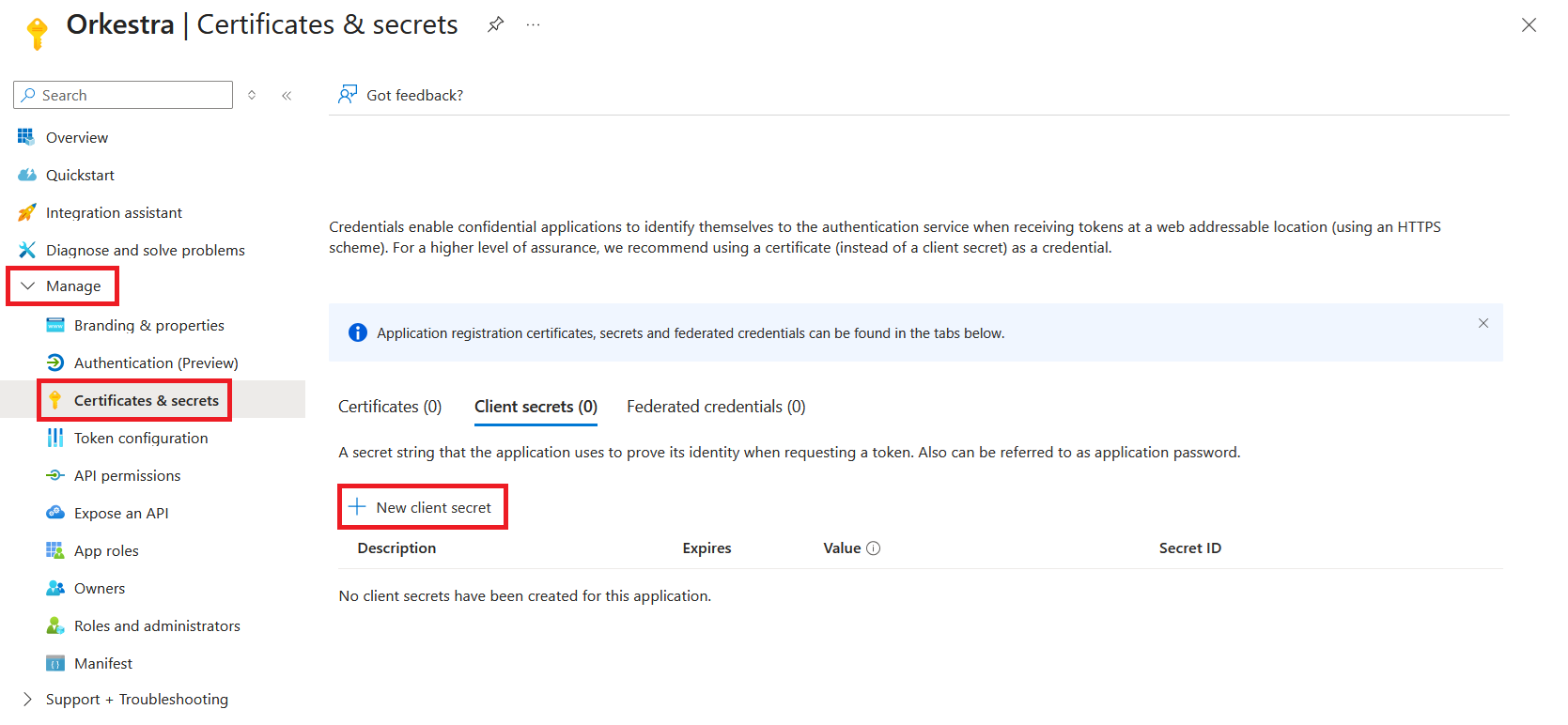
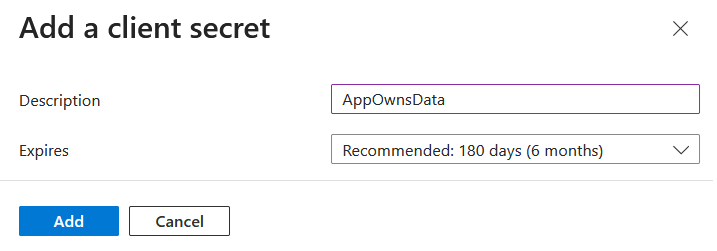
In Azure, open the Certificates and secrets page of the Manage menu, then click New client secret.
-
Enter a description that will let you identify the secret.
-
Choose the expiration date according to your company's policy.
-
Click Add to create the secret.
-
Copy the Value field of the secret. This value is only visible immediately after it is created.
3. Configure Orkestra
-
On the Overview page of the registered application, note the Application (client) ID and Directory (tenant) ID fields.

-
On the server where Orkestra is installed, open the
appsettings.jsonfile of the WebApi back-end application and fill in theAzureAdsection with the information noted in Azure:"AzureAd": {"TenantId": "????????-????-????-????-????????????","ClientId": "????????-????-????-????-????????????","ClientSecret": "????????????????????????????????????????"} -
Then enable App Owns Data mode. Open the
appsettings.jsonfile of the Web front-end application, located in itswwwrootfolder, and set the value ofUseAppOwnsDatatotrue:"PowerBi": {"UseAppOwnsData": true} -
Recycle the back-end application pool in IIS, then reload Orkestra in the browser. The front-end does not need to be restarted.
4. Create a security group
This group lets the Power BI administrator authorize Orkestra to use the Power BI APIs.
A group of this type may already exist in your organization. In that case, simply add the application to it.
In the Azure portal, in Microsoft Entra ID:
- In the Manage menu, open the Groups page, then click New group.
- Fill in the form:
- Group type: Security;
- Group name: an explicit name, for example Power BI – Authorized service principals;
- Membership type (if offered): Assigned.
- Under Members, click the No members selected link, search for the application by name (for example Orkestra), select it, then click Select.
- Click Create.
5. Authorize the application to use the Power BI APIs
This step must be carried out by a Fabric administrator.
- Sign in to the Power BI service (
app.powerbi.com). - Click the Settings gear at the top right, then Admin portal (« Portail d'administration » in the French interface).
- Enable the Embed content in apps setting. It is often already enabled; if it is limited to certain groups, add the security group created in the previous step to it.
- Enable the Service principals can call Fabric public APIs setting. Depending on the age of the tenant, it may be called Service principals can use Fabric APIs or Allow service principals to use Power BI APIs. Select Specific security groups (« Groupes de sécurité spécifiques ») and add the group created earlier.
- Click Apply (« Appliquer »).
It can take up to 15 minutes for the change to take effect.
6. Check that the workspace is hosted on a dedicated capacity
This is a required condition for App Owns Data mode.
-
In Power BI, open the workspace containing the reports to display in Orkestra.
-
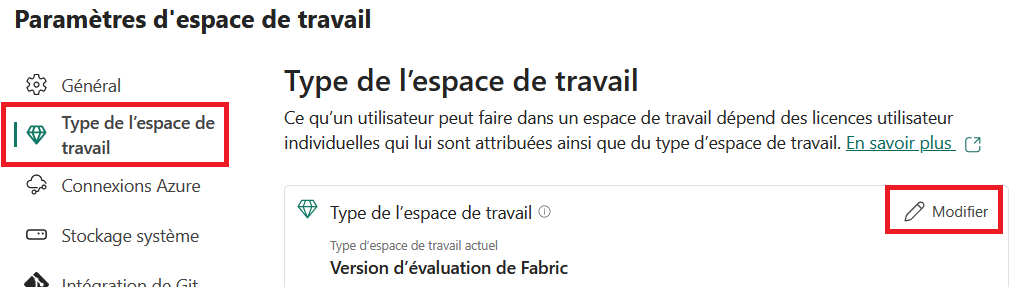
Click Workspace settings (« Paramètres d'espace de travail »).
-
In the Workspace type (« Type de l'espace de travail ») section, check the current license mode.
-
If the mode is not a dedicated capacity (for example Pro or Premium Per User), click Edit (« Modifier »), select Embedded or Fabric depending on the offer you subscribed to, then click Select (« Sélectionner »).
7. Give the application access to a workspace
Repeat this step for each workspace whose reports must be displayed in Orkestra.
- In the Power BI application, select the workspace.
- Click Manage access (« Gérer l'accès »), then Add people or groups (« Ajouter des personnes ou des groupes »).
- Select the application you created and give it the Member (« Membre ») access level.
The Viewer (« Lecteur ») access level is not sufficient: it does not allow the application to display the reports.
8. Check the configuration
The configuration is complete. Open Data Fabrik > Dashboards in Orkestra and check that your Power BI reports are displayed, without any Microsoft sign-in request.