UTD Manager
Glossary
| Term | Definition |
|---|---|
| Cube | A cube is a multidimensional database in which data is pre-calculated. |
| Blank environment | The blank environment is the folder that contains the UTD's development environment. |
| Module | A module is a data processing pipeline. It defines the set of executables that will be launched when a production request is made. |
| Version | A UTD version corresponds to a given state in the evolution of the UTD. |
| Data Processing Unit (UTD) | A Data Processing Unit (abbreviated "UTD") is a grouping of several modules that either share common characteristics (e.g. a single business scope, or the management of all business reference data) or describe a complete business process made up of several flows (for example, consolidating the accounting of several subsidiaries). |
Introduction
UTD Manager is designed to define and manage the UTDs that will subsequently be produced in Data Fabrik.
This management process is built around three main steps:
- General definition of the UTD
- Definition of the UTD's versions
- Management of the blank environment
- Management of the catalog
- Definition of the module(s) of the UTD version
UTD → Version → Module
UTD
Declaration and management
UTD management screen:
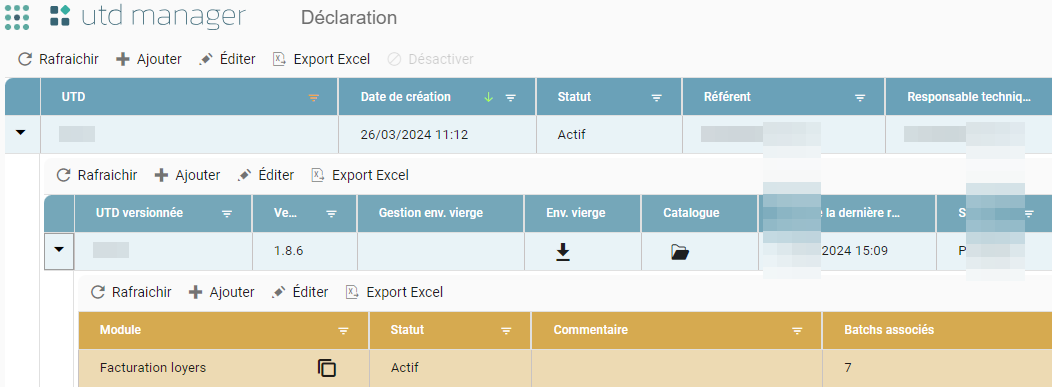
General actions:
- Ajouter (Add): creates a new UTD
- Editer (Edit): modifies a UTD
- Désactiver (Deactivate): deactivates a UTD
- Rafraichir (Refresh): updates the table
- Export Excel (Excel Export): exports the table (with any applied filters) to Excel
Adding
The new UTD creation pop-up is displayed by clicking the Add button:

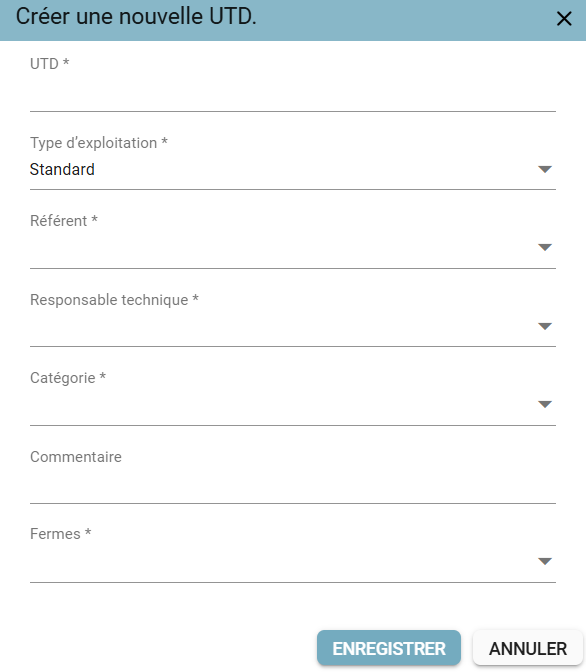
Information to fill in:
- UTD: name of the UTD — required field
- Type d'exploitation (Operating type): mode of use of the UTD (Standard or Service), to be selected from the list — required field
- Référent (Business contact): business-side contact for the UTD, to be selected from the list — required field
- Responsable technique (Technical owner): technical owner in charge of developing and maintaining the UTD, to be selected from the list — required field
- Catégorie (Category): category of the UTD, to be selected from the list — required field
- Commentaire (Comment): free-text section — required field
- Fermes (Farms): farms on which the UTD will run, to be selected from the list — required field
Actions:
- Enregistrer (Save): creates the UTD
- Croix (Close "X"): closes the pop-up without saving the UTD
- Touche "Echap" (Esc key): closes the pop-up without saving the UTD
- Annuler (Cancel): closes the pop-up without saving the UTD
Type d'exploitation (Operating type)
System table used to define the usage type of various components (UTD, Object Code, Users).
| No. | Type | Active | Description |
|---|---|---|---|
| 1 | Standard | true | Standard operation (manual, via the platform) of UTDs and Tagged Object Codes. Offers the maximum configuration options for UTDs and Tagged Object Codes. Default value after migration. |
| 2 | Service | true | Operation as a service of UTDs and Tagged Object Codes. Little to no configuration, mostly default values. e.g.: REF Manager: single-version, single-module UTD. |
On the UTD creation screen (the "UTD Manager / Déclaration" (UTD Manager / Declaration) menu, Add button), a dropdown list showing the Operating type labels (OperatingType table) is added below the UTD field. The default selected value is Standard.
Editing
The UTD editing pop-up is displayed by clicking the Edit button:
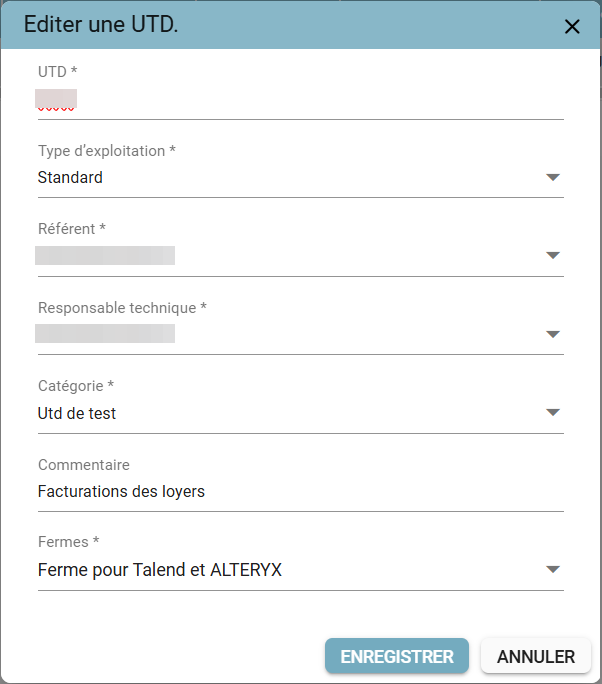
Editable information:
- UTD: name of the UTD — required field. The exact case entered by the user is preserved, while name uniqueness is still enforced in a case-insensitive manner.
- Type d'exploitation (Operating type): mode of use of the UTD (Standard or Service), to be selected from the list — required field
- Référent (Business contact): business-side contact for the UTD, to be selected from the list — required field
- Responsable technique (Technical owner): technical owner in charge of developing and maintaining the UTD, to be selected from the list — required field
- Catégorie (Category): category of the UTD, to be selected from the list
- Commentaire (Comment): free-text section
- Fermes (Farms): farms on which the UTD will run, to be selected from the list — required field
Actions:
- Enregistrer (Save): modifies the UTD
- Croix (Close "X"): closes the pop-up without modifying the UTD
- Touche "Echap" (Esc key): closes the pop-up without modifying the UTD
- Annuler (Cancel): closes the pop-up without modifying the UTD
Governance rule owners
A multi-user selection area has been added to the UTD production creation screen, allowing the owners of the associated data governance to be designated.
- This area is displayed only if the selected module is subject to governance.
- Only users with a "Créateur" (Creator) or "super-admin" role in the Data Gouvernance application can be selected.
- The selection uses a multiselect field with search by last name and first name.
- If an equivalent production (same UTD and same module) has already been carried out, the previously designated owners are suggested by default.
- The field remains editable before submission and is not required.
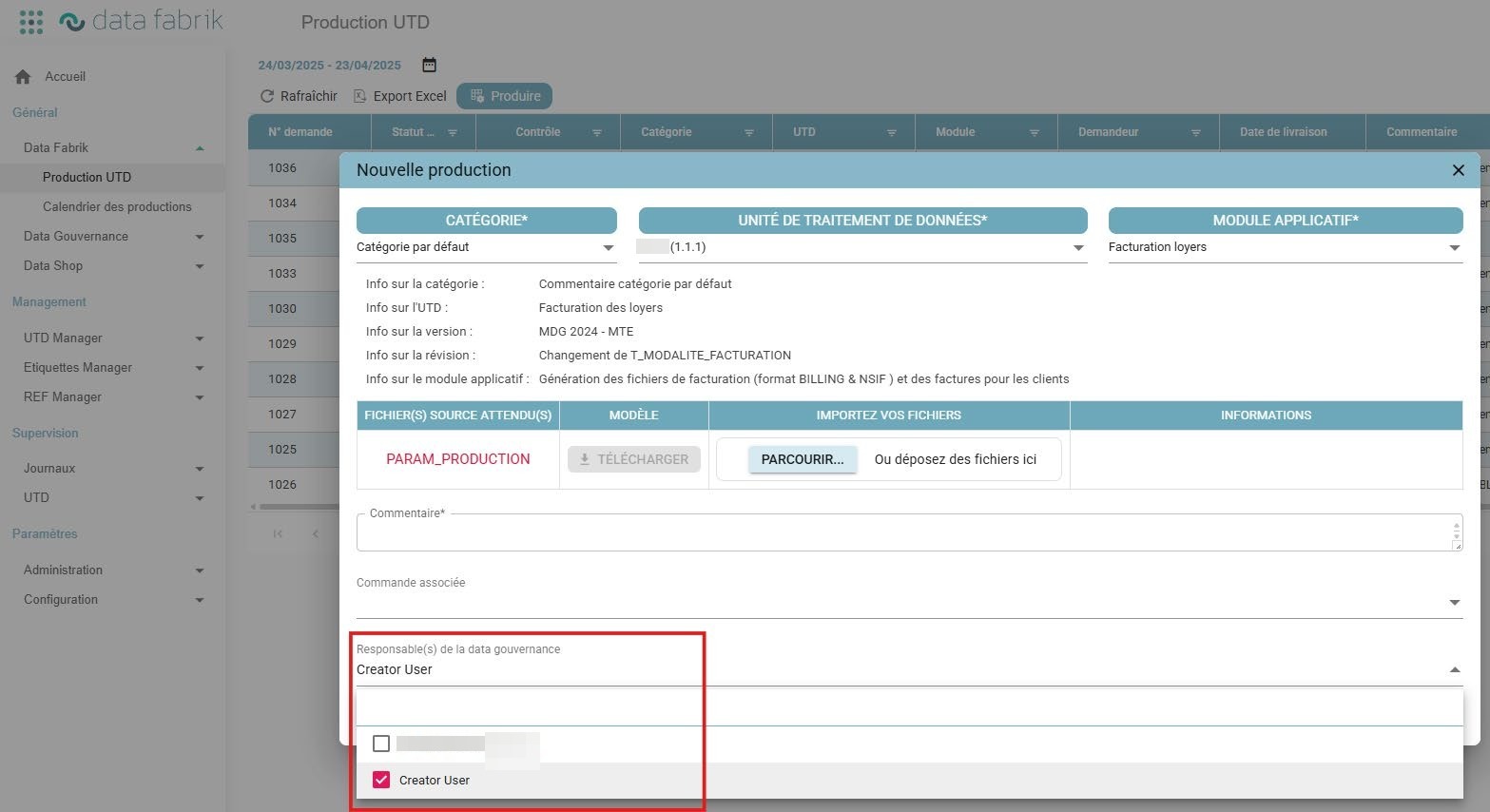
Completing governance rules
A feature allows data governance rules to be completed following a successful UTD production, in cases where the module used is subject to governance.
The ability to complete these rules is reserved to:
- the user assigned to the production,
- users with the super-admin role in the Data Gouvernance application.
The interface allows entry of the governance rules specific to the tags produced by the production. Access is conditioned on:
- a module marked as subject to governance,
- a successfully completed production,
- the presence of a user assigned to the production.
All other users are excluded from this step, even if they have access to the UTD.
Deactivation
The deactivation pop-up for a new UTD is displayed by clicking the Add button:

Actions:
- Confirmer (Confirm): deactivates the UTD
- Touche "Echap" (Esc key): closes the pop-up without deactivating the UTD
- Annuler (Cancel): closes the pop-up without deactivating the UTD
Consequences:
- Deactivation of the versions of the deactivated UTD and their associated modules
- Deletion / deactivation of any recurring schedules for the UTD
- Cancellation of pending production requests linked to the UTD
Statuses and associated actions
A UTD can have 2 distinct statuses:
- "Actif" (Active)
- "Inactif" (Inactive)
"Actif" Status (Active)
A UTD is active as soon as it is created. Versions can be associated with it.
"Inactif" Status (Inactive)
A UTD becomes inactive following a deactivation. Versions can no longer be associated with it, and all previously added versions are themselves either inactive or cancelled.
UTD Version
Declaration and management
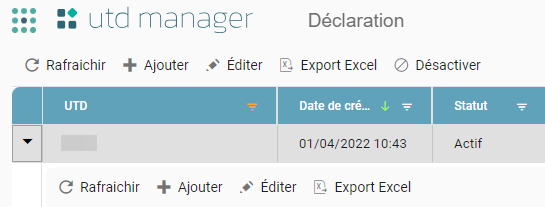
The arrow displays the UTD version management screen: the consultation datagrid and the version management bar.
General actions:
- Ajouter (Add): creates a new UTD version
- Editer (Edit): modifies a UTD version
- Rafraichir (Refresh): updates the table
- Export Excel (Excel Export): exports the table (with any applied filters) to Excel
Version-specific actions (if allowed by the version's status):
- Upload / download a blank environment
- View the catalog
- Duplicate a UTD version
Adding
The new UTD version creation pop-up is displayed by clicking the Add button:
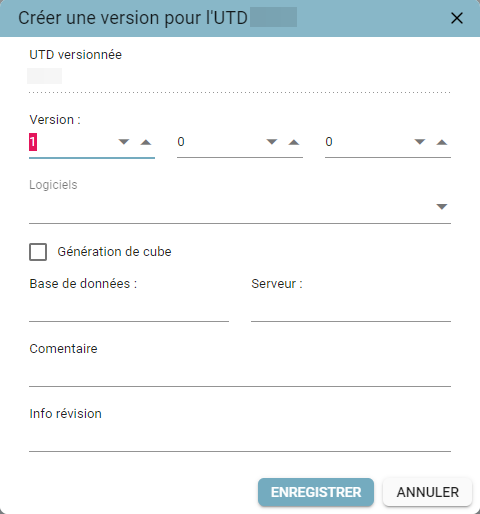
Information to fill in:
- Version: version number (it is not possible to go back to an earlier version) — required field
- Logiciel (Software): software used to develop the version, to be selected from the list — required field
- Génération de cube (Cube generation): checkbox to select if the process produces a Reportive cube
- Base de données (Database): database used to generate a Reportive cube
- Serveur (Server): server used to generate a Reportive cube
- Commentaire (Comment): free-text section — required field
- Info révision (Revision info): free-text section — required field
Actions:
- Enregistrer (Save): creates the UTD version
- Croix (Close "X"): closes the pop-up without saving the UTD version
- Touche "Echap" (Esc key): closes the pop-up without saving the UTD version
- Annuler (Cancel): closes the pop-up without saving the UTD version
Editing
The UTD version editing pop-up is displayed by clicking the Edit button:
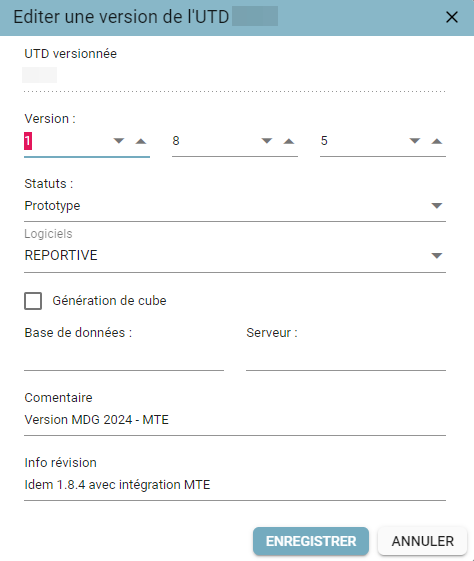
Editable information:
- Version: version number (it is not possible to go back to a version earlier than an existing version) — required field
- Statut (Status): status of the version
- Logiciel (Software): software used to develop the version, to be selected from the list — required field
- Génération de cube (Cube generation): checkbox to select if the process produces a cube
- Base de données (Database): database used to generate a cube
- Serveur (Server): server used to generate a cube
- Commentaire (Comment): free-text section — required field
- Info révision (Revision info): free-text section — required field
Actions:
- Enregistrer (Save): modifies the UTD version
- Croix (Close "X"): closes the pop-up without modifying it
- Touche "Echap" (Esc key): closes the pop-up without modifying it
- Annuler (Cancel): closes the pop-up without modifying it
Blank environment
Once the UTD version has been created, the UTD's blank environment must be uploaded. The blank environment upload pop-up is displayed by clicking the upload icon:
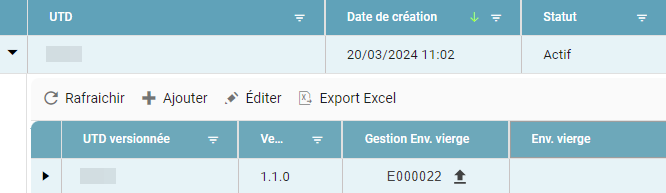
It is then possible to upload either:
- a .zip file of the blank environment (area 1)
- files directly into the associated directories (area 2)
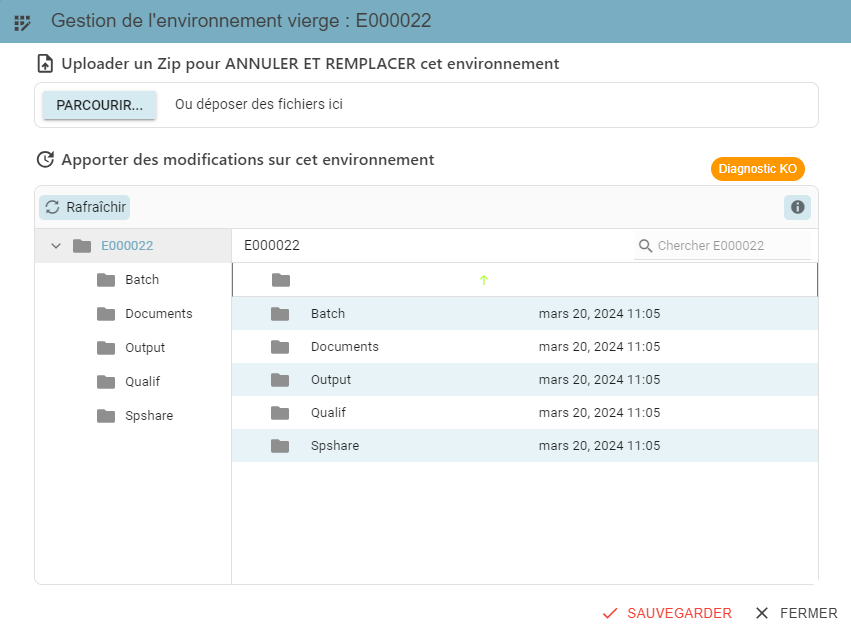
When the blank environment is uploaded, if it matches what is expected, the diagnostic will be shown as "ok".
Actions:
- Sauvegarder (Save): saves the UTD's blank environment
- Touche "Echap" (Esc key): closes the pop-up without saving the UTD's blank environment
- Fermer (Close): closes the pop-up without saving the UTD's blank environment
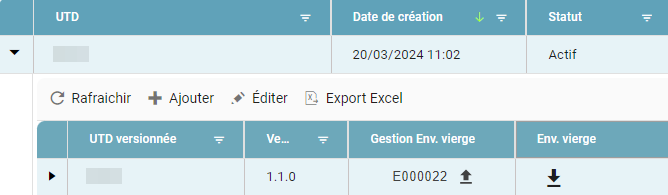
Once the blank environment has been uploaded, it will be available for download:
Catalog
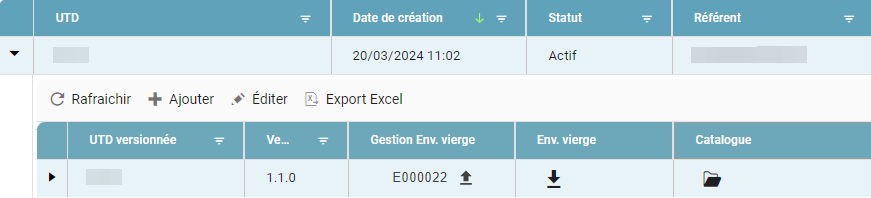
The catalog is used to record files that are not part of the blank environment but that contribute to the project.
Resources
The resource-addition pop-up is displayed by clicking the upload icon:
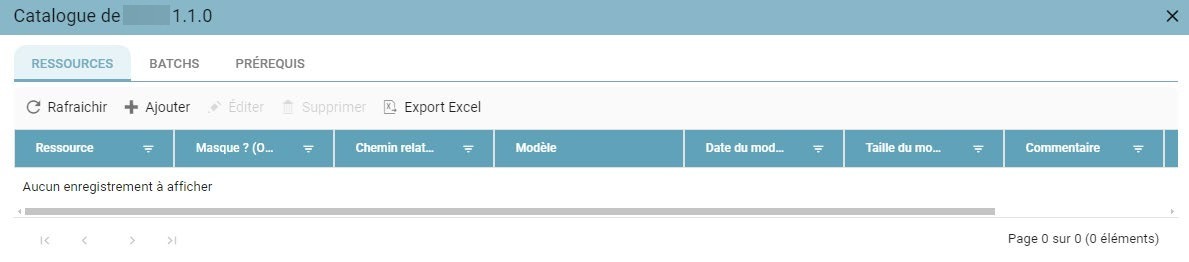
Information to fill in:
- Ressource (Resource): name of the resource with its extension (.xlsx, .csv, etc.) — required field
- Masque (Wildcard): Yes or No. Allows uploading several files with the same prefix by using the "" character in the resource name (e.g. Fichier_investissement.xlsx allows Fichier_investissement-mars.xlsx and Fichier_investissement_avril.xlsx to be uploaded) — required field
- Chemin relatif (Relative path): name of the directory in which the resource must be saved
- Commentaire (Comment): free-text section
Actions:
- Enregistrer (Save): creates the resource
- Croix (Close "X"): closes the pop-up without creating the resource
- Touche "Echap" (Esc key): closes the pop-up without creating the resource
- Annuler (Cancel): closes the pop-up without creating the resource
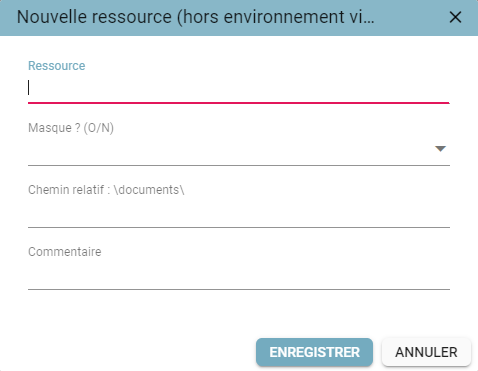
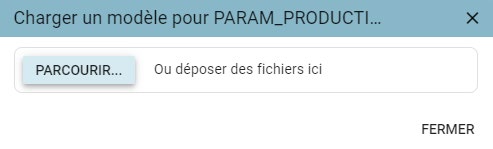
Once the resource has been created, a template can be associated with it:
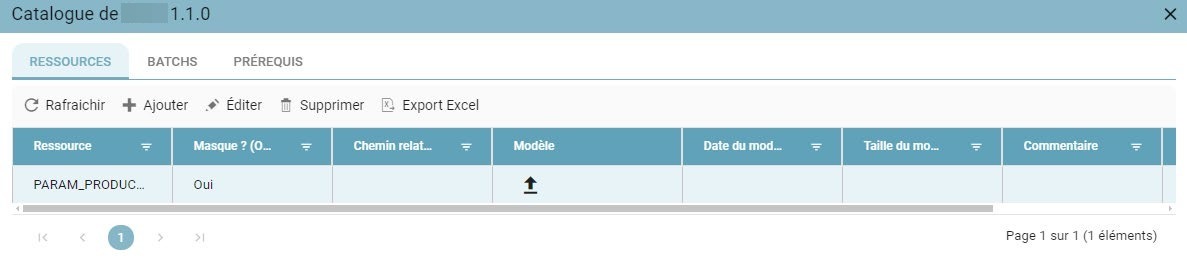
This template will be downloadable by the producer at production time if the resource is associated with a module.
All resources can be modified via the "Editer" (Edit) button:
Editable information:
- Ressource (Resource): name of the resource — required field
- Masque (Wildcard): Yes or No — required field
- Chemin relatif (Relative path): name of the directory in which the resource must be saved
- Commentaire (Comment): free-text section
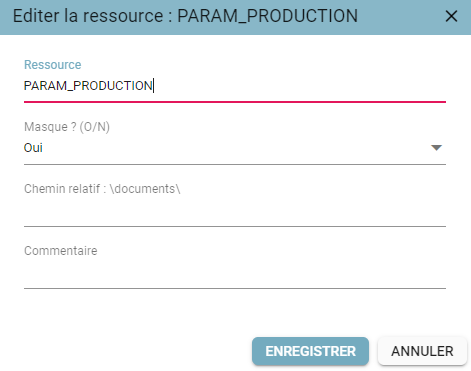
Actions:
- Enregistrer (Save): modifies the resource
- Croix (Close "X"): closes the pop-up without modifying the resource
- Touche "Echap" (Esc key): closes the pop-up without modifying the resource
- Annuler (Cancel): closes the pop-up without modifying the resource
Batches
Access to the list of batches that were automatically defined when the blank environment was uploaded:
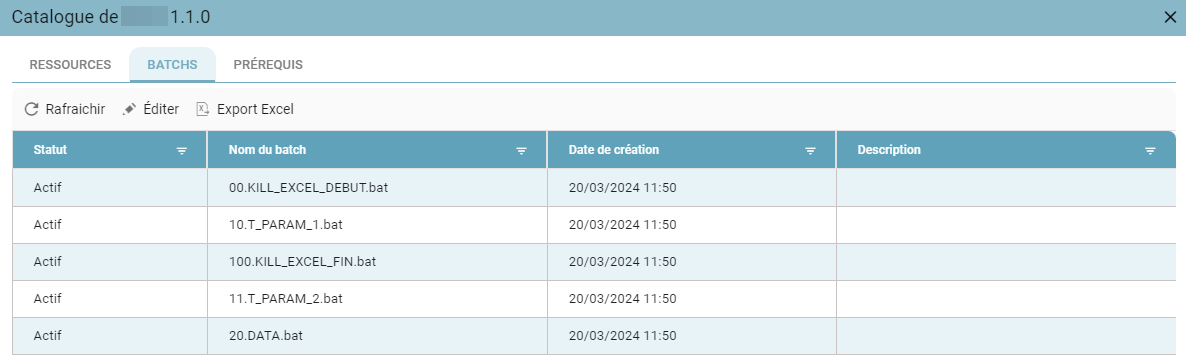
A description can be added to batch files via the "Editer" (Edit) button:
Editable information:
- Description: free-text section

Actions:
- Enregistrer (Save): modifies the batch
- Croix (Close "X"): closes the pop-up without modifying the batch
- Touche "Echap" (Esc key): closes the pop-up without modifying the batch
- Annuler (Cancel): closes the pop-up without modifying the batch
Duplication
A UTD version can be duplicated, if it has "Actif" (Active) status, to make it easier to carry over information for the new UTD.
To do this, click the duplication icon and confirm the duplication:


When a UTD version is duplicated, all the data from the duplicated UTD version is retained (including permissions). To obtain a valid new version, it will simply be necessary to:
- increment the version number
- upload the new blank environment
Statuses and associated actions
A UTD can have 5 distinct statuses:
- "Brouillon" (Draft)
- "Annulé" (Cancelled)
- Prototype
- "Actif" (Active)
- "Inactif" (Inactive)
"Brouillon" Status (Draft)
By default, when created, the version has "Brouillon" (Draft) status.
A UTD version with "Brouillon" (Draft) status will not be visible in Data Fabrik.
If the UTD version has "Brouillon" (Draft) status, it can be changed to "Prototype", "Actif" (Active), or "Annulé" (Cancelled) status.
"Prototype" Status
If the UTD version has "Prototype" status, it can be changed to "Brouillon" (Draft), "Actif" (Active), or "Annulé" (Cancelled) status.
A version can only be moved to "Prototype" status if at least one of its modules has "Actif" (Active) status.
This status is used when deploying a UTD version on the platform. It allows the version to run in Data Fabrik and permits a return to "Brouillon" (Draft) status if a modification is needed (of the blank environment, for example).
"Actif" Status (Active)
If the UTD version has "Actif" (Active) status, it can be changed to "Inactif" (Inactive) status.
Only a version with "Actif" (Active) status can be scheduled recurrently in Data Fabrik.
"Annulé" and "Inactif" Statuses (Cancelled and Inactive)
If the version has "Annulé" (Cancelled) or "Inactif" (Inactive) status, no status change is allowed.
Module
Declaration and management
The arrow displays the module management screen for a UTD version:
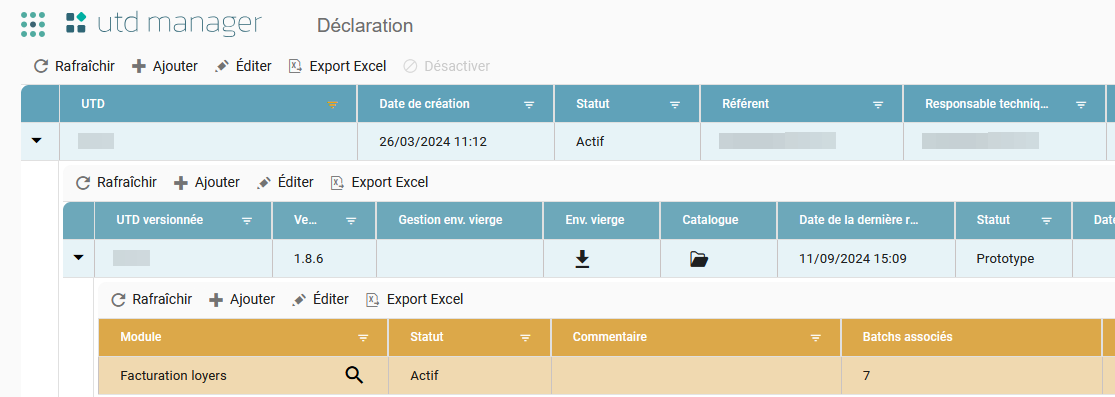
General actions:
- Ajouter (Add): creates a new module
- Editer (Edit): modifies a module
- Rafraichir (Refresh): updates the table
- Export Excel (Excel Export): exports the table (with any applied filters) to Excel
Module-specific action:
- Manage Module-to-Files/Batches associations
- Display the module details, including the module ID (technical information)
Adding
The new module creation pop-up is displayed by clicking the Add button:
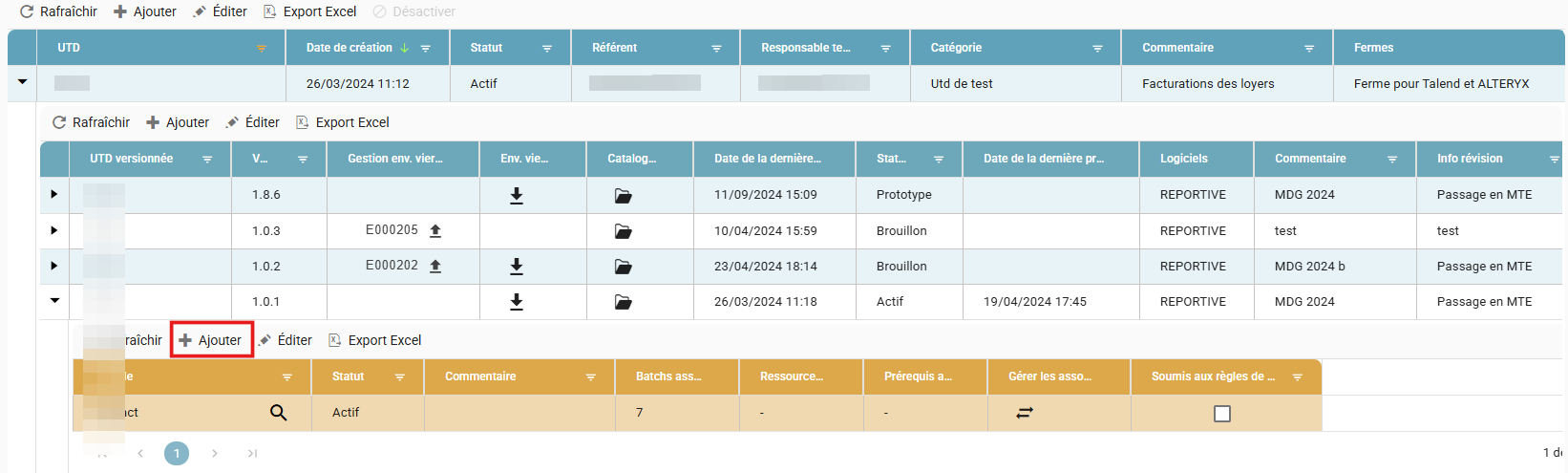

Information to fill in:
- Module: name of the module — required field
- Statut (Status): by default the module has "Brouillon" (Draft) status — non-editable field
- Commentaire (Comment): free-text section — required field
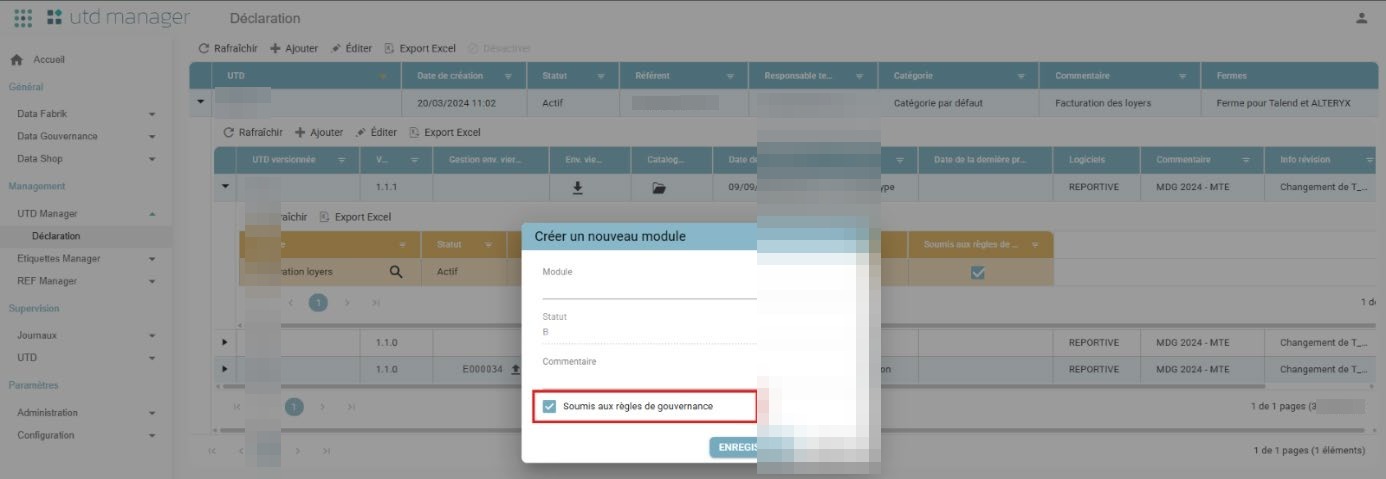
- Soumis aux règles de gouvernance (Subject to governance rules)
Actions:
- Enregistrer (Save): creates the module
- Croix (Close "X"): closes the pop-up without saving the module
- Touche "Echap" (Esc key): closes the pop-up without saving the module
- Annuler (Cancel): closes the pop-up without saving the module
Editing
The module editing pop-up is displayed by clicking the Edit button:
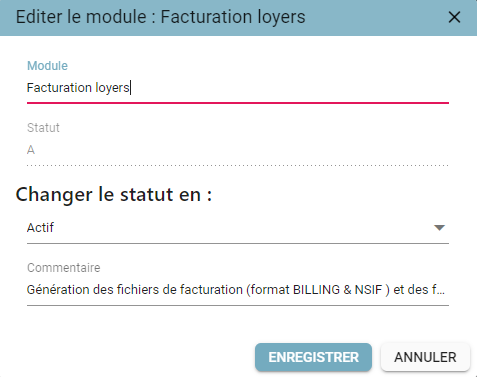
Editable information:
- Module: name of the module — required field
- Statut (Status): status of the module ("Brouillon"/Draft, "Actif"/Active, "Inactif"/Inactive) — required field
- Commentaire (Comment): free-text section — required field
Actions:
- Enregistrer (Save): modifies the module
- Croix (Close "X"): closes the pop-up without modifying the module
- Touche "Echap" (Esc key): closes the pop-up without modifying the module
- Annuler (Cancel): closes the pop-up without modifying the module
Module details
The module details option opens a window displaying the essential information about this module.


Actions:
- Croix (Close "X"): closes the pop-up
- Touche "Echap" (Esc key): closes the pop-up
- Retour (Back): closes the pop-up
- Copier l'ID du module (Copy the module ID) (technical information)
Modules subject to governance
A "Soumis aux règles de gouvernance" (Subject to governance rules) checkbox has been added to the module add/edit screen.
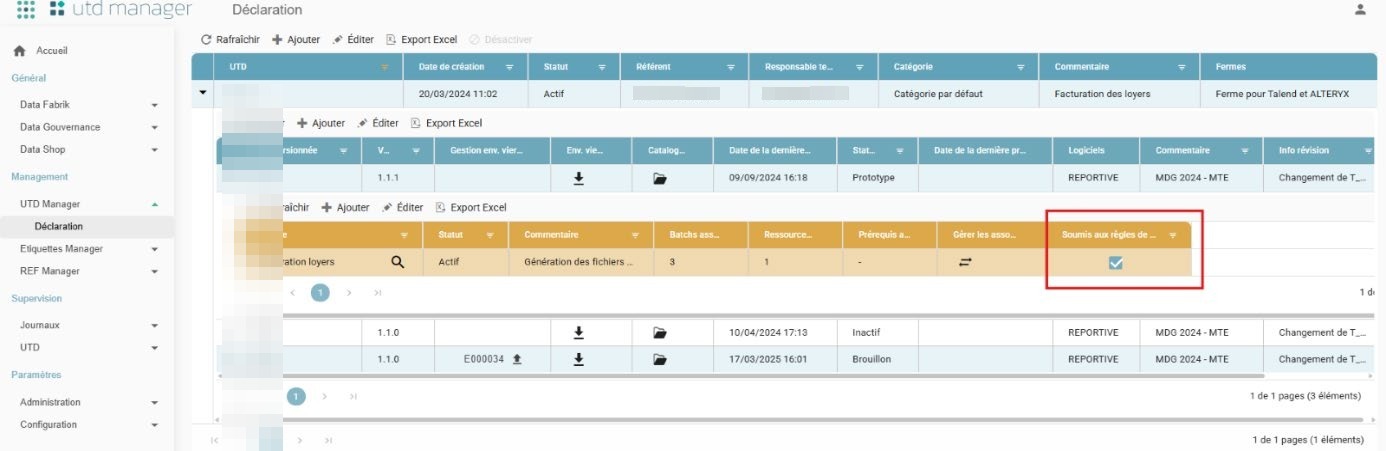
This checkbox appears below the Comment field, in the UTD module creation interface.
When a UTD version is duplicated, the value of this field is automatically copied over for each module. This enhancement makes it easy to identify the modules subject to governance rules.
Viewing governance assignments
Makes visible the oversight and governance responsibilities associated with each UTD module, in order to improve transparency in the management of data governance rules.
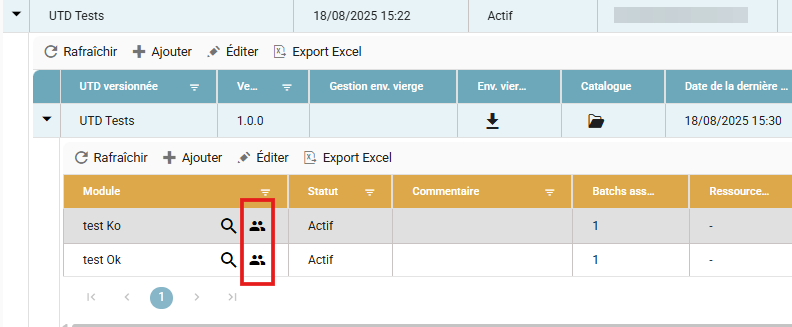
- Open the "UTD Manager" > Modules menu.
- Click the users icon.
- Go to the DATA GOUVERNANCE section at the bottom of the details window.
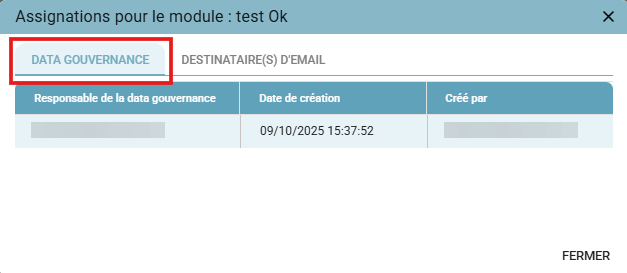
A new section named DATA GOUVERNANCE is now available. It presents, in table form, the list of users currently assigned to managing the module's governance rules.
- The information displayed is read-only.
- Assignments are configured when a production is created in Data Fabrik.
Viewing the end-of-production email recipients
Makes it easier to track the automatic notifications sent at the end of a UTD production, by allowing the recipients of the end-of-production email to be viewed directly from a module's record.
- Open the "UTD Manager" > Modules menu.
- Click the users icon.
- Go to the DESTINATAIRE(S) D'EMAIL (EMAIL RECIPIENT(S)) section at the bottom of the details window.
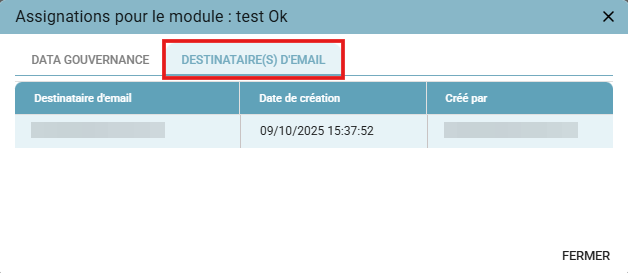
A new section named DESTINATAIRE(S) D'EMAIL (EMAIL RECIPIENT(S)) is now available. It lists all the people who will receive an email when a production linked to this module finishes.
- The information displayed is read-only.
- Recipients are configured when a production is created in Data Fabrik.
When a UTD version is duplicated, the values of this field are not automatically copied over for each module.
Module-to-Files/Batches associations
This association is used to define the resources associated with the module and to configure the batch execution sequence.
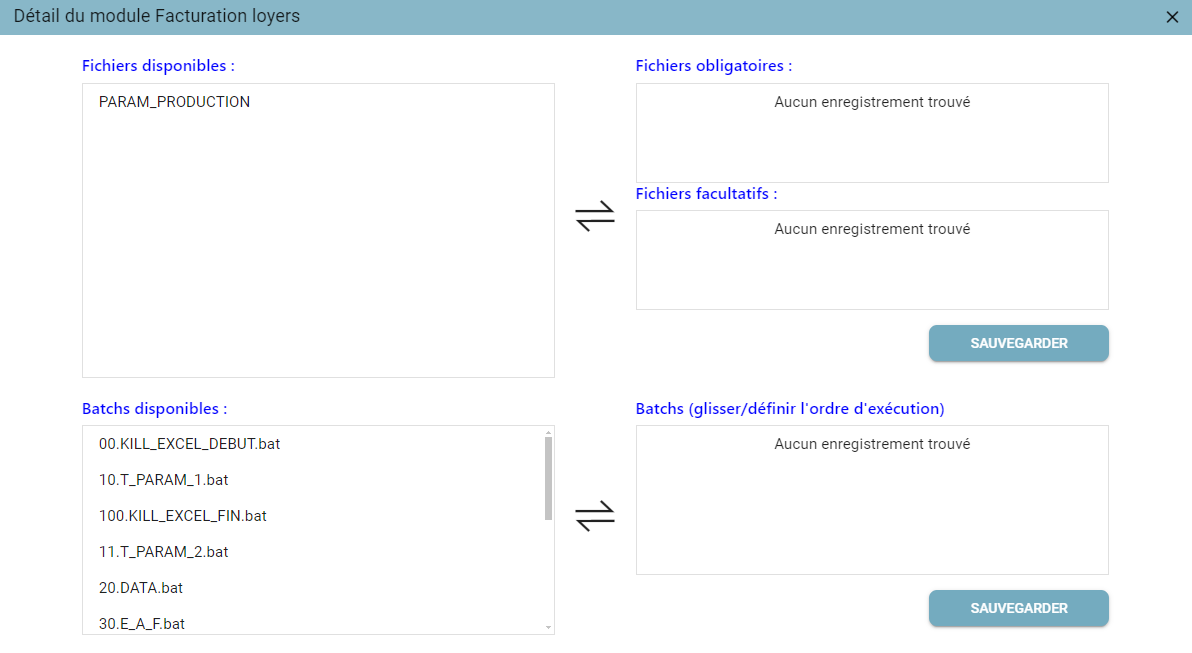
Files and batches are associated by "Glisser / Déposer" (Drag and Drop). Available files can be dropped as:
- fichier obligatoire (required file): no production can be launched without the file in question being uploaded
- fichier facultatif (optional file): a production can be launched whether or not the file in question has been uploaded
Available batches must be dropped in the desired execution order.
Each part (Files and Batches) is saved independently of the other.
If any batches appear greyed out, they cannot be associated with the module.
Actions:
- Sauvegarder (Save): saves the file list or the batch list
- Croix (Close "X"): closes the pop-up without saving if no prior save was made
- Touche "Echap" (Esc key): closes the pop-up without saving if no prior save was made
Statuses and associated actions
Module status changes are tied to their current status and to the statuses of the UTD and the version they are associated with.
"Brouillon" Status (Draft)
By default, when created, the module has "Brouillon" (Draft) status.
When the module has "Brouillon" (Draft) status, depending on the status of the UTD and its version, it is possible to:
- edit and modify the module
- view and modify this module's associations
- change the module's status
"Actif" Status (Active)
When the module has "Actif" (Active) status, depending on the status of the UTD and the version, it is possible to:
- edit and modify the module
- only view this module's associations
- change the module's status
"Inactif" Status (Inactive)
When the module has "Inactif" (Inactive) status, it is possible to:
- only view this module's associations
- change the module's status
Configuration
This menu is used to administer the technical components required to run UTDs.
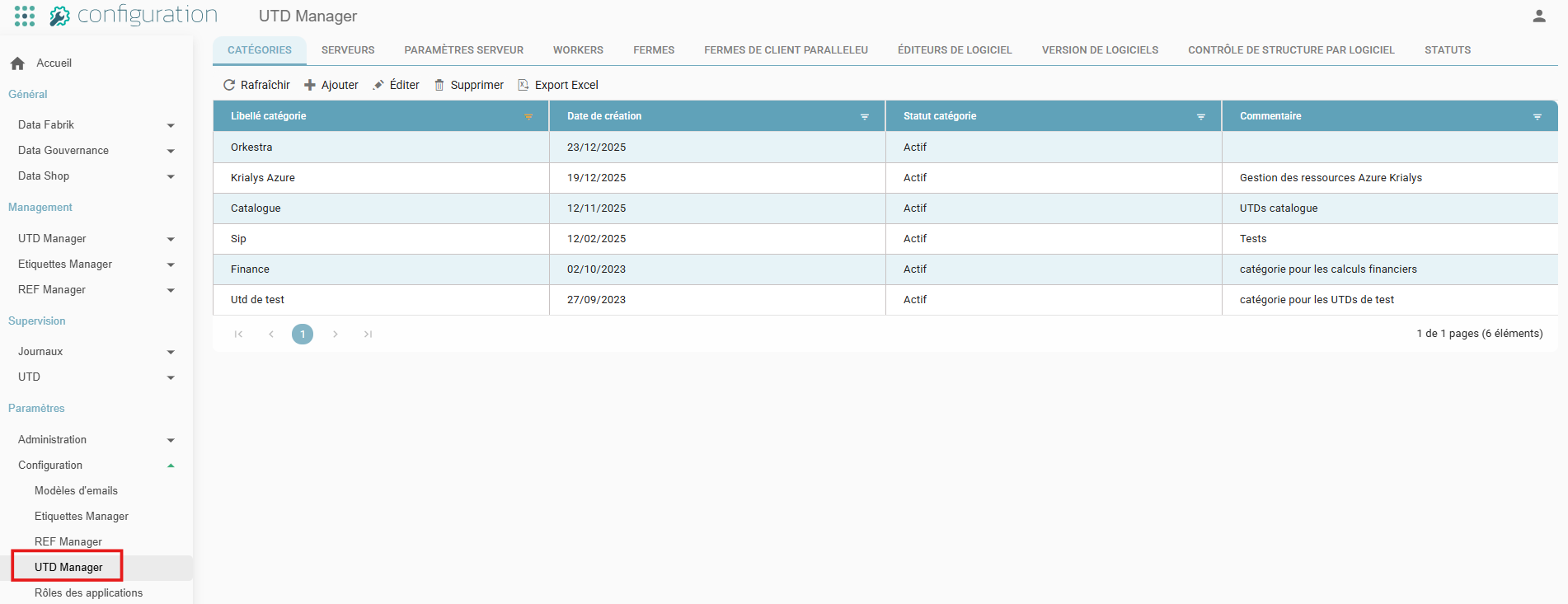
Categories
Categories allow UTDs to be organized according to a functional or technical grouping.
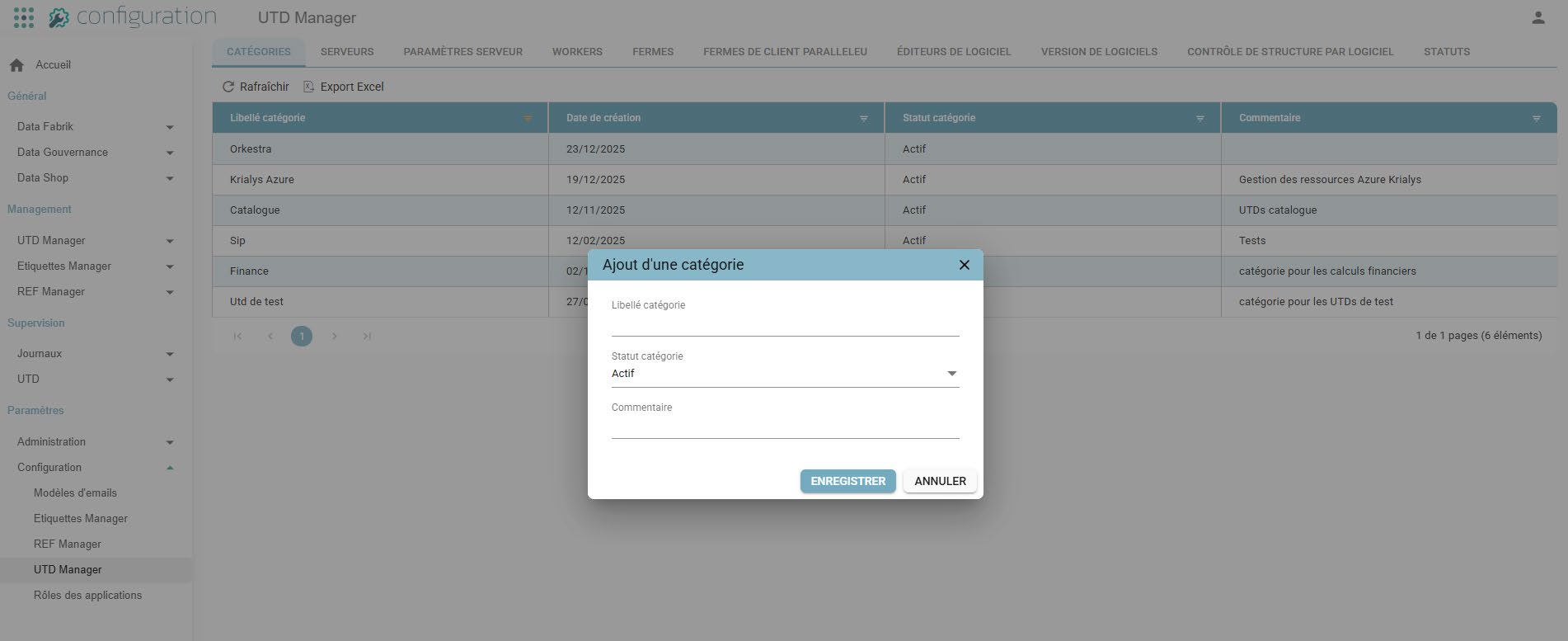
Creation / editing
The pop-up now displays:
- Category label (required)
- Status ("Actif"/Active / "Inactif"/Inactive)
- Comment (optional)
The creation date is automatically filled in by the system.
Servers
Used to manage the servers associated with running UTDs.
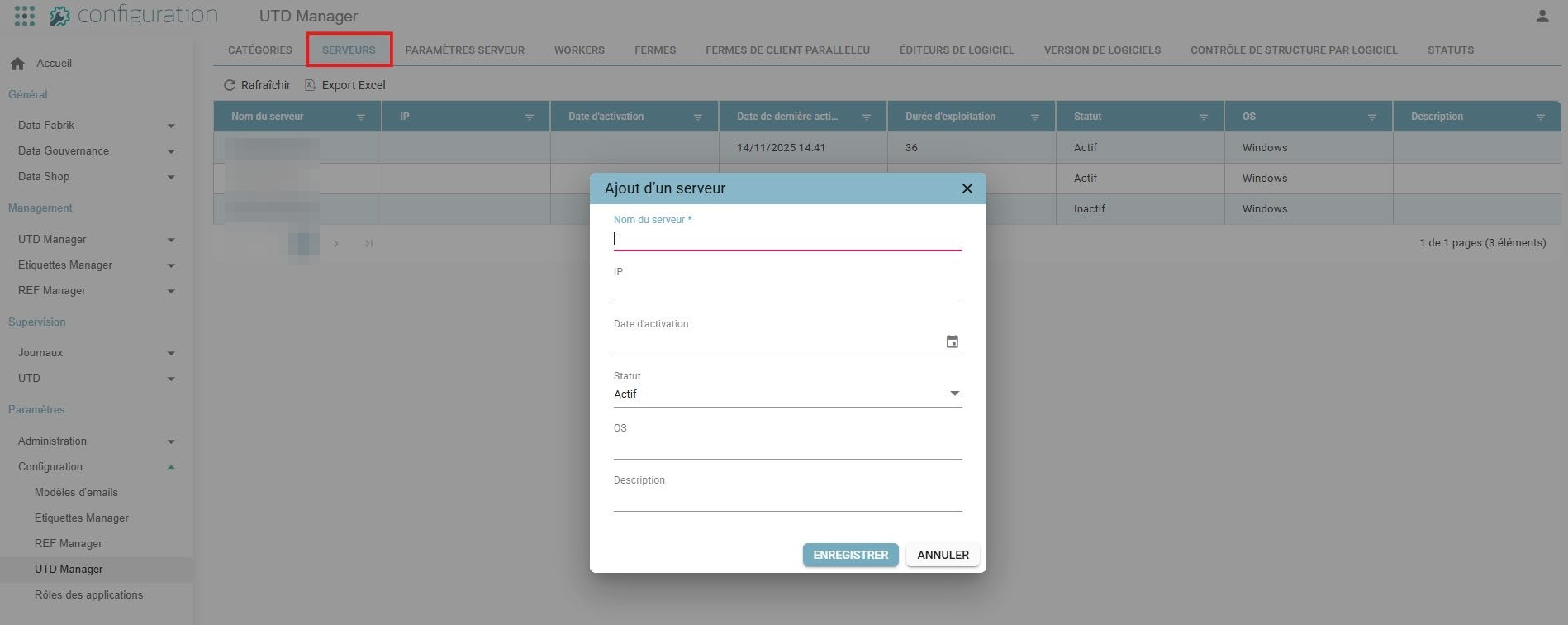
Adding
Title:
- Ajout d'un serveur / Add server
Fields:
- Server name (required)
- IP
- Activation date
- Status ("Actif"/Active / "Inactif"/Inactive)
- OS
- Description
The following fields cannot be edited in the pop-up:
- Last activity date
- Operating duration
Deletion
A server can only be deleted if it is not in use.
If used elsewhere: "Impossible de supprimer ce serveur : il est utilisé dans une ou plusieurs configurations." (Unable to delete this server: it is used in one or more configurations.)
Workers
Used to manage the workers that run UTD processes.
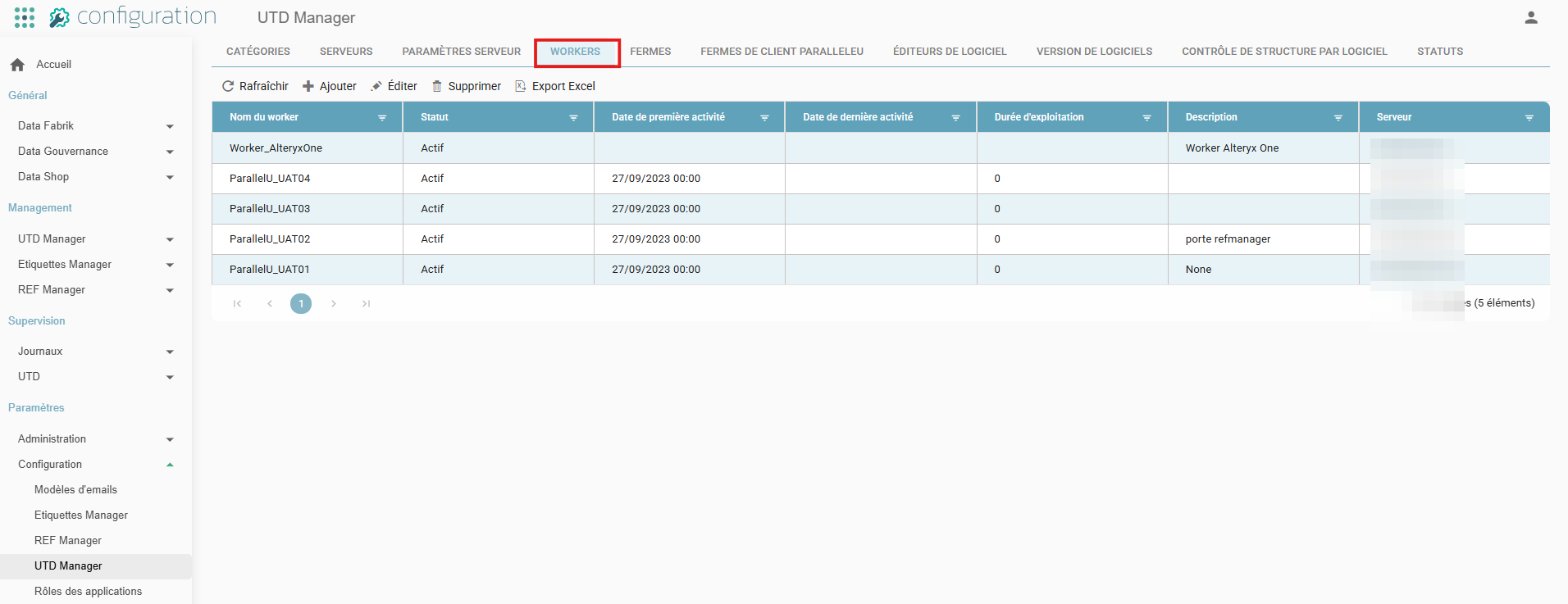
Adding
Title:
- Ajout d'un worker / Add worker
Required fields:
- Worker name
- Server
Status:
- "Actif" (Active) / "Inactif" (Inactive)
- Default value: "Actif" (Active)
Hidden fields (managed automatically):
- First activity date
- Last activity date
- Operating duration
Deletion
A worker can only be deleted if it is not referenced in any UTD or production.
If referenced elsewhere: "Impossible de supprimer ce worker : il est utilisé dans une ou plusieurs configurations." (Unable to delete this worker: it is used in one or more configurations.)
Software publishers
Used to manage the list of publishers used in UTD versions.
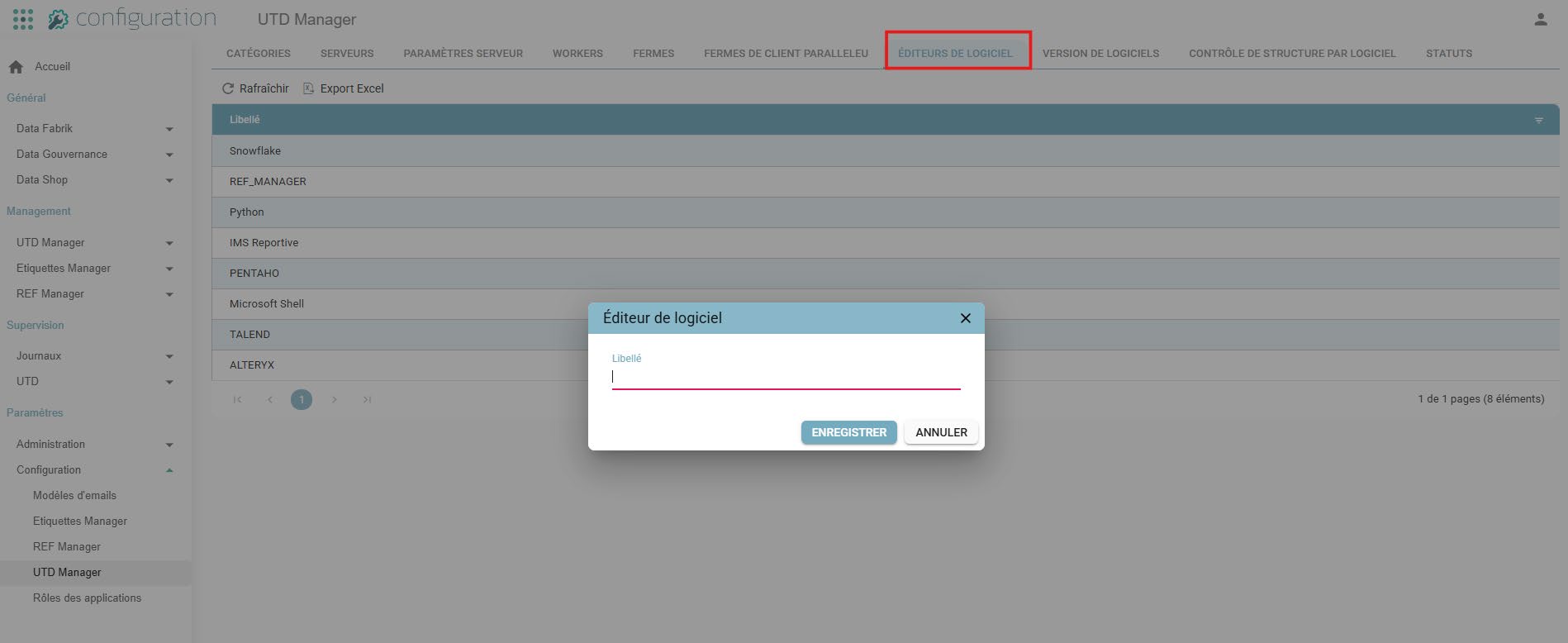
Creation / editing
Pop-up:
- Title: Éditeur de logiciel / Software publisher
- Field: Libellé / Label
Deletion
A publisher can only be deleted if it is not referenced in any UTD, version, or configuration.
If referenced elsewhere: "Impossible de supprimer cet éditeur : il est utilisé dans une ou plusieurs configurations." (Unable to delete this publisher: it is used in one or more configurations.)