Labels Manager
Introduction
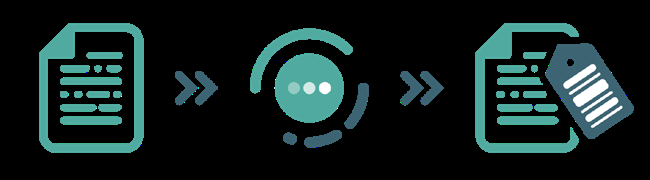
Orkestra creates a label and attaches it to each dataset produced. The labels produced are stored in Orkestra. In a data integration context (file, feed, …), the label is associated with the dataset produced, which is intended to be stored in a table of the Client database.
Example: 20230308_FIN_TXCH_02
A label is a unique reference generated by Orkestra, used to authenticate each dataset. The label nomenclature is made up of:
- A scope (dynamic or static) providing the context in which the dataset was generated
- A domain grouping data by process, organizational or operational axis
- An object referring to the business processing that generates the dataset
- A counter incremented for each production of the preceding triplet
To configure label templates, Orkestra offers a configurator feature. Each label template can then be tested before use through a simulator.
With each production, a new unique label code is created for each dataset produced or inserted into the database.
Label generation is triggered per module and its associated data processing during production via DataFabrik.
General principle
| Label element | Meaning |
|---|---|
| 20230308 | Dynamic scope |
| FIN | Domain |
| TXCH | Object |
| 02 | Increment generated by Orkestra |
A unique label is automatically generated from the combination of the triplet Scope_Domain_Object + Increment.
The label template nomenclature is defined in the label codification settings, in the Configuration – Etiquettes Manager menu.
The label is defined when the EB meta is written. This is done in 2 steps:
- Label configurator: this menu gives access to 3 tabs used to create the codification of the Scope-Domain-Object triplet that makes up the label template.
- T_PARAM_ADVANCED: this is an Excel settings file integrated into the ETL when the UTD workflows are created. It must specify the attributes of the Scope_Domain_Object triplet as defined in Etiquettes Manager. It allows the ETL to communicate with Orkestra and to create a new label with each production.
Domains
A domain can be defined as a logical and organizational grouping unit for data sharing similar characteristics or common objectives.
The domain enables data management, analysis and use within a distributed and scalable architecture:
- Centralized data management: by grouping similar data within the same organizational entity. This simplifies data governance, maintenance and management by allowing domain owners to make consistent decisions aligned with business objectives.
- Data security and confidentiality: implement security and confidentiality policies tailored to each dataset.
- Data analysis and exploration: the domain provides a logical framework for data analysis and exploration. In addition, consolidating similar data in a single domain can help reduce data fragmentation and facilitate cross-functional analysis.
- Interoperability and collaboration: although each domain has its own autonomy, it is often necessary to collaborate and interact with other domains to meet complex business needs.
- Agility and scalability: by structuring data by domain, organizations can adopt an agile and scalable approach to data management. New domains can easily be added to support new business needs, while changes within a domain can be managed flexibly without disrupting other parts of the system.
Objective
Define the domain as a grouping entity covering 1 or more processes according to the organization's needs.
How it works
- In Etiquettes Manager, open the configurator, then the Domains tab. The domains created are listed with their attributes and information on who created them and when.
- From this page, you can create, modify or delete a domain.
- A domain must be attached to a domain type. Domain types are created in the Configuration - Etiquettes Manager menu.
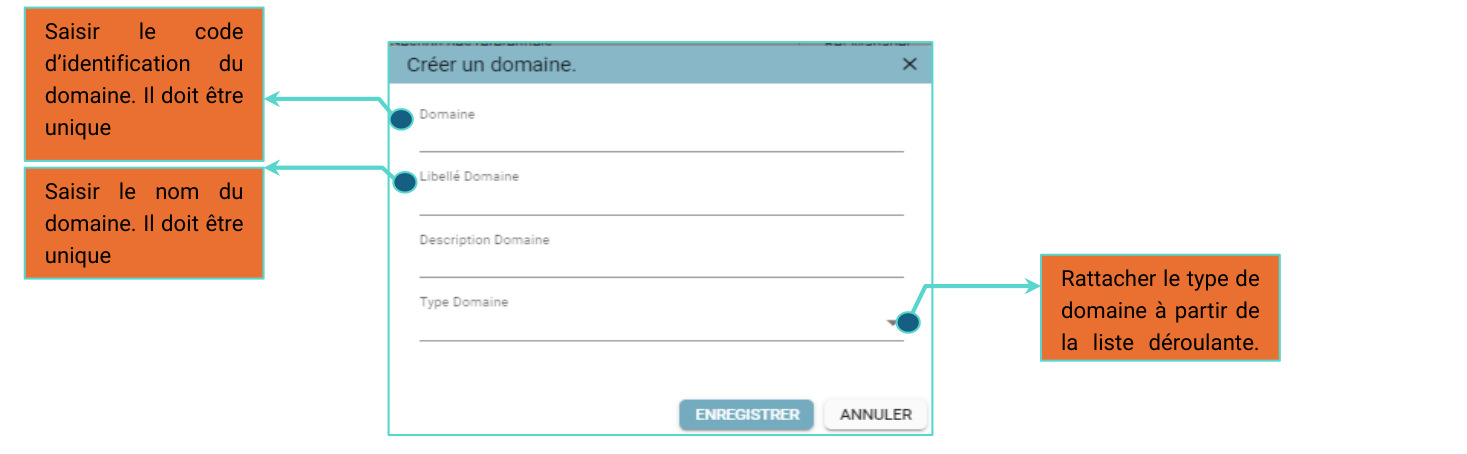
- Domain: enter the domain identification code. It must be unique.
- Domain label: enter the domain name. It must be unique.
- Domain type: attach the domain type from the dropdown list.
Example: Accounting domain
- Code: CPT
- Label: Comptabilité (Accounting)
- Domain type: Incoming feed
Scopes
A scope can be defined as a contextual characteristic of data that complements the notion of domain by specifying additional information. A scope could include the following elements:
Operational context: the scope can indicate the specific business processes, workflows or applications in which the data is used or needed.
- Example: the scope can be a reference to the management information system through which the data feed passes.
Geographical context: the scope can specify the physical or geographical location associated with the data, which may be relevant when data is subject to regulations or requirements specific to certain regions.
- Example: for productions relating to the same process that are spread across several locations such as countries (FR for France, UK for the United Kingdom, …).
Temporal context: the scope can indicate the period of validity or relevance of the data, its creation, update or expiry date.
- Example: for data with annual frequency and validity, the scope is YYYY, and for data produced monthly, the scope can be MMYYYY.
Functional context: the scope can define the functional area or specific business aspect to which the data relates, in addition to identifying the main domain.
- Example: for productions relating to a specific use such as generating a specific report.
Objectives
Define a scope for each UTD module according to the business context:
- Dynamic scope (calculated by the ETL): if AAAAMMDD, the ETL calculates the current date in this format
- Non-dynamic scope: static information of the label created
How it works
In Etiquettes Manager, open the configurator, then the Scopes tab. The scopes created are listed with their attributes and information on who created them and when.
From this page, you can create, modify or delete a scope.
A scope must be attached to a domain, defined in the Domains tab.
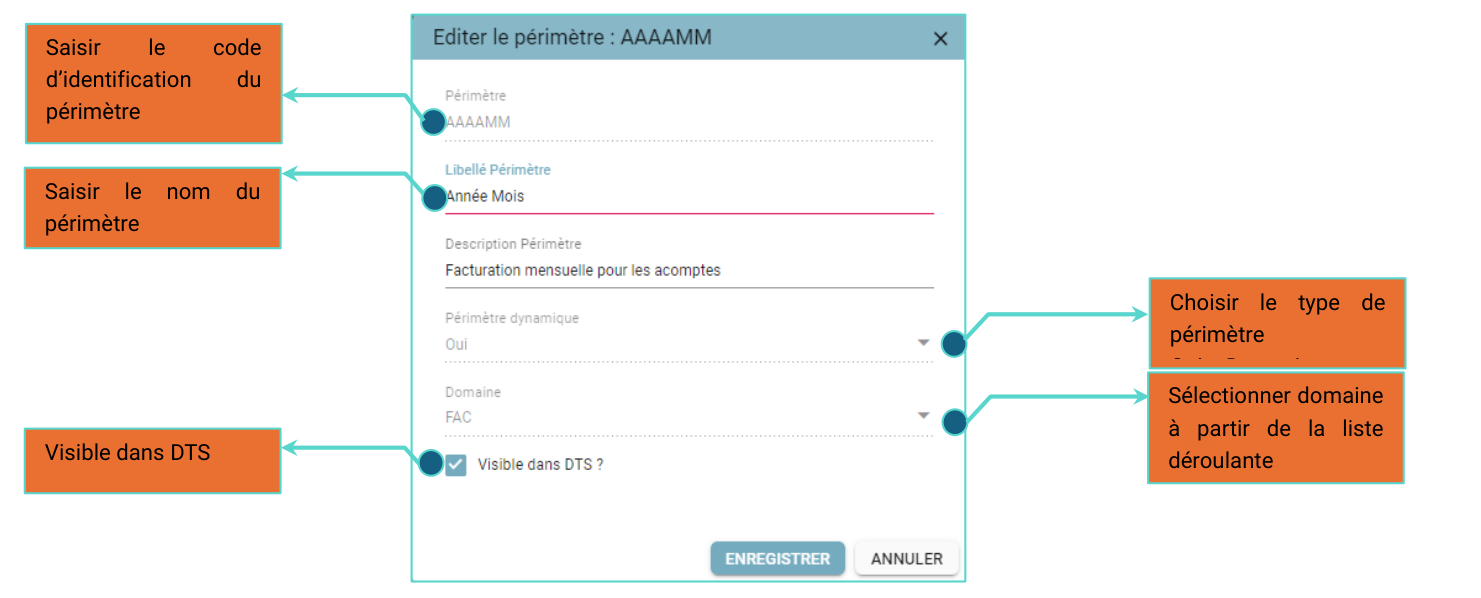
- Scope: enter the scope identification code.
- Scope label: enter the scope name.
- Dynamic scope: choose the scope type.
- Domain: select the domain from the dropdown list.
- Visible in DTS?: visible in DTS.
Tagged objects
Each label is initiated on the basis of a data processing that refers to a unique object. Within the organization, it is a reference to a self-contained data unit.
- Example: invoices, budget, trade balance, products, customers, asset types, …
Each tagged object is associated with a specific business context, and therefore with a domain.
Data governance is applied contextually to each object according to business needs (quality, security, confidentiality, …).
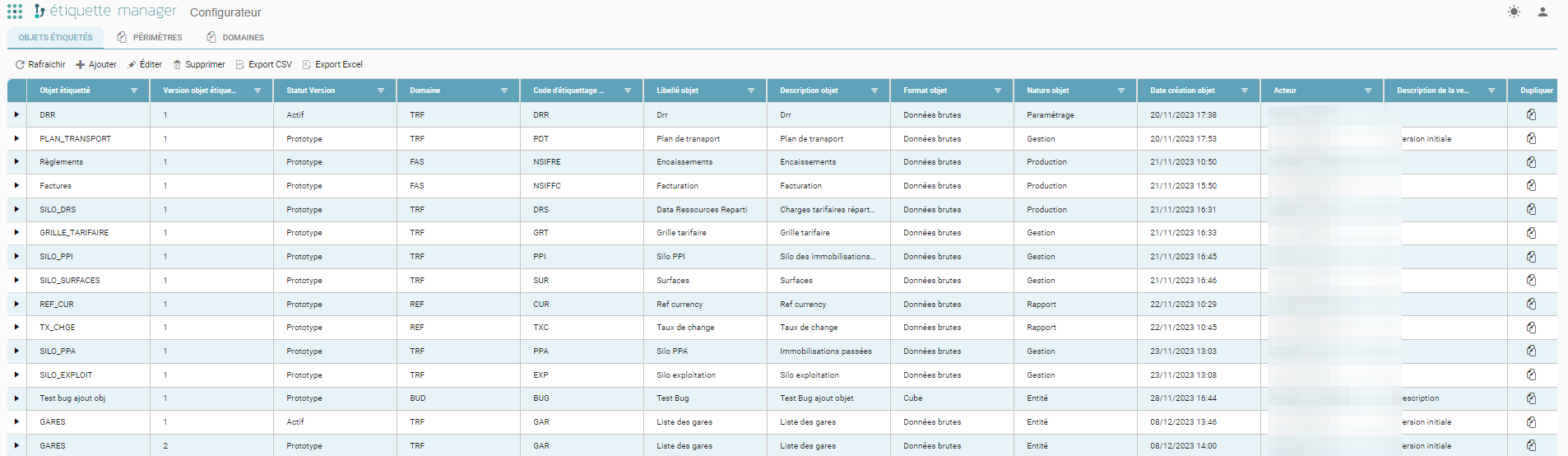
Objectives
- Define a tagged object (unique identifier) and its labeling code (code used in the label nomenclature)
- Attach objects to a domain
- Create objects, manage them, edit them, create versions, delete them, …
- Associate business rules with an object
Creating an object
From the label configurator, in the Tagged objects tab, click Add to declare a new object.
You can also create a new version of an existing object.
The version number is calculated automatically on creation.
An object must be associated with a domain declared in the Domains tab.
The object's labeling code is used in the label nomenclature.
The object's format and nature are set in the Configuration > Etiquettes Manager menu.
When a new object or a new version is created, its status is “No change”. The object's status must be changed to “Active” for it to be usable.
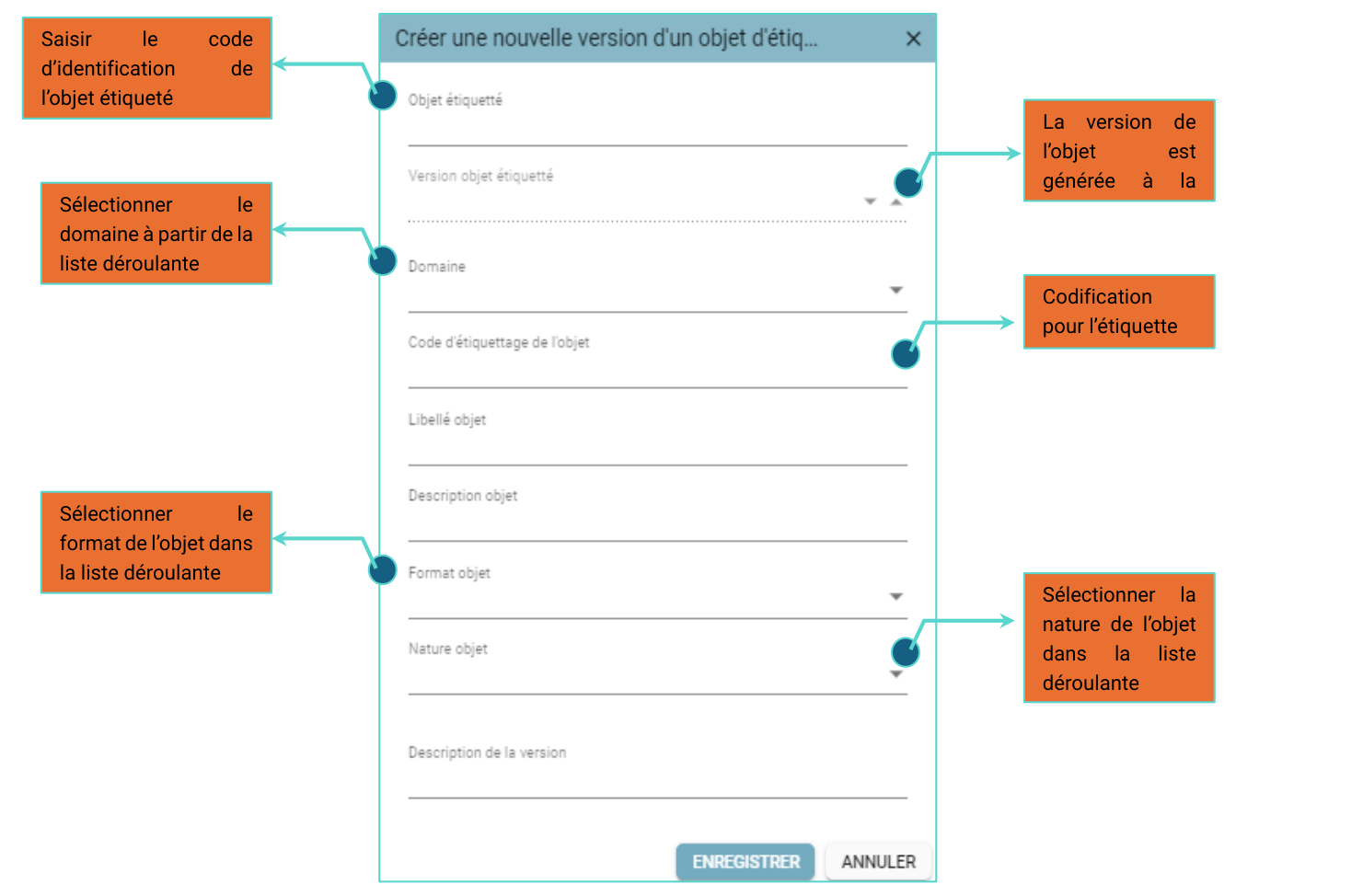
- Tagged object: enter the tagged object identification code.
- Tagged object version: the object version is generated on creation.
- Domain: select the domain from the dropdown list.
- Object labeling code: codification for the label.
- Object format: select the object format from the dropdown list.
- Object nature: select the object nature from the dropdown list.
Editing an existing object and versioning
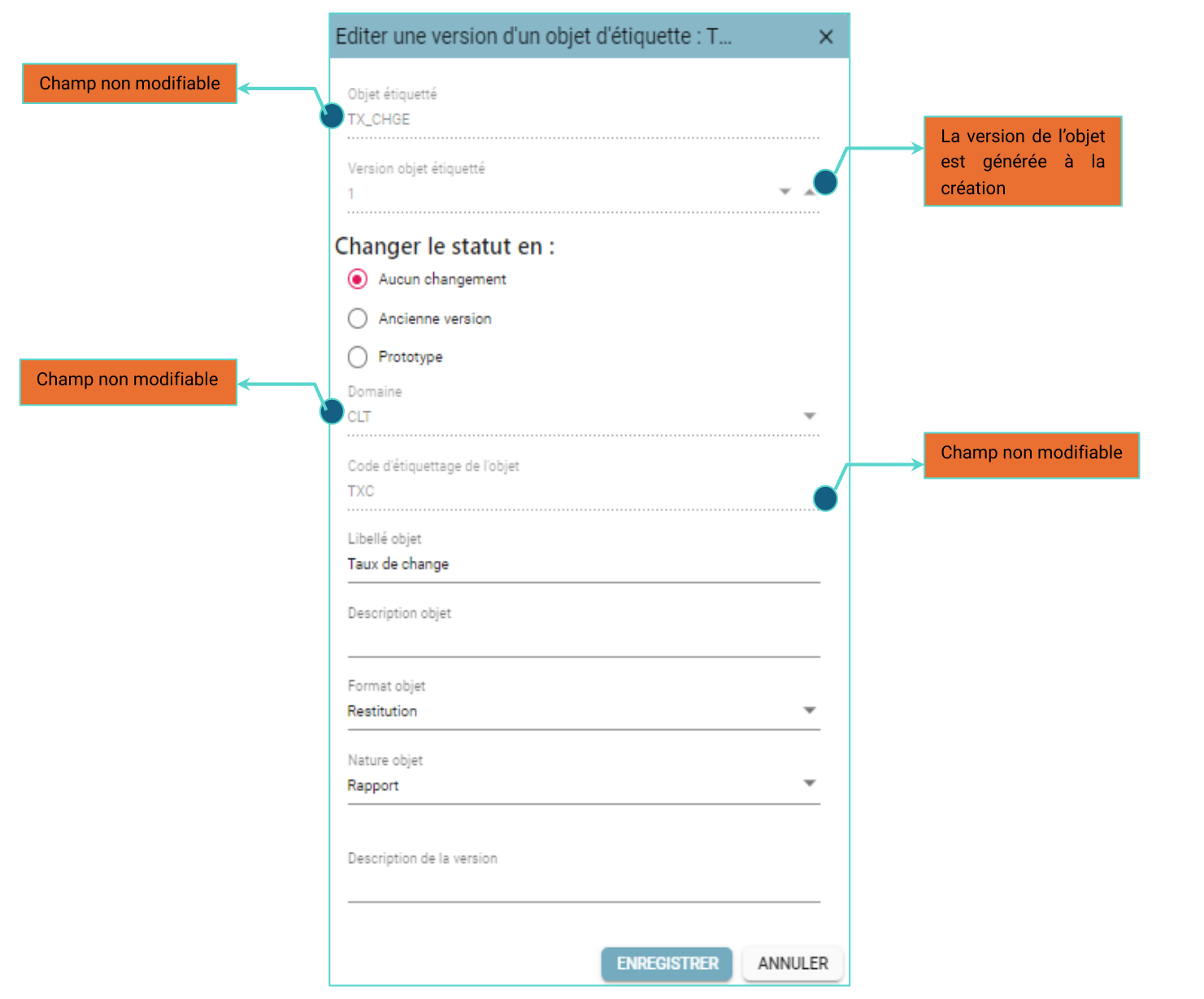
In an object's edit popup, you can change the status.
- To get a new codification for the object or to assign it to another domain, you must create a new version.
- The new version created must have the same identifier in the Tagged object field.
- The new version created automatically inherits the “Prototype” status and the next version number.
- The status of the previous version must be changed to “Old version”.
The following cannot be modified:
- Tagged object (unique identifier)
- Tagged object version
- Domain
- Object labeling code
Associating governance rules with an object
When a tagged object is created, it is associated with a governance process comprising a set of predefined governance rules to apply.
For each governance rule, you can declare whether it is applicable (Y/N) to the object.
For each governance rule, you can set a duration or a deadline.
These rules must be defined per object before any UTD production (otherwise they cannot be associated).
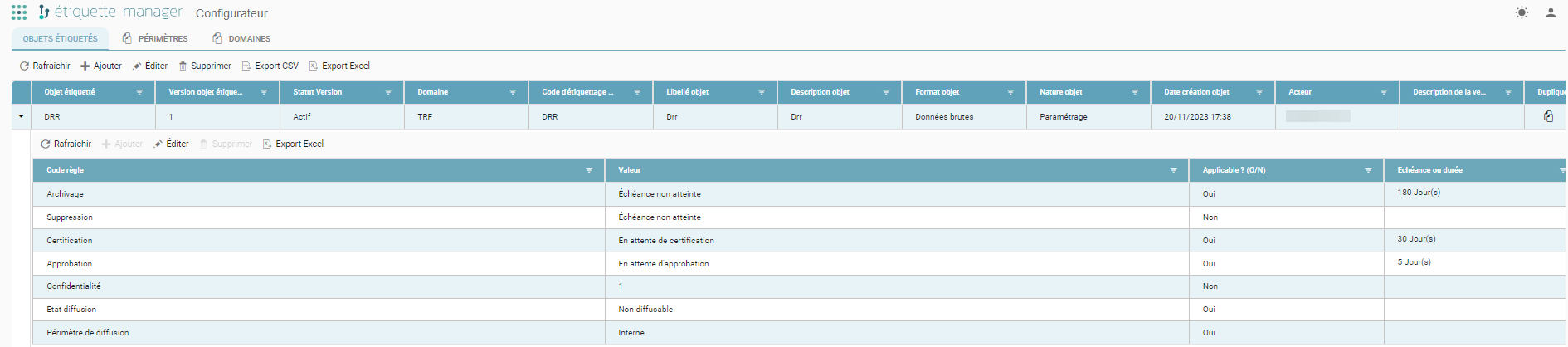
Governance rules are defined in Orkestra's Data Gouvernance menu, see the Data Gouvernance manual.
Label simulator
Objectives
Once the various items have been created and configured, they can be combined through the label simulator.
This operation lets us check the final label nomenclature before going into production.
Running a simulation
-
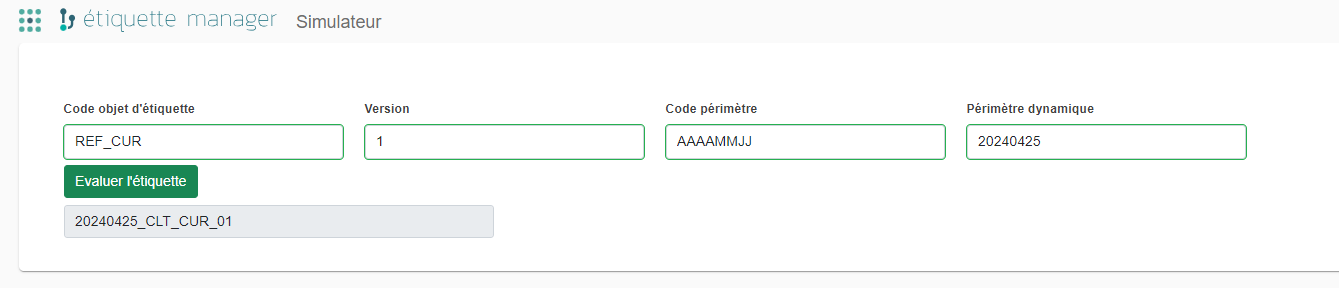
From the dropdown lists, select the label object code, the object code version and the scope code.
-
Enter an example following the desired format of the dynamic scope.
As a reminder, the dynamic scope will be calculated in the module's processing during production.
-
Clicking the “Evaluate the label” button displays the label thus built.