Data Governance
Introduction: Data governance framework and process
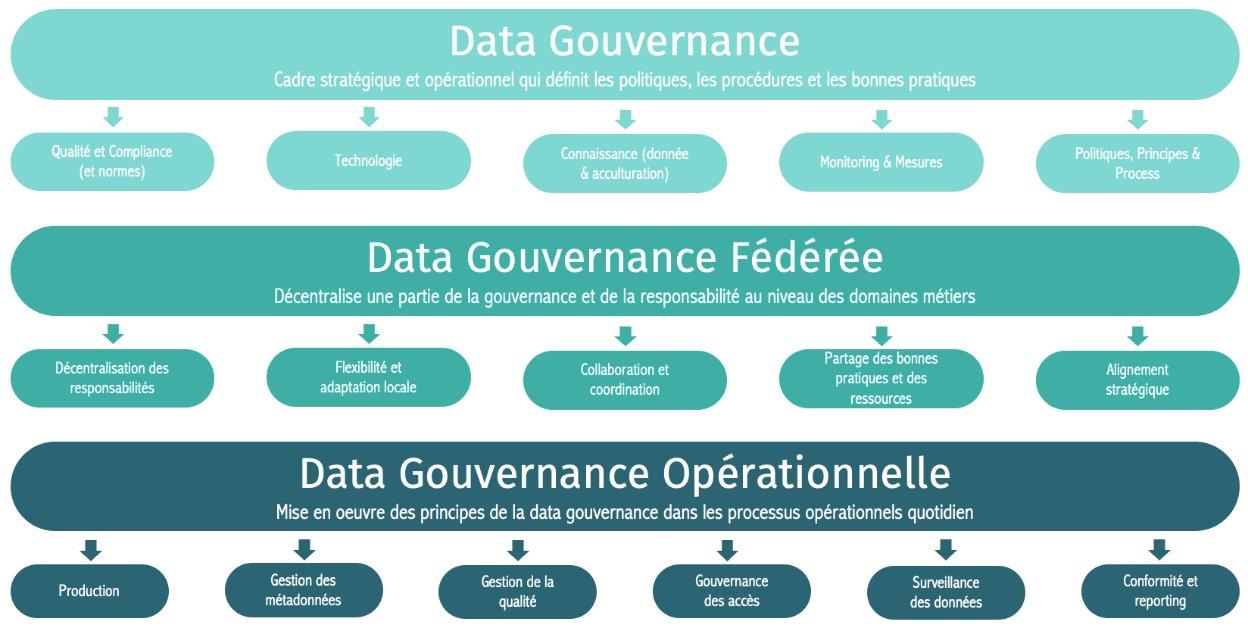
Data governance framework: layered model
Data governance brings together all the processes, roles, policies and tools needed to guarantee the quality, security, compliance and value of the company's data.
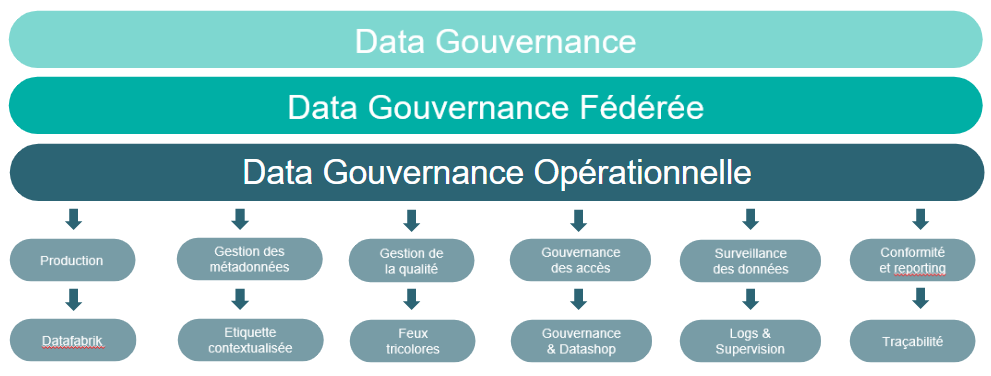
Toward operational data governance with Orkestra
ORKESTRA provides a set of features covering all the key points of Governance. In this guide, we will focus on explaining:
- The configuration of Governance rules
- The application of governance rules
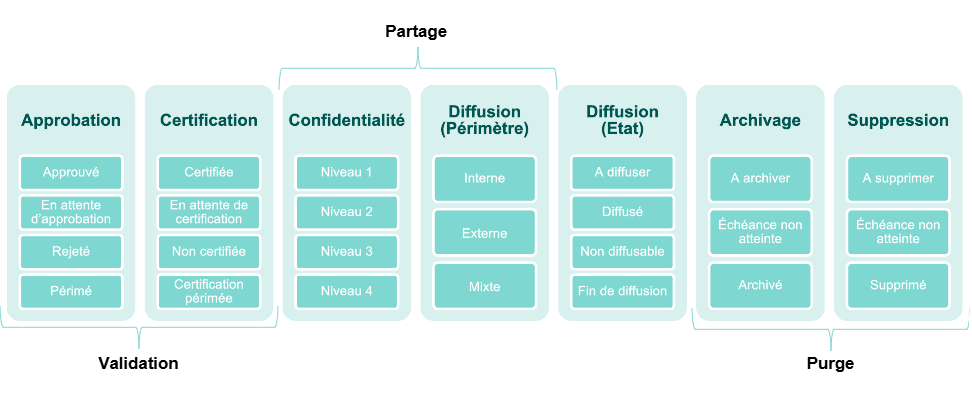
General presentation of governance rules
- A pack of governance rules is available as part of the Orkestra offering.
- These predefined governance rules bring together several rule values. Rule values can be linked to one another.
- Governance rules are associated with a tagged object when it is created, so they can be applied to the resulting label.
Overview of the Governance process in Orkestra
- Defining users (see the dedicated guide)
- Role on governance rules
- Defining a tagged object (see the dedicated guide)
- Selecting Governance rules
- Defining a UTD (see the dedicated guide)
- Associating a module with governance rules
- Tagged production in Data Fabrik (see the dedicated guide)
- Managing entitlements
- Applying Governance rules
- Applying a governance rule
- Enabling data distribution
- Production / governance / distribution / Data Shop workflow
- Viewing label contexts
- Accessing data quality
9 steps specific to managing governance rules
Preparation steps:
- Step 1: user roles
- Prerequisite for managing entitlements
- Step 2: choice of governance rules
- Among the list of available rules, select for each tagged object those that apply
- Step 3: associating governance rules with a module
- Indicate, per module, whether production is subject to governance rules
- Step 4: managing entitlements
- Identify the users authorized to manage the governance rules of productions
Production steps:
- Step 5: governance follow-up
- Update rule values per label to keep your datasets current
- Step 6: data distribution
- Manage access to produced datasets
- Step 7: overall workflow
- Facilitation within Orkestra to logically chain steps 5 and 6
Consultation steps:
- Step 8: viewing label contexts
- Access to the information describing each dataset
- Step 9: accessing data quality
- Access to the detailed qualifications of the produced datasets
ORKESTRA PREREQUISITES: Preparing to manage governance rules
Step 1: User roles
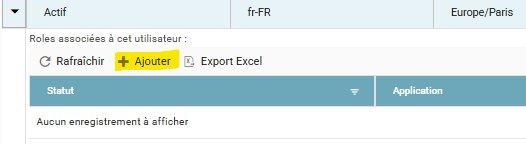
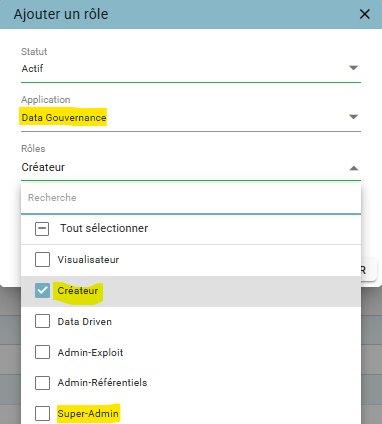
- Defining the users who can manage the governance rules of productions
- Users with the « Super-Admin » role: these users can modify all governance rules of all productions.
- Users with the « Créateur » (Creator) and/or « Administrateur » (Administrator) role
- These users will be eligible to be assigned to modify the governance rules of a future production (see step 4 below).
Settings Menu
- Administration / Users / Entitlements

Step 2: Choice of governance rules
The selection is made in two stages:
- First stage: the list of rules available in Orkestra
- This list cannot be modified; it may evolve with future Orkestra versions.
- Each predefined rule has specific characteristics (see the following sections).
- Second stage: choosing the rules applicable per label template
- For each tagged object, it is possible to indicate, among the available rules, which ones will apply, so that every label generated from it will have the applicable rules associated with it (see the procedure below).
1) List of available rules: viewing general information
Management Menu
-
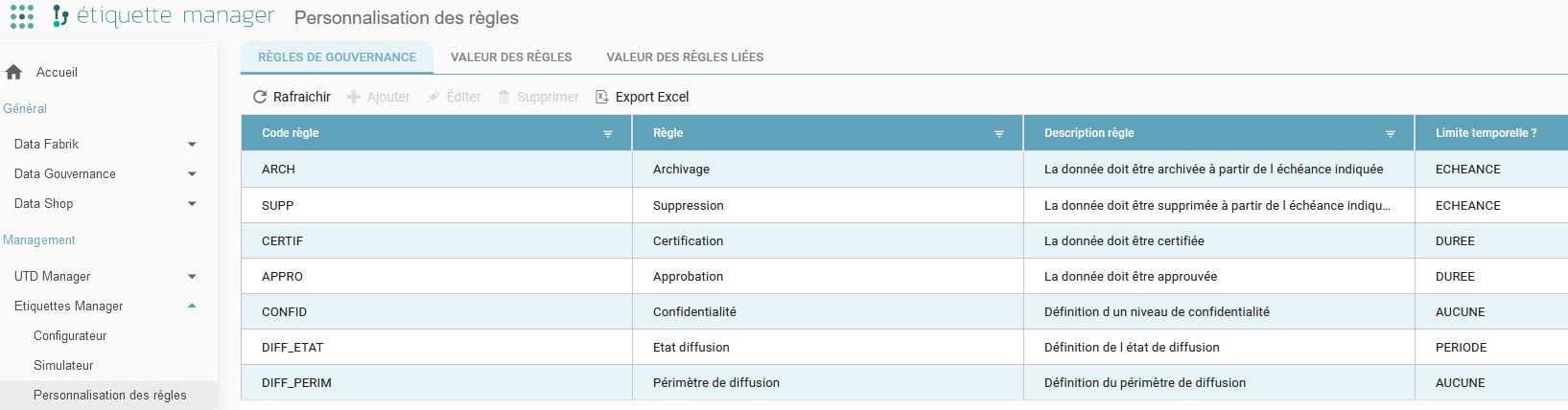
Etiquettes Manager / Rule customization / governance rules
-
A pack of data governance rules is available in Orkestra.
-
These rules cannot be modified.
-
This rule pack is automatically attached to all tagged objects (see the guide on defining a tagged object).
-
For each rule, the following information is available:
- A unique code
- An expressive label
- A detailed explanatory description
- A time dimension:
- None: the rule has no notion of time.
- Duration: it is possible to define a duration in days for the rule's validity (example: a label template will be approved for a duration of 30 days).
- Period: it is possible to define a period in days for the rule's validity (example: a label template will be distributable for a period of 60 days).
- Deadline: it is possible to define a number of days that will determine the date on which the rule takes effect (example: a label template will be archived after 90 days).
1) List of available rules: viewing the possible values per rule
Management Menu
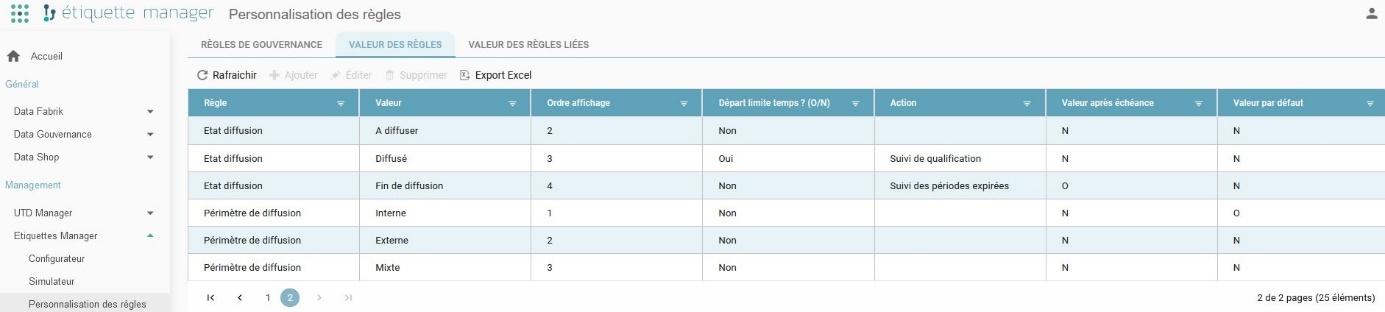
- Etiquettes Manager / Rule customization / rule values
The following properties are associated with these rules:
- Display order: the list of values for the rule concerned is displayed in the order specified when entering a value (see the chapter "Entering a governance rule value").
- Time limit start? (Y/N): indicates whether the rule value is associated with a date from which the deadline is calculated.
- Action: for now, defined only virtually (no action is actually triggered by Orkestra).
- Value after deadline: when displaying the governance rules available for a label, this is the value shown by default once a deadline has been reached (see the chapter "Entering a governance rule value").
- Default value: when displaying the governance rules available for a label, this is the value shown by default for a rule (see the chapter "Entering a governance rule value").
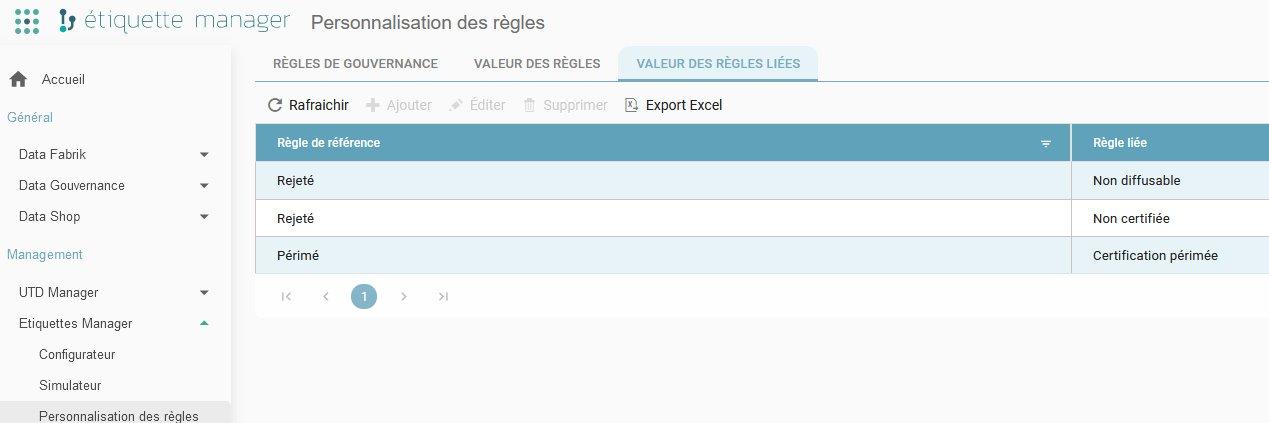
1) List of available rules: viewing linked rules
Management Menu
- Etiquettes Manager / Rule customization / linked rule values
Relationships between rules can be defined. Here, between the rules « Approbation » (Approval) (value: « Rejeté » (Rejected), « Périmé » (Expired)), « Certification » (Certification) (values: « Non certifié » (Not certified), « Certification périmée » (Certification expired)) and « Etat diffusion » (Distribution status) (« Non diffusable » (Not distributable)).
Example: when the « Approbation » (Approval) rule takes the value « Rejeté » (Rejected), the « Certification » (Certification) rule takes the value « Non diffusable » (Not distributable).
2) Configurator: choosing the applicable rules per tagged object
Management Menu
-
Etiquettes Manager / Configurator / Tagged objects
-
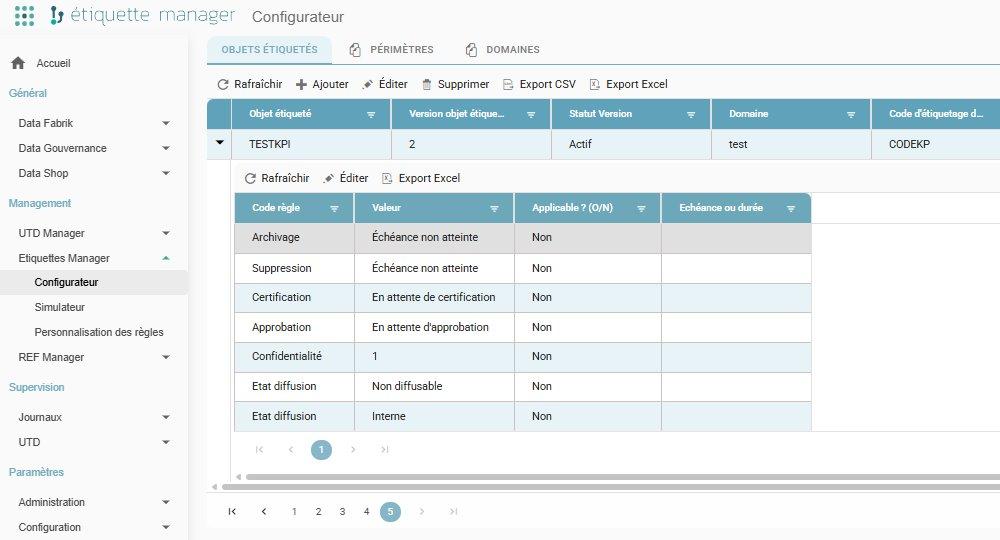
The configurator is used to make one or more predefined rules applicable to a tagged object.
-
The rules made applicable in this way will be available for every future label generated.
-
Adding or removing applicable governance rules has no impact on labels already generated.
2) Configurator: applying or not applying a rule and adding time information
Management Menu
- Etiquettes Manager / Configurator / Tagged objects
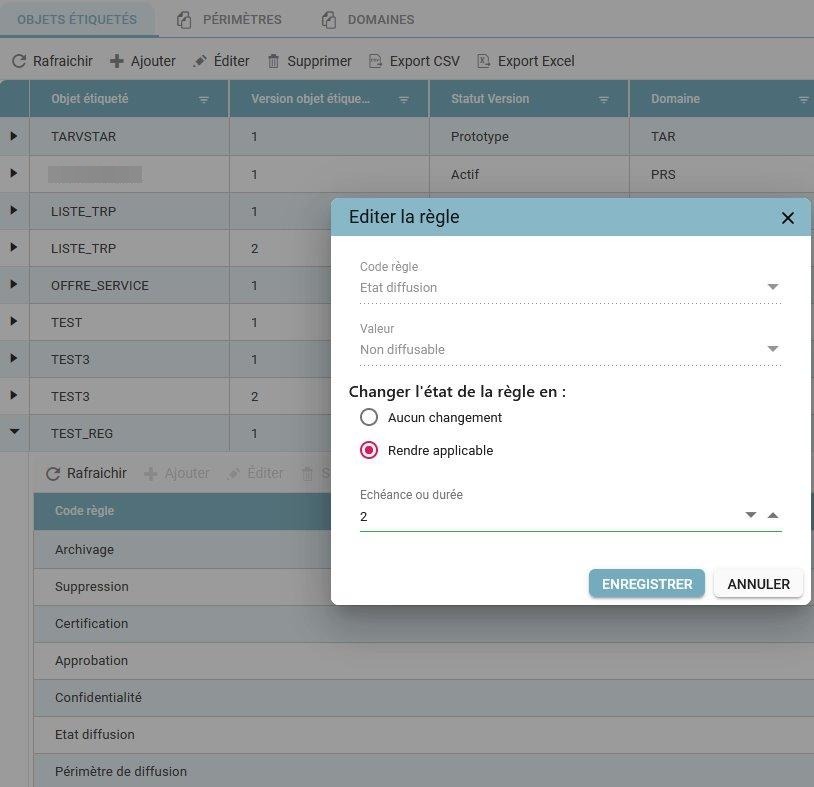
To apply a rule:
- Double-click on the rule.
- Click « Rendre applicable » (Make applicable) and, if needed, enter time units for the deadline.
- Save.
Step 3: Associating governance rules with a module
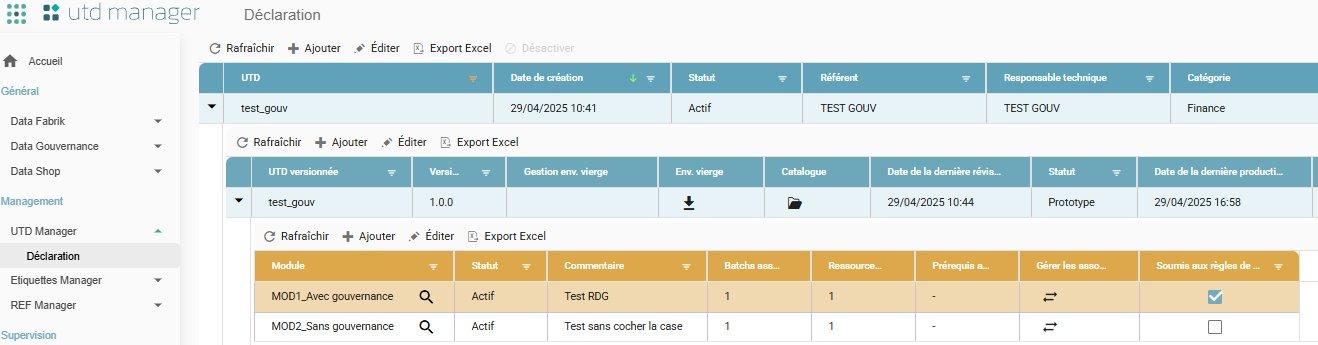
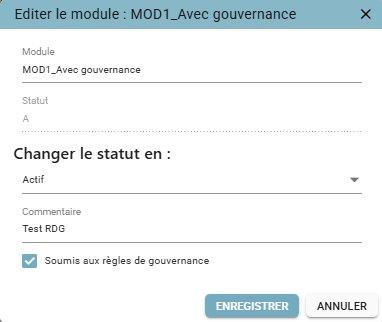
- For each module, it must be indicated whether it is subject to governance rules.
- This setting is used during production to determine whether or not to display the area for designating the users who will have rights to modify the governance rules.
- This is configured at the module definition level, via a « Soumis aux règles de gouvernance » (Subject to governance rules) checkbox. It is visible in the table and editable at the bottom of the edit pop-up.
- When a UTD version is duplicated, the value of this field is automatically copied over for each module.
Management Menu
- UTD Manager / Declaration / governance rules
Step 4: Managing entitlements
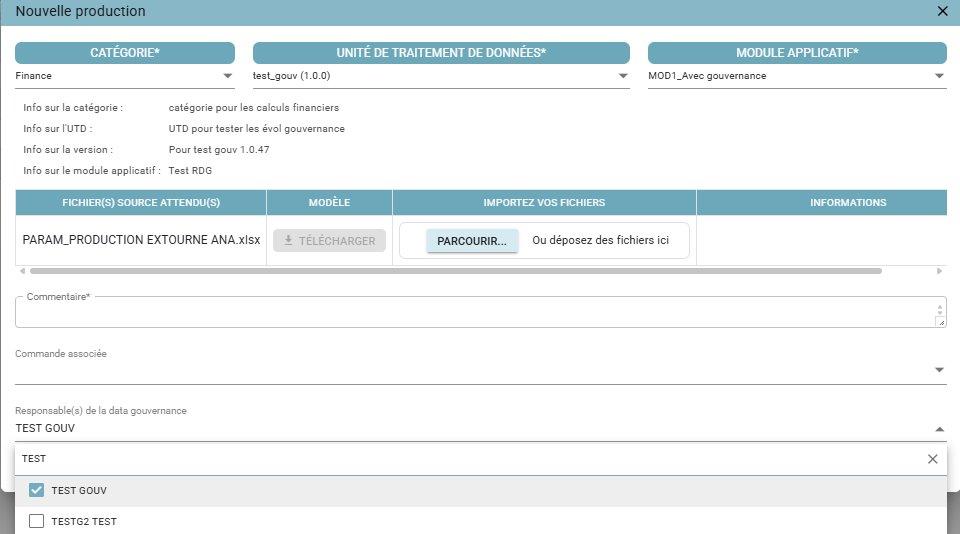
- During a production, it is necessary to indicate who will be able to modify the governance rules.
- A multi-user selection field in the UTD production creation screen is used to designate the people responsible for the associated data governance.
- This field is displayed only if the selected module is subject to governance (see step 3).
- Only users with a « Créateur » (Creator) or « Administrateur » (Administrator) role in the Data Governance application can be selected (see step 1).
- This field can be searched by last name and first name.
- If an equivalent production (same UTD + module) has already been carried out, the previously designated owners are proposed by default.
- The field remains editable before validation and is not required; in that case, only Super-Admin profiles on the "Data gouvernance" (Data Governance) application will be able to update the governance rules.


PRODUCTION: Applying a governance rule to a label
Step 5: Governance follow-up
- The objective is to update the governance rule(s) associated with a completed production (see step 2).
- The production must be associated with a module subject to governance rules (see step 3).
- The user must be entitled to the "Data gouvernance" (Data Governance) application (see steps 1 and 4).
- There are two ways to find the governance rules to update:
- Option 1: Selecting a label from a request number.
- Option 2: Selecting a label via multi-criteria search.
Finding the label to apply a rule to — Option 1
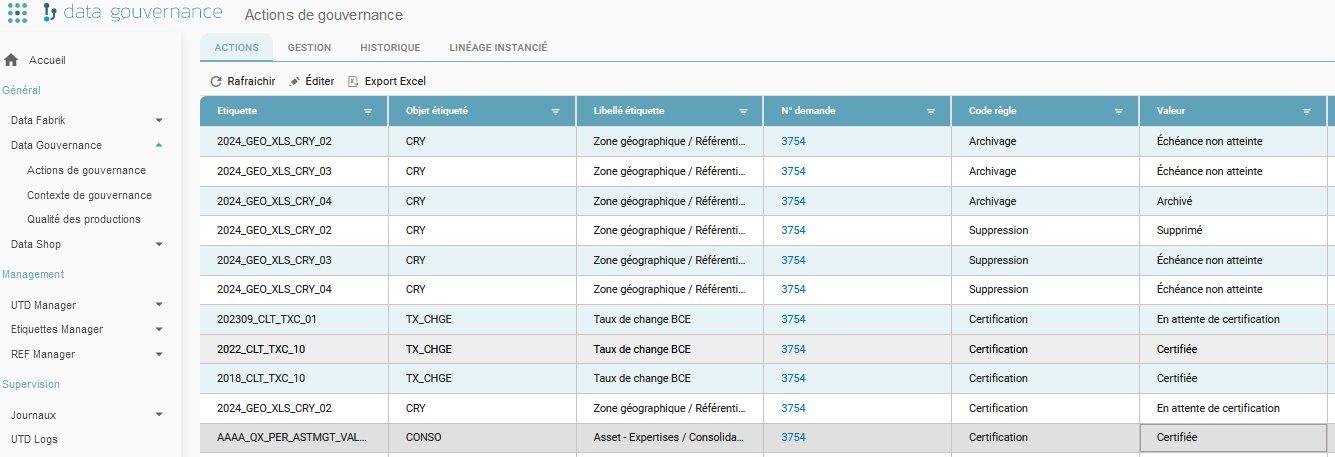
Selecting a label from a request number:
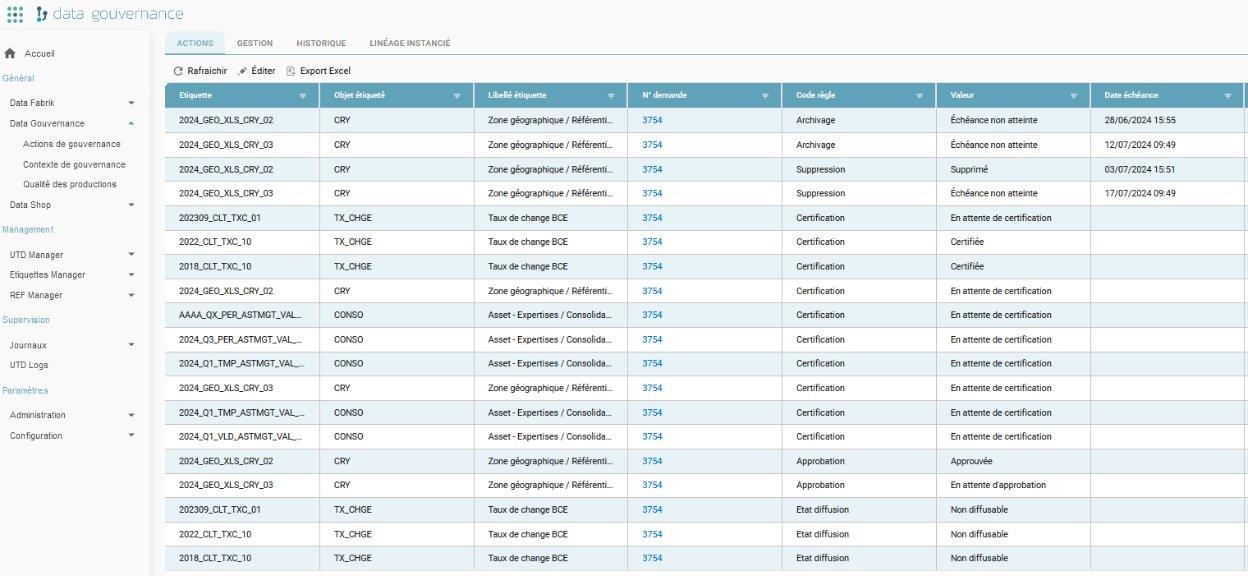
- Select the request number.
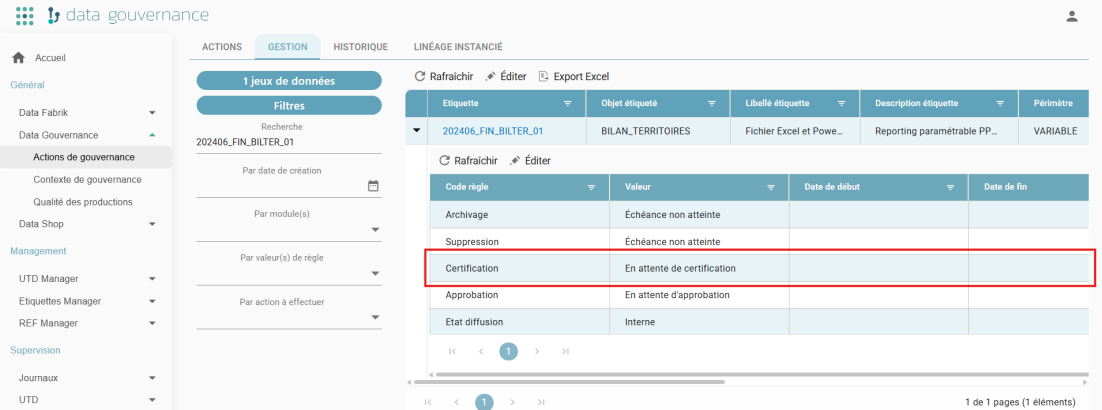
- Double-click on the row of the rule whose value you want to enter.
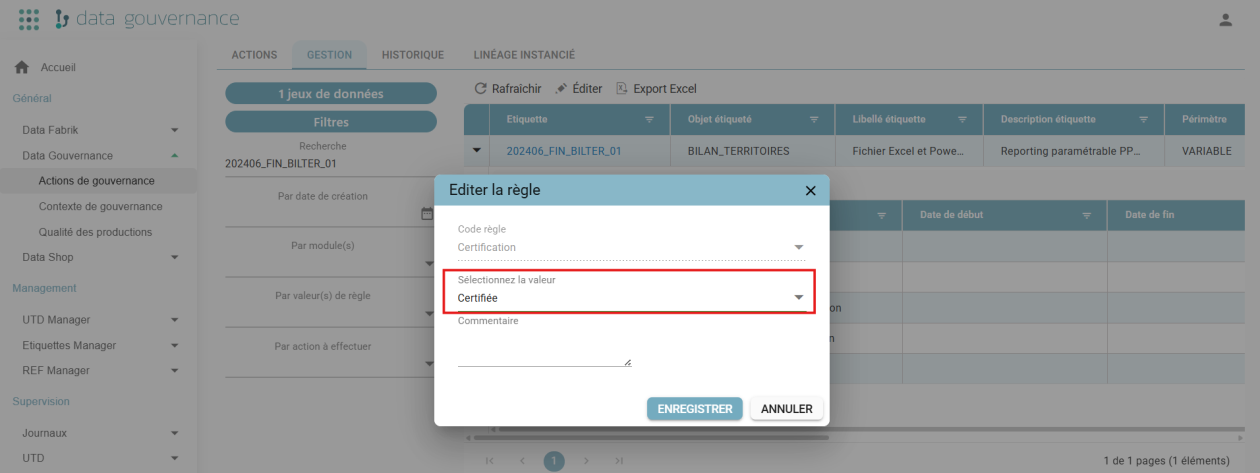
Entering a rule value: example of the « Certification » (Certification) rule
- Enter the value.
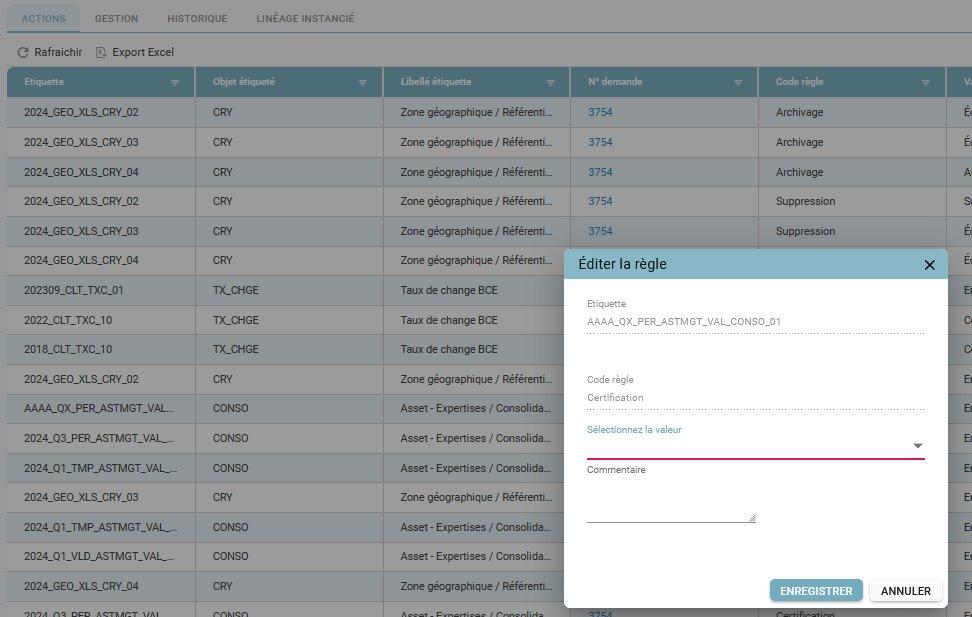
- Value entered.
Finding the label to apply a rule to — Option 2
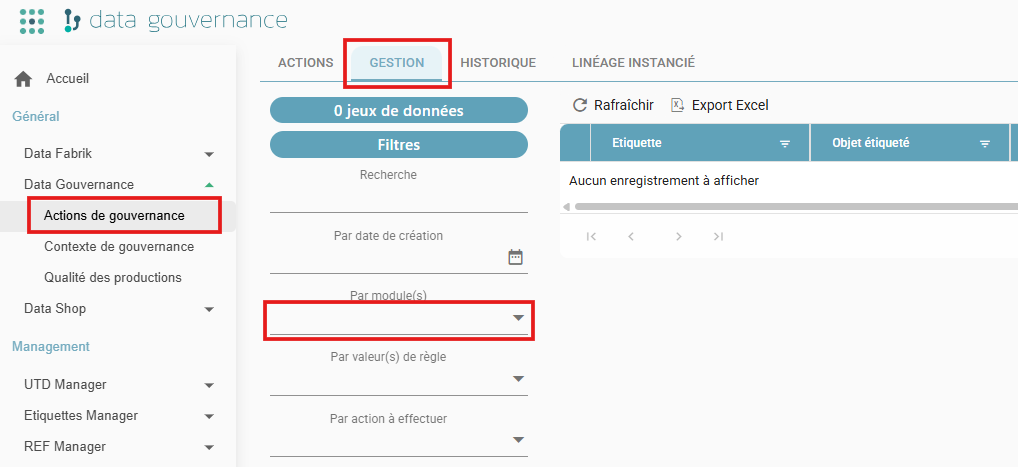
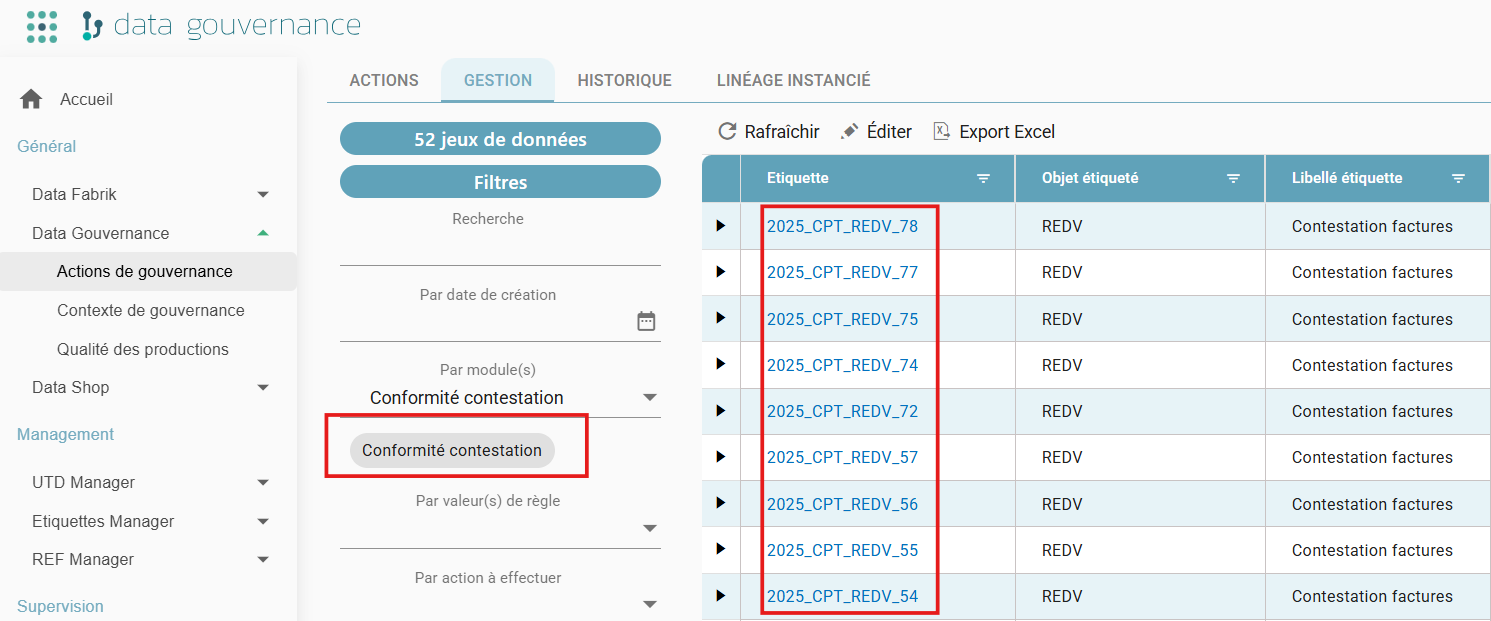
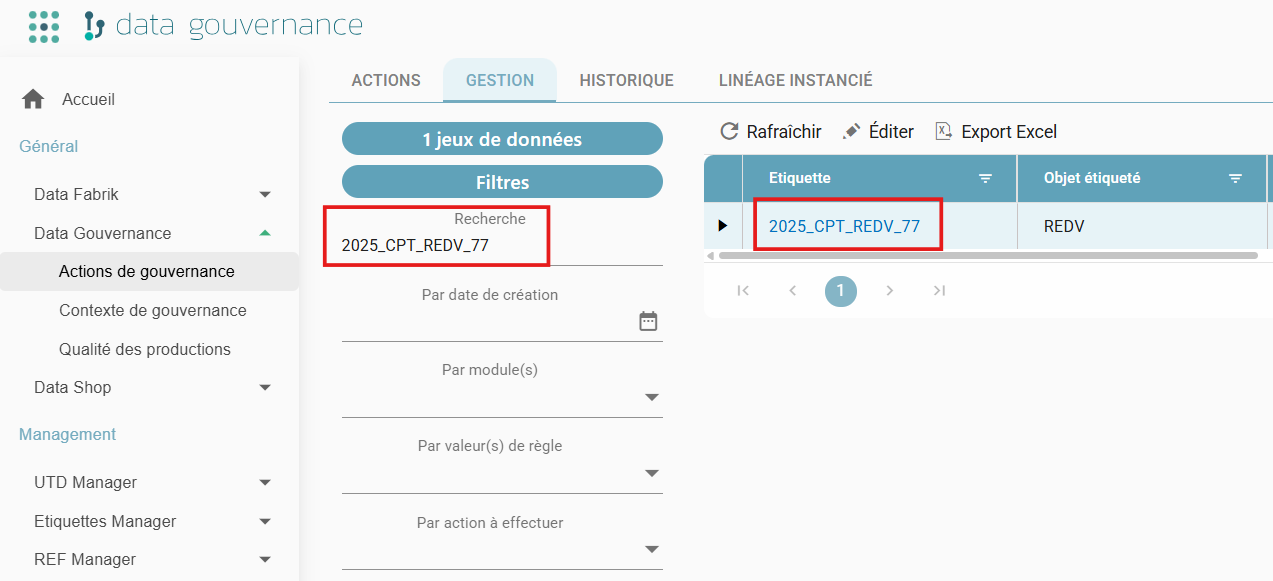
Selecting a label via multi-criteria search.
A) General Menu
- Data gouvernance (Data Governance) / Governance actions
B) Filtered search
- Example: by UTD module.
- Then choose from the list of matching labels.
C) Filtered search
- Example: by label.
Entering a rule value: example of the « Approbation » (Approval) rule
- Double-click on the row of the rule whose value you want to enter.
- Enter the value.
PRODUCTION: Enabling data distribution
Step 6: Data distribution
- By default, produced datasets are not visible in the Data Shop.
- For each label, the access mode must be specified:
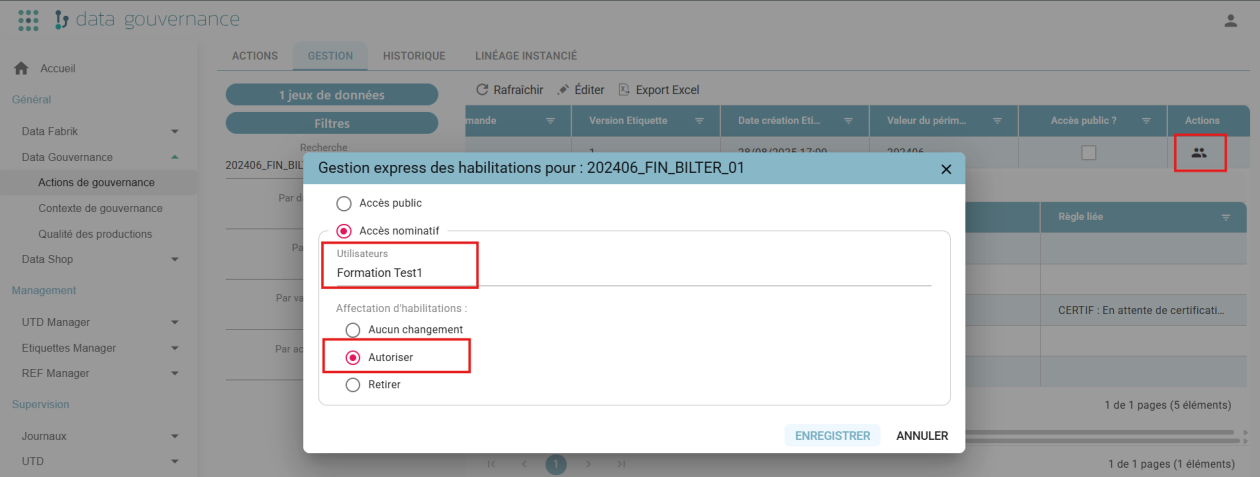
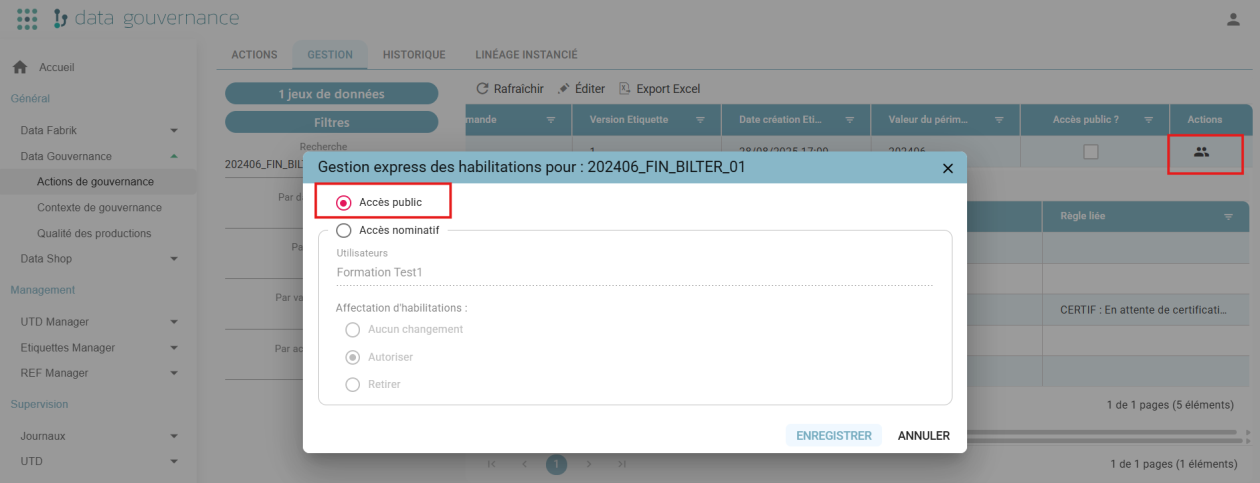
- Either named: by selecting the desired user(s).
- Or public.
- Once these entitlements are set, the datasets become accessible via the Data Shop.
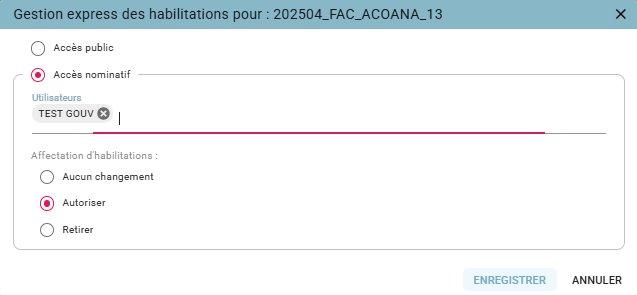
1. Named access
General Menu
- Data gouvernance (Data Governance) / Governance actions / Management
2. Public access
General Menu
- Data gouvernance (Data Governance) / Governance actions / Management
PRODUCTION: Production / governance / distribution / Data Shop workflow
Step 7: Workflow
Concept
To simplify the overall governance process, user "shortcuts" have been added. These shortcuts take the form of hyperlinks that make it easy to move from:
- A production
- To its results
- And therefore to the screen for applying its rules
- Then to distribution management
- And finally to the Data Shop.
Here we will look at how the steps described previously are simplified from a business-user perspective.
1. From production to applying a rule
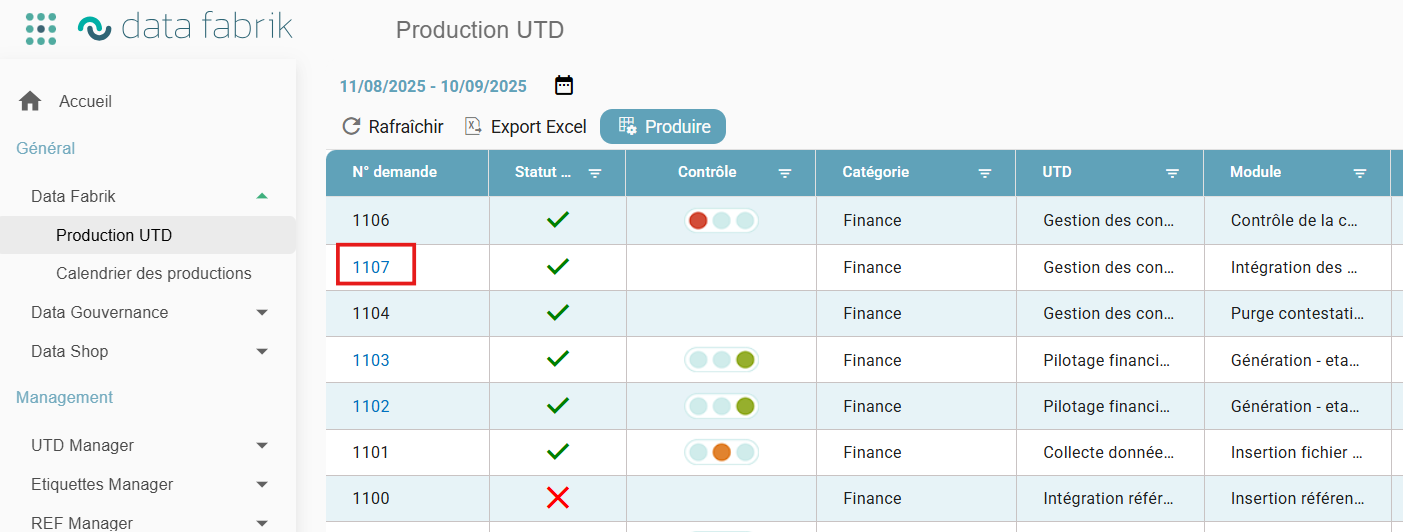
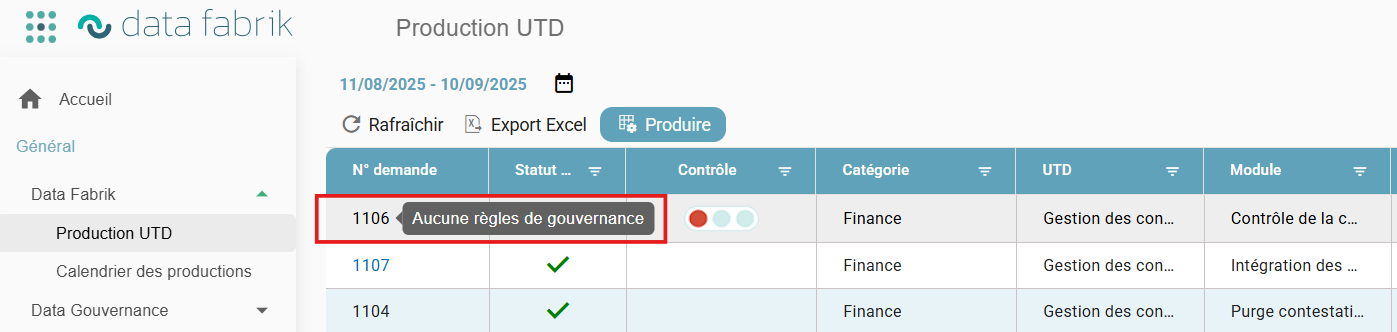
From Data Fabrik, clicking on a production request number takes you directly from a production to the requested Data Governance actions.
The link is available only if governance actions are required (see further below: "Workflow 4. Case of a label with no governance actions to process before distribution").

2. From applying a rule to distribution
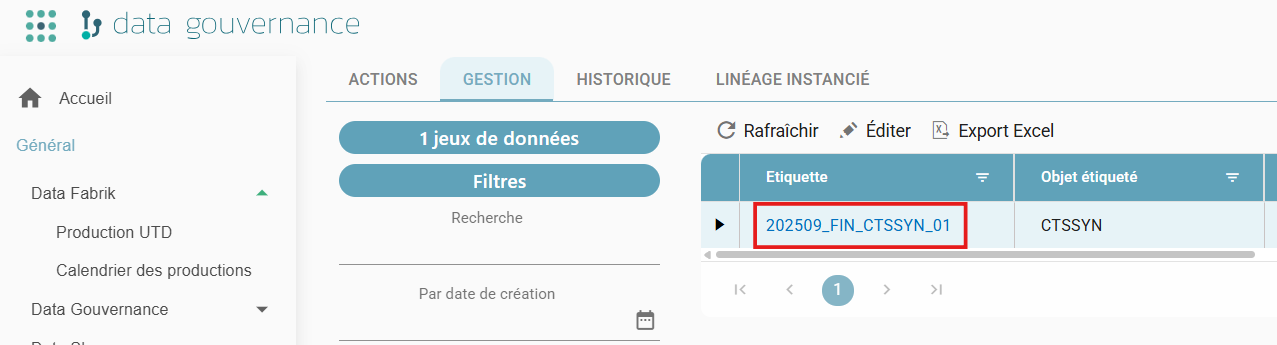
From the list of actions, clicking on a production request number takes you from Data gouvernance (Data Governance) / Governance actions to the Data gouvernance (Data Governance) Management screen. This screen is used to configure the distribution of a label.


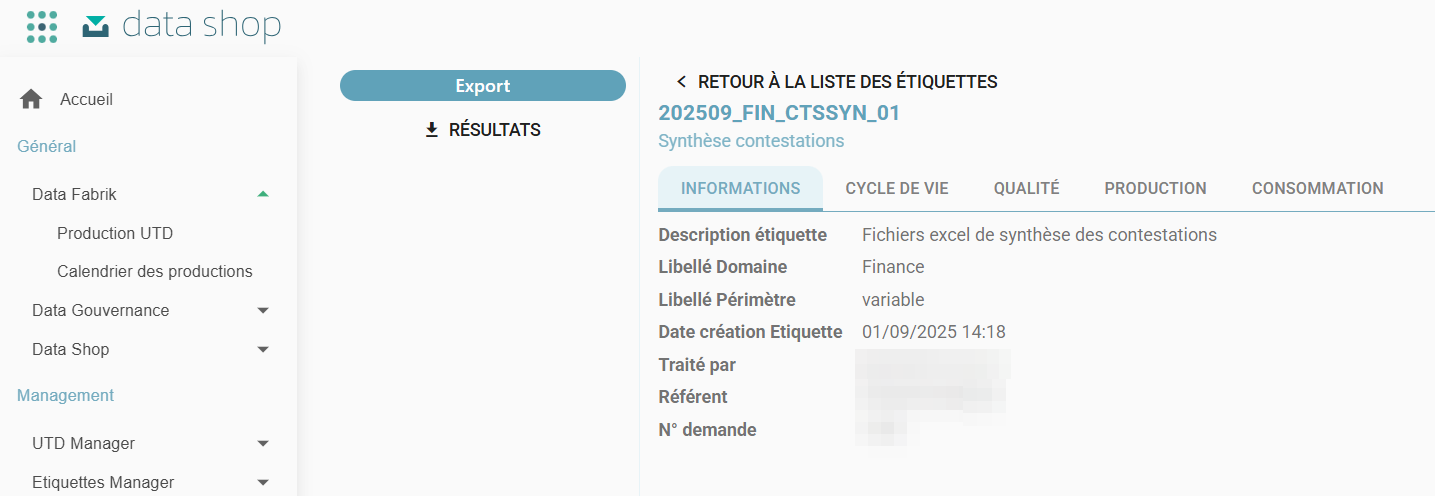
3. From distribution to Data Shop access
Once distribution has been configured, clicking on the label provides direct access to the Data Shop to view the label and download its content.
4. Case of a label with no governance actions to process before distribution
If no governance rule is required on a production (no hyperlink present), it is still necessary to go and configure the distribution of the generated labels.
- Go to the Data gouvernance (Data Governance) / Governance actions menu.
- Click on the MANAGEMENT tab.
- Configure the distribution of a label.
CONSULTATION: Access to context data
Step 8: Access to context data
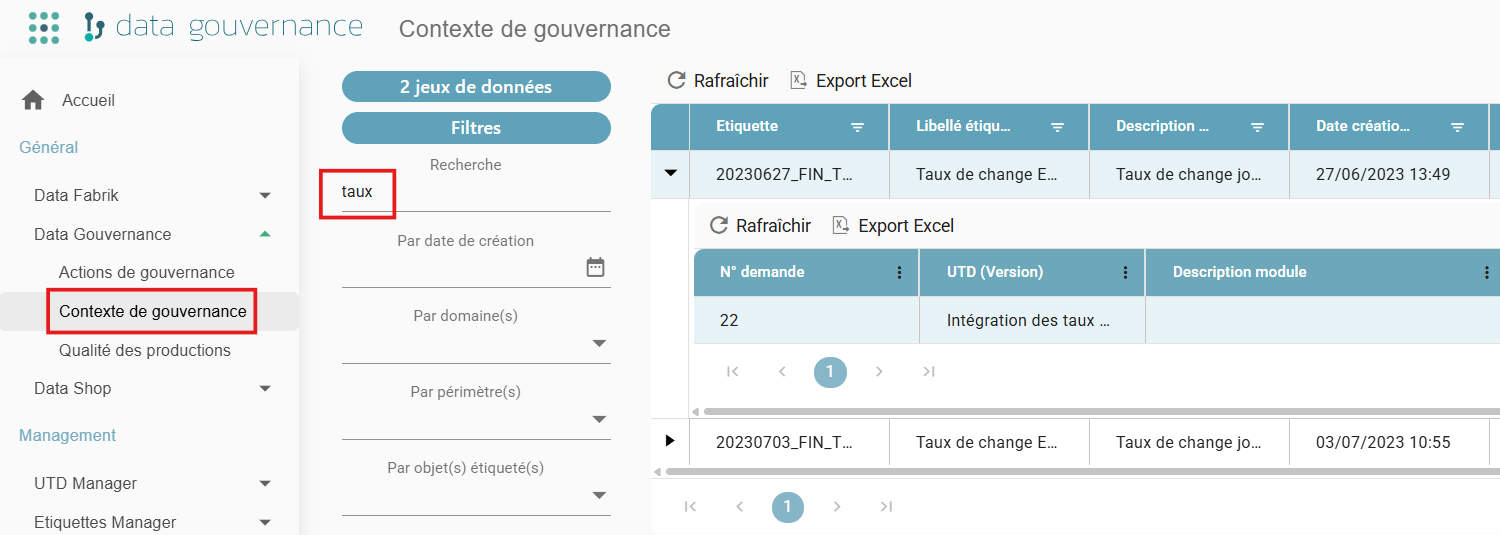
Viewing general information
- Searching for the label using the filters.
- Access to the label and its descriptive information: label name, date, scope, etc.
Viewing descriptive information
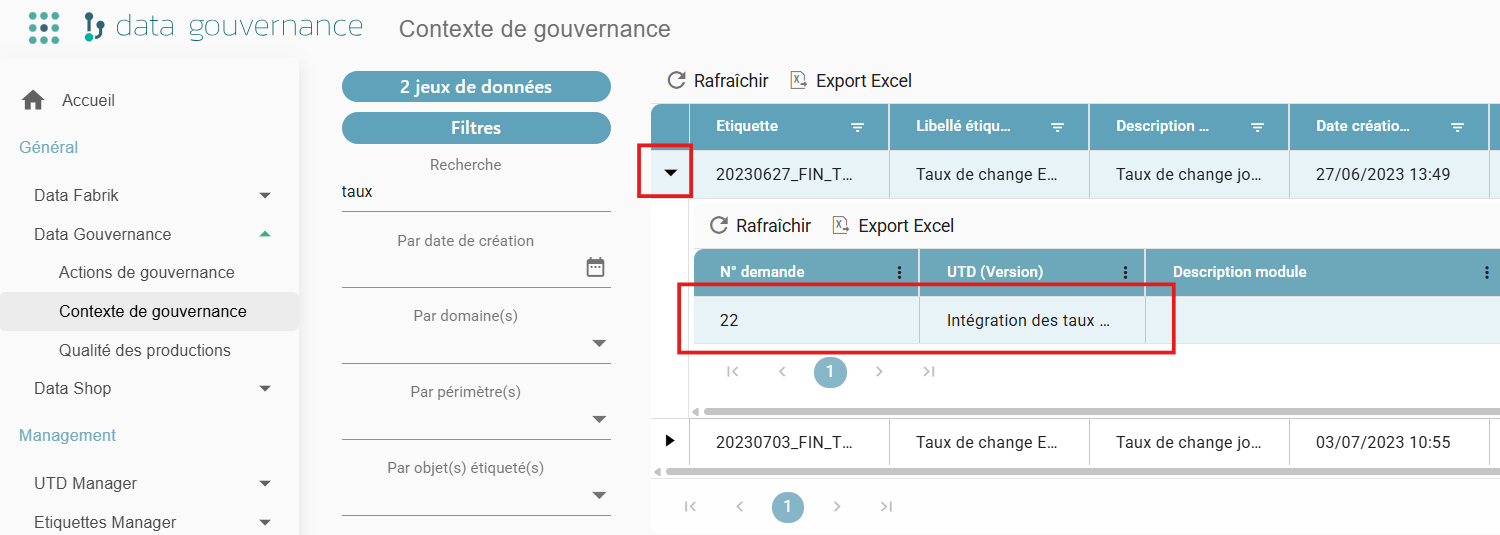
- Click on the dropdown menu shown as a black triangle.
- Access to descriptive information: UTD, requester, referent, etc.
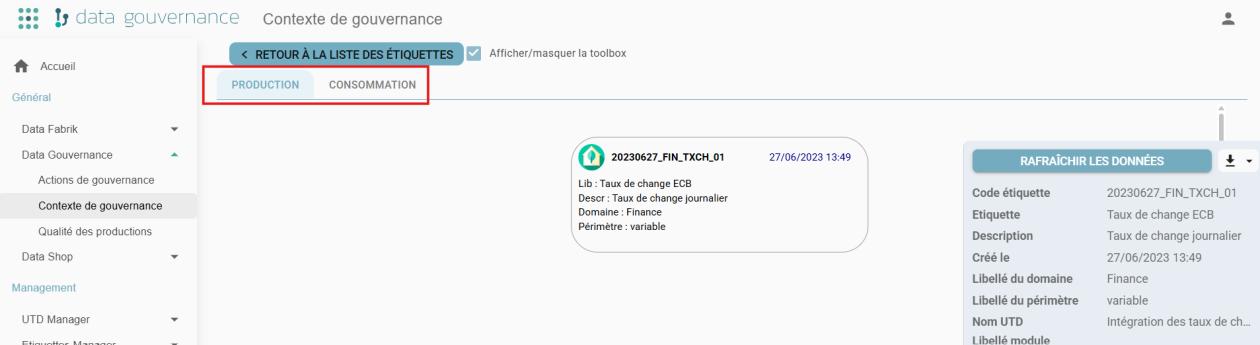
Viewing the lineage tree
Access to the label lineage tree, covering:
- Production: from which other label(s) is the label being viewed produced?
- Consumption: by which other label(s) is the label being viewed consumed?

CONSULTATION: Access to data quality
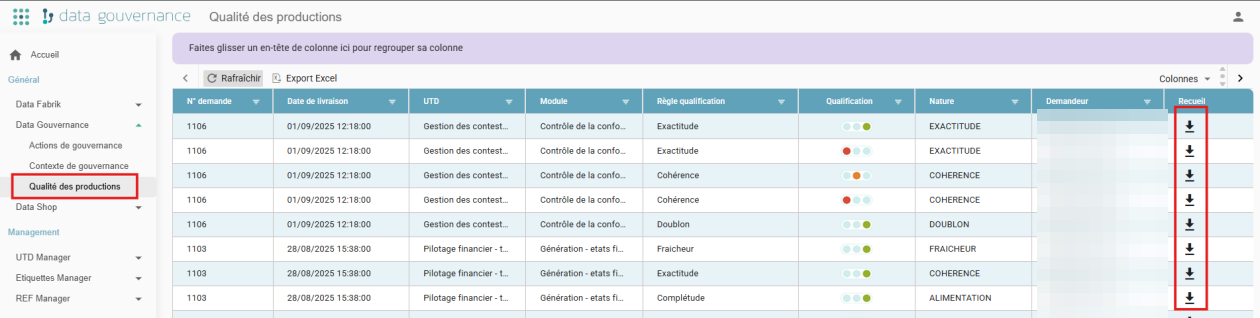
Step 9: Access to production quality
Objective: faster, more detailed analysis of the most frequently encountered quality issues.
- Access to information about requests (Number, UTD, Module, Production Info) and their Qualifications.
- Detailed access to all the rules processed per production, regardless of their number.
General Menu
- Data gouvernance (Data Governance) / Production quality