Data Fabrik
Glossary
| Term | Definition |
|---|---|
| Module | A module is a data processing pipeline. It defines the set of executables that will be run when a production request is submitted. |
| Version | A UTD version corresponds to a given state in the UTD's evolution. |
| Data Processing Unit | A Data Processing Unit (abbreviated "UTD") is a grouping of several modules that either share common characteristics (e.g., a single business scope, or the management of all business reference data), or describe a complete business process made up of several flows (e.g., consolidating the accounts of several subsidiaries). |
Introduction
Data Fabrik lets you launch UTD production runs.
UTD Production
UTD production screen:
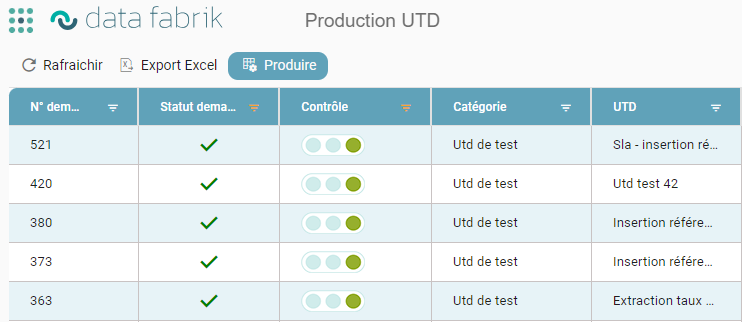
General actions:
- Produce: launches a new UTD production run
- Refresh: updates the table
- Export to Excel: exports the table (with any applied filters) to Excel
New production
The new UTD creation popup is displayed by clicking the add button:
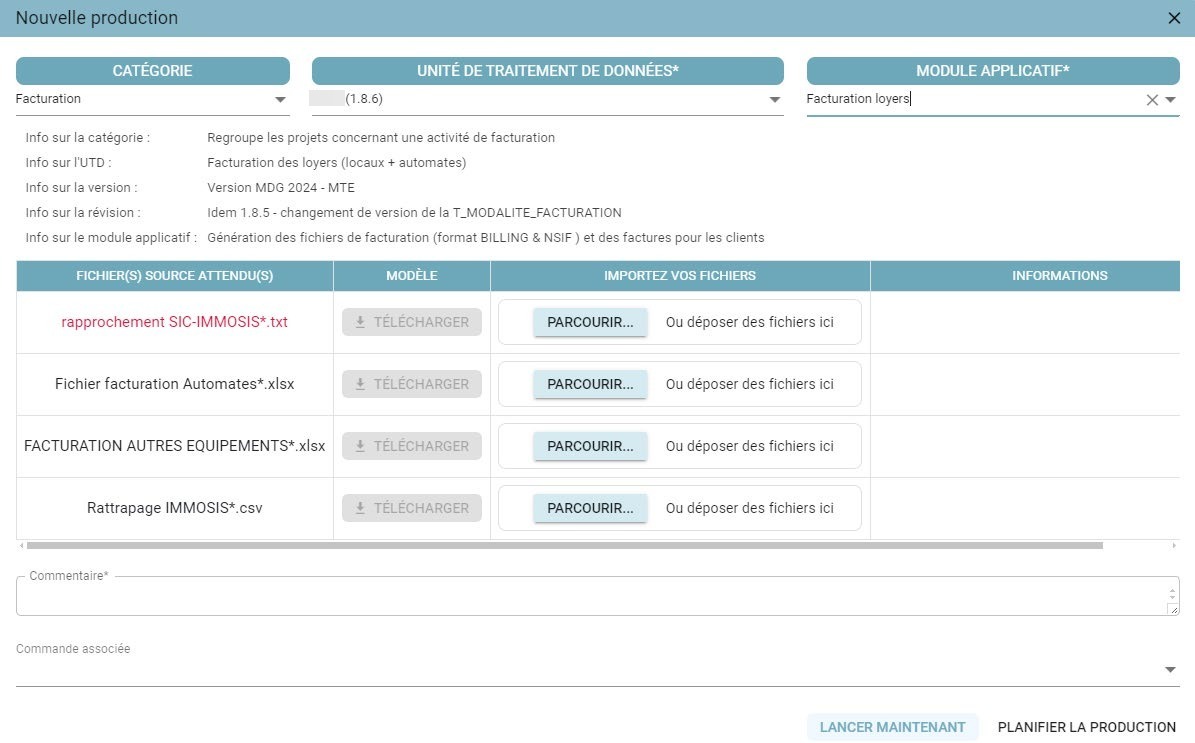
Information to fill in:
- Category: category of the UTD to produce (used to filter the UTD list), selected from the list
- Data Processing Unit: name of the UTD to produce, selected from the list – mandatory field
- Application Module: name of the module to produce, selected from the list – mandatory field
- Comment: free-text section – mandatory field
- Orders: links the production run to an existing order number
Depending on the modules being produced, one or more files may be required; files that are mandatory for the production run are highlighted in red.
Actions:
- Launch now: starts the UTD production run
- Schedule production: opens the popup for launching the production at a specific time, or for scheduling it to run on a recurring basis
- Close (X): closes the popup without launching the production run
- "Escape" key: closes the popup without launching the production run
« Lancer maintenant » (Launch now) closes the popup and returns to the updated tracking screen with the request showing:
- Status « En cours d'exécution » (Running) if a server was available to run the UTD
- Status « Demande créée et attente d'exécution » (Request created and awaiting execution) if no server is available.
The UTD will run as soon as a server becomes available, with no further action required.
Assigning production email recipients
A new field called Email Recipient(s) is now available in the Data Fabrik production window.
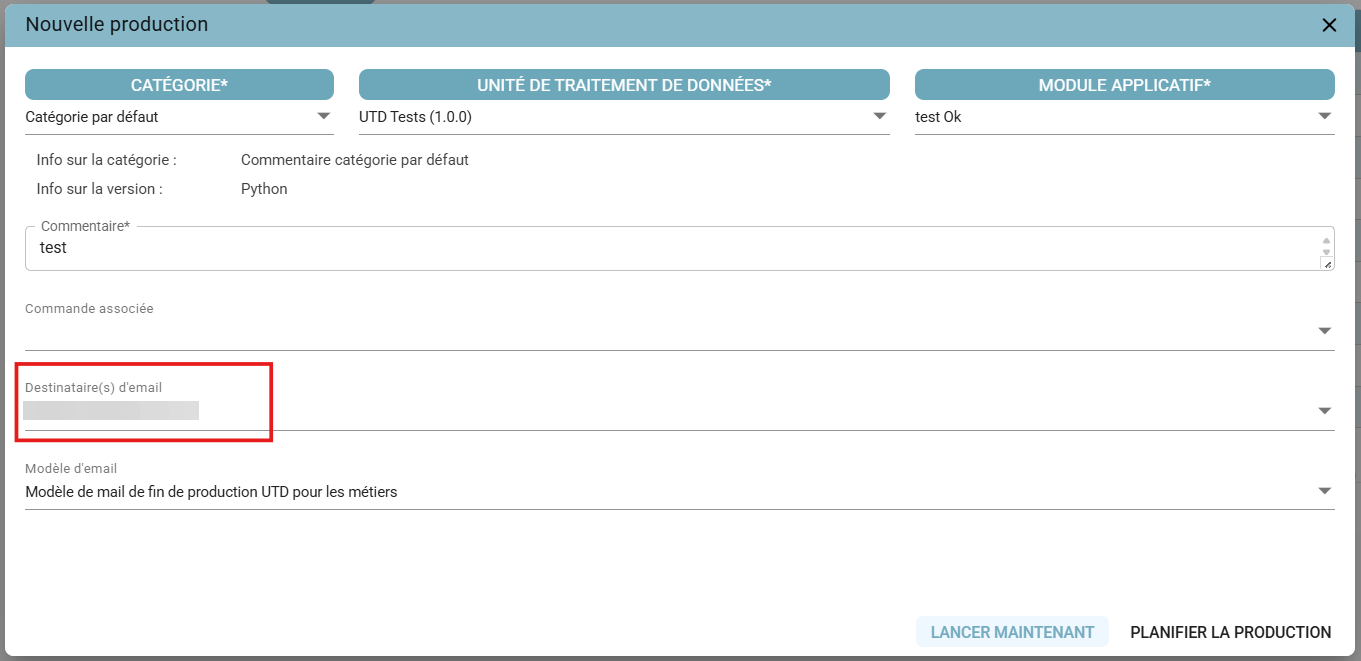
- Users can select multiple people from among the platform's active users.
- A dynamic search is built in to quickly find a user by first or last name.
- When a similar production run has already been carried out (same UTD and same module), Orkestra automatically suggests the previous recipients to make configuration easier.
- The recipient list remains editable until the production run is finally confirmed.
Steps
- In the UTD Production screen, click Produce to create a new production run.
- In the Email Recipient(s) section, click the search field and select the users to notify.
- Confirm the configuration before launching or scheduling the production run.
- At the end of execution, all recipients will automatically receive the notification email.
Restrictions
- Only users with an active account can be selected.
- If no recipient is specified, only the requester will receive the notification.
- Configuring recipients does not change access rights to the production run (viewing or monitoring).
Selecting the email template for recipients
When creating a production run, a new Email Template field lets you choose which message template to use for the notification.
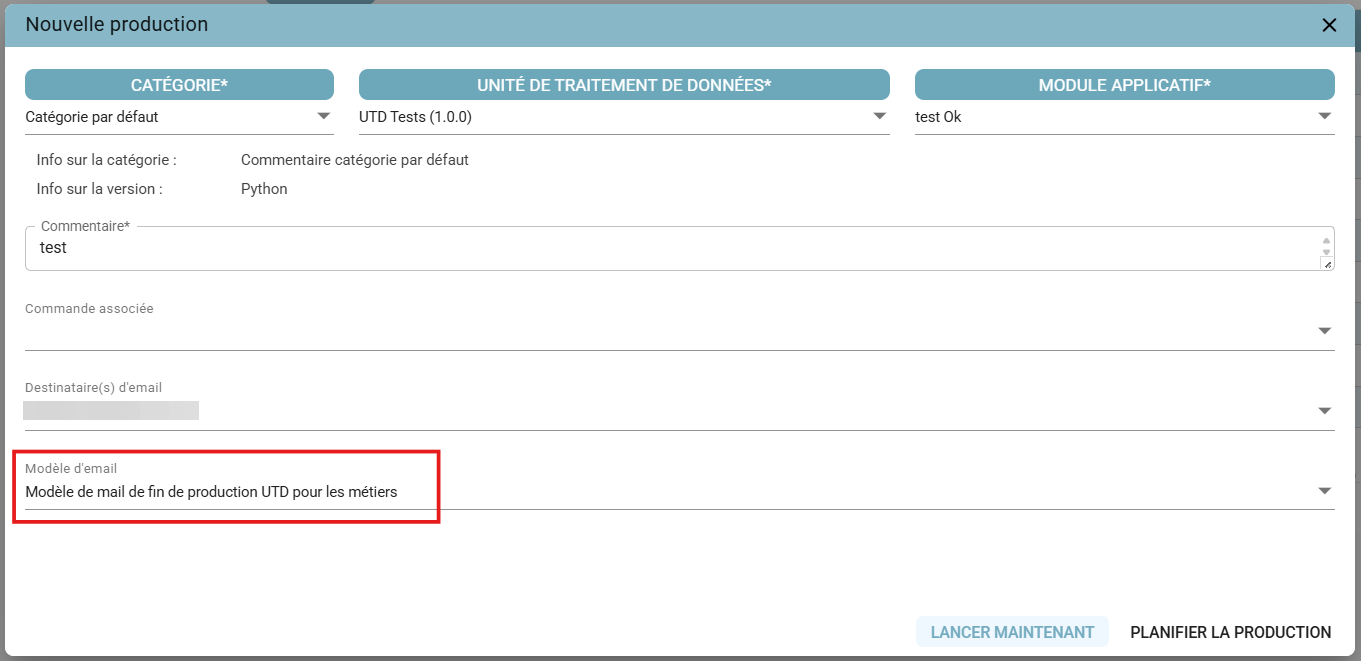
- The field is optional.
- If no template is selected, Orkestra uses the standard end-of-production template (FIN_PROD) by default.
- Only templates that are active in the administration configuration are offered in the drop-down list.
- When a similar production run has already been carried out, the previously used template is automatically suggested.
Steps
- In the New production window, open the Email Template field.
- Select the desired message template from the list.
- Confirm the production run.
- Notifications sent at the end of processing will use the content of the chosen template.
- Make sure email templates have been created and activated beforehand by an administrator in the platform configuration.
- Use descriptive template names to make them easier to identify.
Search feature
A "date range" filter with the default value « Les 30 derniers jours » (Last 30 days). Other preset values are also available, such as « Les 7 derniers jours » (Last 7 days), « Ce mois-ci » (This month), « Le mois dernier » (Last month), or « Personnaliser » (Customize), which lets you define a specific date range.
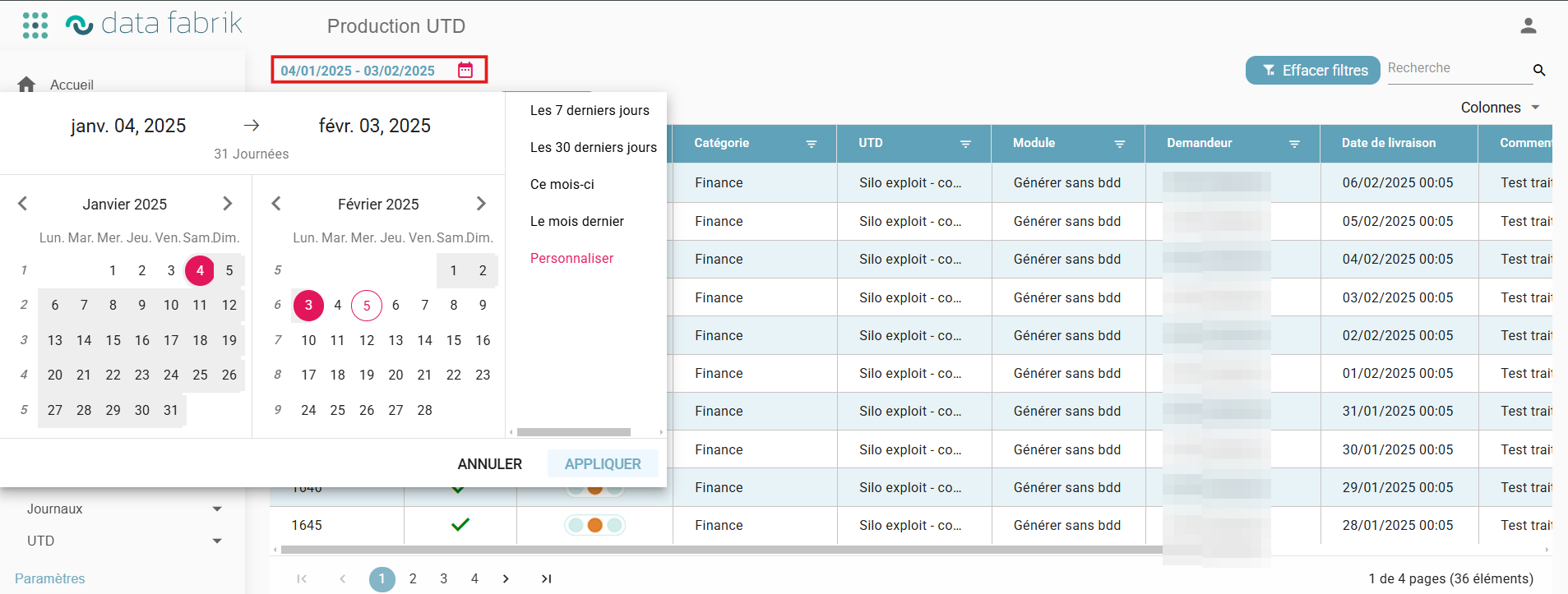
A search bar lets you filter on all columns in the grid except those relating to « statut de la demande » (request status) or « contrôle » (control), which always use the filter function on the column header.
A « Effacer filtres » (Clear filters) button lets you remove all filters applied to the grid.

For the « contrôle » (control) column, you can filter by choosing the different traffic-light types.
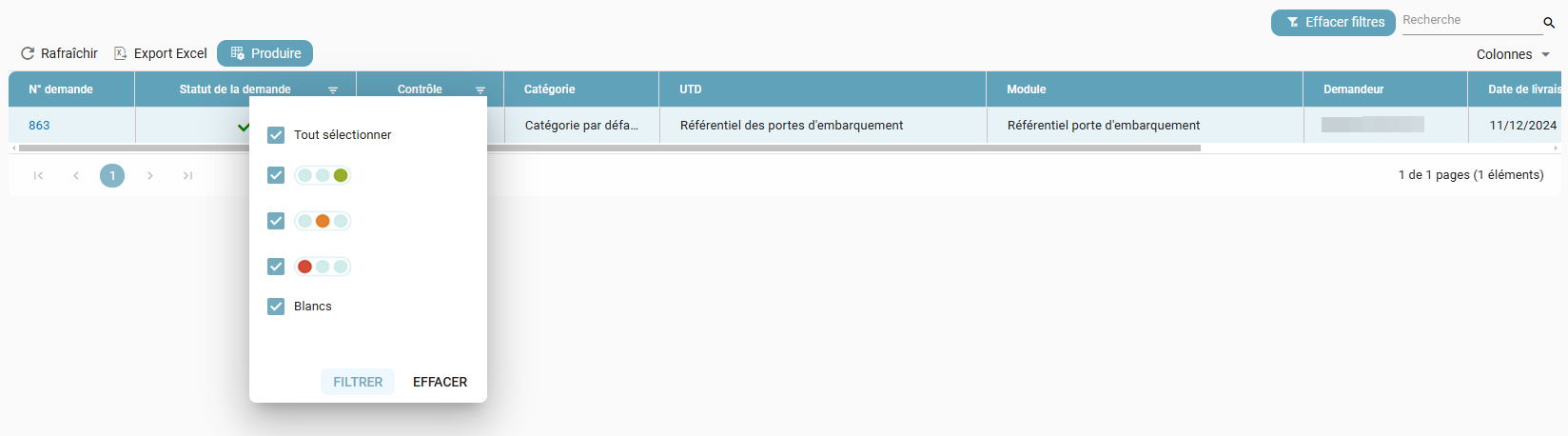
Customizing the column display
The UTD Production screen now lets users reorganize the grid columns according to their preferences.
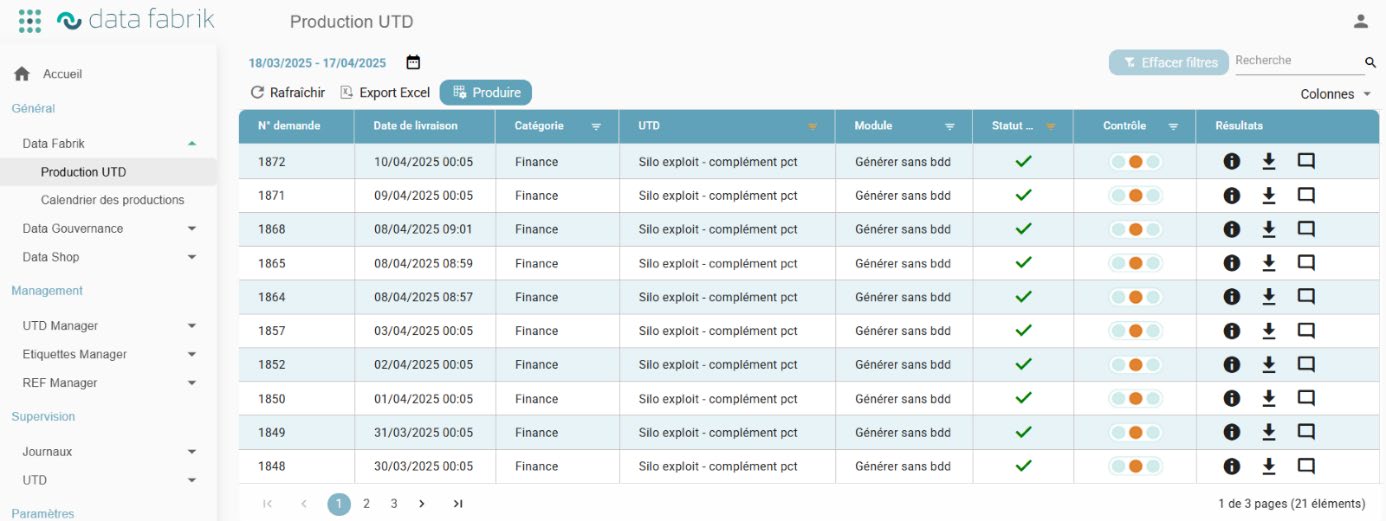
The defined order is automatically saved in the user's preferences and restored at each login, ensuring a personalized and consistent display over time.
Exporting the grid to Excel
Exporting the UTD production grid to Excel includes all rows visible in the grid based on the applied filters, regardless of pagination.
If more than 1,000 rows are involved, a popup appears inviting the user to refine the filters before exporting.
Commenting on a production run
In the UTD Production screen, comments can be edited directly from the grid. Double-clicking a cell in the Comment column opens a popup for viewing and editing the existing text.
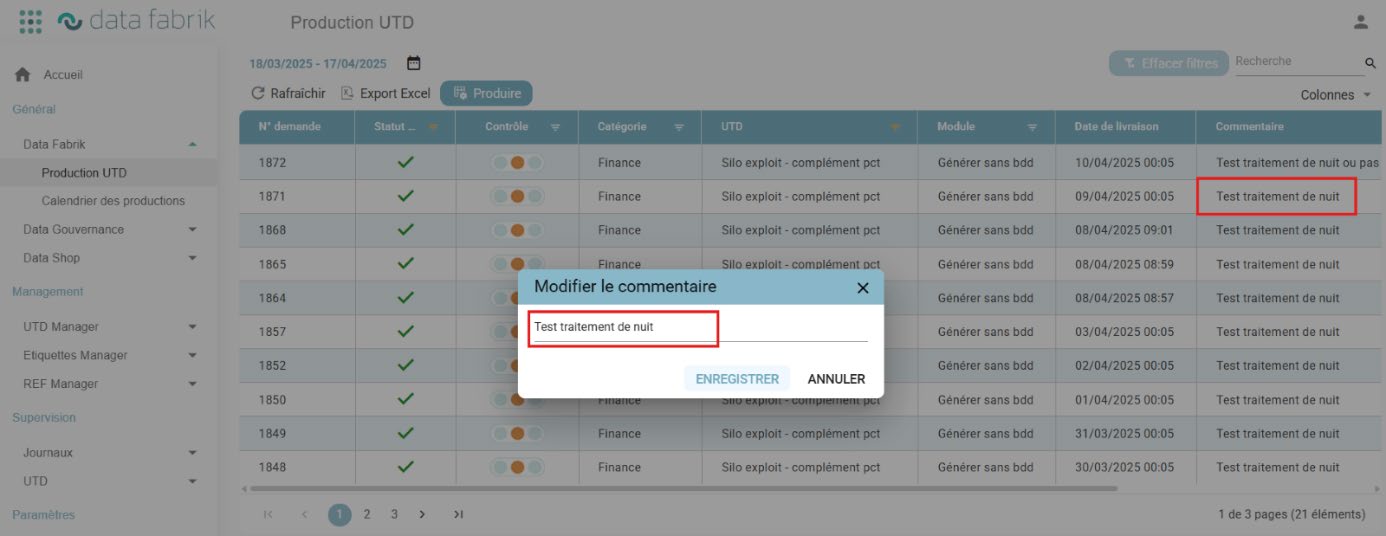
Users can either save the change, which will be immediately reflected in the grid and saved to the database, or cancel to exit without any change.
Adding multiple comments (exchange history)
In the UTD Production screen, users can add multiple comments to a production run, regardless of its status.
A comment icon is displayed at the end of each row in the Results column. Clicking this icon opens a popup listing all existing comments, including their author and creation date.
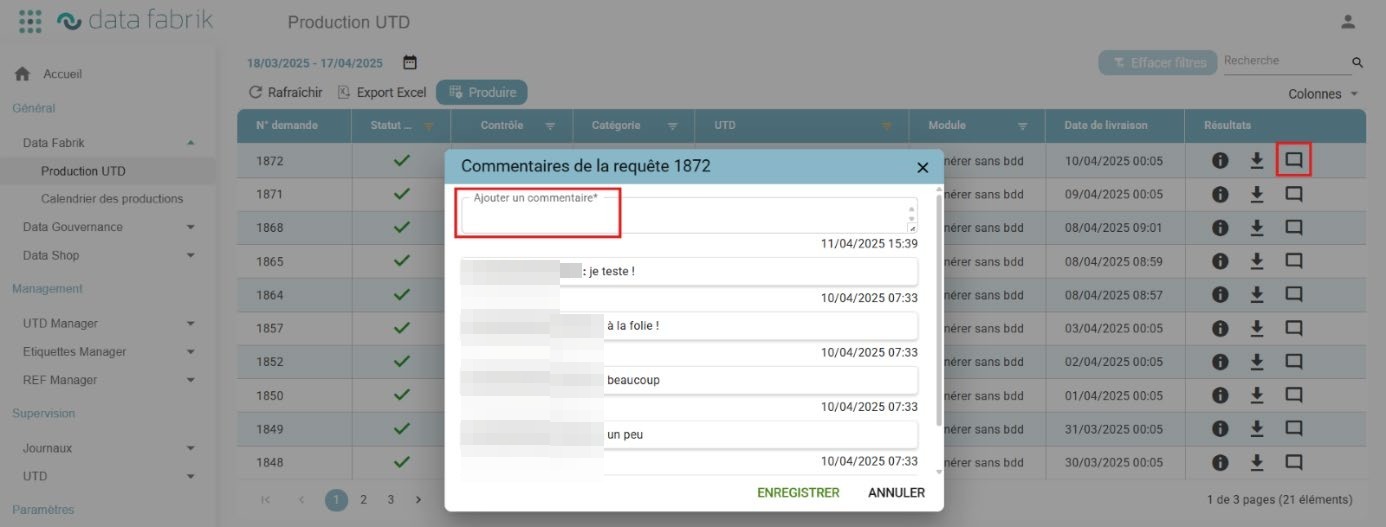
An input field lets you add a new comment. Each comment is saved separately and cannot be edited once entered.
This enhancement makes it easier to track and keep a history of exchanges or actions related to a production run.
Scheduling a production run
Deferred scheduling
The « Planifier la production » (Schedule production) scheduling popup is displayed:
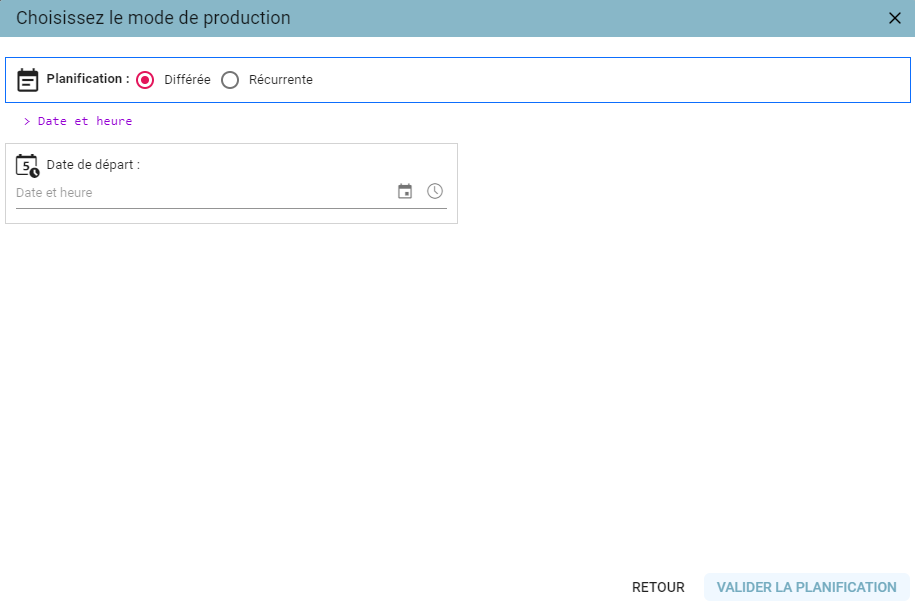
You can schedule the production run as needed, with:
- An execution date
- An execution time
Actions:
- Confirm scheduling: schedules the UTD production run
- Back: returns to the previous popup without launching the production run
- Close (X): returns to the previous popup without launching the production run
- "Escape" key: returns to the previous popup without launching the production run
« Valider la planification » (Confirm scheduling) closes the popup and returns to the updated tracking screen with the request showing the status « Demande créée et attente d'exécution » (Request created and awaiting execution).
Recurring scheduling
The « Planifier la production » (Schedule production) scheduling popup is displayed:
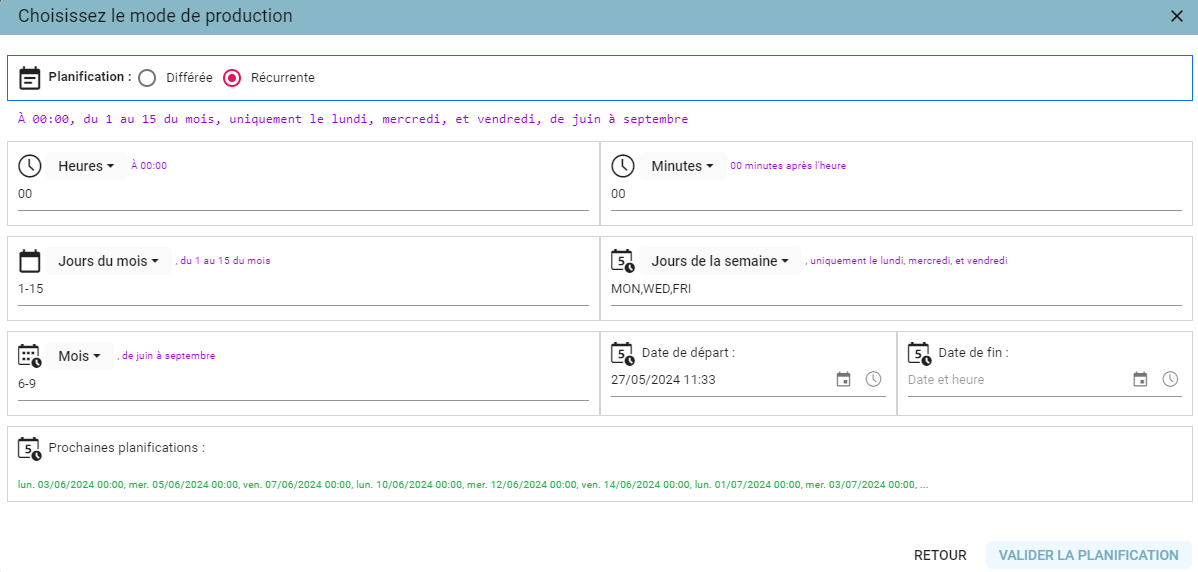
You can configure the production run's recurrence as needed, with:
- execution time: 00:00 by default
- days of the month: every day by default
- days of the week: Monday through Friday by default
- months: January through December by default
- start date: today's date by default
- end date: optional
You can configure specific days or months, or define ranges. For example: from the 1st to the 15th of the month, on Mondays, Wednesdays, and Fridays, for the months of June through September. A plain-language translation of each entered value is displayed in purple above each field.
To let you check what has been entered, a summary of the data is available (area 1), along with a preview of the upcoming schedules (area 2).
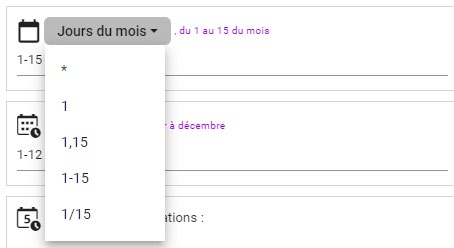
While entering data, help is available for each field:
Actions:
- Confirm scheduling: schedules the UTD production run
- Back: returns to the previous popup without launching the production run
- Close (X): returns to the previous popup without launching the production run
- "Escape" key: returns to the previous popup without launching the production run
« Valider la planification » (Confirm scheduling) closes the popup and returns to the updated tracking screen with the first occurrence of the request showing the status « Demande créée et attente d'exécution » (Request created and awaiting execution).
Governance rules
Assigning Data Gouvernance owners
A multi-user selection field in the UTD production creation screen lets you assign the owners responsible for the associated data governance.
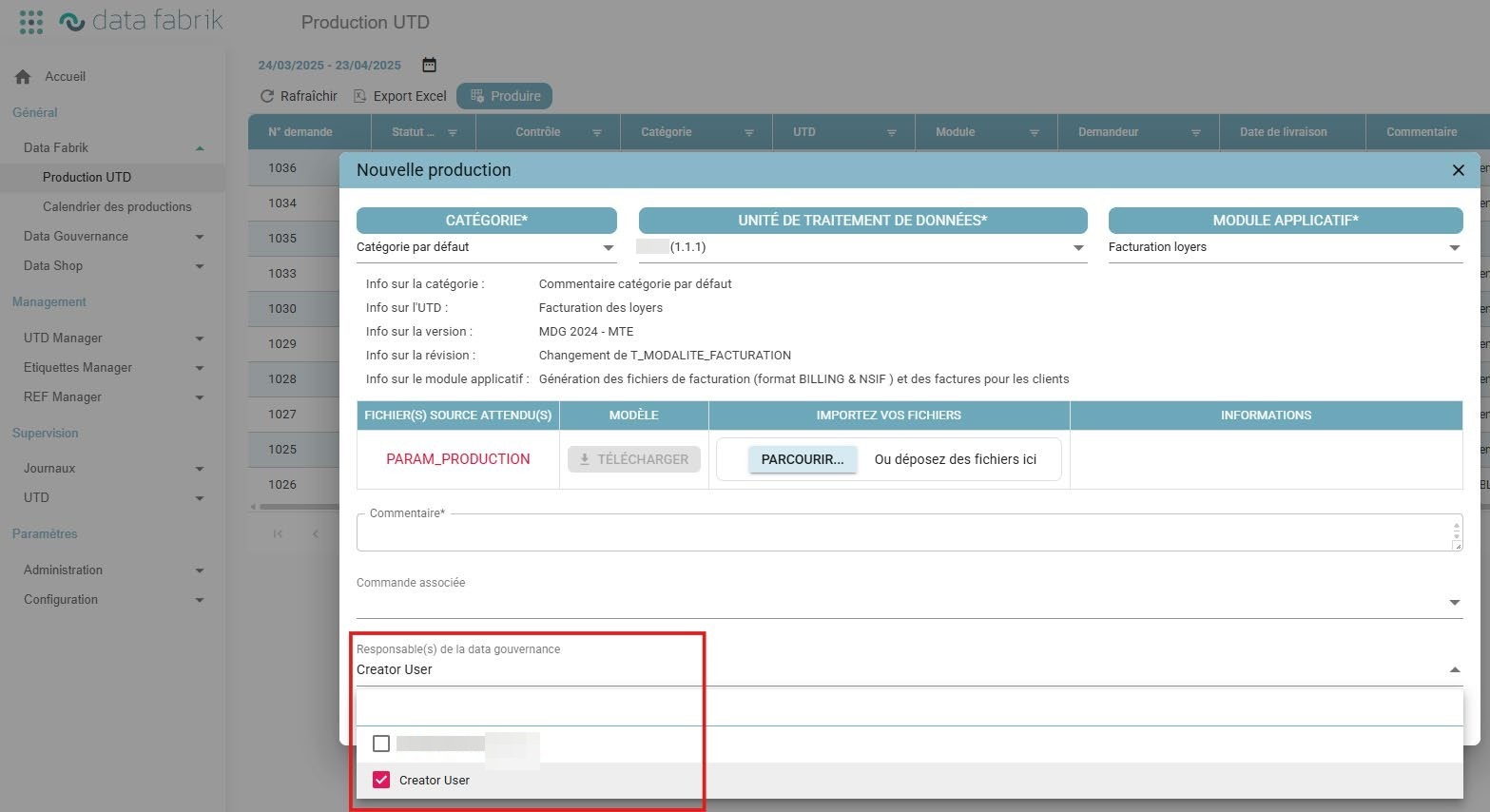
- This field is only displayed if the selected module is subject to governance.
- Only users with a « Créateur » (Creator) or « Administrateur » (Administrator) role in the Data Gouvernance application can be selected.
- Selection uses a multiselect field with search by first and last name.
- If an equivalent production run (same UTD and same module) has already been carried out, the previously assigned owners are suggested by default.
- The field remains adjustable before confirmation and is not required.
Completing governance rules
A feature allows data governance rules to be completed after a successful UTD production run, in cases where the module used is subject to governance.
The ability to complete these rules is reserved for:
- the user assigned to the production run,
- users with the super-admin role in the Data Gouvernance application.
The interface lets you enter governance rules specific to the labels produced by the production run. Access is conditional on:
- A module marked as subject to governance,
- A successfully completed production run,
- The presence of a user assigned to the production run.
All other users are excluded from this step, even if they have access to the UTD.
Request management
Viewing a production run
Once the production run has been launched or scheduled, the tracking screen appears, letting you monitor the run's progress and download the available results:
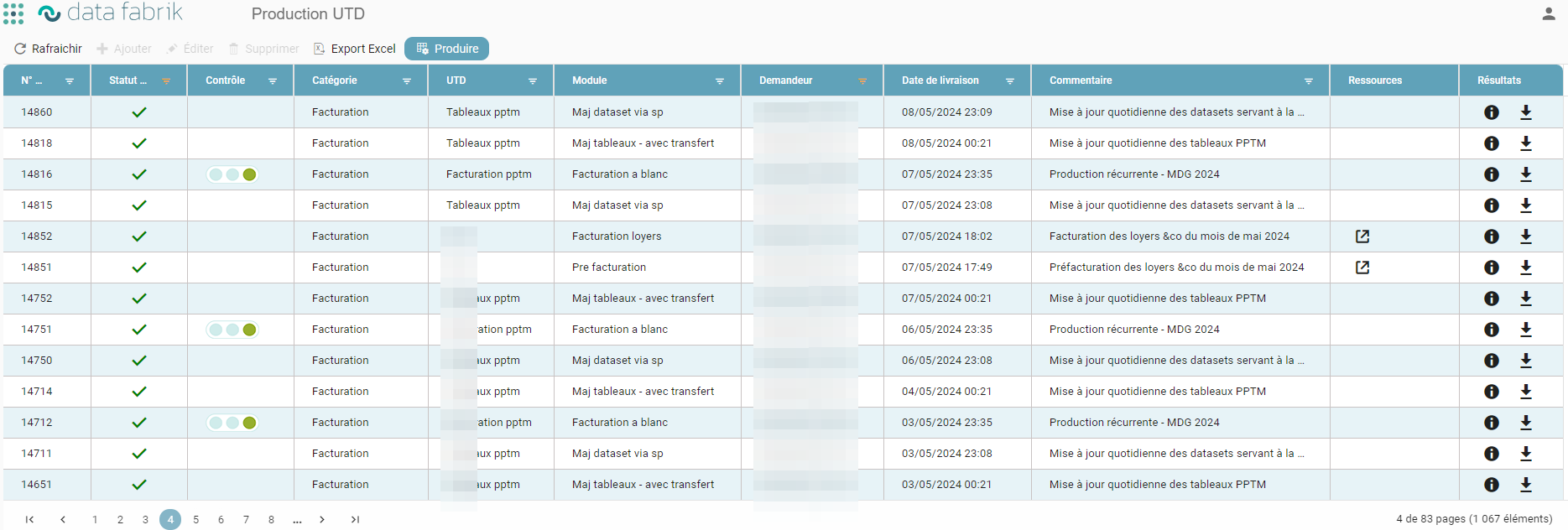
Actions on the table:
- Search by field: clicking the filter icon to the right of a field lets you enter what you are searching for
- Sort by field: clicking a field's label sorts the rows by that field. Ctrl + clicking a field's label lets you combine up to 3 sort levels.
- History: at the bottom of the screen, the numbers give access to more or less recent production runs
Actions on a production run:
- Control: Data quality indicators are represented using a « feu tricolore » (traffic-light) system, letting you check the overall quality of the produced dataset.
- Resources: gives access to the input files that were uploaded.
- Results: gives access to the production run's information and lets you download its output files
Production run status:
- Production completed
- Production stopped: rules allowing processing to be deliberately interrupted can be built into the module in order to stop the production run. In this case, the request returns a « stop » status. You can view the results that led to the production being stopped by clicking the stop icon
- Production not completed: view the production run's information for more details
- Production awaiting execution: waiting for an available server or for its scheduled execution time
- Production in progress
- Production canceled: the request was canceled before execution
Controls
By clicking the traffic-light icon, users can view the indicators related to the quality of the dataset:
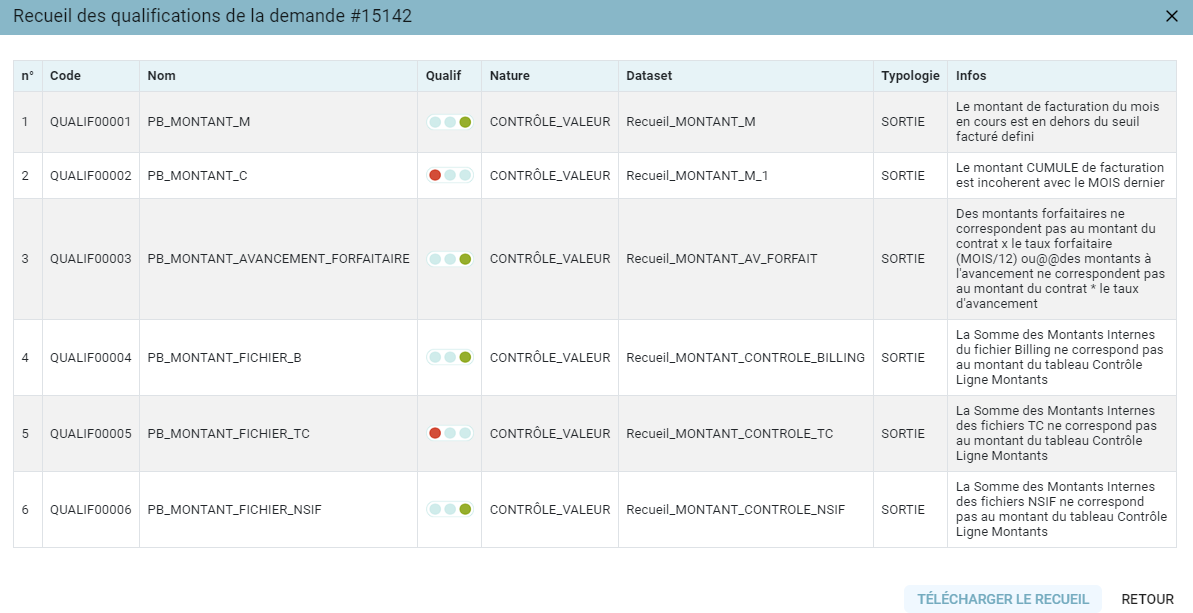
- Red: Very poor quality (e.g., completeness issue, missing data)
- Orange: Average quality (e.g., data freshness issue)
- Green: Satisfactory quality – All data is of good quality
Actions:
- Download report: downloads the file detailing these errors
- Back: returns to the tracking screen
- Close (X): returns to the tracking screen
- "Escape" key: returns to the tracking screen
Comment
Comments can be edited directly from the grid. Double-clicking a cell in the Comment column opens a popup for viewing and editing the existing text.
Users can either save the change, which will be immediately reflected in the grid and saved to the database, or cancel to exit without any change.
Resources
By clicking the resources icon, users can view the input files that were uploaded:
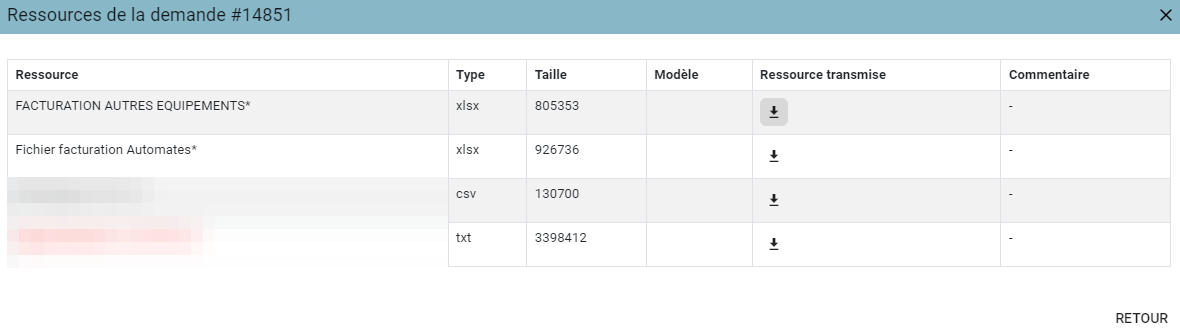
Actions:
- Resource submitted: downloads the file detailing these errors
- Back: returns to the tracking screen
- Close (X): returns to the tracking screen
- "Escape" key: returns to the tracking screen
Request status
By clicking the stopped-request icon, Orkestra displays the controls that led to the production run being interrupted. It is also possible to download the report of blocking issues.


Actions:
- Download report: downloads the detailed file of blocking controls
- Back: returns to the tracking screen
- Close (X): returns to the tracking screen
- "Escape" key: returns to the tracking screen
Results
Information
By clicking the information icon, users can view information related to the request's production run:
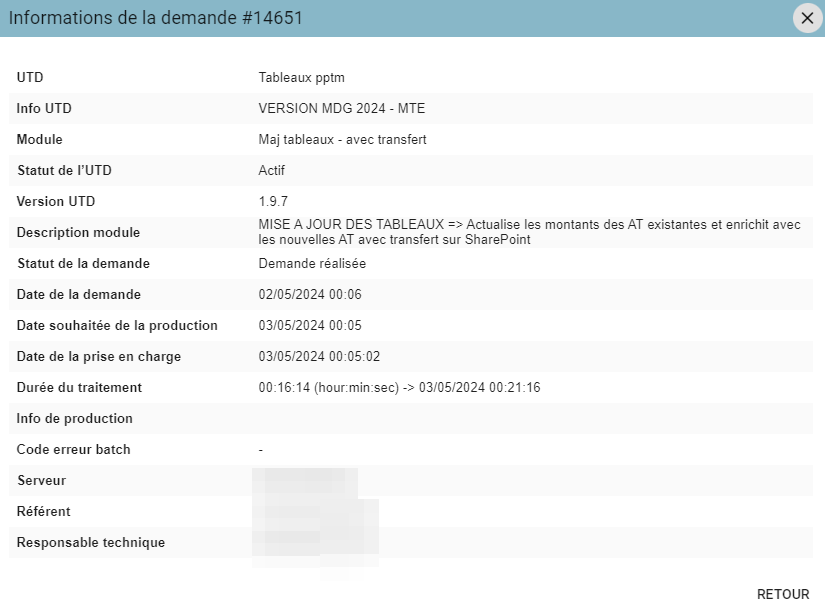
Actions:
- Back: returns to the tracking screen
- Close (X): returns to the tracking screen
- "Escape" key: returns to the tracking screen
Download
By clicking the downloads icon, users can download the output files:

The files will be downloaded as a .zip folder named after the request number.
Production failure
The button in the « Résultats » (Results) column displays a popup showing detailed information about the production run. It lets you identify which production step (called a Batch) failed, via the « Info de production » (Production info) field:
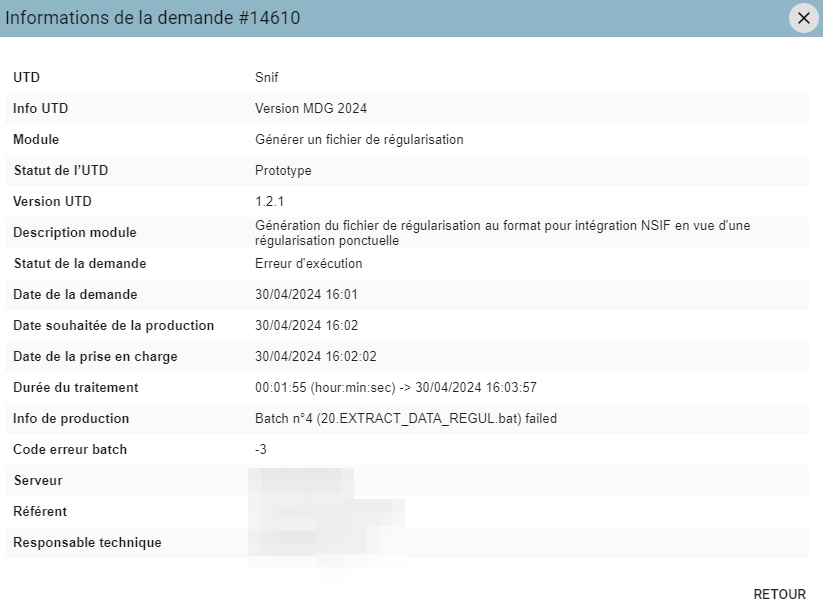
Diagnostic assistance:
| Workflow | Pre-diagnosis | Recommended business action |
|---|---|---|
| 00_A_EXTRACT_QUALIF | Technical issue with the application | Contact support |
| 01_A_EXTRACT_PARAM | Non-compliant file format (columns, etc.) Non-compliant file name Non-compliant data | Check that the input files comply with requirements (template file available) Retry |
| 02_A_EXTRACT_DATA | Non-compliant data | If the module requires Excel input files: check that they comply with requirements (template file available) Retry |
| 03_A_CONSOLIDATE_DATA | Technical issue with the Application or Server | Contact support |
| 04_A_ALIM_QUALIF | Blocking controls on data quality (X) | Download the results file showing the errors. Fix them (check compliance, template file available) Retry |
| 05_A_PROD_ETQ | Technical issue with the Application or Server | Contact support |
| 06_A_RESTITUTION | Technical issue with the Application or Server | Contact support |
| Other | — | Contact support |
For details about the production failure, check the Log_production_UTD.xlsx file in the log folder of the downloaded production results, if the UTD is eligible. You can also check the UTD Logs page under the "Supervision" tab if your permissions allow it.
Recovering failed environments
UTD menu under Supervision, containing the Journaux (Logs, formerly UTD Logs) and Suivi (Tracking) submenus.
The Tracking screen displays the most recent UTDs in error, whose environments can be downloaded directly from the platform.
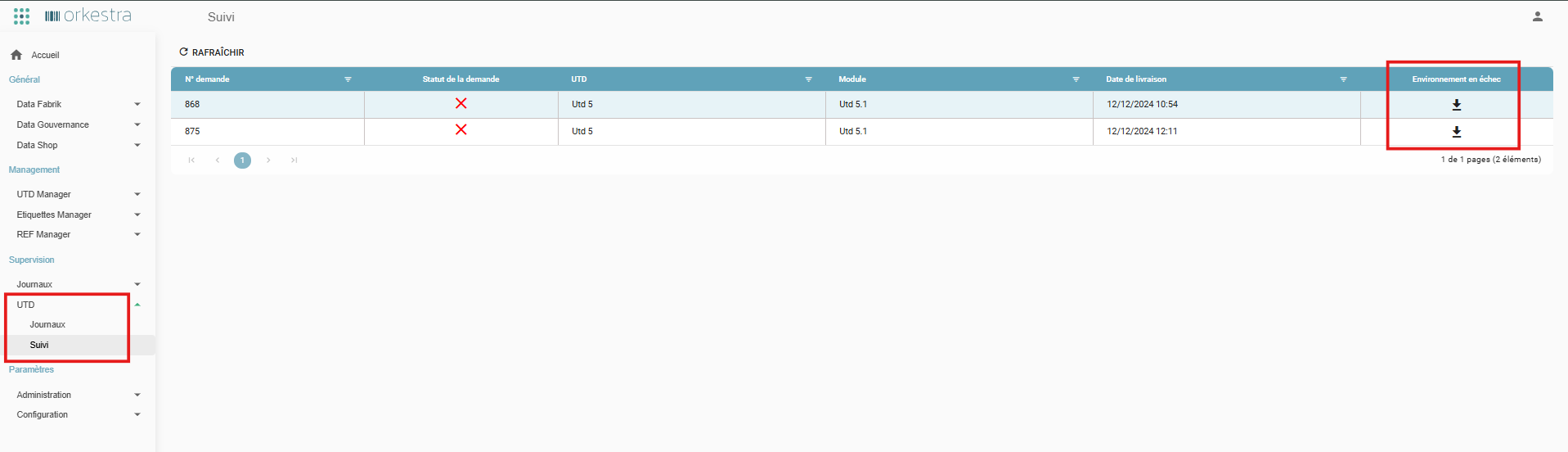
This feature requires configuration settings in the WebApi's appsettings.json.
KeepClientDemandeFolderOnFailed:true— existing parameter; in this case, the failed environment is kept on the server. New parameter:GetEnvironmentOnFailed.GetEnvironmentOnFailed:true— the request's environment folder is then zipped and uploaded to Orkestra.GetEnvironmentOnFailed:false— nothing further is done.KeepClientDemandeFolderOnFailed:false— the failed request's environment folder is then deleted.GetEnvironmentOnFailed: not taken into account in this context.
Failed environments remain on the platform for a limited time, 10 days by default. This duration can be configured in the appsettings.json file via the RetentionTimeForFailedFiles parameter.
Production calendar
Calendar
UTD production calendar screen:
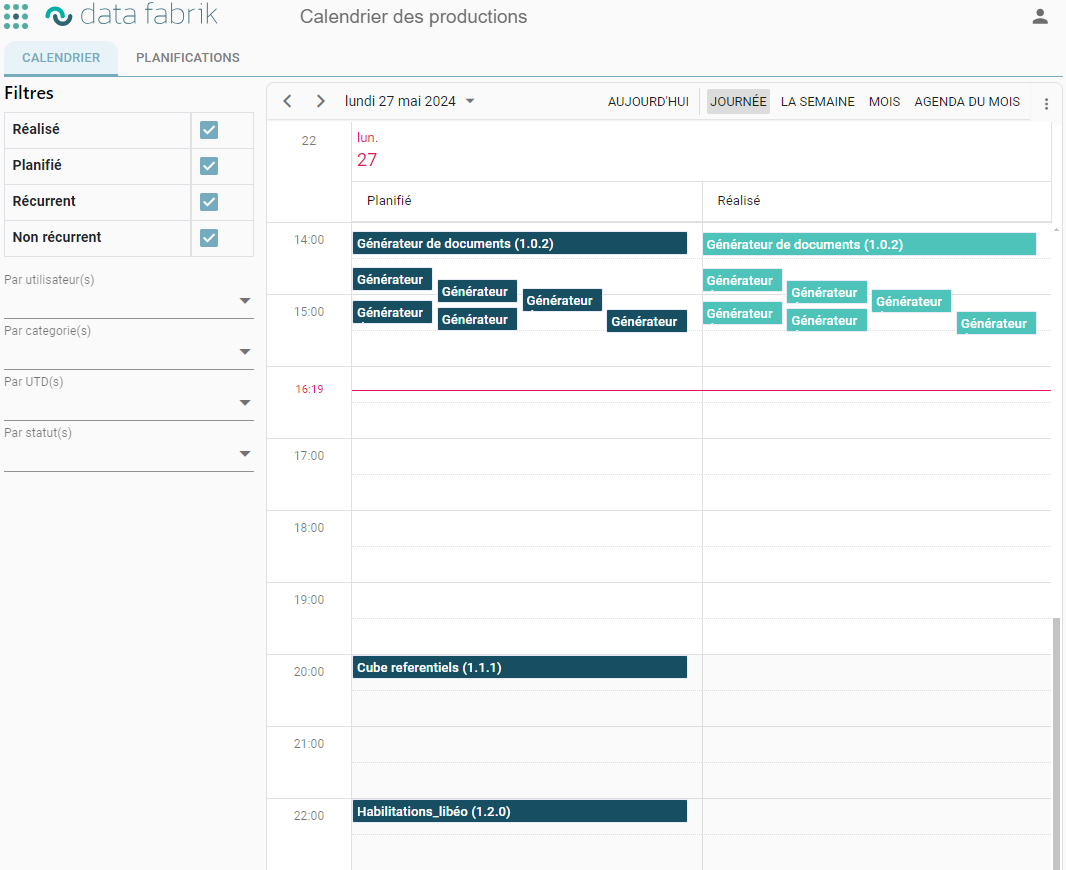
Filters:
- Completed / Scheduled: lets you display only the calendar of scheduled requests, only completed requests, or both.
- Recurring / Non-recurring: lets you filter requests based on whether they come from a recurring schedule or not.
- By user(s) / By category(ies) / By UTD(s) / By status(es): lets you display only the requests matching the selected criteria.
This calendar can be displayed in the following formats:
- list: Today, Agenda
- calendar: Day, Week, Month, Month agenda
Schedules
UTD recurring schedules screen:
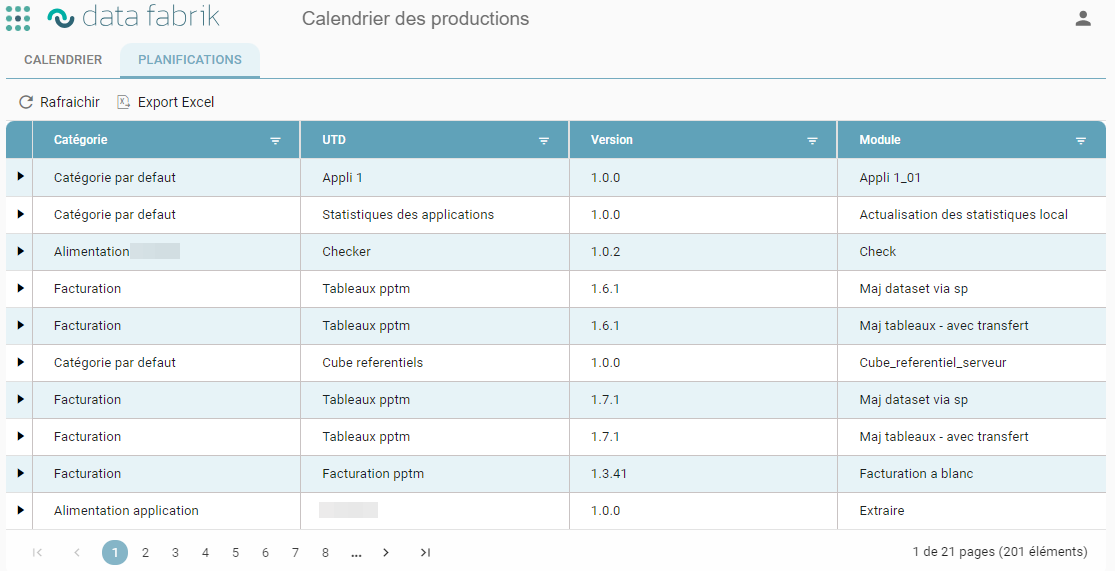
General actions:
- Refresh: updates the table
- Export to Excel: exports the table (with any applied filters) to Excel
By expanding a UTD module's schedule, you can manage all schedules associated with that module:
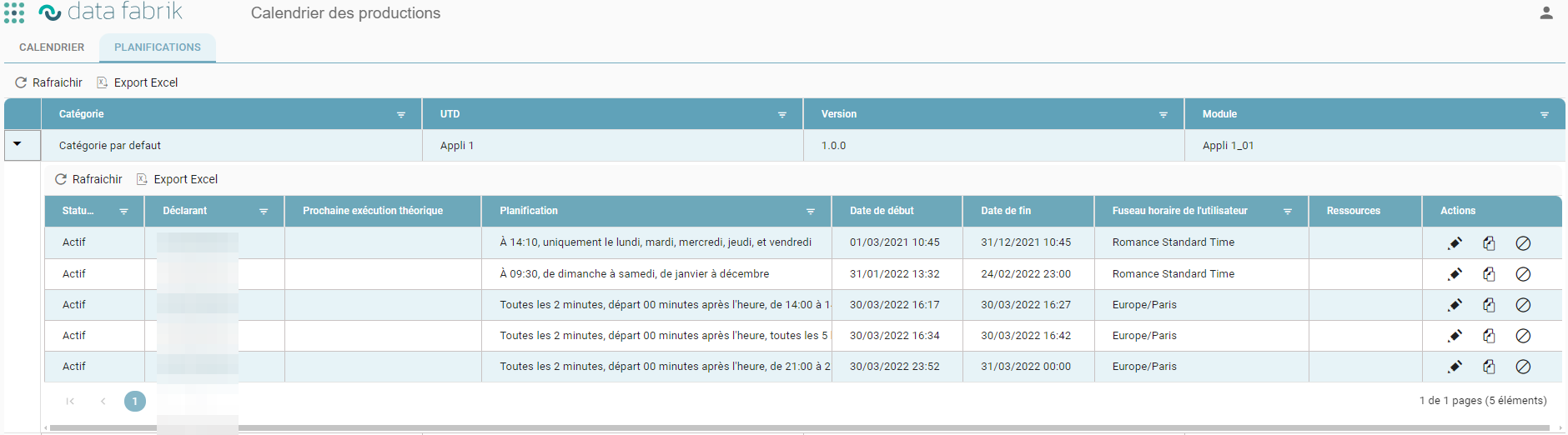
Actions:
- Edit: modifies the schedule
- Duplicate: duplicates the schedule
- Cancel: cancels the schedule
Editing
By clicking the edit icon, users can display the scheduling popup:
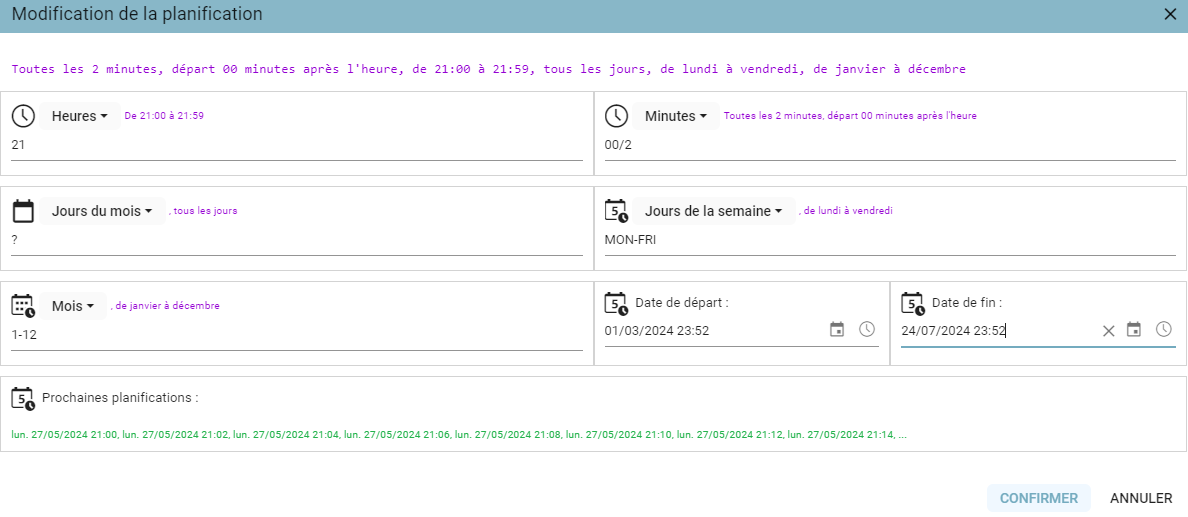
Actions:
- Confirm: confirms the schedule update
- Cancel: returns to the tracking screen without saving changes
- Close (X): returns to the tracking screen without saving changes
- "Escape" key: returns to the tracking screen without saving changes
Duplicating
By clicking the duplicate icon, users can display the scheduling popup:
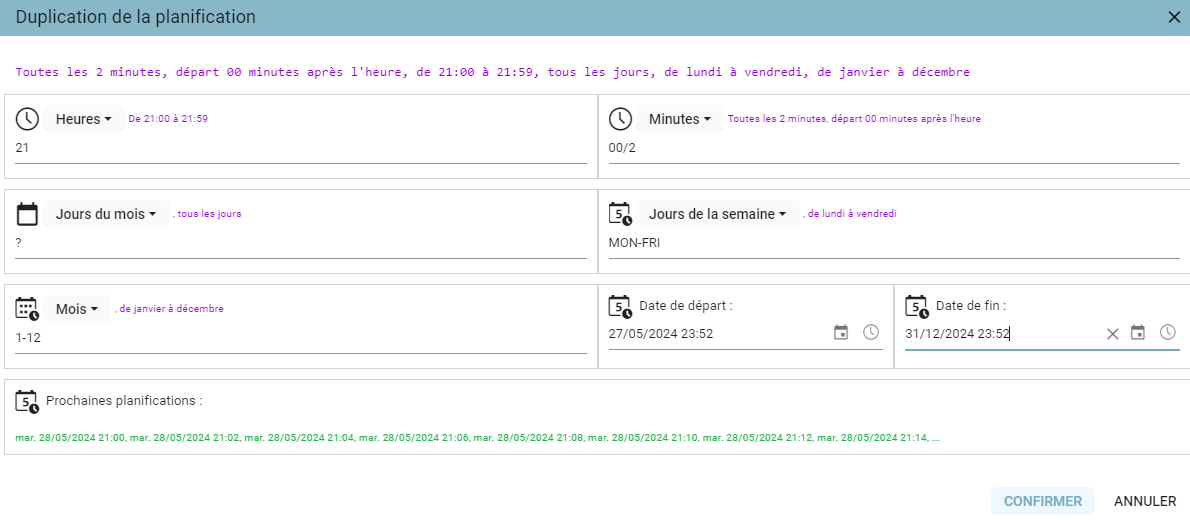
Actions:
- Confirm: creates the new schedule
- Cancel: returns to the tracking screen without duplicating the schedule
- Close (X): returns to the tracking screen without duplicating the schedule
- "Escape" key: returns to the tracking screen without duplicating the schedule
Canceling
By clicking the duplicate icon, users can display the scheduling popup:

Actions:
- Confirm: deactivates the schedule (cancels the next associated request)
- Cancel: returns to the tracking screen without deactivating the schedule
- "Escape" key: returns to the tracking screen without deactivating the schedule
Comments
In the UTD Production screen (Data Fabrik > UTD Production), users can add multiple comments to a production run, regardless of its status.
A comment icon is displayed at the end of each row in the Results column. Clicking this icon opens a popup listing all existing comments, including their author and creation date.
An input field lets you add a new comment. Each comment is saved separately and cannot be edited once entered.